Summary: In this blog, we will discuss teh secure and efficient way to export Outlook contacts. If you are among those who want to export Outlook contacts to Excel file, then this blog is for you. Read the complete post and export contacts from Outlook to Excel file.
Outlook is the first choice of every individual and personal user for email management. With time, you have saved multiple contacts on your account. However, sometimes became necessary to send or move those contacts to other programs or users. In that situation, you need to export Outlook contacts to Excel file. This will save you time and you can easily access them on other email applications as well.
How to Export Contacts from Outlook to Excel Manually?
Outlook offers an option to import or export data file. Here we will learn the manual approach to copy Outlook contacts to Excel file. Let’s begin.
1. Open your Outlook application on your sysetm.
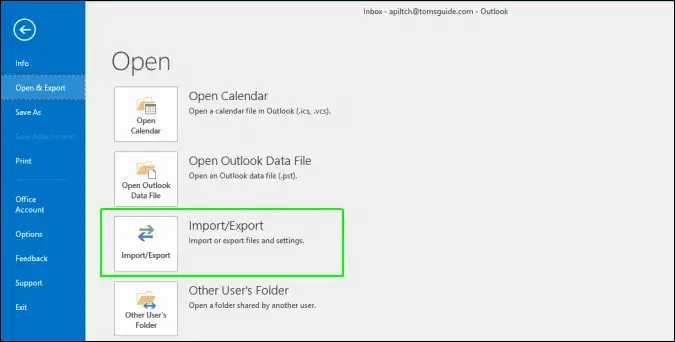
2. Go to File >> Open&Export >> Import/Export.
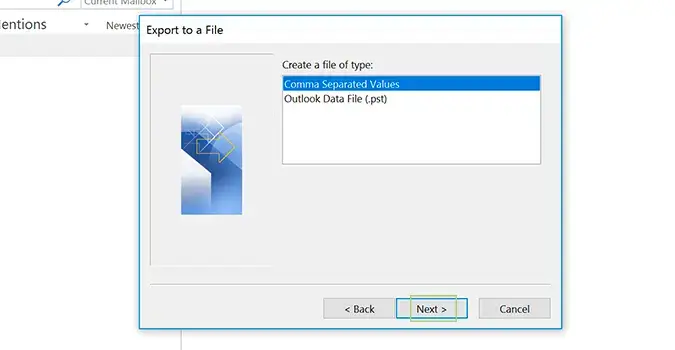
3. Export to a File >> Comma Separated Value.
4. Now select the contact folder to export.

5. Browse the location to save the exported data file and hit the Next button.

6. Now locate the file and right-click >> Open With and choose the Excel Sheet option.

Done! Here complete the process in few simple clicks. However, sometimes import export option greyed out Outlook, indicating that the export process cannot be completed at that moment. If you face such a situation, then you can use the automated tool to transfer contacts from Outlook to excel file.
How to Transfer Contacts from Outlook to Excel File?
To export Outlook Contacts to Excel File instantly without any hassle, then SysConverter offers a solution for you. You can use this secure and efficient Outlook Converter software will export your contacts list into Excel sheet in a few simple clicks. First, you need to convert Outlook to CSV It will automatically detect your Outlook profile and load its data. After that select the CSV option and contact folder to export. After that, you open the file in an Excel sheet and it’s done.

Steps to Export Outlook Contacts to Excel File
1. Run the tool on your Windows.
2. Select your configured Outlook profile.

3. Click on Export and choose the CSV option.

4. Choose the Contact folder.

4. Browse the location and hit the Save button.

5. Locate the exported file and open with Excel.
Done! Here you copy contacts from Outlook to Excel file in a few simple clicks. With this tool, there are various additional features, including –
- Maintain email folder and sub-folder hierarchy and structure.
- Preserve data integrity while exporting.
- Allow to extract email addresses from Outlook to Excel with ease.
- Simple and user-friendly interface for both technical and non-technical users.
- Advance filter options to export selective contacts only.
- Using this tool you can also export Outlook emails to PST and many other file formats.
- Support Outlook 2021, 2019, and all other versions.
Conclusion
Here in this blog, we discuss the two workable solutions to export Outlook contacts to Excel file. Try both the solution and save your contact data without any hassle. Hope this article will be helpful and that you were able to transfer contacts from Outlook to Excel file.