Why is my import export greyed out in Outlook? How do I fix import export option greyed-out issue in Outlook? Are you facing the same related query? If Yes, then nothing to worry about. There are multiple issues that cause this error. The main reason is that you might be using a trial or demo version of Microsoft Outlook.
However, we are going to discuss all the possible ways and solutions to fix the Outlook import export option greyed out or not working.
Outlook is one of the major parts of communication at the business level. Most organizations prefer to use Outlook to manage their emails. Even though with advanced feature Outlook still have some errors that can be faced by users. One such error is the “Import/Export option in Outlook is unavailable” which is not specific to any version. You can face this issue in any of your application versions.
Do you facing an “Import/Export option Greyed Out Outlook” error, then you must be using an older or demo version of Outlook. To solve the error, upgrade your older version to a new one or purchase the licensed one. If you still facing the issue, then you need to contact to Microsoft technical team
How to Fix the “Import Export Option Greyed Out in Outlook” Error
If your Outlook Import Export tool not working or grey out, then this restricts you to export your mailbox data into the Outlook data file. To secure your Outlook data on your system, you need to fix this error as soon as possible. In this write-up, we will discuss the best workable solution to this error. Stay with us and know the step-by-step process to solve this error.
How to Fix the “Outlook Import Export Option Greyed Out” Issue
There are various reasons that can cause the Import/Export tool grey-out issue. Let’s check what are they and the way to fix them.
1. Setting is Disabled By Admin
If you are using Outlook in the business environment and due for some reason Admin disables the Outlook setting policy. In this situation, to fix the error you need to ask your admin to enable the setting features and solve the Outlook Import/Export tool is unavailable” error.
2. Incorrect Language Settings
Among many other reasons for the error, an incorrect language error can be the “Import/Export option greyed out Outlook” error. Check out if your Outlook and your Windows have the same language if not then change your system language setting same as your Outlook application. For that go to – Control panel > Region > Administrative > Language for non-Unicode programs.
3. Outlook is Not Updated
If you are using an old version of Outlook, then you can face this error. To solve it firstly upgrade your Outlook application. After that, you will be able to find the Import/Export tool back in your interface.
4. Using Demo Version
One of the reasons to face the “Import/Export Option Greyed Out Outlook” error can be the demo version of the application that you are currently using. If you still use the demo version and want to use Import/Export tool, then you need to move to the licensed version of Outlook.
If still, you are not able fix the “Import and Export Option in Outlook is Unavailable” issue and want to export your mailbox data, then you can use the automated tool to save your Outlook emails on hard drive and any other storage device.
Outlook Import Export Option Not Working – Alternate Approach is Here!
To save all your Outlook emails when Import/Export tool is unavailable, you can use the Outlook Converter software. This utility will export all the data from your Outlook mailbox and save them in different file formats. This utility also allows to save emails from a specific date, time, subject, name, etc.
Additionally, you can also use this tool and transfer Outlook emails to Gmail and various webmail accounts in a few simple clicks. With its easy-to-use interface, you can swiftly export emails from Outlook without any hassle.


Guide to Export Outlook Emails in Absence of Import/Export Tool
Follow the instructions and save your Outlook emails without facing any errors.
- Install and Run SysConverter for Outlook on your system.
- Now select Open >> Desktop Email Client >> Outlook Account >> Configured Outlook account.
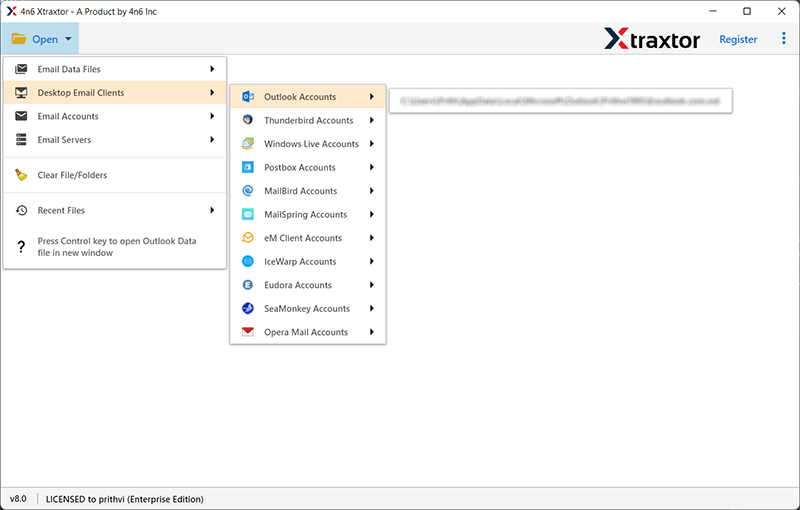
- Here you can view your emails from your Outlook mailbox.

- Now click on Export and choose PST format.

- If you want to export selective email folders, then you can choose them.

- At last, browse the targeted location and hit on the Save button.

Done! Here completes the process and you export emails while you are facing the “Import/Export Tool Greyed Out Outlook” error.
Feature of Automated Tool
There are various outstanding features of the software, some of them mention here –
- Save Outlook Emails Directly: The tool automatically detects the configured Outlook account from your system and saves all mailbox data in a few simple clicks. It will export Outlook data into various file formats.
- Email Filter Options: With this software, there are various advanced filter options that help in specific conversions. One can apply filters such as – to, from, cc, bcc, time, date, name, subject etc.
- Different Saving Options: Using this tool you can export Outlook emails to Excel, PDF, HTML, and other file formats. All these options will be present in a single interface, thus making the export process into different files.
- Easy to Use: This utility is designed with a simple user interface so that even novice user can export their Outlook emails with ease.
- Windows-Based Utility: This automated tool works on all Windows OS systems without any hassle. You can run this tool on Windows 11, 10, 8, Vista, XP and all other previous versions.
Conclusion
In this blog, we discuss the common Outlook error that causes a halt while exporting emails from Outlook. Here we discuss the cause of this error and mention different solutions to fix the “Import/Export option Greyed Out Outlook” error. Along with that, we mention an easy way to save Outlook emails when the Import/Export tool is not available. You can use the given solutions to fix the Outlook error and also export your outlook emails with ease.