This article consists of the best way to transfer emails from Google Takeout data file to Outlook client. If you are looking for an instant and secure way to import your Google Takeout data, then you are at the right place. Read the complete article and import Google Takeout to Outlook with complete data.
Google Takeout is a useful service that allows you to download data from Gmail and other Google services. After downloading your mail account data using Google Takeout you will receive a zip file and after extracting it you will get an MBOX file. Now the question is how to import this data file to another email client. Well before that, you must know that there is no manual way to import MBOX to Outlook interface.
Worried about Google Takeout to Outlook migration? Don’t worry in this article we will walk you through the complete process of importing Google Takeout to Outlook data without any hassle.
Why Need to Transfer Google Takeout Data to Outlook?
There can be several reasons why users need to transfer Google Takeout to Outlook –
- Many users who wish to use the Outlook email client due to personal and corporate requirements need their data. Thus they need to import Google Takeout to Outlook application.
- Importing Google Takeout file to Outlook, allows you to access your data offline.
- After migration, you will have your mailbox data backup which will be helpful in critical situations.
- Since Outlook is integrated with many Microsoft Office applications, many users prefer it for their email management.
- Google Takeout data file contain your important data, thus importing it to Outlook improves the data security.
How to Download Data Using Google Takeout?
Note: If you already have a data file, then skip the steps and move ahead and directly export the file to Outlook. If not, then follow the given instructions and download your Google Mail data or your local devices.
- Login to Google Takeout using your credentials.
- First, click on Deselect All and then choose the Mail option.
- Select “Send download link via email”, choose .zip as the file type and click on the Create Export option.
- After that, you will receive an email that contains the link for your mailbox data.
Note: The timing of the downloading process, depends on the amount of data you want to save. It will take a few days depending on the size of the data.
How to Import Google Takeout File to Outlook?
Try the Google Takeout Converter tool and transfer emails from Google Takeout file to Outlook without any hassle. This utility will efficiently convert Google Takeout to PST and then using the Import/Export tool you can easily upload the data file to Outlook. With its simple and user-friendly interface, it can be easily operated by both technical and non-technical users.
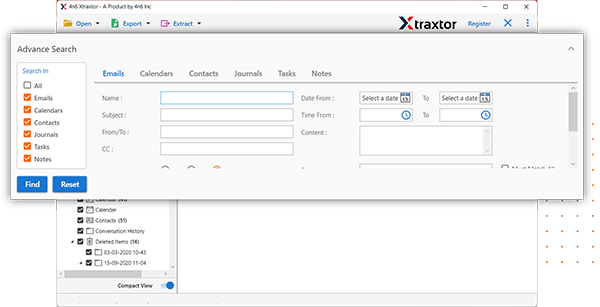
Additionally, using this tool, you can also extract attachments from Google Takeout file along with email addresses, contacts and other data. There are various filters including to, from, cc, bcc, name, date, time, etc. for selective email import. It also offers a demo version of teh software to know it’s working.

Steps to Import Google Takeout to Outlook –
- Launch the SysConverter for Google Takeout software on your system.
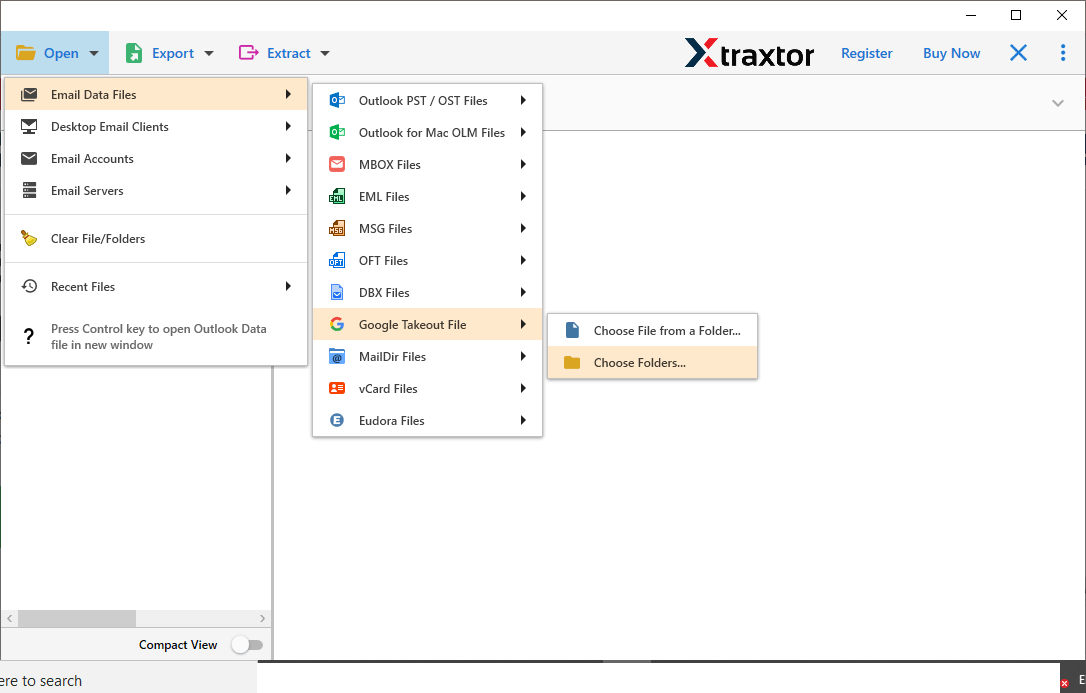
- After that, select Open >> Email Data File >>Google Takeout File >> Select File or Folder.
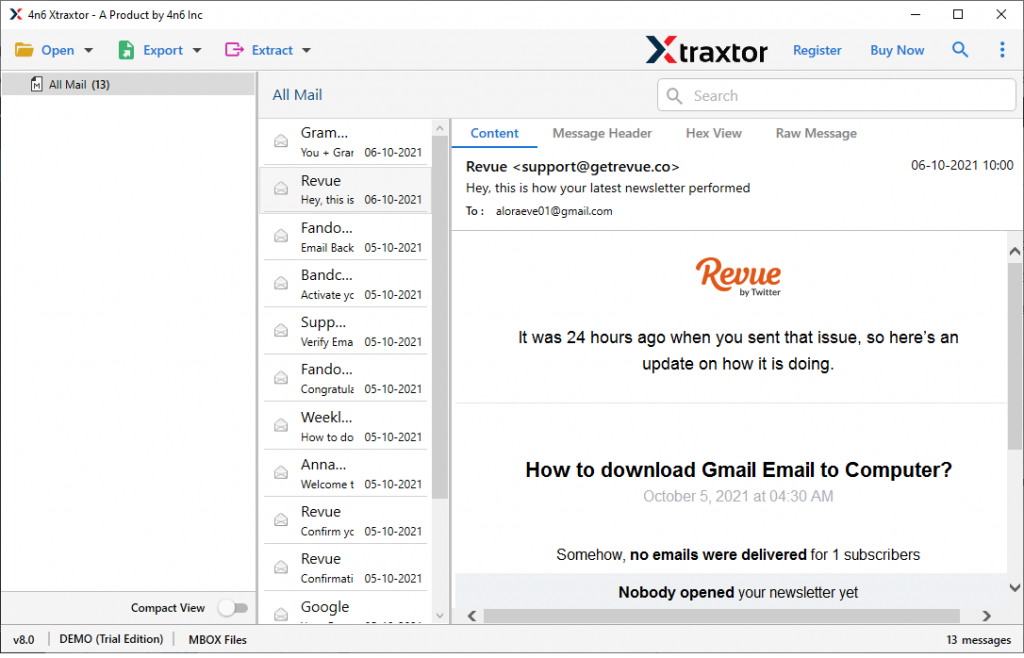
- Here you can view your data file data before importing them.
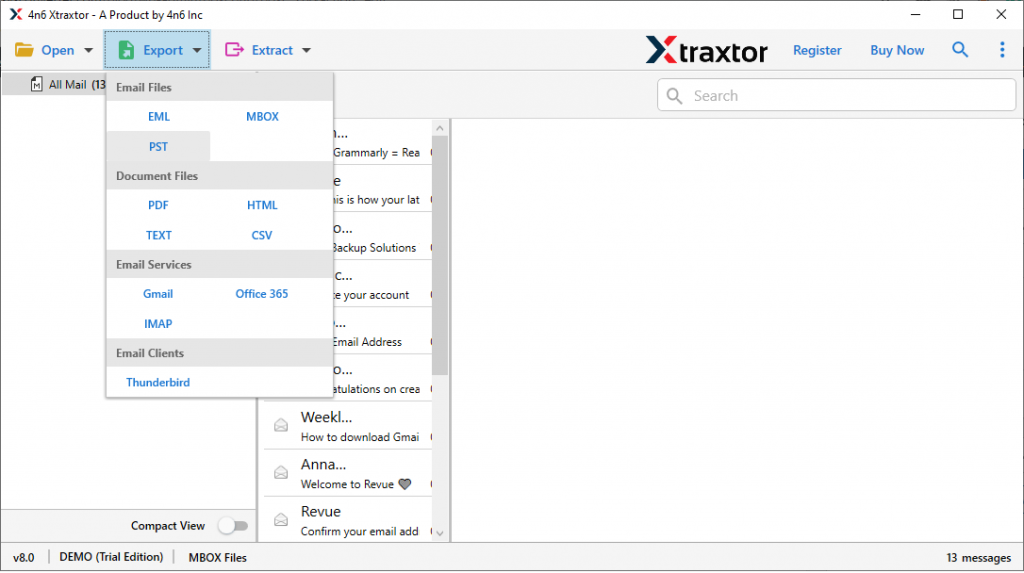
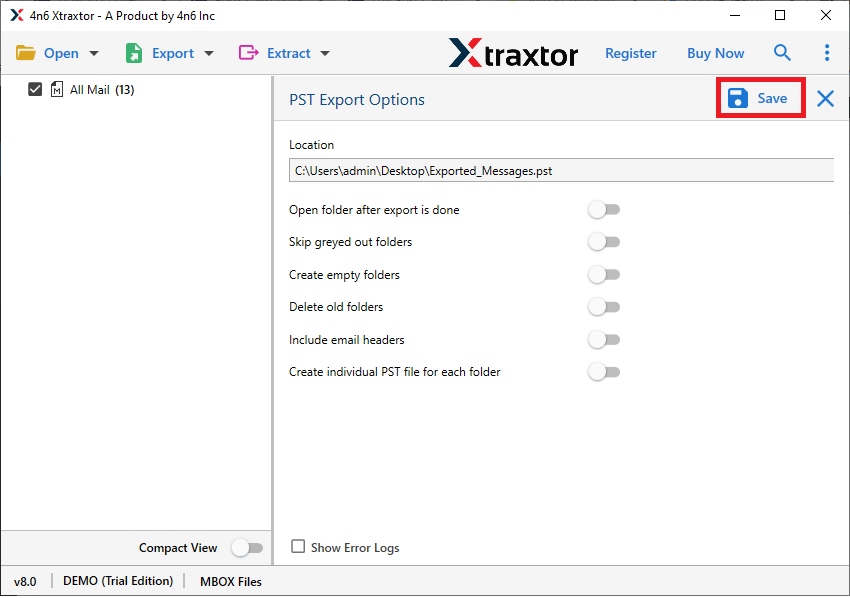
- Then, click on Export and choose the PST option.
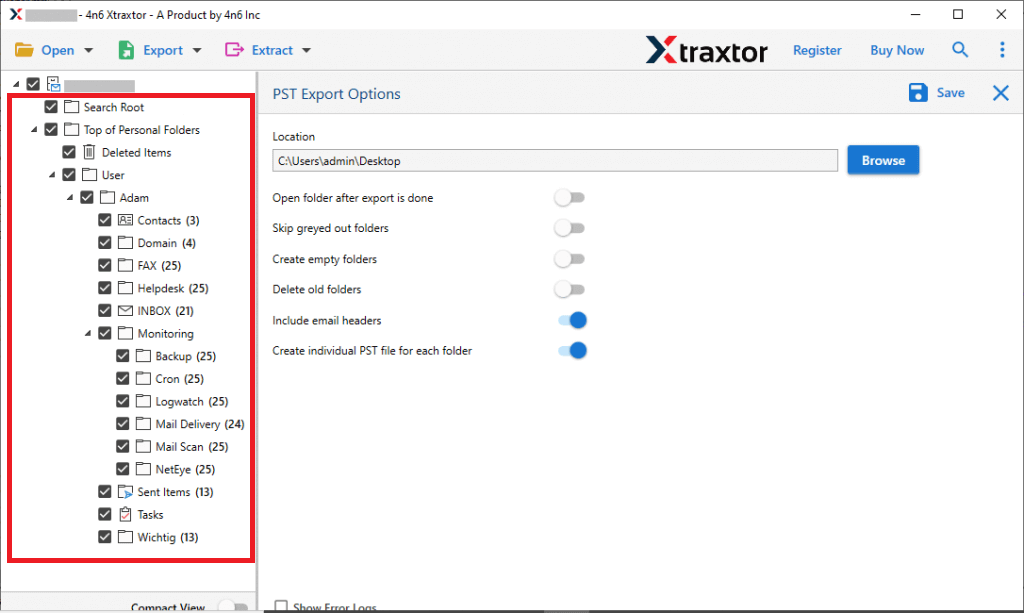
- If you want to select email folders, then you can choose the important one.
- Apply the filters for selective email import.
- Browse the location to save the exported data file and hit on the Save button.
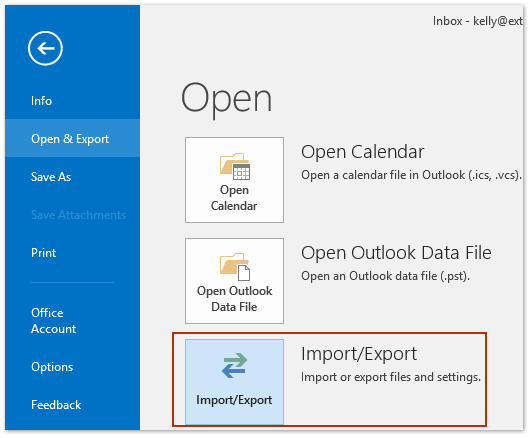
- Now in Outlook using the Import/Export tool, import the data file to the Outlook interface.
Done! Here you migrate Google Takeout file to Outlook in a few simple clicks.
Prominent Features of Google Takeout to Outlook Import Tool
- The software will efficiently import emails from Google Takeout file to Outlook without any hassle.
- Allows to import single and multiple data file in a single attempt.
- Convert Google Takeout to PDF, CSV, EML and other data file.
- Preserve email folders and sub-folders hierarchy and structure.
- Advance filters – to, from, cc, bcc, name, date, time, has attachments, etc.
- User-friendly interface for both technical and non-technical users.
- Using this tool, you can also import Google Takeout to Gmail and other file formats.
- Compatible with Windows 11, 10, 7, Vista, XP and all other versions.
Conclusion
Importing Google Takeout to Outlook is a secure and straightforward process with the right approach. Here in this blog, we discuss teh complete process to import Google Takeout to Outlook without losing your important data. Follow the steps mention in this blog and migrate your Google Takeout data to Outlook effortlessly.