Summary: Today in this article we will discuss the efficient and instant way to export Office 365 mailbox to CSV format. Read teh complete blog and convert Office 365 mailbox to CSV file in a few simple clicks.
Instant Solution: Try SysConverter Email Backup Tool and export emails from Office 365 mailbox to CSV file without any data loss. There are various advanced features that will make the export process an easy task to perform. USing this tool you can also backup Office 365 emails to PST and other file formats. Use the demo version of the software to analyse the working of the software.
Here a question arises – Does Office 365 export emails to CSV file? We will discuss the best way to export Office 365 emails to CSV file without any hassle. Before that let’s talk about the reasons for Office 365 to CSV export process.
Why Convert Office 365 Mailbox to CSV Format?
There can be various beneficial reasons to export Office 365 mailbox ro CSV file depending on user’s needs. Some of them are –
- Data Migration: After exporting Office 365 emails to CSV file, it is easy to transfer the data file to any mailing platform.
- Offline Access: After you convert Office 365 mailbox to CSV file, it is easy to access emails offline. You can open the CSV file in a compatible application to view the content.
- Backup Mailbox Data: After exporting Office 365 emails in CSV file, you have a backup copy of your mailbox data.
- Data Sharing: Sometimes, you need to share some data from your mailbox. After your export Office 365 mailbox to CSV file, it is easy to share the information with your colleagues or external person.
How to Export Office 365 Mailbox to CSV Format?
Use the SysConverter Email Backup tool and convert Office 365 emails to SV file in a few simple clicks. With this automated software, there are various advanced features that include – email filters, selective export, preview emails, saving exported data at desired locations and many more. Additionally, using this tool you can also backup Office 365 emails to PDF and other file formats.
With its simple and user-friendly interface, any novice user can operate the software and export Office 365 emails to CSV file. With its simple working it is easy to export data without any hassle and data loss. Ypu can use the demo version of the software to analyse its working before moving to licenced version.

Steps to Convert Office 365 Mailbox to CSV File –
Follow the instructions and export Office 365 mailbox to CSV format with complete data –
- Launch the software on your system.
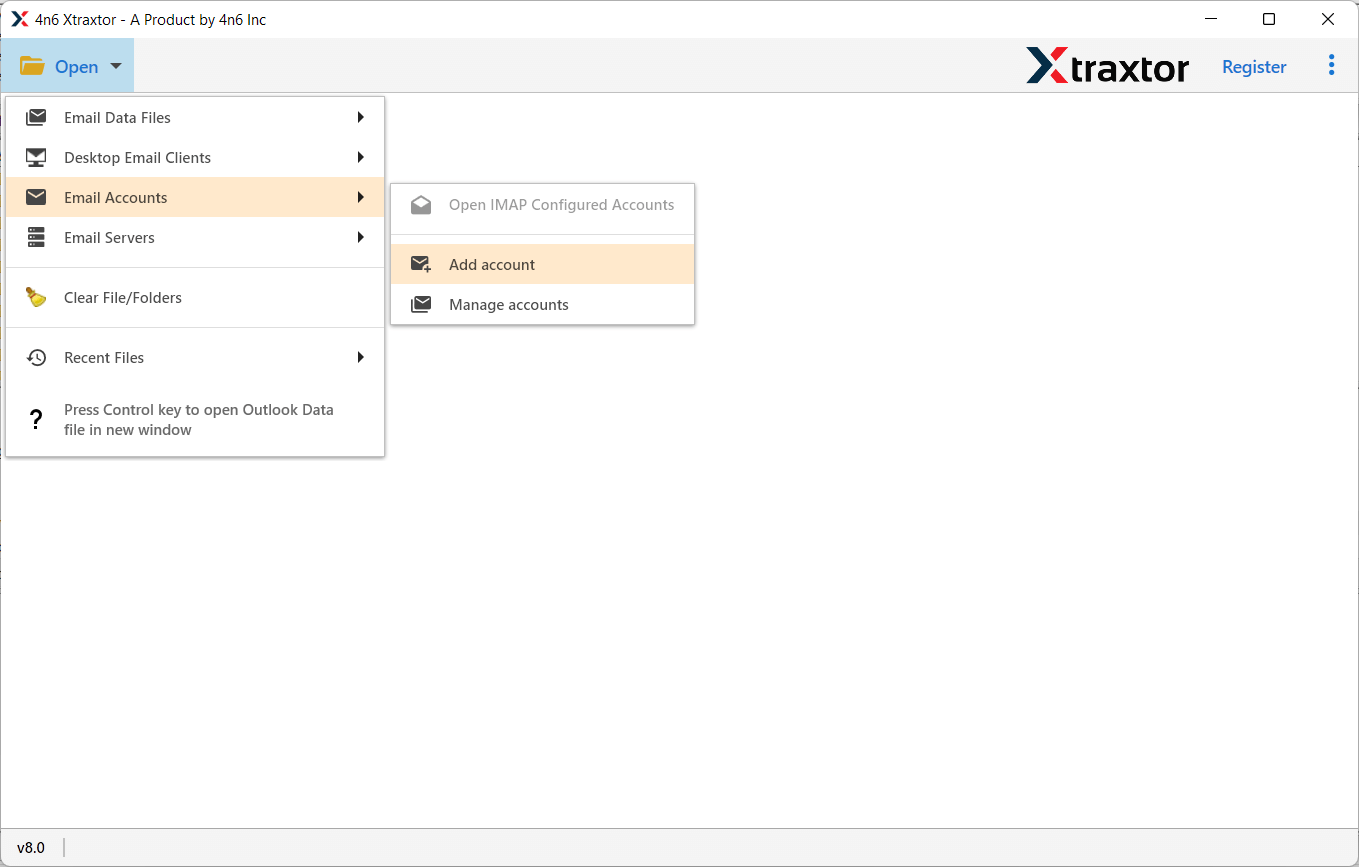
- After that, select Open >> Email Accounts >> Add Account.
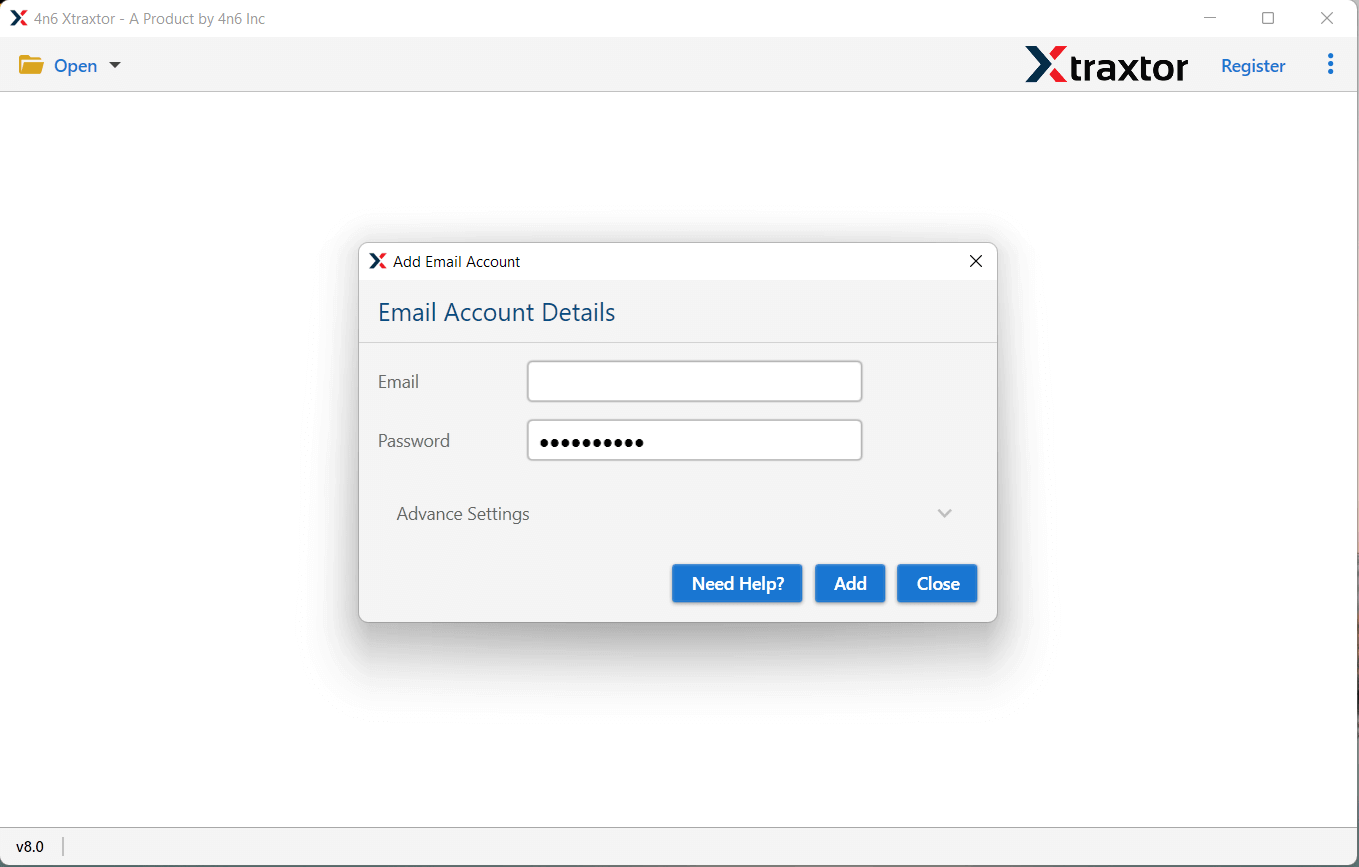
- Enter your Office 365 login details and hit on the Add button.
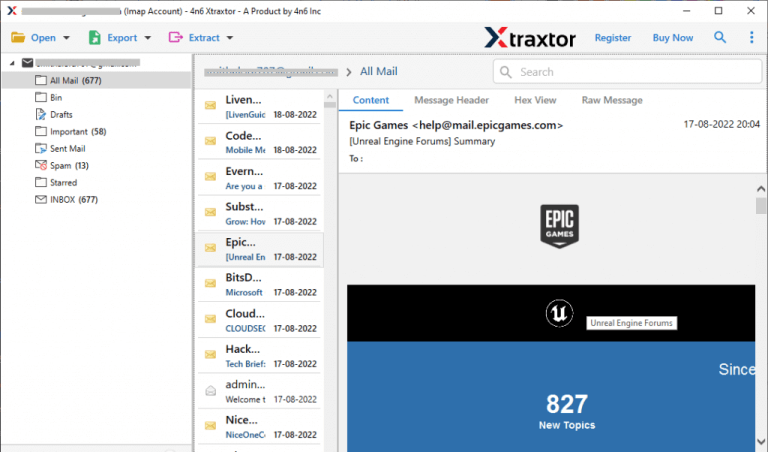
- Here you can view your mailbox data before exporting them.
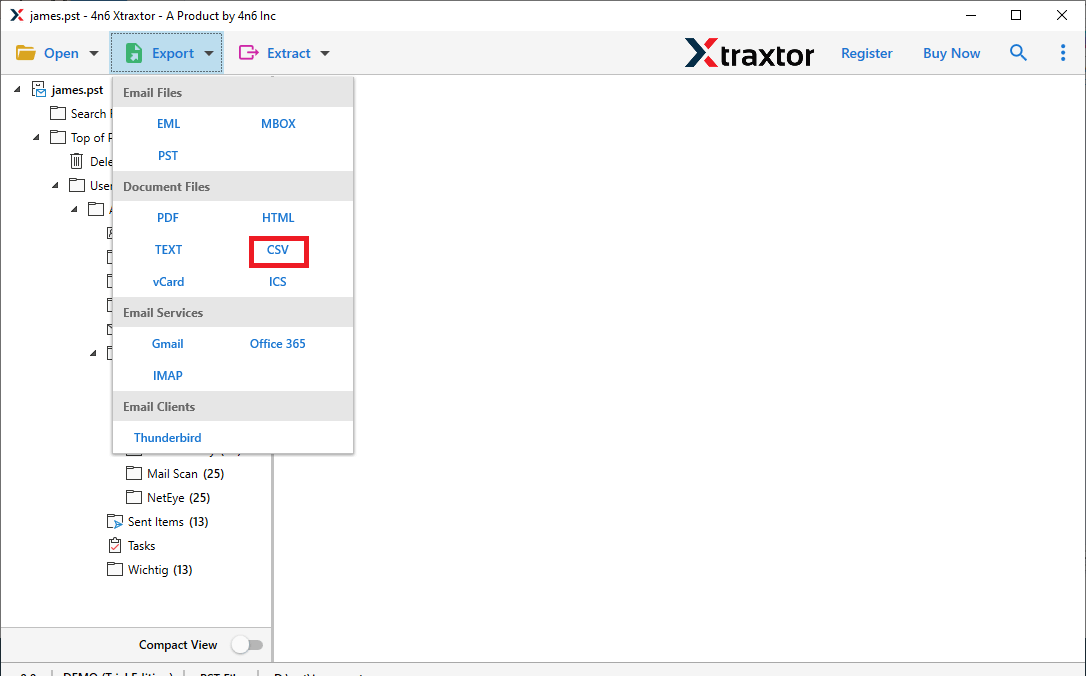
- Step 5. Click on Export and choose CSV format.
- Select the email folders that you want to convert.
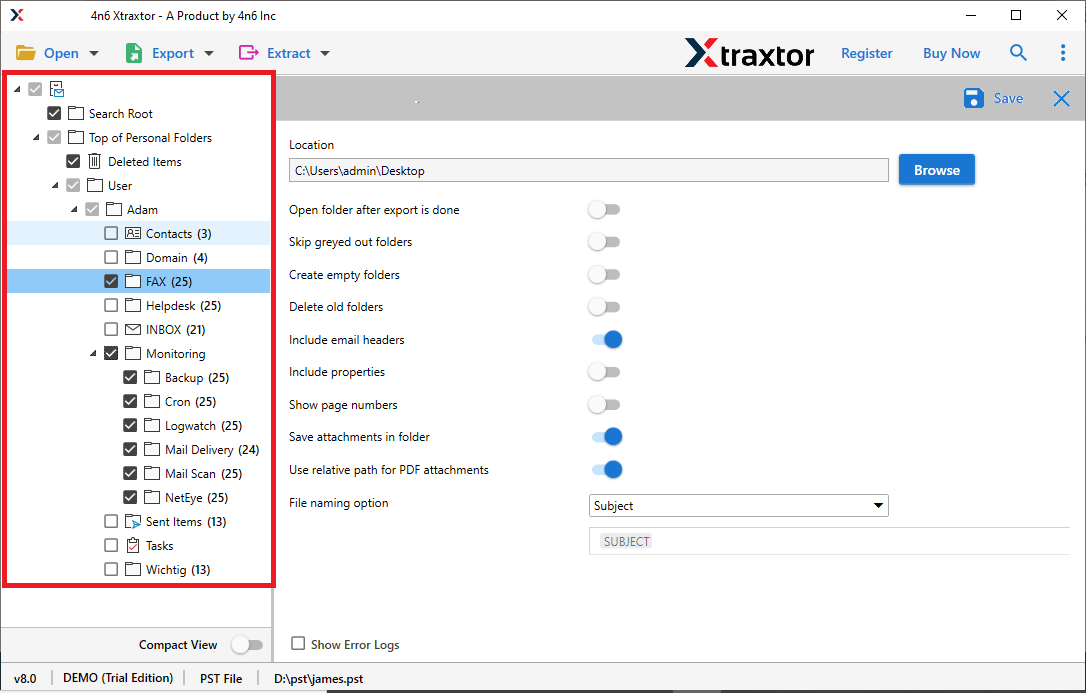
- Browse the targeted location and hit on the Save button.
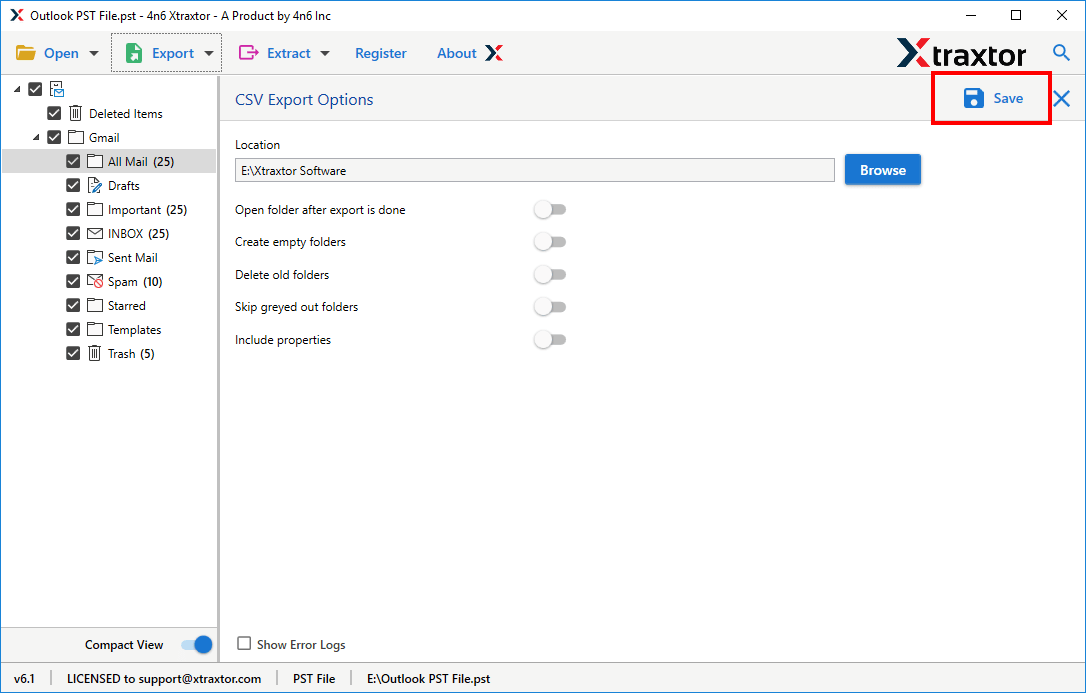
Done! Here you export Office 365 mailbox to CSV format in a few simple clicks without any data loss.
Why Use Automated Tool to Export Office 365 Emails to CSV File?
There are various prominent features of this tool that help in an efficient and secure export process –
- The tool swiftly export Office 365 mailbox to CSV fiel without any data loss.
- Maintain email folder and sub-folder hierarchy and structure after exporting the data.
- Advance filter options – to, from, cc, bcc, name, date, time, etc.
- Allow to export Office 365 emails to various file formats as well.
- Support all the latest or older versions of Windows OS system.
- This tool also export Office 365 emails to MBOX, EML and many other file formats.
- Preserve email key elements – sender info, inline images, attachments, signatures, hyperlinks, etc.
- Allow viewing mailbox data before converting them into CSV format.
- Offer a demo version of teh software to know it’s working.
- A secure and safe tool that doesn’t affect data integrity.
Conclusion
Today, in this post we discuss – How to Export Office 365 Mailbox to CSV file. We mention reasons to convert Office 365 emails to CSV file along with a secure way to complete the task. Try the mentioned approach and export emails from Outlook 365 mailbox to CSV file without any data loss.