Here in this post we will discuss the manuall free and automated way to move Gmail folders to another Gmail account. Read the post and transfer Gmail folders to another Gmail account in a few simple clicks.
Today each person holds more than one email account for their use. However, sometimes it became difficult to manage all the accounts. Therefore they look for a way to export Gmail folders to another Gmail account.
How to Transfer Gmail Emails to Another Gmail Account?
This manual approach will transfer emails and contacts from one Gmail to another Gmail account. Follow the given steps to move your email folders –
- Firstly, login to your Gmail account in which you want to transfer data.
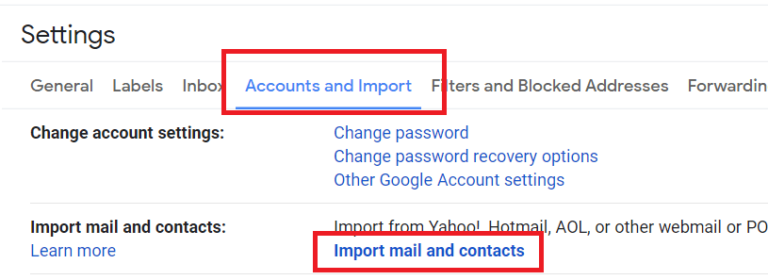
- Then, click on the Setting icon >> See All Settings.

- Under Account and Import label choose Import mail and contacts option.
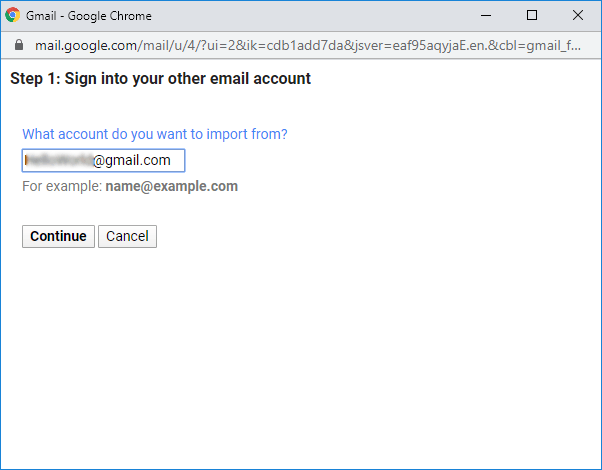
- Now, enter your Gmail id from which you want to transfer email folders and click on the Continue button.
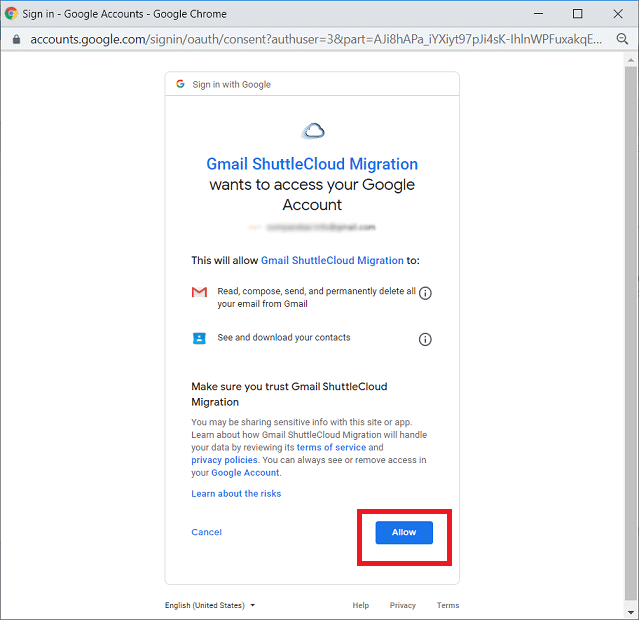
- Choose the account and click on the Allow button to give permission to Gmail ShuttleCloud Migration to read your data. Then close the pop-up Window.
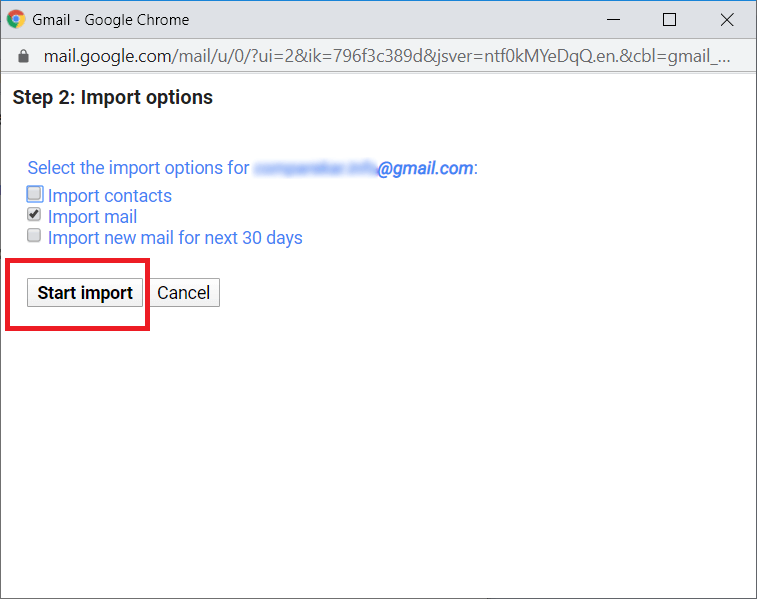
- Select the import option and click on the Start Import button.
- At last, click on the OK button to start the process.
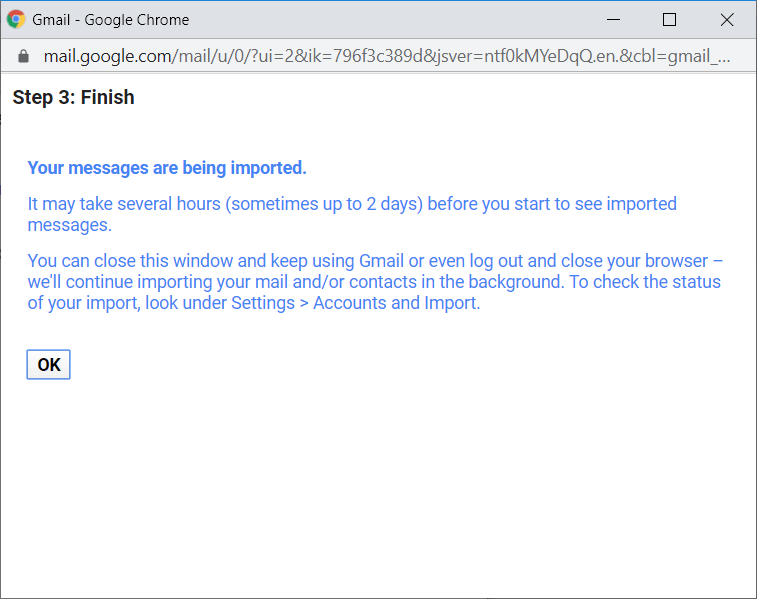
Note: It will take several hours and days to migrate Gmail to another Gmail account. After the process is completed you can access your data in one Gmail account. Although it is a free way to export Gmail labels to another Gmail, it has some limitations.
How to Transfer Email Folders from One Gmail Account to Another?
SysConverter Email Backup Tool is a secure and efficient tool to transfer Gmail folders to another Gmail account with ease. With its simple and easy-to-use interface, it is appropriate for both technical and non-technical users. This software will directly transfer emails and other data from one Gmail account to another without data loss. Moreover, there are various filter options – to, from, cc, bcc, name, date, time, etc.

Steps to Move Gmail Folders to Another Gmail Account –
- Launch the Email Backup Tool on your Windows OS system.
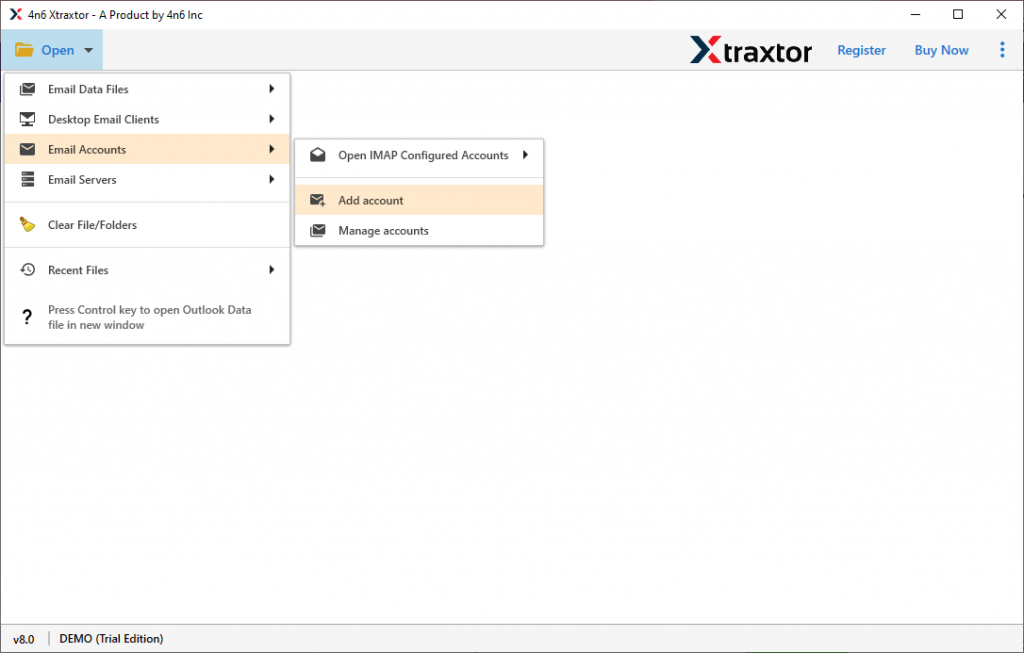
- Then, select Open >> Email Accounts >> Add Account.
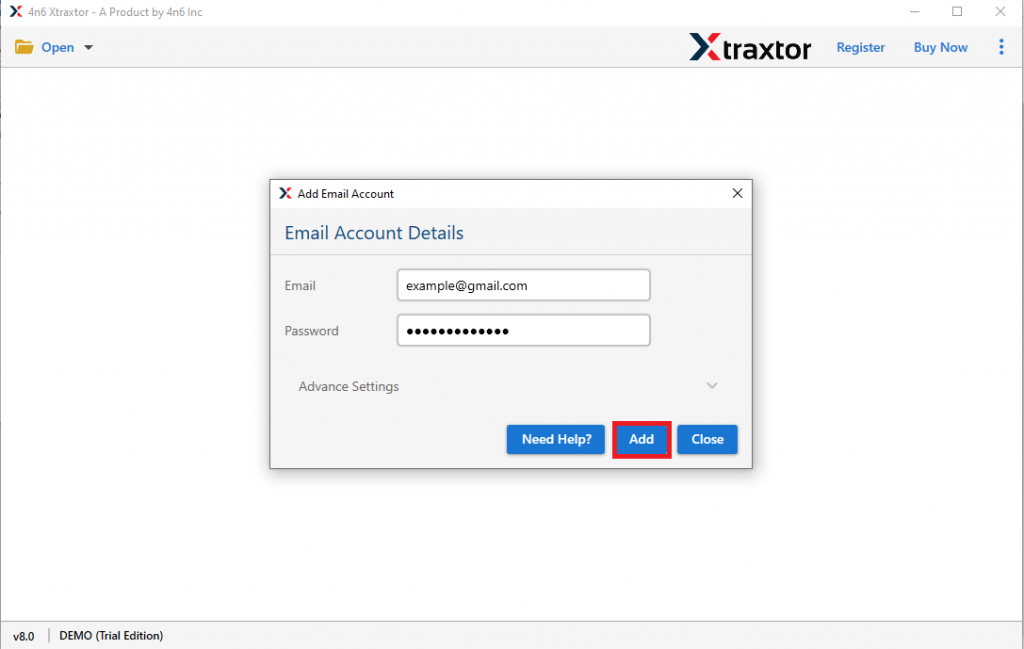
- Enter your Gmail login details (from which you want to transfer data) and hit on Add button.
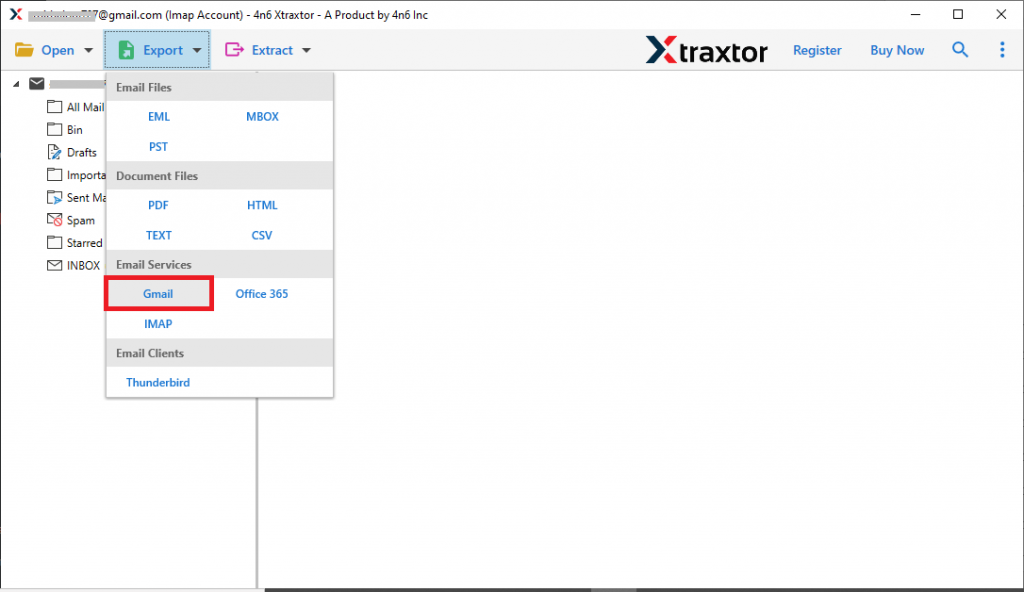
- Here you can view your mailbox data before transferring them.

- Click on Export and choose the Gmail option.
- Select the email folders you want to transfer.
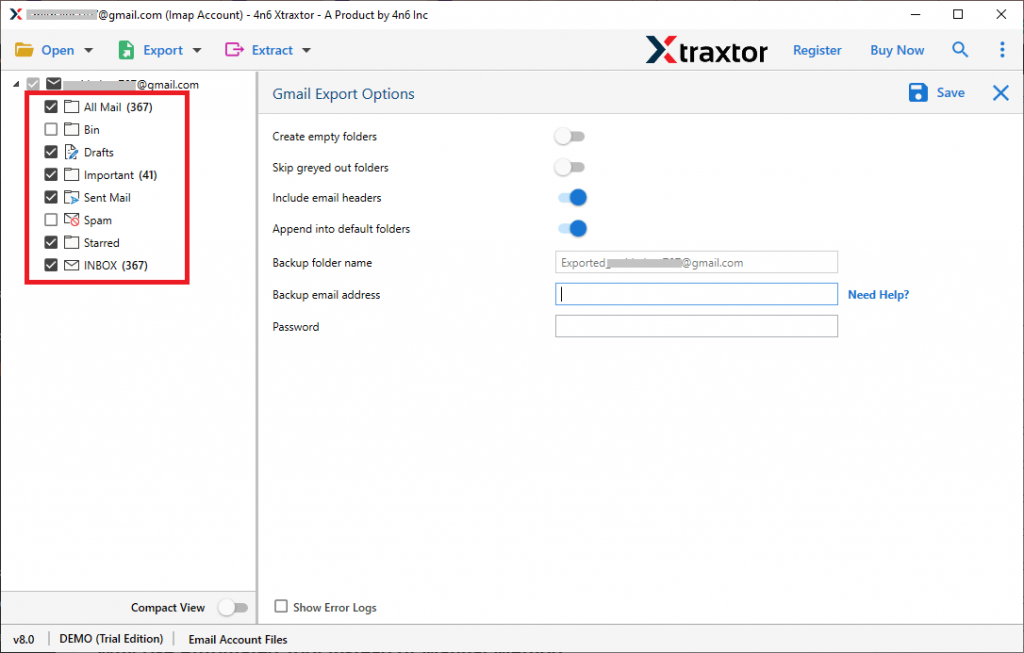
- Enter your Gmail login id and password (where you want to import) and hit on the Save button.
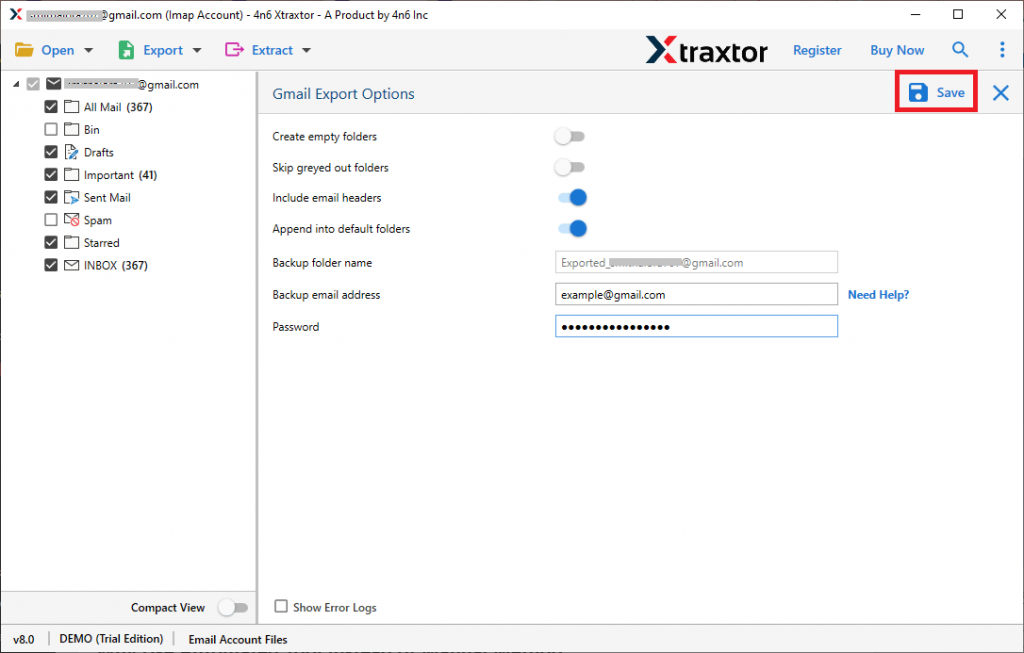
Done! Here you transfer Gmail folders to another Gmail account in a few simple clicks. Using this tool you can also migrate Gmail to Office 365 and many other webmail accounts.
Prominent Features of SysConverter Email Backup Tool
With this software, various outstanding features make the transfer process efficient and secure. Some of them are –
- It is a secure approach to transfer Gmail folders to another Gmail account instantly without any data loss.
- Simple and user-friendly interface for both technical and non-technical users.
- Allow to export Gmail emails to PDF, PST, CSV and many other fiel formats.
- Maintain folder and sub-folder hierarchy and structure during the transfer process.
- You can use this tool on Windows 11, 10, 7, Vista, XP and all other previous OS versions.
- Allow to migrate Gmail to Zoho Mail, Office 365 and many other web-based email accounts.
- The software offers a preview option to view emails before transferring them to another Gmail account.
- Preserve data integrity while export Gmail Labels to Another Gmail account.
- A free trial version of teh software is available to know its complete working process.
Conclusion
To transfer Gmail folders to another Gmail account, we discuss two solutions in this blog. If you are looking for a free approach, then you cna use teh manual solution. However, with it you can face some limitations, thus we advise you to go for the SysConveretr Email Backup tool for an efficient and secure transfer process.