Here in this blog, we will discuss the manual free and automated tool to export Gmail to PDF file. Read the post and export emails from Gmail to PDF file along with attachments.
This tutorial will simplify the Gmail to PDF export process for you. Follow the step-by-step guide to download Gmail emails to .pdf file.
How to Export Emails From Gmail to PDF for Free?
- Open your Gmail account with your login details.
- Select the email that you want to import and open it.
- Click on the three dots icon on the top right corner of the window.
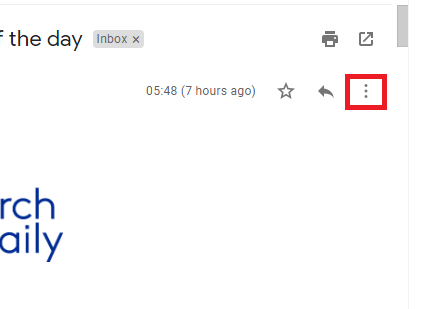
- After that select, the Print option, and a new window will appear with different printing options.
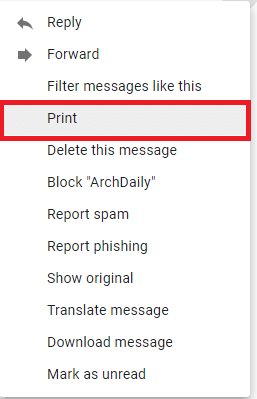
- Choose the destination as – Save as PDF and click on the Save button.

- Now choose the location where you want to save emails. Also, give a file name to easily identify it. At last hit on Save button.

This manual solution saves single Gmail emails to PDF at a time. Repeat this process for every email you want to export.
Although this manual method can export Gmail to PDF, it will not save your attachments. If your attachments are important and you want to save them, then use an automated tool for it.
How to Convert Gmail Emails to PDF With Attachments?
Try the efficient tool, SysConverter Gmail Backup Tool on your Windows. The software will effortlessly save Gmail emails in PDF file with attachments in a few clicks. The exported PDF file will have all the information of emails without affecting its integrity.
Download the demo version of the software and know its working process.

Steps to Export Gmail to PDF File
- Download and run this tool on your Windows OS.
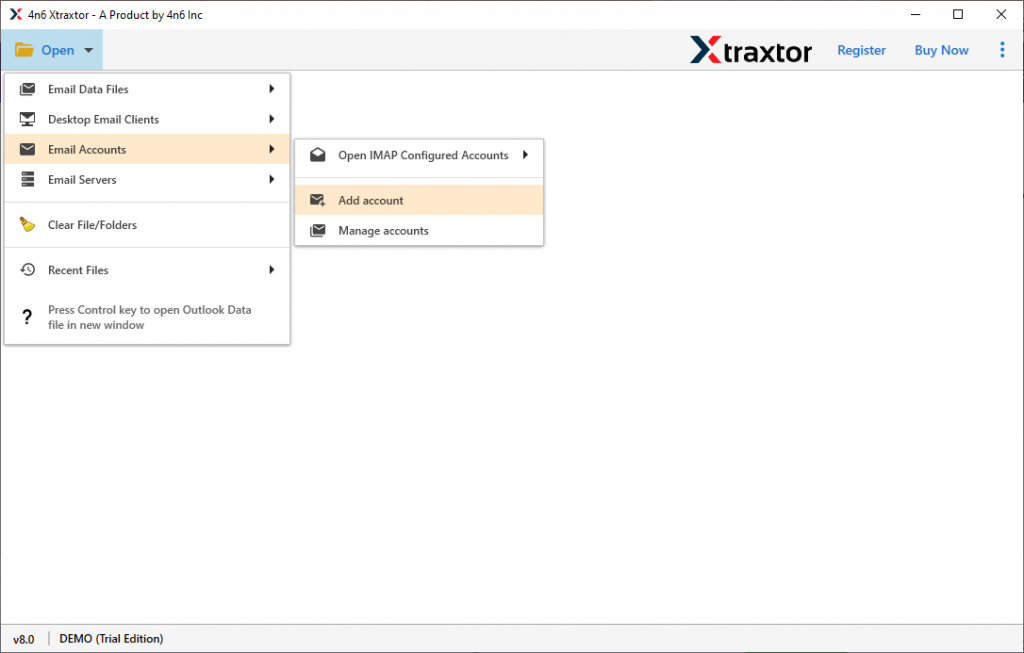
- Select Open >> Email Accounts >> Add Account.
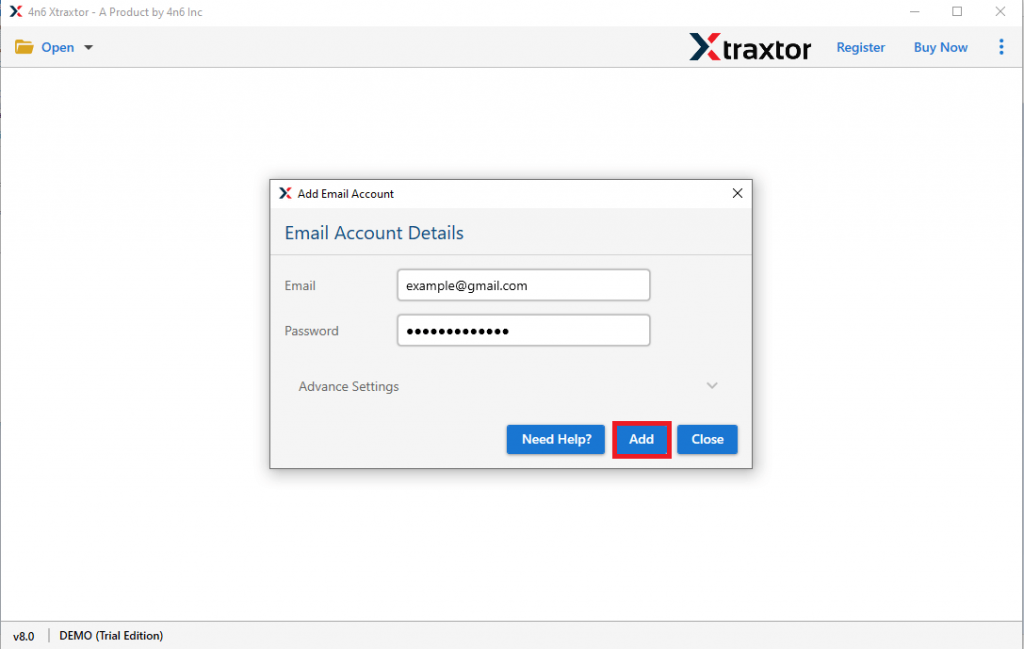
- Now enter your Gmail login details and hit on the Add button. (Use App Password instead of your Gmail).
- Click on Export and choose PDF from the given option.

- Here you can select the email folders that you want to print as .pdf.

- at last, choose the saving location and hit the Save button.

All Done! Here you export Gmail to PDF with attachments.
Benefits of Using Gmail Backup Tool
There are various interesting features of this tool, some of them mention here –
- Maintain Mailbox Structure: While exporting Gmail emails to PDF, this tool preserves the mailbox hierarchy. This software upholds the email folder and sub-folder hierarchy during the archive process.
- Email Filter Options: The software offers various filter options, such as – to, from, subject, cc, bcc, name, content, property id & name, date range, time, and many more. In this way, you can export only relevant emails and save time.
- Different Saving Options: With this Gamil to PDF Converter, there are various saving options. It will also export Gmail to PST, Excel, TXT and many other file formats.
- Windows OS: This utility is compatible with all Windows OS versions without any issues. You can run it on Windows 11, 10, 8, Vista, XP, and all other previous versions.
- Easy to Use Software: With a simple graphical interface both technical and non-technical users can use this software without any hassle.
Conclusion
This blog shows two ways to export Gmail to PDF format. However, with the manual way, you only export a single message at a time. Most importantly this native method doesn’t export attachments with the email. This to avoid such limitations, we recommend the SysConverter Gmail Backup Tool and convert Gmail to PDF with attachments.