Summary: Here in this post, we will automate the process of importing PST file to Zoho Mail account with attachments. If you are among those who want to import PST to Zoho Mail, then this post is designed especially for you. Read the post till the end and complete the importing process of PST emails to Zoho Mail account in a few simple clicks.
PST and Zoho Mail are both different things. On one side PST is the file format and Zoho Mail is the email service provider. However, if you are trying to import your PST file into Zoho Mail account, then you must know that there is no way to directly transfer PST file into Zoho Mail account.
Now the question is – How do I import PST to Zoho Mail? Well, you need to add your Zoho Mail account to your Outlook profile. After that move the PST file to the Outlook interface and then drag and drop it under the Zoho Mail ID. If you are looking for an instant solution then you can use the SysConverter for PST tool on your Windows OS system.
Why Users Want to Migrate PST File to Zoho Mail?
There can be various reasons to import PST file to Zoho Mail account. Some of them are –
- After migrating PST file to Zoho Mail, you cna access your data on any sysetm connected to the network.
- You cna easily transfer the emails to other mailing platforms without any hassle.
- It offers cost-effective solutions for small businesses.
- Zoho Mail offers advanced security features- encryption, spam filtering, two-factor authentication, etc.
- It offers a backup and recovery option that will be helpful if you lose your data or accidentally delete it.
How to Upload PST File to Zoho Mail Account?
Try the PST Converter Software on your Windows OS system and import PST to Zoho Mail account with ease. This tool automatically detects the PST file from your system and directly transfers it to the Zoho mailbox in a few simple clicks. With its smile user interface, it is suitable for both technical and non-technical users.
Additionally, using this tool, you can also import PST to Office 365, Yahoo Mail and many other webmail accounts. There are various advance filter options – to, from, cc, bcc, name, date, time, etc. You can use the dem version of the software and analyse its complete work.

Follow the given Instructions to Import PST to Zoho Mail with Attachments –
- Launch the SysConverter for PST Software on your system.
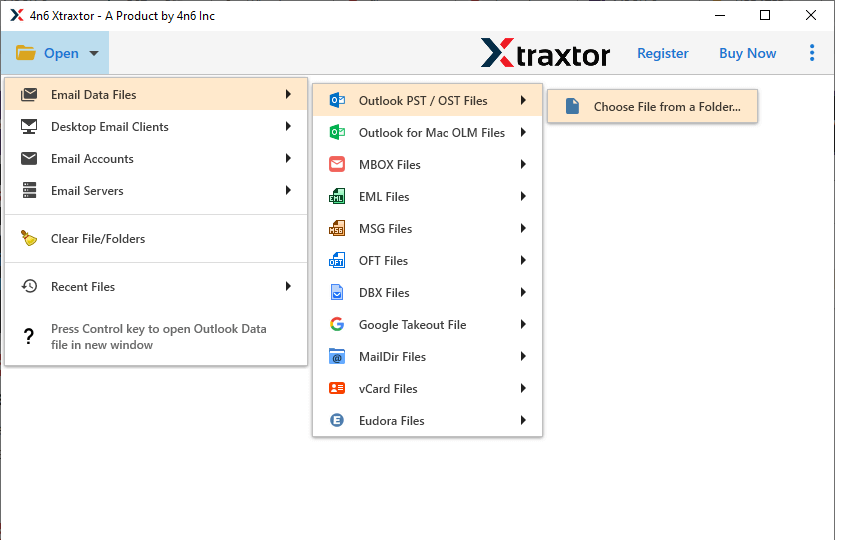
- Then, select Open >> Email Data File >> PST File >> Select File from Folder.
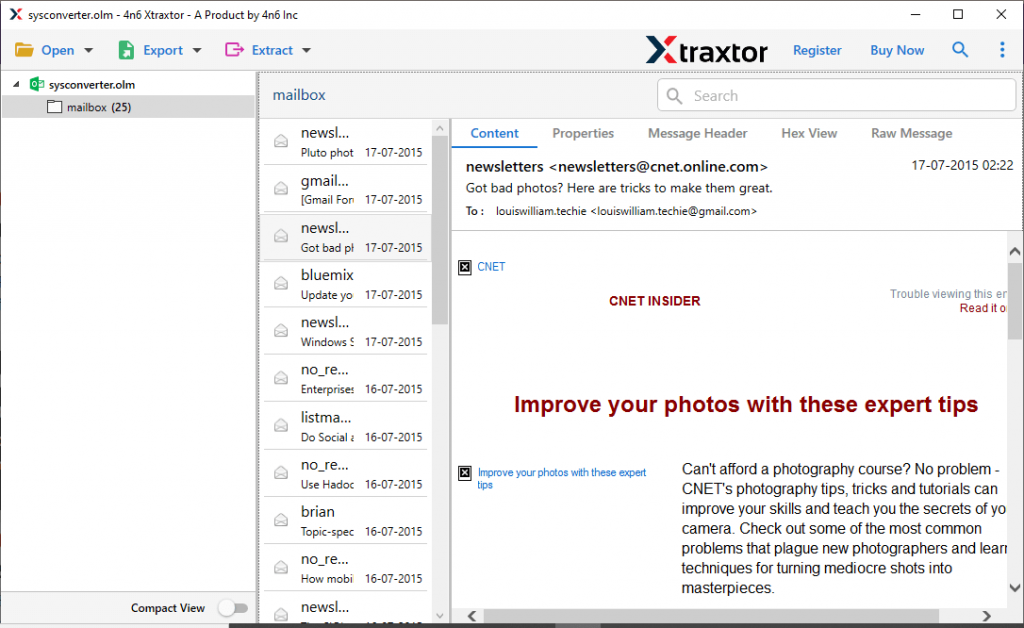
- Here you can view your PST file data before importing them.
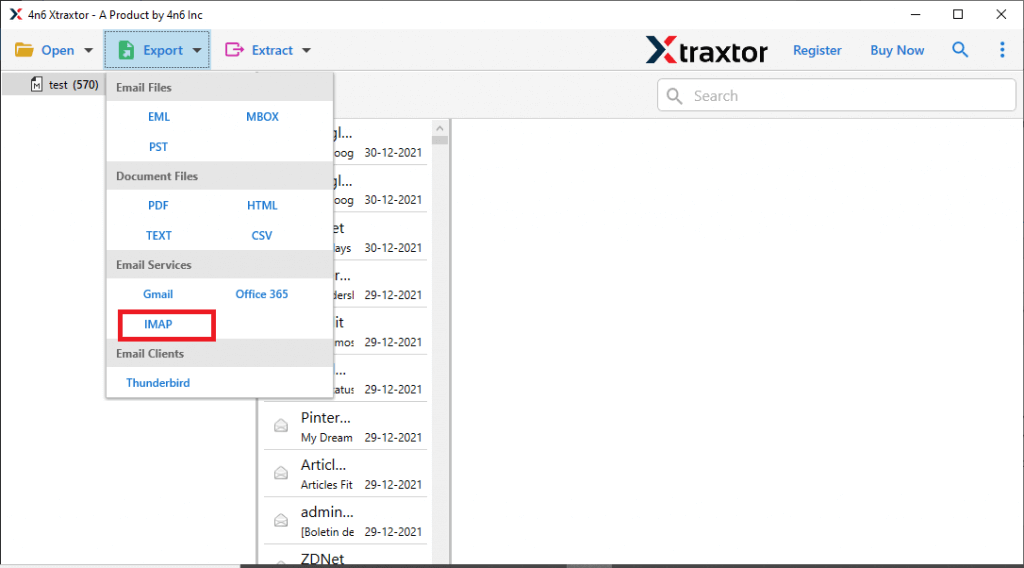
- Now, click on Export and choose the IMAP option.
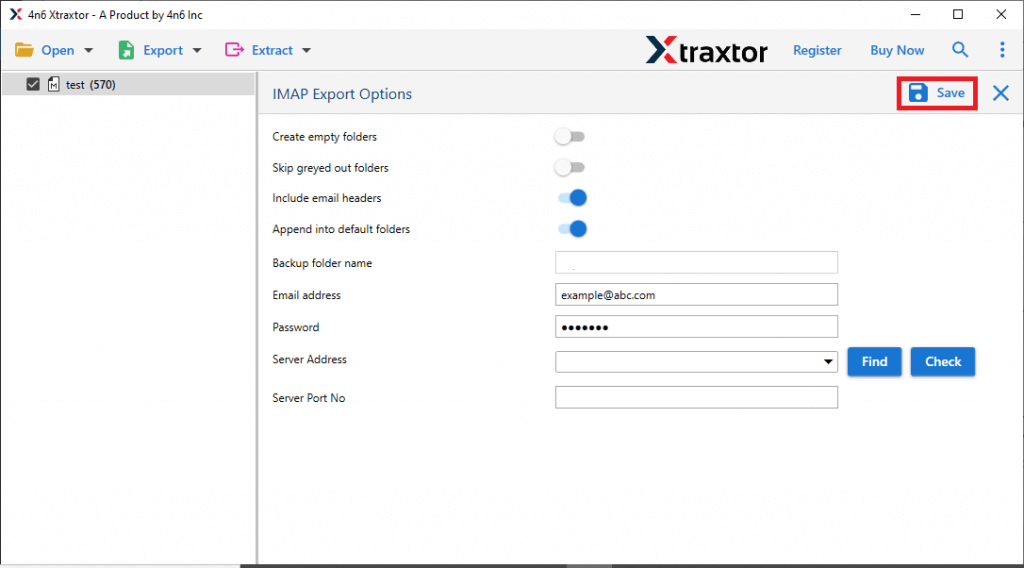
- Enter your Zoho Mail login id and password and hit the Save button.
Done! Here you move PST file to Zoho Mail account in a few simple clicks.
Prominent Features of SysConverter Tool
Some of the important attributes of this tool that will make the import process efficient. Some of them are –
- Import large, encrypted or password-protected PST file without any hassle.
- Simple and user-friendly user interface for both technical and non-technical users.
- Split PST file into smaller parts without any data loss.
- Advance filter options – to, from, cc, bcc, name, date, time, etc.
- Allow to convert PST to MBOX, PDF, CSV, EML and other file formats.
- Maintain email folder and sub-folder hierarchy and structure.
- Support PST file from Outlook 2021, 2019, 2016 and all other editions.
- Allow to import PST to Gmail and all other webmail accounts.
- Compatible with Windows 11, 10, 7, Vista, XP and all other versions.
- A free demo version of the software to analyse its working.
Conclusion
Here in this blog, we discuss the instant and secure way to import PST to Zoho Mail account. We also mention the step-by-step description to migrate PST file to Zoho mailbox along with attachments. Try the given solution to perform the import process using the demo version of the software before moving ton licensed version.