How to export Outlook to PDF format? This is the common query that many users ask. Because Outlook saves its emails in .pst format. Which can only be accessed through its interface. Sometimes, users need to transfer their Outlook emails to another platform, but since they cannot be accessed, it is not possible. That’s why users want to export Outlook emails to PDF format.
Some of the related queries asked by many users –
Can I export emails from Outlook to PDF?
How to print multiple Outlook emails to PDF?
How to change Outlook email to .pdf file?
Before we move ahead and know the process of converting Outlook emails to PDF format, let’s whatw wht users want to save Outlook eminls as .pdf format.
Why Choose PDF Format to Print Outlook Emails
There are various reawhywhere users want to export Outlook emails to PDF format. Some of them mention here-
1. PDF is a portable file format thatbe easily transferrednsfer to another platform with ease.
2. It can be open without needing any email client installation.
3. You can open .pdf file on any operating system be it Windows or Mac.
4. It password-protectedected fwhich that means your data is secure.
5. It is quite impossible to modify the content of PDF file.
6. And many more.
Now without any further delay, let’s know the process to save multiple emails from Outlook in .pdf format.
How to Export Outlook to PDF With Attachments
You can convert Outlook emails to PDf file in two ways along with attachments. In this blog section, we will discuss both the solutions to mass print Outlook emails to PDF format at once.
#1: Export Outlook Emails to PDF Manually
#2: Save Outlook Emails to PDF file in Bulk
Let’s begin and know the working process of these approaches and export emails from Outlook to .pdf file with attachments.
Method 1: Print Outlook Emails to PDF File
To manually save emails from your Outlook profile into .pdf file, follow the given instructions –
Step 1. Launch your Outlook email client on your system.
Step 2. Open the emails that you want to save.
Step 3. After that go to File >> Print >> Printer options.
Step 4. From the drop-down list, choose the Microsoft Print to PDF option.
Step 5. Name your file and hit on the Save button.
Done! Here you pa rint single Outlook email to PDF format. This manual solution can only save one email at a time. If you want to print multiple emails from Outlook to PDF format, you need to perform the above steps for each email you want to export.
If you want to export multiple emails from Outlook to PDF format, use the automated approach. One such solution we are going to mention in the next section. To know more about it read the article to the end.
Method 2: Export Outlook Emails to PDF With Attachments
To mass print Outlook emails to PDF format, use Outlook Converter Software. This tool will instantly export entire Outlook emails to .pdf file at once without any data loss. The automated tool is smart enough to detect the configured Outlook email client and print its emails to PDF format in a few simple steps.
Additionally, you will also get various email filter options to export specific emails from your Outlook profile. Along with that, you can also use this tool and convert Outlook to CSV, HTML, MBOX, and other file formats.

Procedure to Export Multiple Outlook Emails to PDF in Bulk
Follow the given instructions to save Outlook emails in PDF file with attachments.
Step 1. Install and Launch SysConverter for Outlook on your Windows OS.
Step 2. After that, click on Open >> Desktop Email Client >> Outlook Account >> Your Configured Account.

Step 3. Here you can view all your Outlook emails before exporting them.

Step 4. Click on Export and choose the PDF option.
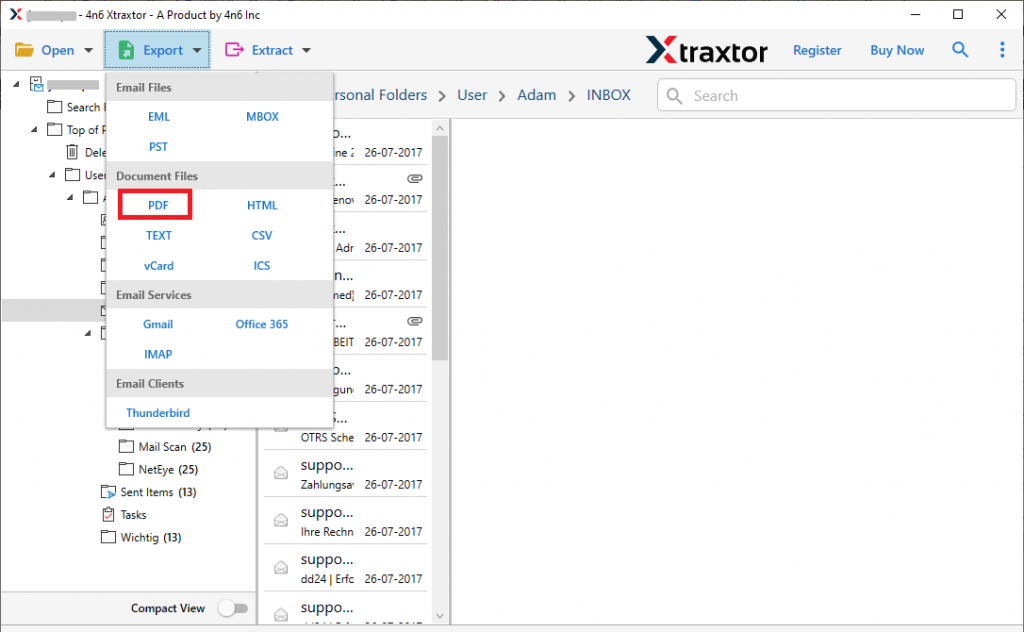
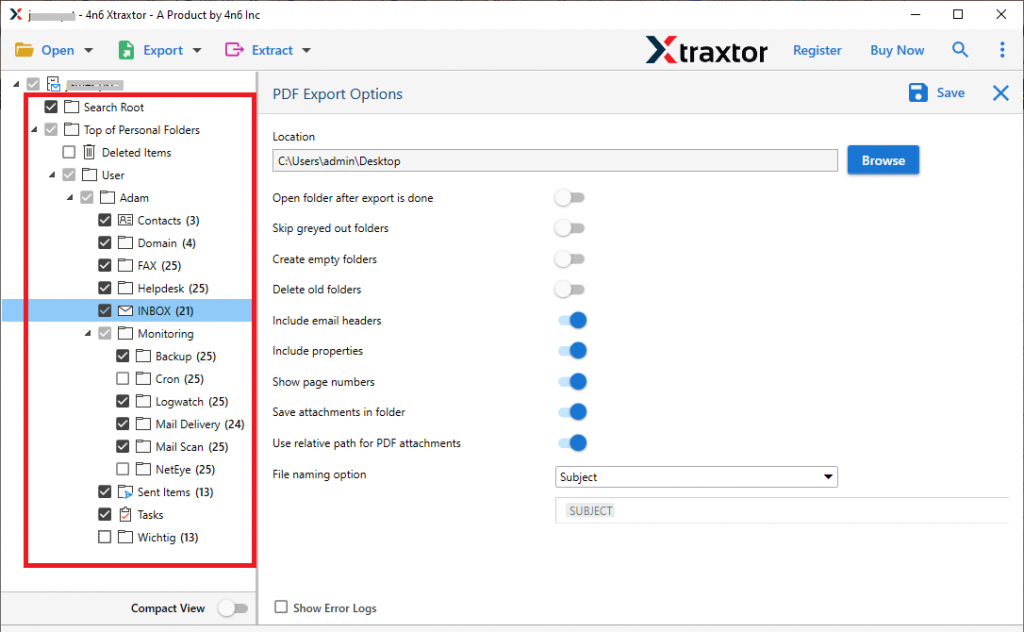
Step 5. Now, if you want to export specific email folders, then you can select the folders here.
Step 6. At last, browse the targeted location and hit on the Save button.
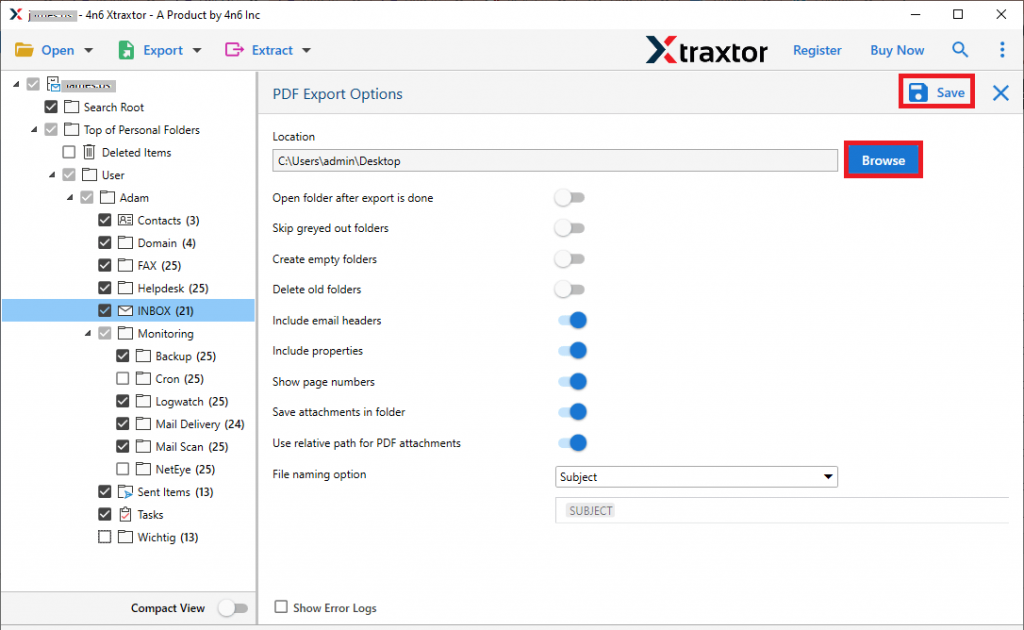
Done! Here you export Outlook emails to PDF in bulk in a few simple steps.
Why Choose Outlook Converter Software
There are various benefits to this smart tool, some of them mention here –
Maintain Mailbox Hierarchy: While exporting Outlook emails to PDF format this tool preserves the email folder and sub-folder hierarchy and structure. There will be no alteration in email formatting during the exporting process.
Save Outlook Emails in PDF With Attachments: This tool helps you to print Outlook emails in PDF format along with attachments. It will save all attachments such as – .png, .doc, .csv, .txt, .xlsx, etc.
Support Outlook All Versions: This tool export emails from Outlook all versions. It supports Outlook 2021, 2019, 2016, 2013, and all other previous versions.
Print Outlook Emails in Batch: If your Outlook has numerous emails and you want to save them in .pdf format, then this tool can perform bulk export. It will save all emails at once without any data loss.
Support Windows OS: This too is designed for Windows users to export Outlook to PDF format with ease. You can run this software in Windows 11, 10, 7, Vistra, XP and all other previous versions.
Conclusion
There can be various reasons to export Outlook emails to PDF format. This blog describes two workable solutions to print Outlook emails to PDF format with attachments. Along with that, we also mention the step-by-step process to export Outlook to PDF format. Apply the method that is best suited to you and get the job done easily.