Are you looking for a solution to export Office 365 emails to PST file? If yes then do not panic. In this post, we are going to discuss how to export Office 365 mailbox to PST from admin portal. Here, you will get manual as well as professional solutions to download email from Office 365 to PST. Keep reading this blog till the end to know more.
Office 365 is a subscription-based cloud service of Microsoft. It provides various other services such as Excel, PowerPoint, Word, etc. It is a cloud-based email service so users want to create a local copy of their Office 365 mailbox as backup in PST file format.
Reasons to Export Office 365 Mailbox to PST from Admin Portal
Exporting Office 365 mailboxes as PST file is a useful process. There are various reasons which are given below-
- Sometimes users want to export PST from Office 365 admin center as a backup. If you lose your Office 365 account data due to any reason. In that case, you can restore this PST to your Office 365 account.
- If you want to transfer your data to other email platforms and users then you can easily share the PST file.
- You can protect your crucial data by converting Office 365 mailbox to PST file format. Since PST file allows you to set the password to prevent unauthorized access.
- MS Outlook stores its data in PST format. The best benefit of this file is that you can easily transfer it from one Outlook account to another.
Ways to Convert Office 365 to PST File
There are three methods to export Office 365 mailbox to PST. Here, we will discuss two manual solutions and the third one is an automated solution. All methods are explained in detail in the upcoming section.
How to Export Office 365 Mailbox to PST Using Outlook?
In this method, the Microsoft Outlook email client is used to convert Office 365 email to PST file format. First of all, add Office 365 account in Outlook and then export Office 365 emails to PST file using the import-export option.
- Launch MS Outlook application on your system.
- Now, Click on File >> Add Account.
- Enter the Office 365 email address and click on Connect.
- Type the Microsoft 365 password and click on the Finish button to successfully configure Office 365 with Outlook.
- After that, Click on File >> Open & Export >> Import/Export.
- Select Export to a File and then press the Next button.
- Choose Outlook Data File(.pst) and hit on Next.
- After that, Select the Office 365 mailbox folder to convert it into PST file format and click on Next.
- Browse the location to save the exported file and then press the Finish button.
The process is complete.
Limitations of Manual Solution
- This method takes a lot of time to export PST from Office 365 admin centre.
- There are no email filter options to convert selected data items.
- Outlook must be installed on your system. In case Outlook import export greyed out then this method does not work.
How to Export PST from Office 365 Admin Center Manually
- Step 1. Login to your Microsoft 365 account on your system.
- After logging that, Go to Settings and click on View all Outlook settings.
- Now, Navigate to General >> Privacy and Data >> Export Mailbox.
- After clicking on Export mailbox, it will start exporting the Office 365 mailbox to PST from the admin portal.
- After completing the exporting process, an email will be received from Microsoft. Click on the link and view it.
Hence, you can download Office 365 mailbox to PST from the admin center but it takes a lot of time to complete the process. Sometimes it takes several hours and days to export Office 365 mailboxes.
How to Export Office 365 Mailbox to PST from Admin Portal Instantly?
Try SysConverter Email Backup Tool on your Windows system to save Office 365 mailbox folders as PST. The software is able to export Office 365 emails to PST in bulk. There are various benefits of this tool such as email filtration, folder selection, export options, etc. It preserves 100% data integrity during the process and save mailbox items in their original format.
Apart from this, Using this tool, you can export Office 365 mailbox to PST without Outlook or any other applications. It is designed with advanced algorithms and a simplified interface that helps beginners complete the process without any assistance. The best thing of this tool is that it has a free demo version. Download the free version and export Office 365 mailbox to PST free tool without any hassle.


Follow the Below Given Steps to Export Office 365 Emails to PST File with Attachments
- Launch the SysConverter Email Backup Tool on your Windows system.
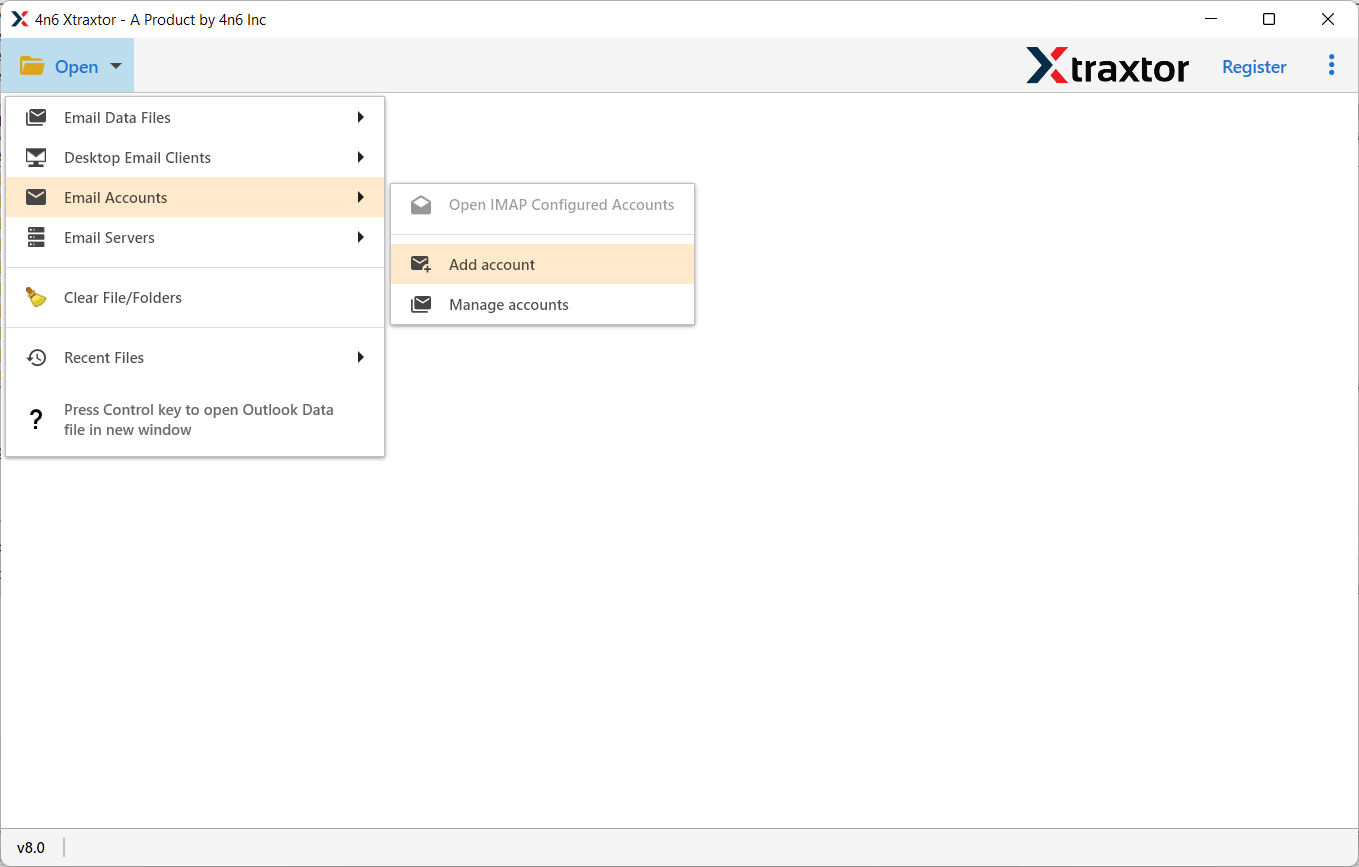
- After that, Click on Open >> Email Accounts >> Add Account.
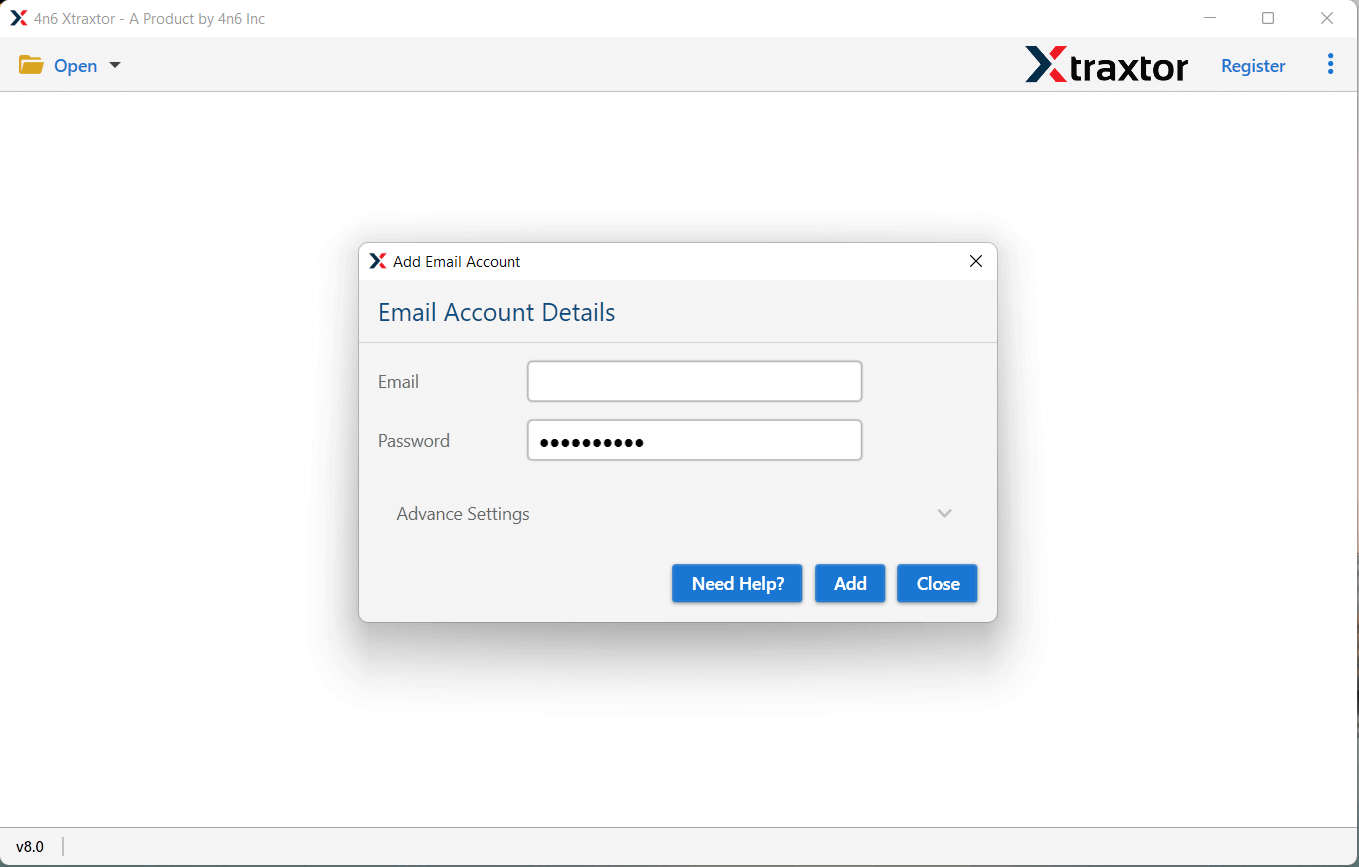
- Enter your Office 365 login details and then click on Add button.
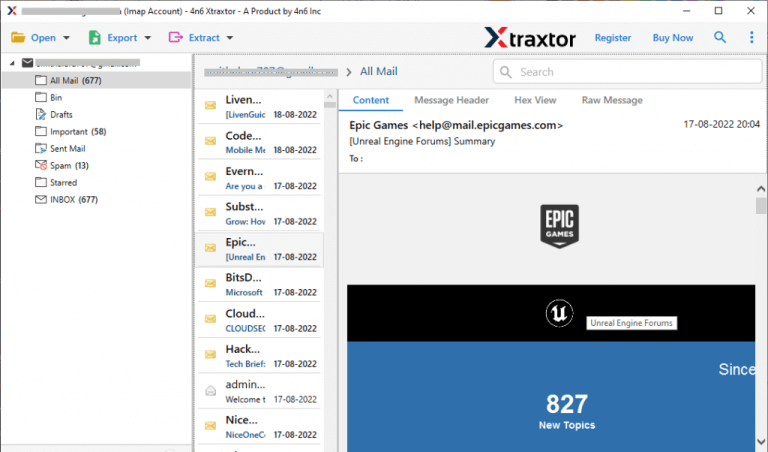
- Here, you can view Office 365 emails before exporting.
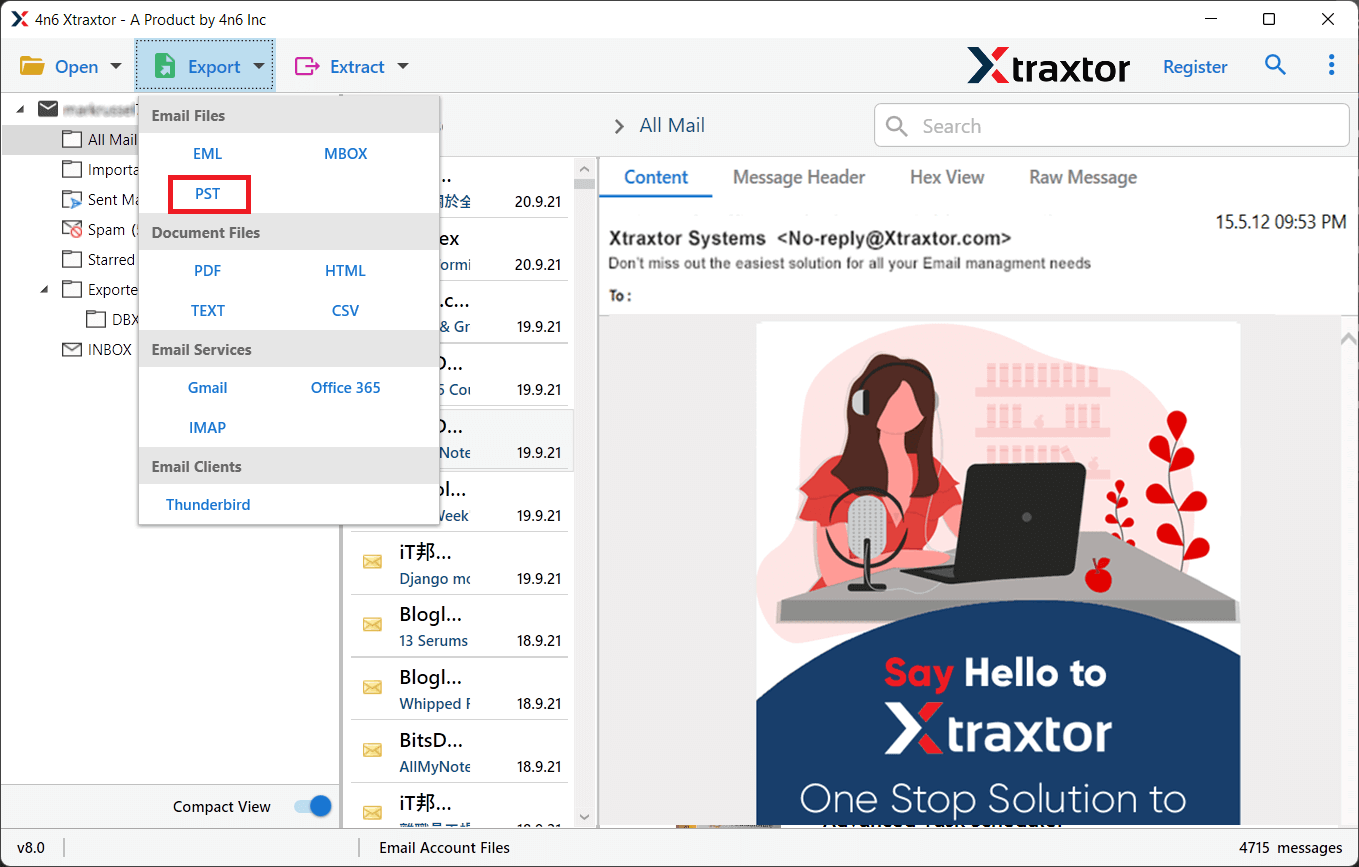
- After that, Click on Export and select PST file format from the given options.
- Choose Office 365 mailbox folders and sub-folders that you want to export from Office 365 to PST.
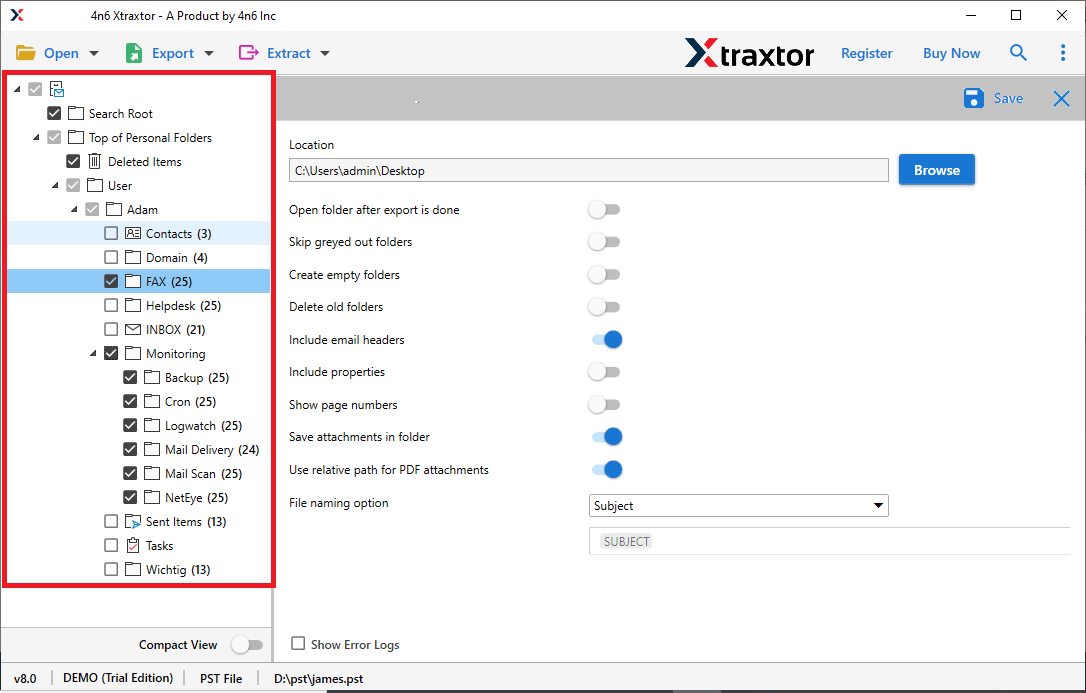
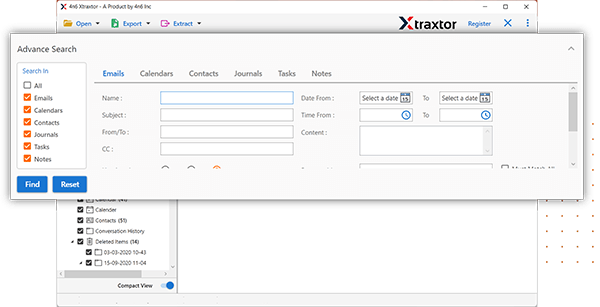
- Apply the filters to save only selected emails from Office 365 admin center.
- Click on Browse set the Destination location and then press the Save button.
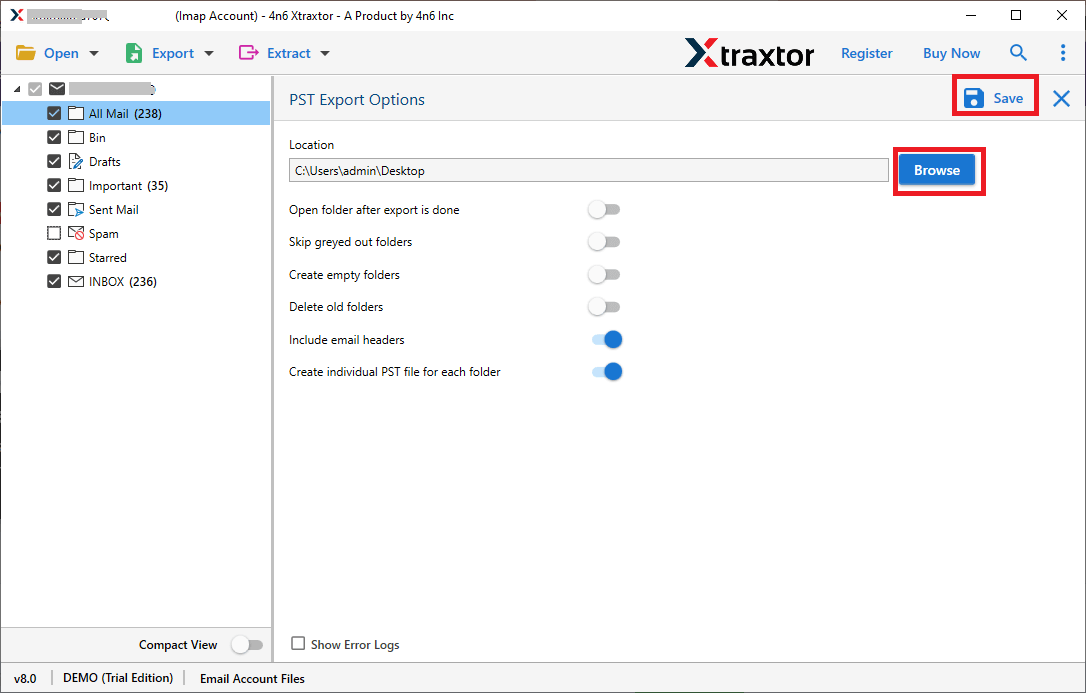
Done! Hence, you can easily export Office 365 mailbox to PST from admin portal with a few simple clicks.
Key Features of SysConverter Software
- The software can directly export PST from Office 365 admin centre without installing any external applications.
- It can export Office 365 mailbox to PST in bulk with complete accuracy. With this utility, you can save the complete Office 365 mailbox in a single go.
- There are various advanced filter options to export selected mailbox items from Office 365 admin portal to PST. You can export Office 365 emails to PST according to date, time, subject, etc.
- The software maintains the folder and subfolder hierarchy during the exporting process.
- With this utility, you can backup Office 365 emails to PDF, MBOX, PST, EML, TXT, HTML, and many other file formats.
- It provides a preview option to view Office 365 mailbox items before exporting them to PST.
- Using this application, you can directly migrate Office 365 to Gmail, Yahoo Mail, Hotmail, Zoho Mail, and many more email accounts.
- The interface of this tool is very simple and easy to use. Any beginners can easily export Office 365 mailbox to PST from admin portal.
- There is no compatibility issue with this utility. It supports all latest and old versions of Windows Operating Systems.
- The customer support team is available 24*7. If you have any doubts related to the product contact them, and they solve your doubts as soon as possible.
Conclusion
In this post, we have discussed how to export PST from Office 365 admin centre. Here, we have explained both manual as well as professional solutions to export Office 365 emails to PST file. You can select anyone that is most suitable for you. However, experts recommend using the automated solution to export Office 365 mailbox to PST from admin portal in a few simple clicks. The above-suggested tool is able to convert Office 365 to PST file without losing any single bit of data.