In this blog, we will discuss the best ways to download emails from Office 365 webmail account. If you are an Office 365 user and want to download your data, then this guide will be helpful for you. Here we will discuss the step-by-step process to backup emails from Office 365 mailbox without any data loss.
Office 365 now known as Microsoft 365 is a webmail service provided by Microsoft. It is a powerful tool that offers various productivity tools including webmail, Teams, Word and many other applications. While it is convenient to access your emails on any web browser, however sometimes users prefer to download their email locally. They want to backup emails from Office 365 webmail and this article will guide you to save your data.
How to Download Emails from Office 365 Mailbox?
To manually perform the downloading process, you need to configure your Office 365 account to Outlook. Then using the Import/Export tool, export the data in a PST file. Follow the steps and save emails from Office 365 account.
- Open your Outlook application on your Windows OS.
- Then, click on File >> Info >> Add Account.
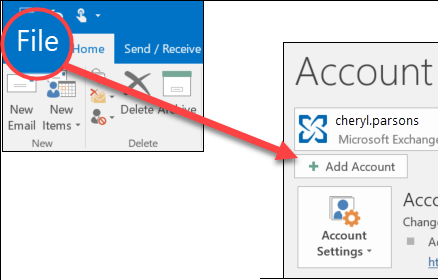
- Then, enter your Office 365 login details and click on the Next button.
- Now Outlook search for your account and automatically configure it.
Here your Office 365 account is connected to the Outlook application. Now close the application and reopen it and follow the steps.
- In Outlook, go to File >> Open&Export >> Import/Export.
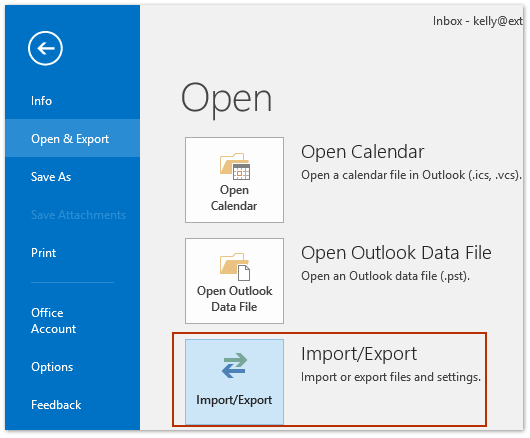
- Then, choose Export to a File >> Outlook Data File.
- Now select the required folder and click on the Next button.
- After that, browse the location to save the emails and hit on Finish button.
Here you export Office 365 mailbox to PST file manually. However, you can face some limitations with this process.
Limitation of Manual Approach
- It is a lengthy and time-consuming process.
- You will need to install the Outlook application on your system to perform the task.
- If your Outlook export option is greyed out, then you can’t backup your emails.
- This method will save your data into PST file only, which can be used only on Outlook, not other platforms.
How to Backup Emails from Office 365 Mailbox Instantly?
Try the SysConverter Email Backup Tool and export all the data from Microsoft 365 account to your system. There are various filter options to download selective Office 365 emails along with attachments. The software is designed with a user-friendly interface that helps the non-technical user to save their mailbox data.
Additionally, using this tool you can also transfer Office 365 emails to Gmail and many other webmail accounts. With this tool, you download emails from different Office 365 accounts effortlessly.

Simple Steps to Download Emails from Office 365 Account
1. Launch the software on your Windows OS system.
2. After that, select Open >> Email Accounts >> Add Account.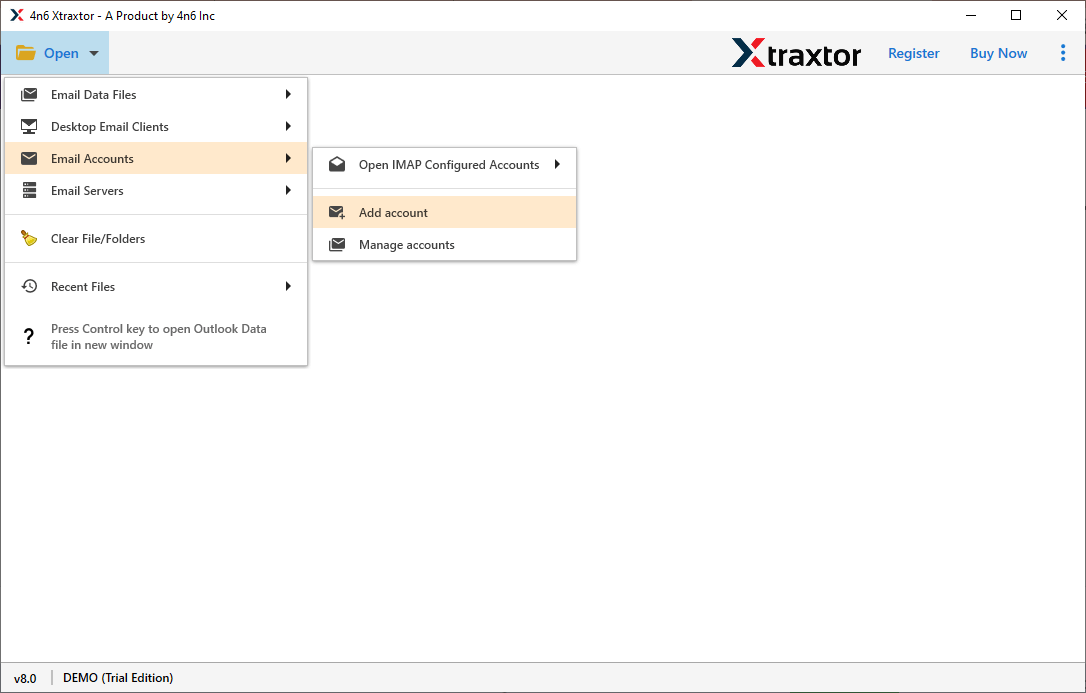
3. Enter your Office 365 login credentials and hit on Add button.
4. Click on Export and choose from the given options.
5. Browse the location to save the downloaded file and hit the Save button.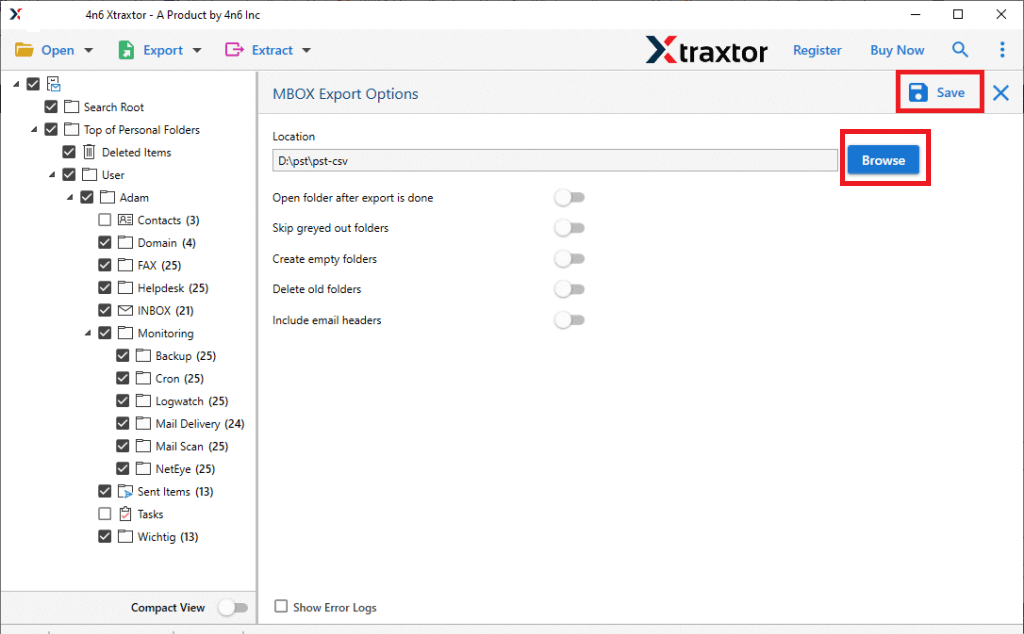
Done! Here you export emails from Office 365 to MBOX format. In the same manner, you can save your emails and other data in different file formats.
Why Use Automated Approach Over Manual?
There are various prominent features offered by this tool, some of them are –
- It will download emails from Office 365 mailbox in a few simple clicks.
- The software will also export emails from Office 365 to Yahoo Mail and other email accounts.
- It will preserve data integrity while backup emails from Office 365 accounts.
- This software export Office 365 emails to CSV, PDF, EML and other file formats.
- Offers to view your mailbox data before downloading them.
- Preferable for both technical and non-technical users with its user-friendly interface.
- Advance email filters – to, from, cc, bcc, name, date, time, etc.
- Maintain email folder and sub-folder hierarchy while downloading Office 365 emails.
Conclusion
Downloading emails from Office 365 webmail is the best way to access your data offline. Here in this blog, we discuss different ways to backup emails from Office 365 mailbox without any data loss. Try both the given solutions and download emails from Microsoft 365 webmail with ease.