Here in this article, we will cover the efficient ways to migrate emails from Gmail to Outlook. Read the complete post and complete the Gmail to Outlook migration in a few simple clicks.
There can be various reasons to transfer emails from Gmail to Outlook depending on their usage. Here we will discuss the migration process using manual as well as automated tool.
How to Transfer Emails from Gmail to Outlook Manually?
One can transfer their Gmail email by simply configuring it with Outlook. Let’s check out the process –
1. Login to your Gmail and enable IMAP settings.

2. Then Open Outlook, and go to File >> Add Account.

3. Enter your Gmail login id and app password.
4. Outlook will automatically fetch the Gmail IMAP settings.
5. At last click Finish to complete the process.
Now your Gmail emails are transferred to the Outlook interface. Alternatively, you can also use teh automated tool to complete the import process.
How to Import Folders From Gmail to Outlook?
Use the SysConverter Gmail Backup Tool on your Windows. The tool effortlessly migrate Gmail to Outlook with complete mailbox data. The software will export your Gmail emails to PST file, After that, using Outlook import/export tool you can easily import the exported data file into the Outlook interface.
Downlaod teh free version of teh software and know the complete migration process.

Steps to Migrate Emails from Gmail to Outlook
Step 1. Install and Run the Email Backup Tool on your Windows OS system.
Step 2. Select Open >> Email Accounts >> Add Account.
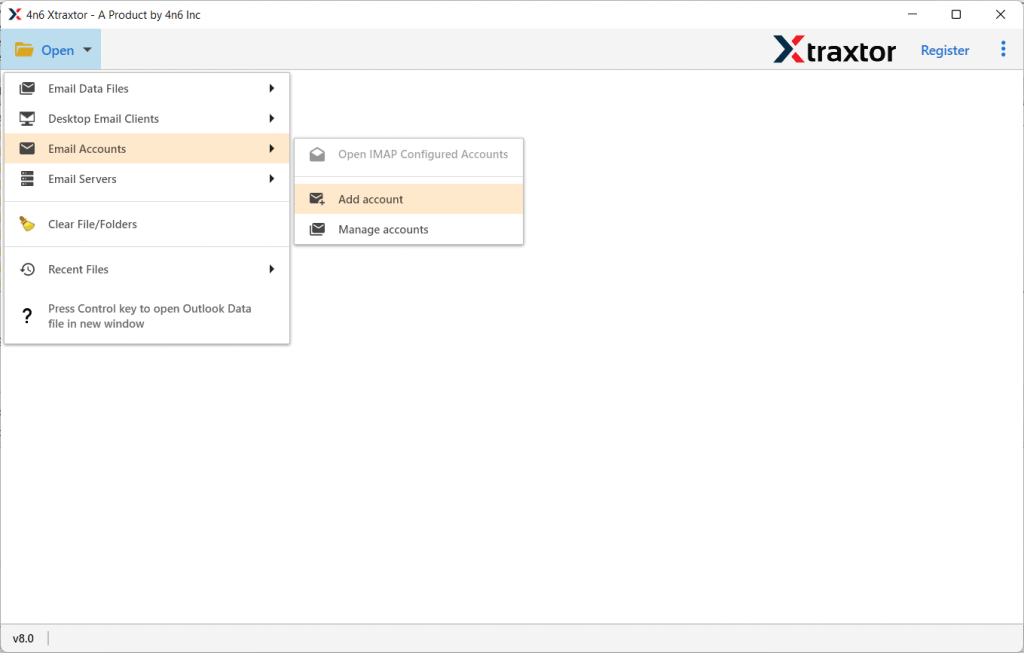
Step 3. Enter your Gmail login id, use your App Password and hit the Add button.

Step 4. Here you can view your Gmail emails before migrating them.

Step 5. Then, click on Export and choose PST format.
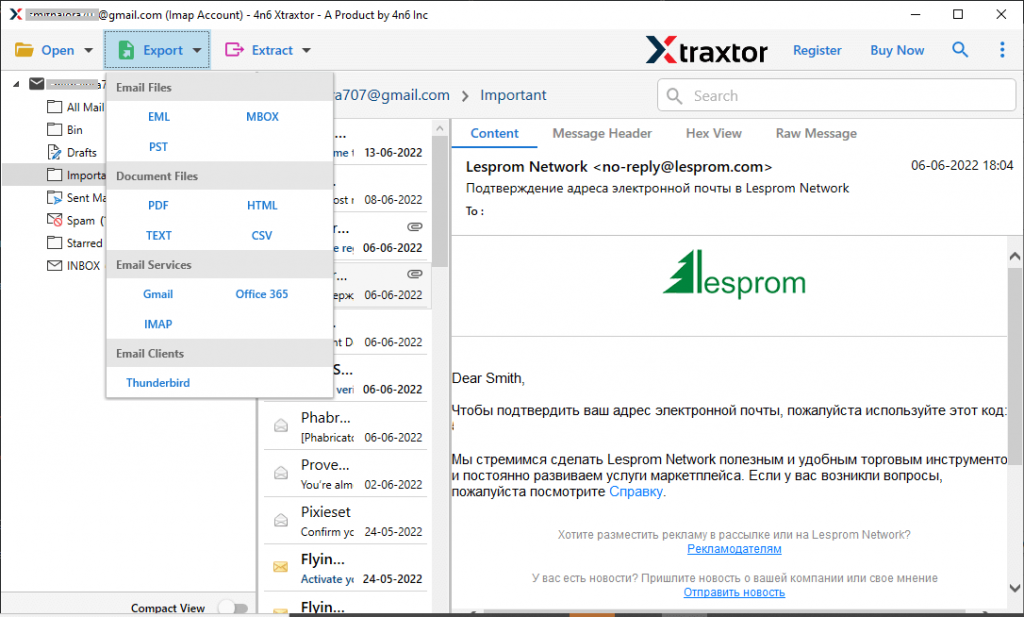
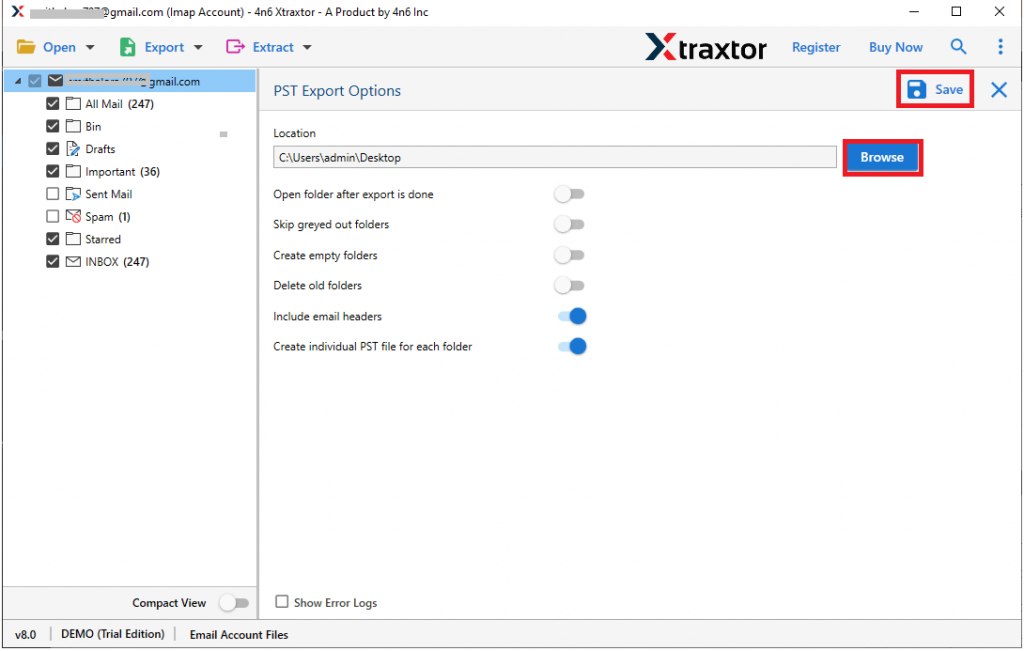
Step 6. If you want to transfer selective email folders, then you can choose here.

Step 7. Now browse the targeted location and hit on the Save button.
Step 8. Open Outlook, select File >> Open & Export >> Import/Export and import PST.

Finish! Here you migrate emails from Gmail to Outlook in a few simple clicks without any data loss.
Why Use Gmail to Outlook Migration Tool?
There are various outstanding features of this automated tool, some of them mention here –
- Maintain Folder Hierarchy: While migrating emails from Gamil to Outlook, there will be no alteration in the mailbox structure. This tool maintains the email folder and sub-folder hierarchy throughout the migration process.
- Direct Email Migration: This software will directly transfer emails from your Gmail account into Outlook PST file. Just enter your Gmail login details and hit on the save button, rest of the migration will be done by this tool.
- Filter Options: With this Gmail to Outlook Migration tool, there are various advanced filter options that will help in importing. You can apply filters such as – to, from, cc, bcc, date, time, has attachments, name, subject, property id & name, and many more.
- Multiple Migration: The software allows to export Gmail emails into various other webmail accounts. You can also export Gmail emails to Office 365, Yahoo, and various other IMAP accounts in a few simple clicks without any data loss.
- Multiple Saving Options: This migration tool offers various options to save Gmail emails in a single interface. You can use the software and export Gmail emails to MBOX, PDF, CSV and all other file formats as well.
- Windows-Based Software: This tool is compatible with all Windows OS systems. You can install and run open the tool on Windows 11, 10, 7, Vista, XP and all other previous versions.
- Data Extractions: Along with migration this tool also offers you to save some details from your Gmail mailbox. It will extract email addresses, attachments, phone numbers, and associated email addresses and phone numbers in a single text file.
Conclusion
After reading the blog you have got a clear picture of – How to migrate emails from Gmail to Outlook 2021/2019/2016 and all other previous editions. Now it depends on you to use this software and import emails from Gmail to Outlook with complete data. Hope this article will be helpful and you are able to perform Gmail to Outlook migration process.