Here in this article, we will discuss the secure and efficient way to convert PST contacts to vCard file. Contacts are an important part of emails and sometimes users want to send them to other platforms. For that, one needs to save PST contacts into a vCard file. Here in this article, we will discuss the secure and efficient way to convert contact details from PST file to ICS format.
Let’s proceed with this article and discuss a simple and effective approach to convert PST to vCard.
How to Export PST Contacts into vCard Manually?
Here we will discuss 2 manual methods to convert single and multiple Outlook contacts into vCard format. Let’s start with both one by one;
- Steps to Convert PST Contacts to Single VCF Format
1. Open Outlook email client on your system.
2. Go to File >> Open and Export >> Import and Export.
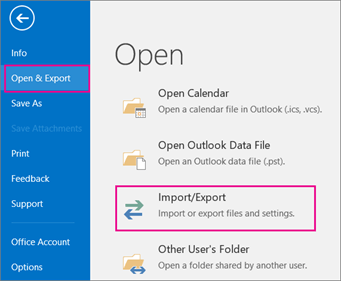
3. Select Import a file >> PST file from the system.

4. After this again navigate to File >> Open and Export >> Export a file.
5. Now select Comma separate value from the given list.

6. Browse your contact file and save it in .csv format.
7. Make sure to select Export contact files from the folder after that hit on Finish button.
8. Now create a new Gmail account, then click on Contacts from Google apps.

9. A new interface will open, select the Import option from the given menu.
10. Click on the Select File button and browse the .csv file from the saved location ( File saved at Step 6).
11. Click on the Import button, all PST contacts import into .vcf file format.
This solution saves all contacts into a single vCard file format. After that, you can send or access it on any platform or device with ease.
2. Steps to convert PST Contacts to Multiple VCF
1. Open Outlook email client on your PC.
2. Now go to the people tab at the button left corner of the interface.

3. Select the contact and click on the Forward button.
4. Opt for a Business Card as a saving option.
5. After this, a newly composed mail will appear on the screen where all contacts will be present.
6. Click on the gear option from the selected contact, click on save as Business card and set the targeted location.
Here you successfully convert PST contacts to vCard. You can check the .vcf file at your selected save location.
How to Convert PST to vCard Instantly?
To transfer Outlook contacts to VCF file format, you just need to choose an automated tool PST Converter. With the help of this amazing wizard, anyone can convert .pst to .vcf in a couple of clicks. There is no size limitation with this tool, it can transfer large PST files with ease. Most importantly, to export the .pst email file you don’t need to install Outlook on your systems.

Steps to convert PST Contacts to vCard At Once
Step 1. Install PST Converter on your system and after that open the software.
Step 2. Now click on the Open option present on the window.
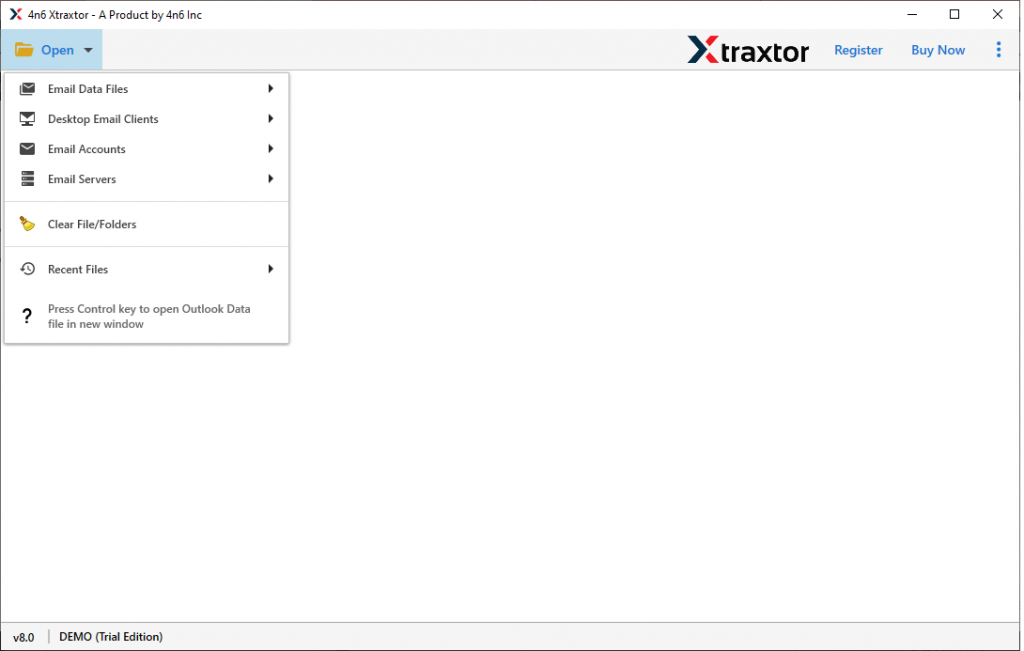
Step 3. After this Select Email Data Files >> Select Outlook files >> Select file from a folder.

Step 4. This software accesses your email file and previews all your emails.
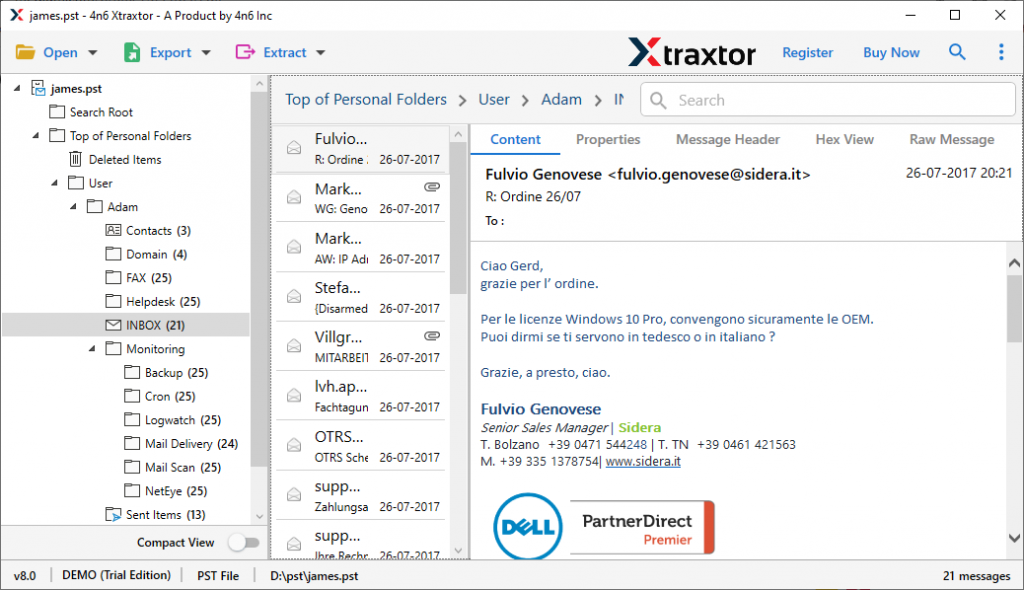
Step 5. Go to the Export option and choose vCard from the given options.
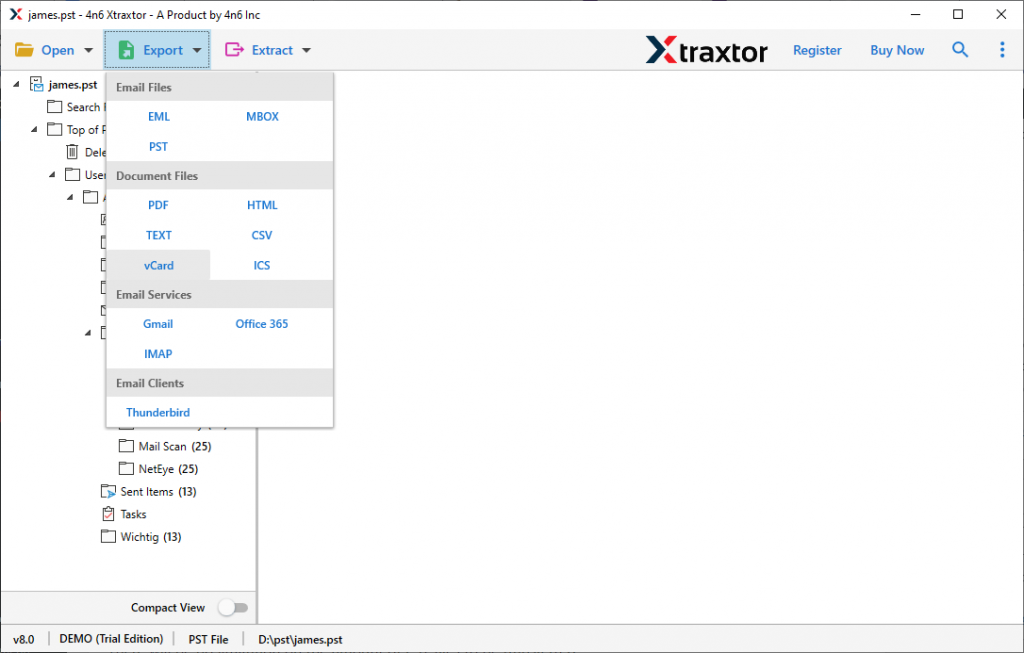
Step 6. At last, choose your targeted location and click on the Save button.
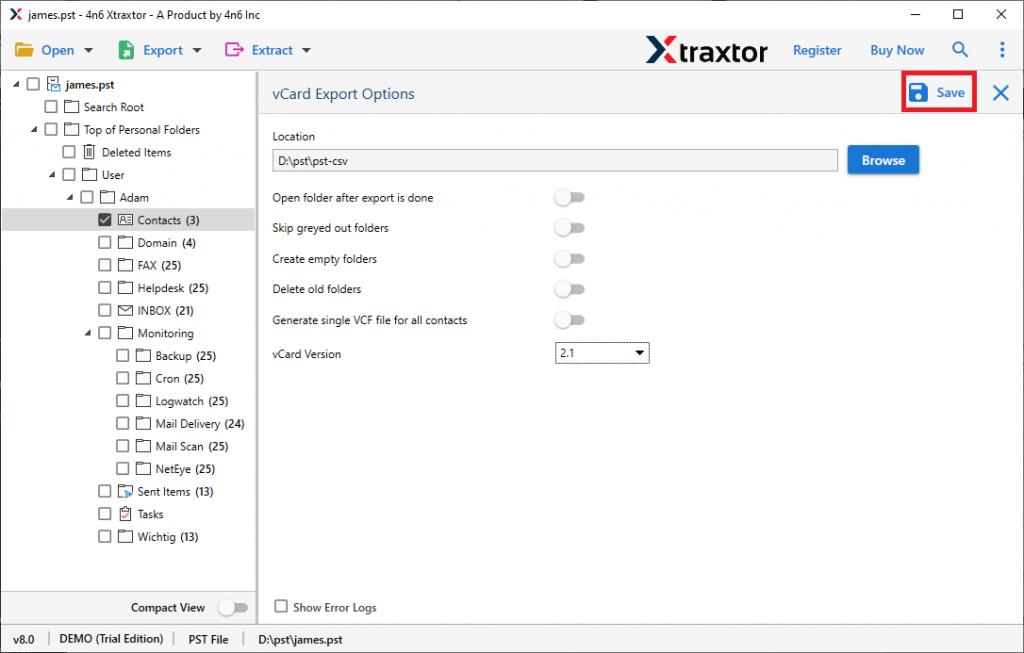
All done, the conversion process is completed. You can check at your selected location and verify the result. Your converted VCF will be there, click on the file and view your contacts in .vcf format.
Why Choose PST to vCard Converter?
This utility has numerous attractive features, some of them mentioned here;
- Convert Multiple PST Contacts
Using this software, users can convert contacts from Outlook PST files to VCF file format in a few clicks. There will be no limitation, you can convert multiple contacts from PST file at once.
- Save Outlook Calendar Data
Using PST to vCard Converter, users can also convert PST to ICS format. This process will export calendar data from the Outlook data file in the standard file format.
- User-Friendly Interface
Due to its simple interface, the use of this converter is very easy. This tool can be accessed by non-technical users also.
- Various File saving options
This smart tool not only exports Outlook PST files to vCard format but also different file formats. This tool also converts PST to PDF, MBOX, CSV and many other file formats.
- Export vCard in different versions
This converter is designed in a smart manner, that can give you an option to convert vCard into different versions. Using this software you can create vCard into 2.1, 3.0, 4.0 versions as per user requirements.
Conclusion
Sometimes users want to switch their Outlook email client to another email server or client. And they have an orphan PST file and want to export contacts from that file. As we already discuss an effective and smart approach to convert PST to vCard with ease. Both methods are beneficial, you can choose either one according to your ease.
Frequently Asked Questions
Question 1. Is it possible to convert all PST contacts into single VCF files?
Answer. Yes, this software is capable enough to export all Outlook contacts into a single file by enabling the “Merge contacts into single vCard” option.
Question 2. Can I convert PST to vCard in bulk?
Answer. Yes, using this converter you can export multiple Outlook contacts to vCard format.
Question 3. Can this software convert Outlook 2013 contacts into vCard format?
Answer. Yes, this tool supports Outlook all versions and easily exports PST to vCard without any glitches.
Question 4. Does this tool also export PST file data into Excel format?
Answer. Yes, this tool gives an option to convert PST to CSV format within a few clicks.