Are you looking for a secure and efficient way to export Outlook emails to Yahoo Mail account? If yes, then you are at the right place. Read the complete blog and transfer Outlook emails to Yahoo Mail along with attachments.
Outlook, an email client provided by Microsoft, is an integral part of the Office 365 suite. It operates on a subscription-based model and is predominantly favored by businesses. In contrast, Yahoo Mail is a no-cost web-based email service. Consequently, numerous users express the desire to transfer emails from Outlook to Yahoo Mail account.
Why Need to Export Outlook Emails to Yahoo Mail?
There are several reasons to transfer emails from Outlook to Yahoo Mail account. Some of them are –
- Yahoo Mail is a free webmail service that’s why many of them switch from Outlook.
- Yahoo Mail one can access emails on any system that is connected to the network. Whereas with Outlook you need a system in which the application is installed.
- It is a simple interface that can be easily used without any hassle.
- Yahoo spam filtering works efficiently in keeping unwanted emails out of their inbox.
Methods to Transfer Outlook Emails to Yahoo Mail
Here in this blog section, we will discuss two efficient ways to move Outlook emails to Yahoo Mail account. Firstly we will discuss the manual approach to perform the export process. Along with that, we will learn an expert way to migrate Outlook emails to Yahoo Mail account.
1. Manual Approach to Export Outlook to Yahoo Mail
2. Using Professional Approach for Exporting
Let’s move ahead and discuss teh given solutions in detail with a complete working process.
How to Export Emails from Outlook to Yahoo Mail Manually?
The exporting process involves a few steps, here is the step-by-step guide –
Step 1: Export Outlook Emails
- Open your Outlook application.
- Then, go to File >> Open & Export >> Import/Export.
- Then, select Export to a File >> Outlook Data File (.pst).
- Select the email folders you want to export
- Browse teh location to save teh exported data file and click on Finish button.
Step 2. Enable IMAP in Yahoo Mail
- Login to your Yahoo Mail account using login credentials.
- Click on the gear button in the top-right corner and select the More setting option.
- Go to the Mailboxes section and select Allow apps that use less secure sign-in option.
Step 3: Configure Yahoo Mail to Outlook
- In Outlook, navigate to File >> Add Account.
- Enter your Yahoo Mail login details and hit the connect button.
- Enter your Yahoo Mail password and click on the Connect button.
- Now your Yahoo Mail account is added to Outlook.
Step 4. Transfer Outlook Emails to Yahoo Mail
- Restart your Outlook application.
- Now, go to Open & Export >. Import/Export option.
- Choose Import from another program >> Outlook Data File (.pst).
- Browse the PST file you export in step 1.
- Tick on import items and select the Yahoo Mail account. At last, click on the Finish button to start the importing process.
Completed! The export process is now finished. Nevertheless, it’s important to be aware that there may be certain limitations associated with this method.
Why Manual Approach is Not Recommended?
There are various limitations to manually transferring Outlook emails to Yahoo Mail account. Some common one are –
- A lengthy and time-consuming process.
- Required technical knowledge or assistance for configuration.
- If Outlook Import Export Option Greyed Out, then this method will not work.
- High chances of data loss during the email migration.
- There are no filter options to transfer selective Outlook emails.
How to Transfer Outlook Emails to Yahoo Mail Instantly?
Email Converter Tool is one efficient way to move emails from Outlook profile to Yahoo Mail account with ease. With this automated tool, there are various advance filter options – to, from, cc, bcc, name, date time, etc. Using this tool, you can also export Outlook emails to Gmail, Office 365 and many other webmail accounts. It also offers various additional features – maintain folder hierarchy, preserve data integrity, retain emails key elements, select email folders and many more. You can use this tool on Windows 11, 10, 7, Vista, XP and all other previous OS versions.

Follow Simple Steps to Export Outlook Emails to Yahoo Mail Account –
- Launch the SysConverter for Outlook software on your system.
- It will access your Outlook profile and load all the data in its interface. You can view your mailbox data before exporting them.
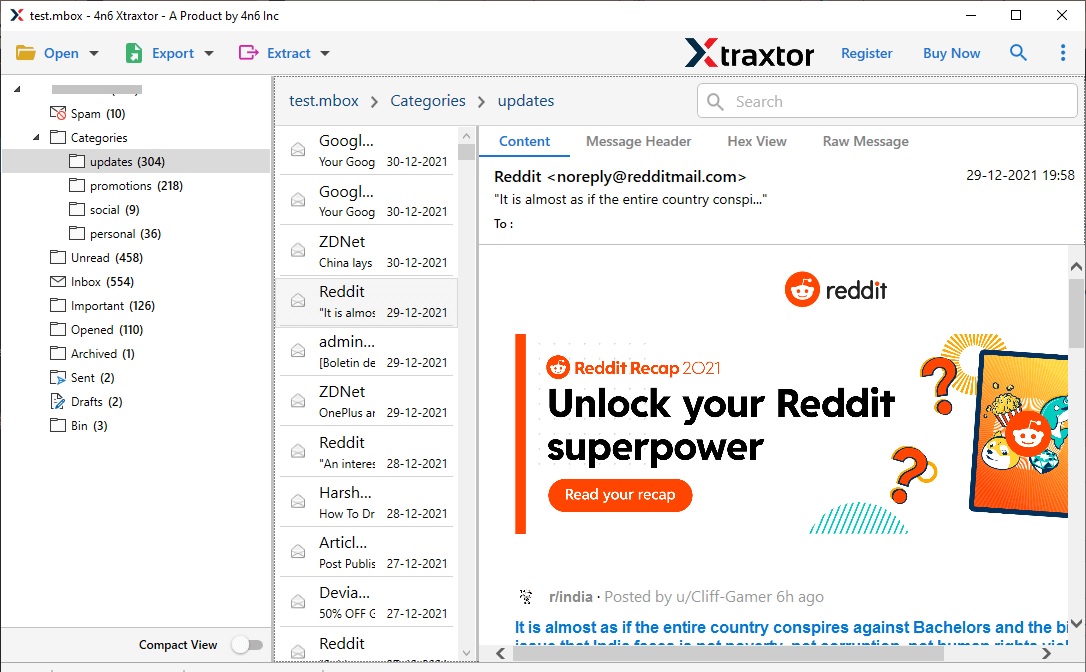
- Click on Export and choose the IMAP option.

- If you want to export selective email folders, then you can select those.
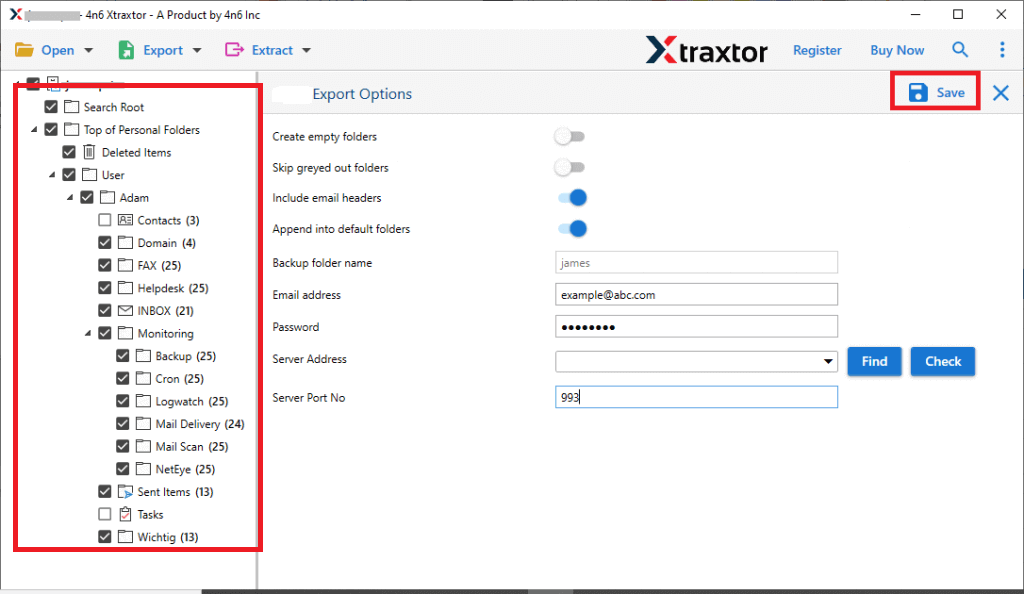
- Here you can apply different filters offered by this tool.

- Enter your Yahoo Mail login details and hit on the Save button.

Step 2. Then, select Open >> Desktop Email Client >> Outlook Account >> Configured Account or Select File.

Done! Here you transfer Outlook emails to Yahoo Mail instantly without any hassle. You can use the trial version of the software to know the complete export process.
Why Choose SysConverter for Exporting?
There are several prominent features of this tool, some of them are –
- Directly migrate Outlook emails to Yahoo Mail account without any data loss.
- Support Outlook 2021, 2019, 2016 and all other previous editions.
- Various filter options- to, from, cc, bcc, name, date, time, etc.
- Maintain email folder and sub-folder hierarchy and structure.
- User-friendly interface for both technical and non-technical users.
- Works on Windows 11, 10, 7, Vista, XP and all other previous versions.
- Preserve data integrity, key elements and attributes.
- Allow to transfer Outlook emails to Thunderbird and other email clients.
- A free-trial version of the software to analyse its working.
Conclusion
Transferring emails from Outlook to Yahoo Mail may seem a complex task, but with the right technique, it will be a smooth process. In this blog, we make your work easy and offer two workable solutions to move Outlook emails to Yahoo Mail account. Checkout both the solutions and find the best one for you. However, we recommend opting for an expert solution to export your important data.