Learn the secure and efficient ways to save Gmail emails to flash drive. Read the complete post and save all Gmail emails to flash drive without any hassle.
Without any further delay, let’s move ahead and download emails from Gmail to flash drive with ease.
How to Download Gmail Emails to Flash Drive?
Manually you can save Gmail emails. Either you want to save a single message or save multiple emails at a time.
#1. Save Single Gmail Email to Flash Drive
To save single Gmail emails to flash drive at once, follow the given instructions –
Step 1. Firstly, login to your Gmail account using your login details.
Step 2. Open the particular email that you want to save.
Step 3. At the right corner, click on three dots and select the Download message option.

Step 4. Select your flash drive to save the Gmail email.
Finish! Here you download single Gmail emails to flash drive with attachments. However, this method will only save a single message from your mailbox. If you want to copy multiple messages at once, then go through the next two methods.
#2. Save Gmail Emails to Flash Drive In Batch
To save multiple emails from your Gmail account, you can use Google Takeout Service. Follow the instructions.
Step 1. Login to your Gmail account and go to the Google Takeout official page.
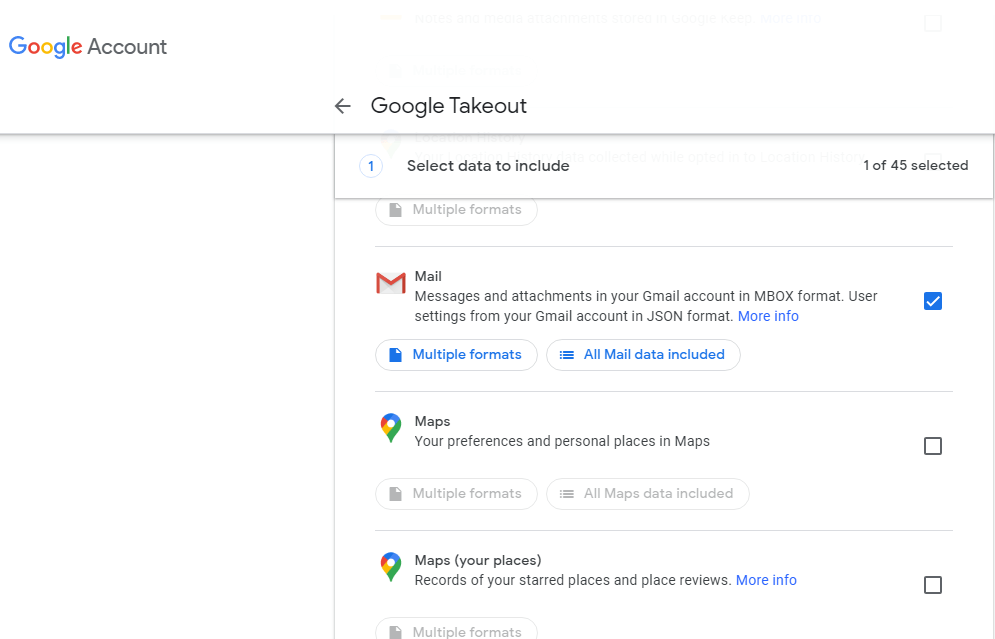
Step 2. In the new window, firstly click on the Deselect All option and then scroll down and select the Mail option
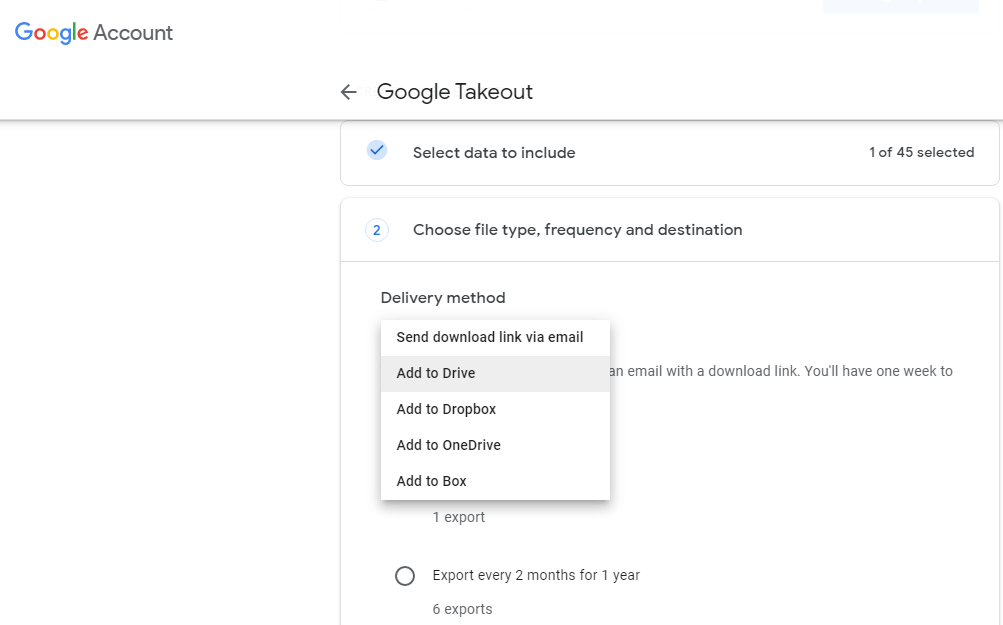
Step 3. After that, you need to choose the Delivery method as Send Download link via email.
Step 4. Now select file type as .zip and file size is 2 GB. Then click on Create Export option.

Step 5. After that, the archiving process will start. When the process is completed you will find the message with the download button, click on it.

Step 6. Then go to Gmail inbox, here you will find an email that contains the Download link. Click on it and save your Gmail emails.
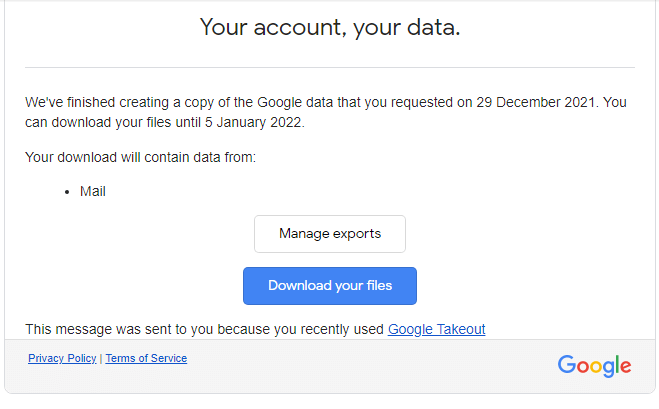
Step 7. Here you download your emails in a .zip file, extract the data from the folder and you get a .mbox file that has your Gmail data.
Complete! Here using the Google Takeout tool, you export Gmail to MBOX file . After that copy, the email data file and paste it into your flash drive. Now here you save Gmail emails to flash drive.
How to Save Google Emails to Flash Drive?
Download the SysConverter Gmail Backup Tool on your Windows OS. Using this utility you will instantly save your Gmail emails to hard drive, flash drive or local drive in a few simple steps.
Launch this tool and export Gmail to PST, CSV, PDF, HTML and other file formats. Then, choose your flash drive as a saving location. Click the below link and try the demo version of teh software.

Steps to Export Gmail Emails to Flash Drive
Step 1. Install and Run the software on your system.
Step 2. After that, select Open >> Email Accounts >> Add Account.

Step 3. Enter your Gmail login details and click on the Add button. ( Note that, use App Password, instead of your actual password).

Step 4. Here you can view your Gmail emails and read them before archiving them.

Step 5. Click on Export and choose PDF format.

Step 6. If you want to save a selective email folder from Gmail, then in this step you can choose the email folders.

Step 7. At last, browse the saving location as your flash drive and hit on the Save button.

Finish! Here you export Gmail to PDF format on your flash drive in a few simple steps. In this same way you can save your data in different files.
Conclusion
In this article, we learn the two best approaches to save Gmail emails to flash drive. We describe a manual way to download Google emails, either save single emails or save entire mailbox data in bulk. Since both, the native solution is not flawless and also required a lot of time to perform the saving process. Along with that, we also mention an instant solution to copy emails from Gmail to flash drive in bulk within a few simple clicks. You can use any one of the solutions that are suitable for you and backup your Gmail emails on a storage device.