Outlook is the most used email client in both Mac as well as Windows OS, Although both versions of Outlook offer the same functionality still there is a huge difference between them. Mac Outlook uses OLM file to save mailbox data. Whereas Windows Outlook stores its data in PST file format. Most importantly both file format is not supported by another Outlook version.
Thus, if you want to open OLM file in Windows Outlook, then you need to convert OLM to PST format. After the conversion, you need to import the data file to access OLM emails in Windows Outlook. To convert emails from OLM file to PST, you need to configure your Gmail account to both Mac Outlook and Windows Outlook.

Ways to Access OLM Emails in Windows Outlook
There are two ways to import OLM to Outlook for Windows – either manually by confusing your email client with Gmail or using a third-party solution.
#1. Free Way to Open OLM Data in Windows Outlook
#2. Read OLM Emails in Windows Outlook Using OLM Converter
Let’s discuss both approaches in detail with proper procedure.
How to Open OLM File in Windows Outlook Manually?
To access your OLM file data in Windows Outlook native way you need to go through four different stages. Now to run the process follow the instructions provided.
1: Setup Gmail IMAP Setting
- Login to your Gmail account with your id and password.
- Now click on the Setting Icon and choose the See All Setting option.
- After that hit Forwarding and POP/IMAP >> Enable IMAP.
- Click on the Save Changes button.
2: Configure Gmail in Mac Outlook
- Firstly open your Outlook for Mac on your device.
- Then click on Outlook >> Preferences.
- After that, hit on Account and choose “+” icon.
- Choose New Account and enter your Gmail id.
- Click on Continue and select your Webmail id and click on Allow.
- . Finally, click on the Open Microsoft Outlook option and your Gmail id added to Mac Outlook.
3: Copy Mac Emails to Gmail Profile
Note: Before you start the process import OLM to Outlook for Mac interface. After that follow the given instructions.
- Now your Gmail is configured with an email client, right-click on your email profile and create a new folder.
- After that go to the OLM file that you imported and select the email folder that you want to import and right-click and select the copy folder.
- Then paste the email folder into the newly created folder in the Gmail profile. After that wait for the Gmail server to synchronize the emails.
Step 4: Add Gmail to Windows Outlook
Now add the save Gmail id to Windows Outlook that you configure in the above method with Mac Outlook. After the sync got completed, go to your Windows Outlook interface and add a Gmail account. Now you can open OLM file in Windows Outlook.
Although this manual method can help you open OLM file in Outlook for Windows still there are few drawbacks to it. This approach is very lengthy and time-consuming that requires lots of time and patience. Along with that, you need the technical knowledge to perform the configuration process. A small mistake and you can lose your crucial data. To avoid all these limitations it is best to opt for a secure and expert solution to complete the process.
How to Open OLM File in Windows Outlook Efficiently?
Use the OLM Converter tool to access OLM emails in Windows Outlook in a few simple steps. This automated tool will convert your OLM file data into a format that is supported by Windows Outlook (.pst). This utility supports OLM file created by Mac Outlook 2019, 2016, and all other previous versions and open them in Windows Outlook. Along with that, there are email filter options to search and import selective emails from OLM file to Windows Outlook.
Along with that, you can also use this utility and import OLM to Office 365, Exchange, iCloud, Gmail, and other webmail accounts. With the simple graphical interface, any novice user can open OLM file in Windows Outlook without any technical knowledge. A free-demo version of the software is also available to know its working process.
Simple steps to Open OLM Emails in Outlook for Windows
- Download and launch the SysConverter for OLM tool on your system.
- After that select Open >> Email Data File >> OLM File >> Select File from Folder.

- Here you can view your OLM file data and read them.

- Click on Export and choose PST format.
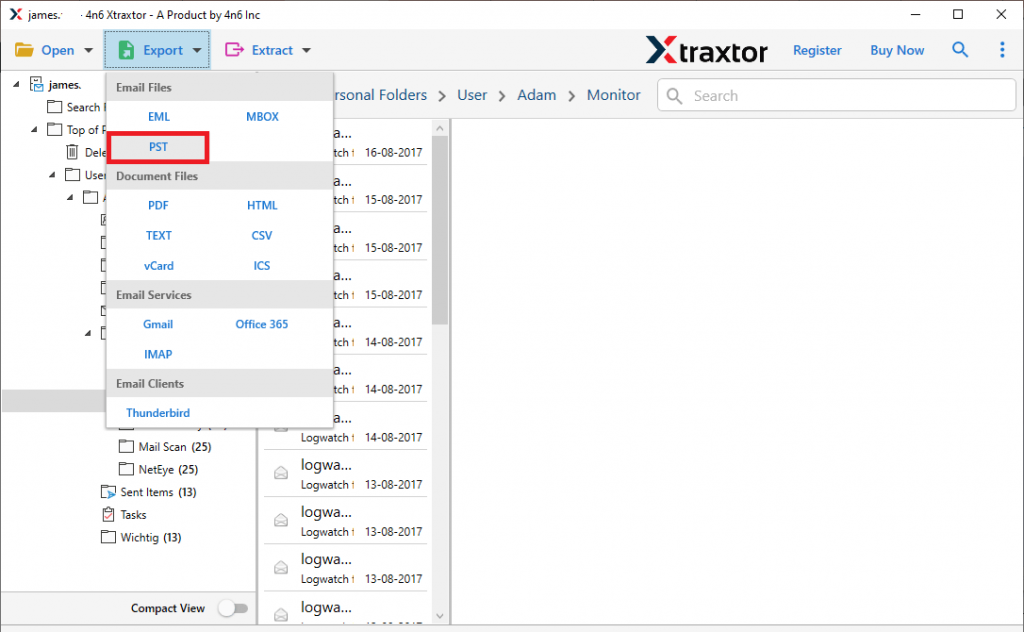
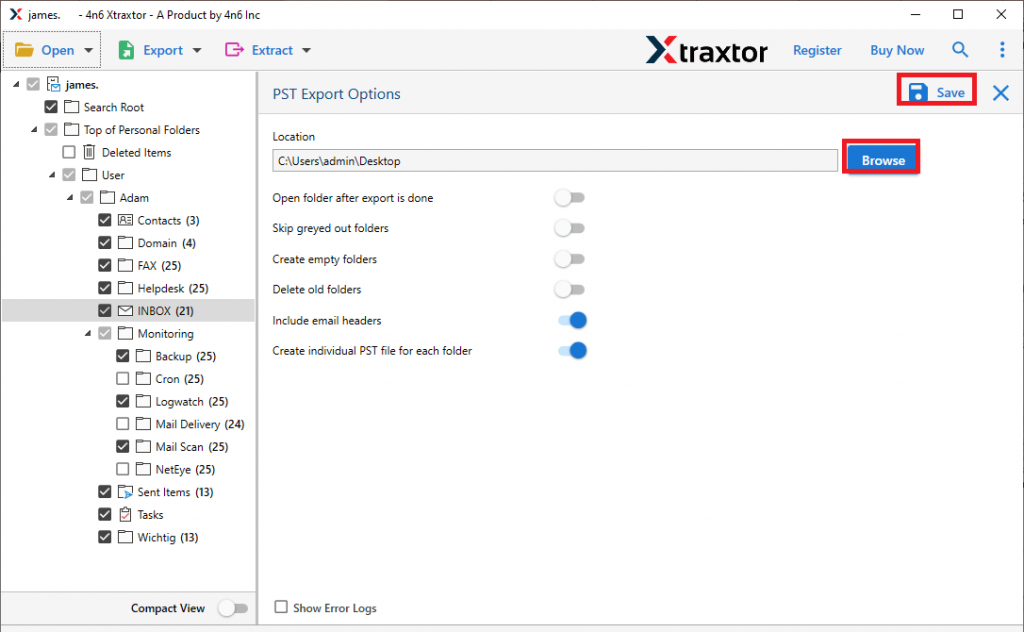
- Now you can select the email folders if you want to import a specific folder only.

- After that browse the destination location and click on the Save button to store .pst file on the system.
- Open your Windows Outlook and go to File >> Open & Export >> Import/Export.

- Select Import from another program and file >> Outlook Data File (.pst).
Step 9. Browse the .pst file and import it to the Outlook interface.
Here complete the process and now you can open OLM file in Windows Outlook in a few simple steps without any hassle.
Why Choose Automated Tool?
There are various outstanding features of this tool that allow you to access OLM file in Windows Outlook with accuracy and efficiency.
Maintain Folder Structure: While opening OLM emails in Outlook for Windows, this tool makes sure to preserve the email folder and sub-folder hierarchy. Thus it makes sure there will be no alteration in email formatting.
Email Filter Options: If you want to access limited emails from OLM file in Windows Outlook, then you can use the filter option provided by this tool. Various filter options you can apply – to, from, cc, bcc, subject, name, time, date, content, property id & name, etc.
Move OLM to Cloud: Using this tool you can import OLM to Yahoo, Exchange, iCloud, Office 365, Gmail, and other webmail accounts. All these options you will get in a single interface.
Support Windows OS: This automated tool works on all versions of Windows OS. You can run this utility on Windows 11, 10, 7, Vista, XP, and all other previous versions without any technical issues.
Advance Email Filters: There are various filter options offered by this tool. You can apply filters like – to, from, cc, bcc, name, date, time, etc. and open selective OLM emails only.
Conclusion
Today in this article we discuss two different solutions to open OLM file in Windows Outlook. Here we know about the manual way to access OLM file data in Windows Outlook. However, there are certain limitations with the original method and to solve this problem we also mention an automated tool. With this tool, you can perform the process brilliantly without any hassles. You can now select a method that will help you read OLM email in Windows Outlook without changing them.