There are the chances where you want to move your Outlook for Mac OLM files into Office 365 account. If it is the scenario with you, then in this write up you will find a workable solution to import OLM to Office 365 Webmail account.
If you have a .olm file and want to access its email, this is only possible if you have an IOS system with Outlook configured.
However, there may be a situation where one only has a data file and wishes to open it in an Office 365 account. In this case, there arises the need for a third-party solution. Now the question is – What qualities do you want in your OLM to Office 365 Import Tool?
Secure, reliable and fast. If these are the qualities you are looking for, OLM Converter is the tool that solves all your problems and easily import OLM to Office 365 webmail account.
Before we move ahead let’s know the reasons why need to move OLM file to Office 365 account.
Why Office 365 Webmail?
There can be several reasons for choosing Outlook 365 to open the OLM file. Some of them mention here,
1. Office 365 is a web-based email account accessible on any network-connected system.
2. All data will be stored in the cloud server, so there is no storage space problem.
3. Provide advanced security compared to Mac Outlook.
4. Advanced spam detection feature to protect emails from spammers and hackers.
How to Import OLM to Office 365 Webmail Effortlessly?
Mac Outlook and Office 365 are both Outlook products. Yet, there is no direct manual way to import OLM files into O365 account. However, with the help of the automated tool, it is an easy task to perform. One such tool is OLM Converter which is specially designed to move OLM files to Office 365 account without data loss.
This tool directly import OLM to Outlook 365 account, the user just needs to enter their login details. This utility supports OLM file from all Mac Outlook versions. By choosing a folder, you can move multiple OLM files into Office 365 account in a single attempt.

Follow the Steps to Transfer OLM File to Office 365 Account –
- Download and launch the software on your Windows OS.
- After that, click on the Open drop-down button and proceed further.
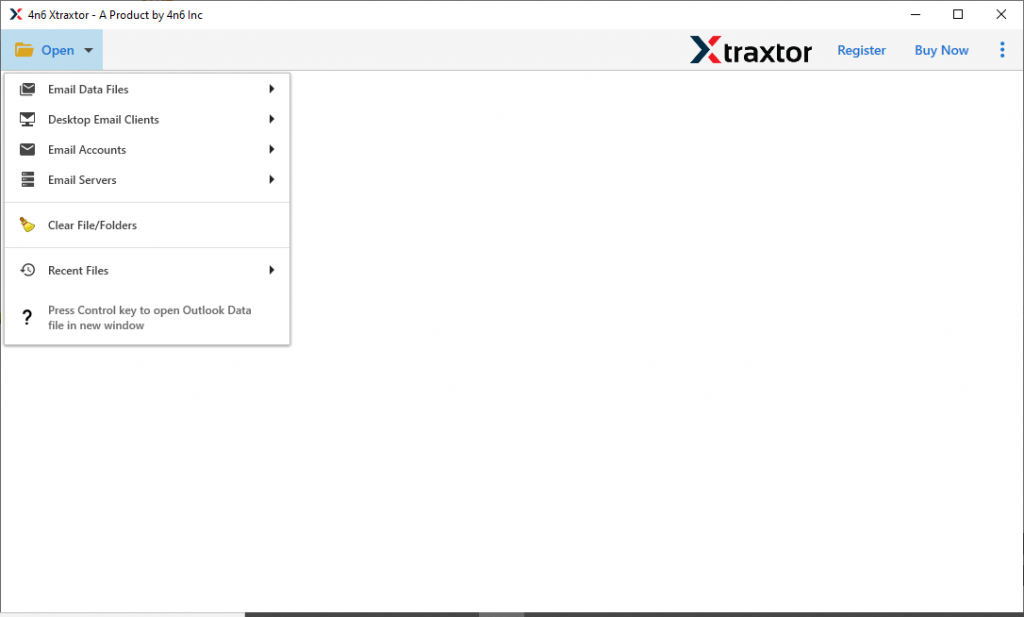
- Select Email Data File >> OLM File >> Select File or Folder.

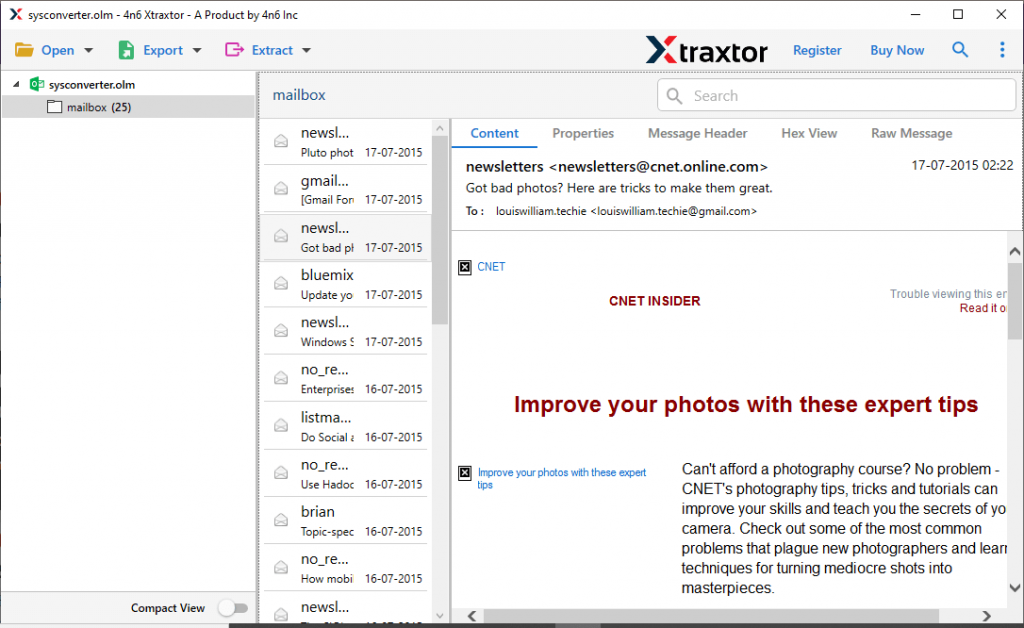
- Here read your OLM file emails and select the email folder to move.
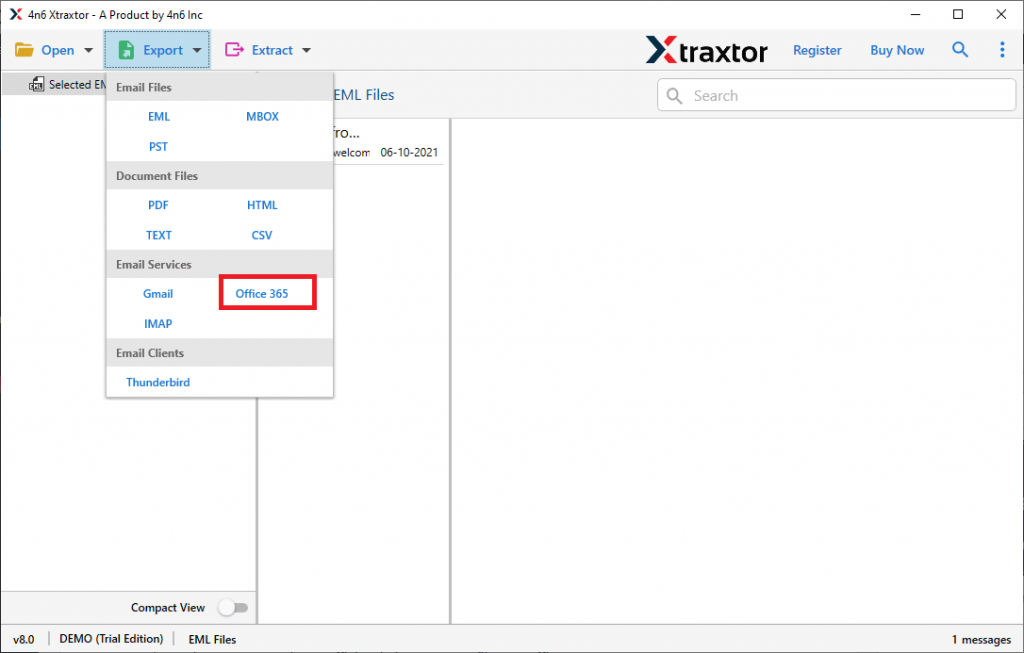
- Now click on Export and select Office 365 account.
- At last, enter your Office 365 login credentials and hit on the Save button.

Here you go! You now read OLM files into Office 365 webmail account without any issue.
Why Choose OLM to Office 365 Import Tool?
There can be various reasons to opt for this automated tool. Some of them mention here.
Advance Email Filter: The utility offers an array of filter options to locate the emails from the data file. Users can apply various filters such as – to, from, cc, bcc, subject, has attachments, date range, time, and many more fields.
Easy to Use: With the simple graphical interface, this OLM to Office 365 import tool can easily be operated by beginners. With a few simple clicks, one can import OLM to Office 365 account with complete mailbox data.
Move OLM to Webmail Account: This tool can also import OLM to Gmail, Yahoo, Yandex, and other cloud-based email servers. Along with that, you can also import OLM to Thunderbird, Outlook, and other email clients as well.
Maintain Mailbox Structure: While moving emails from .olm files, this tool makes sure to preserve the mailbox folder or sub-folder structure and hierarchy. Alon with that. it also holds the email key element and properties.
Windows OS Support: This software is designed in such a way that it can easily install on any Windows OS version. One can run this tool on Windows 11, 10, 8, Vista, XP, and other operating system versions without facing any technical issues.
Conclusion
In this guide, we provide a secure and workable solution to import OLM to Office 365 webmail account. Using this utility users can open multiple .olm files into Outlook 365 account without any data loss. Users can try the demo version of this tool and save their OLM file data into O 365 account without affecting the mailbox data integrity.