Transferring emails from Kerio server to Gmail is a common question of the users who switch their emailing platforms. While the reason behind this migration process may differ according to their requirements, Kerio to Gmail migration is not that simple process.
Don’t worry, we will simplify this process and helps you to migrate Kerio emails to Gmail account. Therefore read the complete article to kno wthe secure way to perform the conversion process.
Before we move ahead, let’s analyse a scenario to know the situation better.
“My company is using the Kerio server for a few years, however due to some reasons, we can’t continue Kerio Connect premium service. So we decided to switch to a personal Gmail account which is a free service. Now we want to transfer all company data from Kerio to Gmail, can anyone tell me the safe way to convert emails from Kerio to Gmail account?“
There is no manual way to migrate from Kerio to Gmail, thus the need for a third-party solution arises. One such tool that is alone capable of performing the migration process, we will discuss in this section.
Instant Method to Migrate Kerio Mailbox to Gmail
For a quick and accurate Kerio to Gmail migration, use Kerio Migrator wizard on your Windows OS system. This migrating tool allows its users to move mailbox data to Gmail in batch without any data loss. Along with that, it also offers an advanced filter option to search emails by applying filters such as to, from, subject, cc, bcc, date range, time and any more.
With the help of this migration utility, you can also migrate Kerio to Office 365, Zimbra, Exchange and many other webmail accounts. While migrating emails from Kerio to Gmail, this utility makes sure to maintain mailbox data integrity and hierarchy.

Steps to Migrate Kerio Emails to Gmail Account
Follow the below-mentioned instructions for secure and accurate Kerio to Gmail migration.
Step 1. Download and launch this stool on your system.
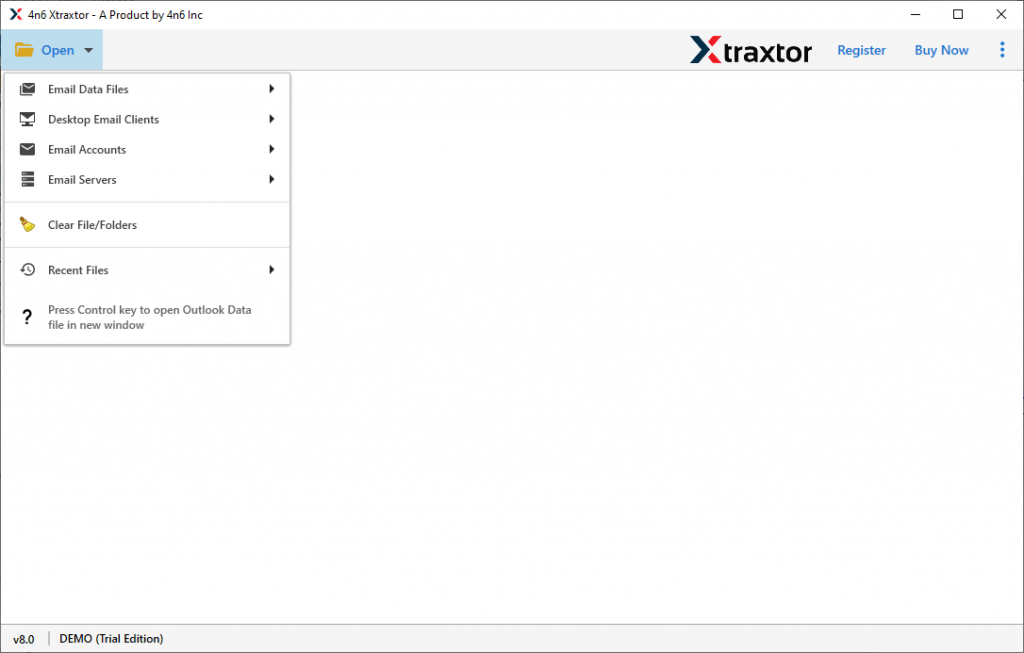
Step 2. After launching it, click on the Open drop-down button present on the software screen.
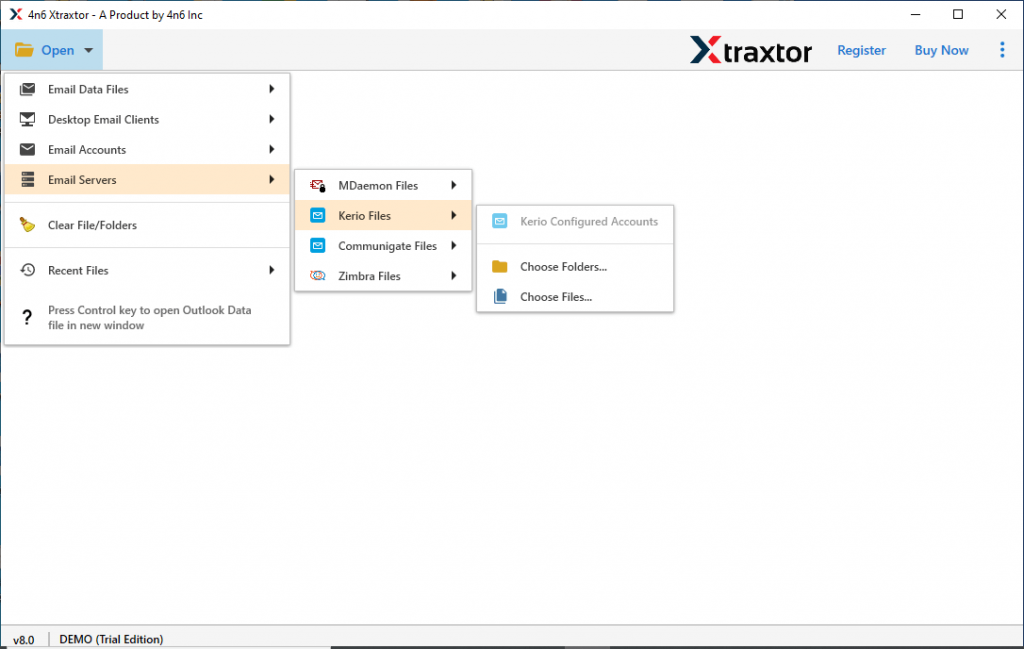
Step 3. Now select Email Server >> Kerio File >> Kerio Configured Account or Select File/Format.
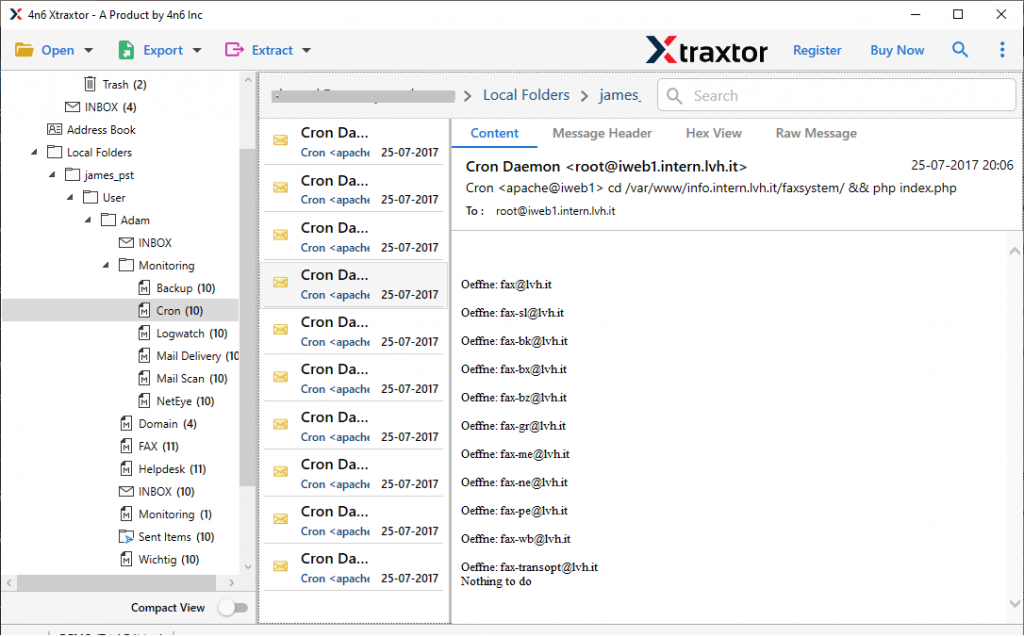
Step 4. Here you can read your emails and decide which email folder you want to migrate.
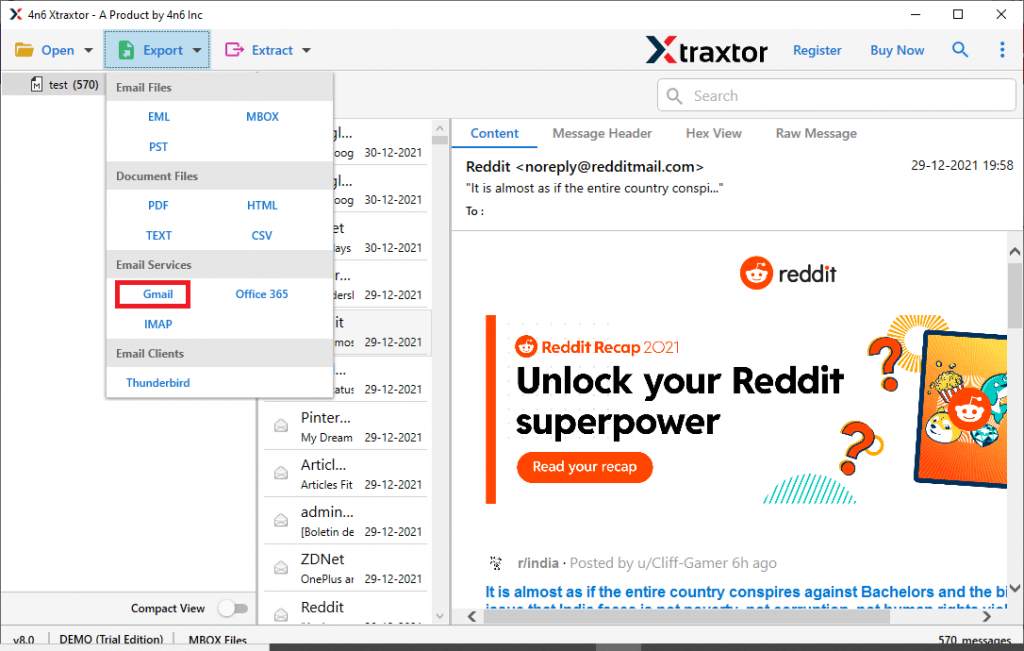
Step 5. Click on the Export and select Gmail as a saving option.
Step 6. Enter Gmail login details and hit on the Save button.
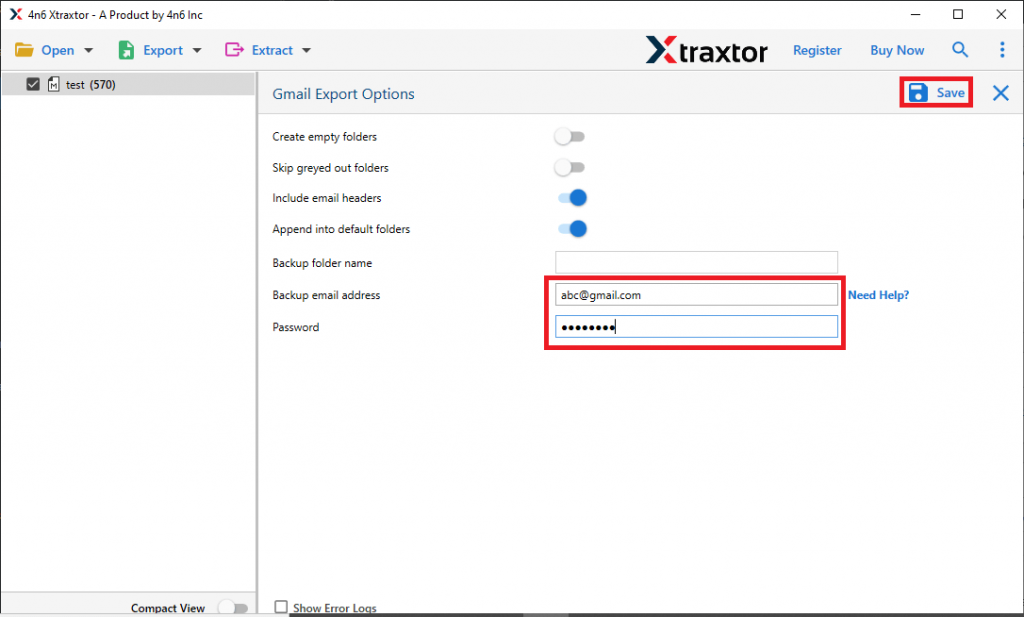
Here completes the Kerio to Gmail migration process using the above mention automated tool.
Why Choose Kerio to Gmail Migration Tool
There are various reasons to opt for this tool to migrate Kerio emails to Gmail account without any data loss.
Maintain Data Integrity: While using this tool for email migration, there will be no alteration in your mailbox data. This software makes sure to maintain email data integrity while migrating Kerio emails to Gmail account.
Extarct Email Data: This utility offers an option to extract email addresses, attachments, phone numbers and associated email addresses and phone numbers. All this information will be saved in a single text file.
Filter Options: The migration software has an inbuilt filter option to find emails with specific attributes. Users can apply various filters such as – to, from, cc, bcc, subject, property id, date range, and many more to choose from.
Migrate Kerio Emails In Bulk: While uploading email sin the software interface, it allows its user to select a folder. The folder that contains various data files, can easily migrate to Gmail account without any data loss.
Save Kerio Emails In Different File Formats: Using this utility, you can also convert Kerio emails to PST, PDF, CSV, and all other file formats. All these saving options will be present in a single interface.
Windows Based Application: This utility is specially designed for Windows-based operating systems. You can operate this tool on Windows 11, 10, 8, Vista, XP, and all other previous versions.
Conclusion
In this writes up we discuss the reliable solution to migrate Kerio emails to Gmail account without data loss. We mention the step by step description of the Kerio to Gmail migration process with screenshots. You can use the demo version of this utility and perform the migration process yourself.