Summary: Here in this blog we will discuss the secure and efficient way to migrate Gmail to iCloud. If you are among those who want to migrate emails from Gmail to iCloud Mail account, then this post is for you.
Although, one can manually migrate Gmail emails to iCloud mailbox using the Gmail Forwarding feature. Enter your iCloud email id and follow the instructions. However, while migrating there are chances of data loss.
How to Migrate Gmail Emails to iCloud Automatically?
Downlaod SysConverter Gmail Backup Tool for Windows. This software will instantly transfer your Gmail mailbox data to iCloud mail account in a few simple clicks. The software will migrate your Gmail emails to iCloud without affecting email folders and sub-folder hierarchy.
Downlaod the software and transfer files from Gmail to iCloud.

Steps to Migrate Gmail to iCloud Account
Step 1. Install and launch the automated tool on your Windows OS.
Step 2. After that, select Open >> Email Accounts >> Add Account.

Step 3. Enter your Gmail login details and click on the Add button.
[Note: Use App Password instead of your Gmail password.]

Step 4. Here you can view all your Gamil emails before migrating them to iCloud.

Step 5. Now click on Export and choose IMAP from the given options.
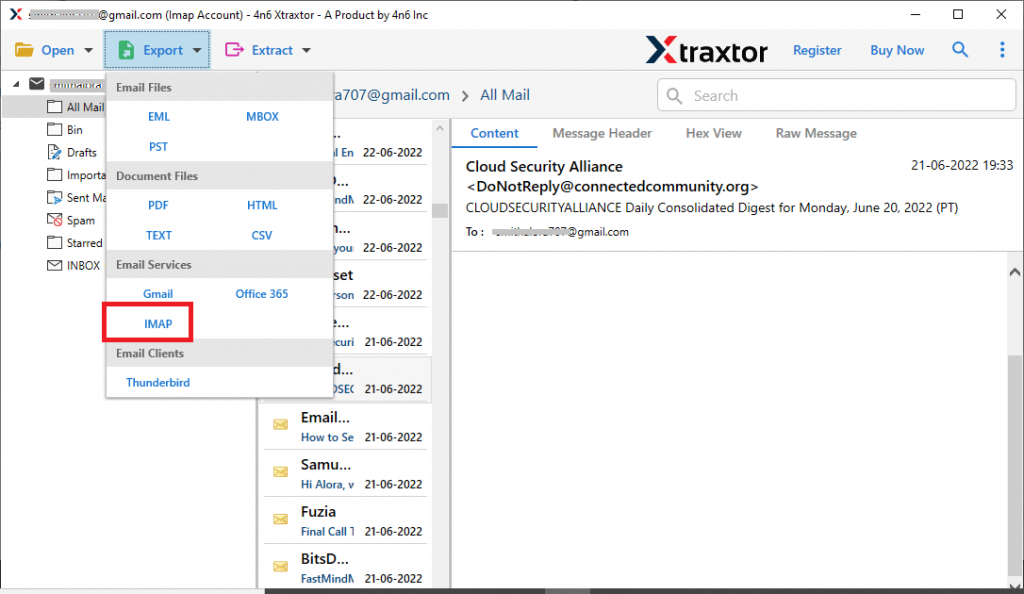
Step 6. You can select the email folders if you want to migrate selective migration only.

Step 7. At last, enter your iCloud webmail account and hit on the Save button.

Done! Here you migrate Gmail to iCloud webmail accounts with complete mailbox data.
Why Use Gmail to iCloud Migrator Software
There are various outstanding features of this utility, some of them mention here. Read this section and know what are they.
- Directly Migrate Emails From IMAP Account: This smart utility will migrate email directly from the webmail account without any hassle. You just need to enter your Gmail login details and add the account with the software interface.
- Maintain Mailbox Hierarchy: While migrating emails from Gmail to iCloud, there will be no alteration or modification in email formatting. There will be no changes in the mailbox folder and sub-folder hierarchy and structure during Gmail to iCloud migration process.
- Save Gmail Emails in Different File Formats: If you want to save your Gmail emails in various file formats, then this utility also offers various file formats to save mailbox data. One can use this tool and export Gamil to PST, PDF, CSV, EML, and other file formats.
- Email Filter Options: Does your Gmail has a large amount of data, but do you want to import emails from a particular date? If yes, then you can use the date range filter option. Along with that, you can also use other filter options such as – to, from, cc, bcc, subject, name, content, time, has attachments, and many more.
- Move Gmail Emails to Cloud Server: Using this tool you can perform the various migration process in a single interface. It will migrate Gmail to Yahoo, Office 365, Zoho Mail, Exchange, Outlook Online, Google Workspace, and many other IMAP accounts.
Conclusion
Sometimes users want to switch their mail platform. One such scenario is where users want to migrate Gmail to iCloud webmail account. The method we explain in this writing is a simple way to perform the import operation. With the automatic tool, you can import emails from Gmail to iCloud mailbox in a few simple steps without any hassle.