Importing emails from Outlook data file to Office 365 is a smooth process with the right approach. Here in this blog, we will discuss the best way to import Outlook data file to Office 365 account without any data loss.
Office 365 now known as Microsoft 365 is a cloud-based collaboration tool developed by Microsoft. It consists of different applications including Office Applications, One Drive, SharePoint, Teams, etc.
On the other hand Outlook data file (.pst) contains all the mailbox data (emails, contacts, calendars. etc). The data file can only open in Outlook application of any version. That’s why many users want to migrate Outlook data file to Office 365.
Why Need to Import Outlook Data File to Outlook 365 Account?
Office 365 is a webmail account that can be accessed anywhere without any hassle. That can be the reason that users want to open PST file in Office 365, some other benefits are –
- Office 365 offers various advanced features – OneDrive, Teams, Word, Powerpoint, etc. It offers better collaboration and communication among team members.
- You can access your Office 365 account on any system that is connected to the internet.
- Microsoft 365 offers advanced security features that seure your important data.
How to Migrate Outlook Data File to Office 365 Manually?
To manually upload Outlook data file to Microsoft 365 account, you need to install Outlook application on your sysetm. After that using Import/Export tool you can easily import the data file.
Follow the given instructions and migrate Outlook data file to Office 365 account.
- Open the Outlook application on your Windows OS system.
- Then click on File >> Open&Export >> Import/Export.

- Choose Import from another program file and click on the Next button.
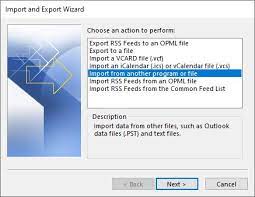
- Select Outlook data file >> Next.

- Browse the data file from your system.

- Then, select the folder you want to import and choose Import items into the same folder in option.

- Enter your Office 365 email id in the text field and click on the Finish button.
Done! Here import PST to Office 365 account, you can check your Microsoft 365 mailbox and search the imported data file.
Limitation of Manual Solution
- There are chances of data loss during this import process.
- If import export greyed out Outlook, then this approach does not work.
- There might be changes in the email folder and sub-folder hierarchy and structure.
- No filter option for selective import.
How to Import Outlook Data File to Microsoft 365 Instantly?
Use a secure and efficient PST Converter tool on your Windows OS system. With its user-friendly and easy-to-use features, it is appropriate for both technical and non-technical users. There are various advance features offered by this tool including email filters, selective email migration, maintain folder hierarchy and many others.
Additionally using this tool you can also import PST to Shared Mailbox Office 365 in a few simple clicks. This tool is compatible with all Windows OS versions without any hassle. If you want to save emails from Outlook data to many other data file, then you can export them into different file formats including MBOX, PDF, CSV and many other. A free demo version of this tool is also available to analyse its working process.

Follow the given instructions and import Outlook data file to Office 365 mailbox –
- Launch the SysConverter for PST on your Windows system.
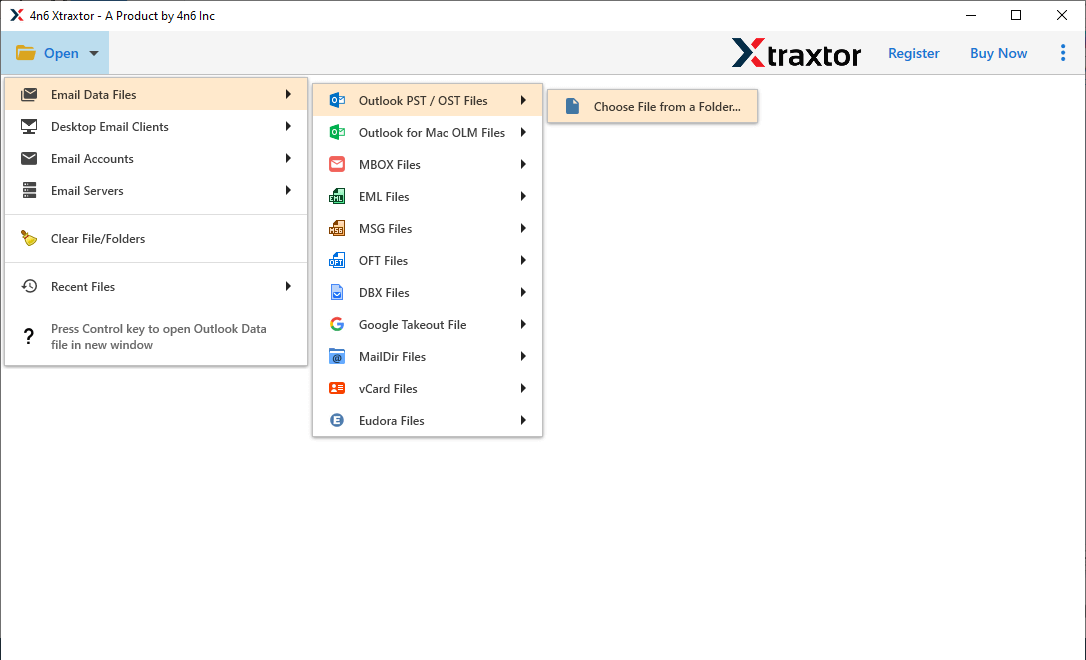
- Then, select Open >> Email Data File >> Outlook Data File >> Select File from Folder.
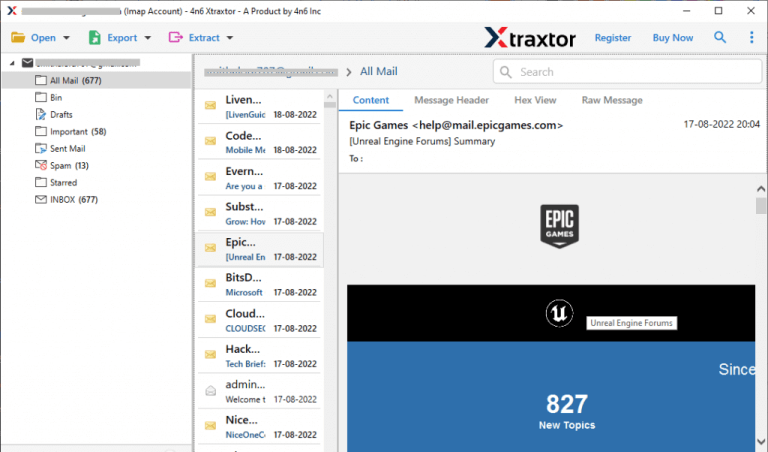
- Here you can view your emails and other data before importing them.
- Click on Export and choose the Office 365 option.

- Enter your Office 365 login details and hit on the Save button.
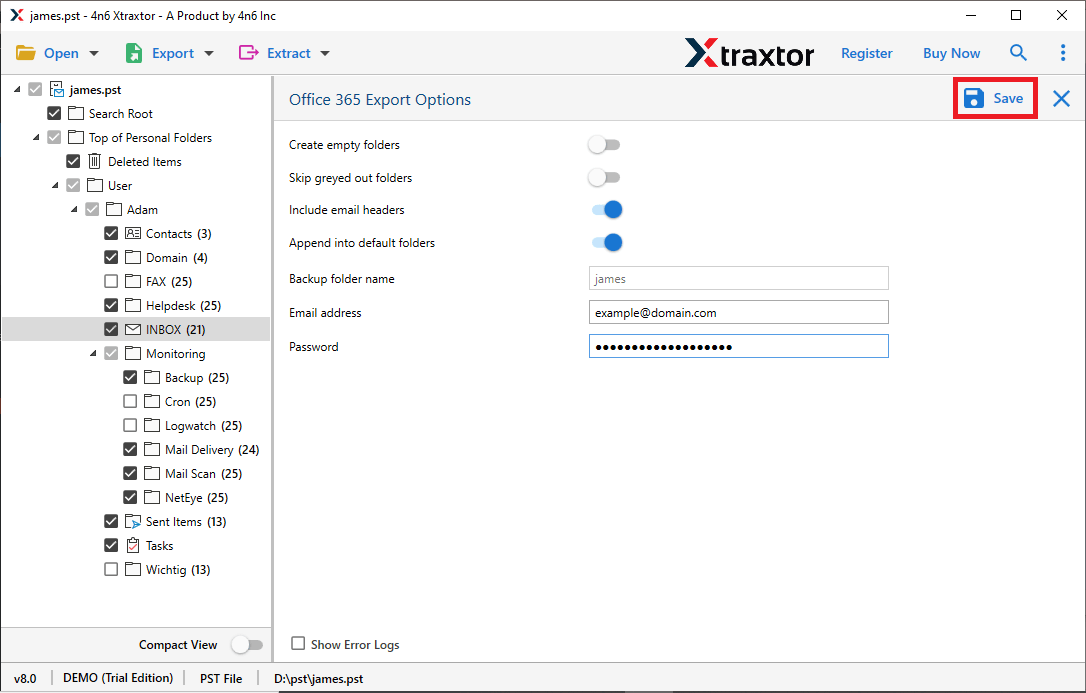
Done! Here complete the Outlook data file to Office 365 migration in a few simple clicks without any data loss.
Why Use SysConverter for PST Software?
- Instantly import Outlook data file to Office 365 mailbox in a few simple clicks.
- Advance email filter options – to, from, cc, bcc, name, date, time, etc.
- Allow to convert PST to MBOX, PDF, CSV and all other file formats.
- Compatible with Windows 11, 10, 7, Vista, XP And all other previous versions.
- Migrate Outlook data file to Gmail, Exchange Online and many other webmail accounts.
- You can view your emails and other data before importing them.
- Maintain email folder and sub-folder hierarchy and structure.
- Retain email attributes and key elements while import Outlook data file to Outlook 365 mailbox.
- A free trial version of the software to know it’s working before moving to a licenced version.
Conclusion
Migrating emails from Outlook data file to Office 365 account is not a complex process with the right approach. Here in this blog, we discuss the two best approaches to import Outlook data file to Office 365 account without any data loss. You can either manually import Outlook data file to Outlook 365 account or use SysConverter for OST software for instant migration.