This blog will guide you to transfer OST file into Windows Live Mail Account. If you are also looking for a secure way to import OST to Windows Live Mail with ease.
Nowadays Outlook is a commonly used email client preferred by many organisations. In Outlook, the mailbox data is stored in two different formats – OST or PST. Offline Storage Table or OST, saves emails and other data in Offline mode that can be accessed without internet connectivity.
If you are trying to move the OST file into another desktop application, then you must know that .ost is only accessible in the Outlook profile that creates the data file. To import OST to Windows Live Mail, you need to convert the .ost file into a file format that is supported by WLM, which means you need to convert OST to EML format.
How to Import OST File into Windows Live Mail?
If you are trying to import OST to Windows Live Mail mailbox, then there is no manual solution to perform this process. This only leaves us to use a third-party solution. OST converter is the complete solution to all the OST import process. This utility, instantly uploads OST file data into Windows Live Mail account without any data loss. Most importantly, you can import orphan and inaccessible OST file into WLM account without facing any glitches.
In addition to these, you can also use this tool to import OST to Gmail, Yahoo, Office 365, Exchange Server, iCloud and many other webmail accounts. Along with this tool, you will get many other features such as – maintaining mailbox hierarchy, email filter options, selective email import, and many more.

Follow the instructions to Import OST Emails to Windows Live Mail –
- Install and Run SysConverter for OST on your system.
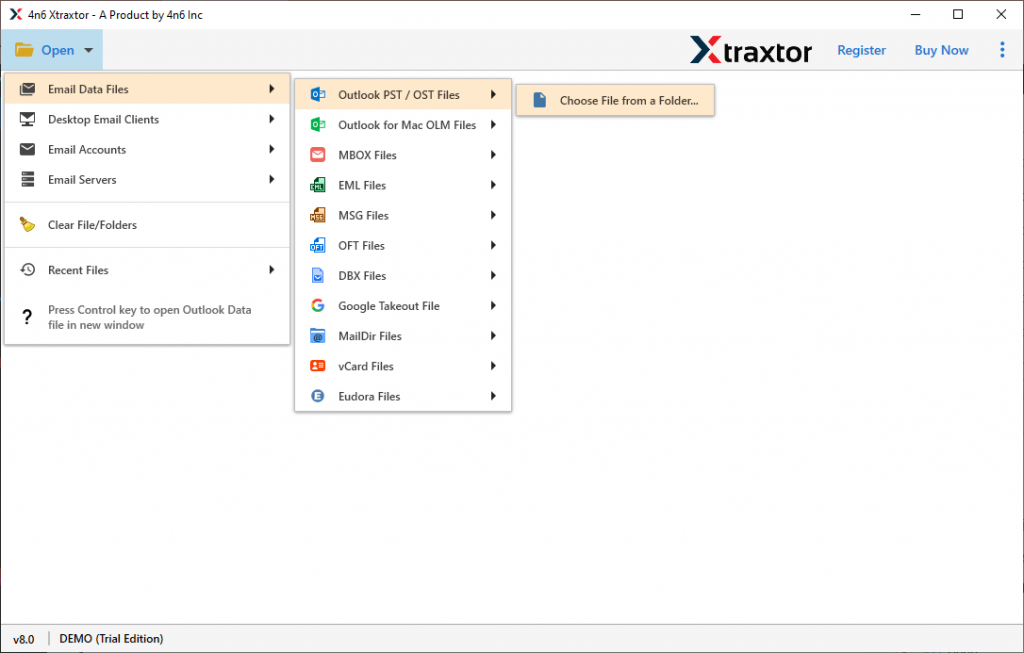
- After that, select Open >> Email Data File >> OST File >> Select File from Folder.
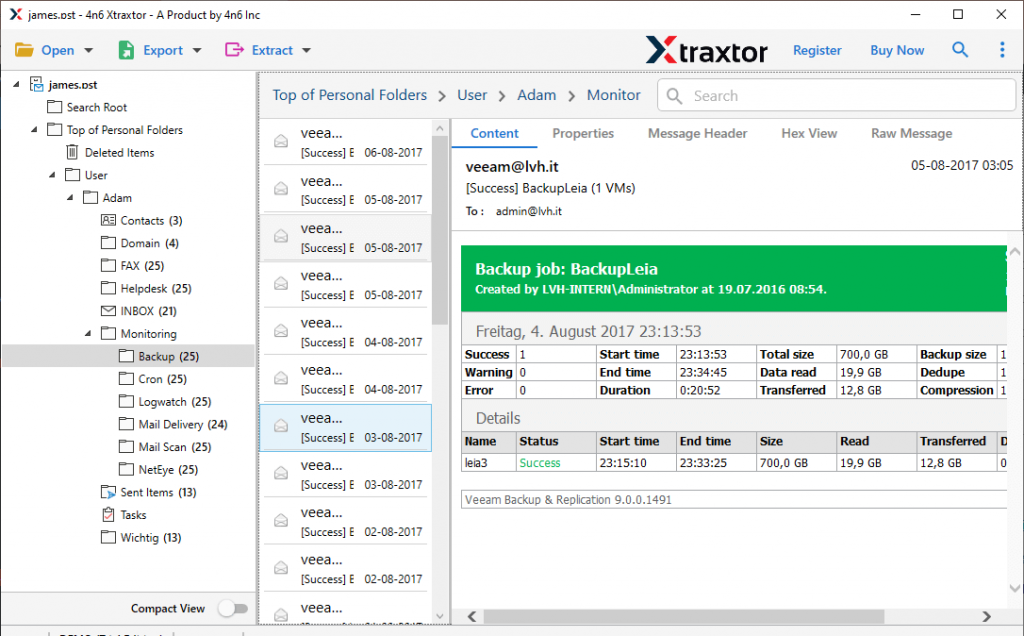
- Now the tool scans the uploaded file and shows all its content in its interface.
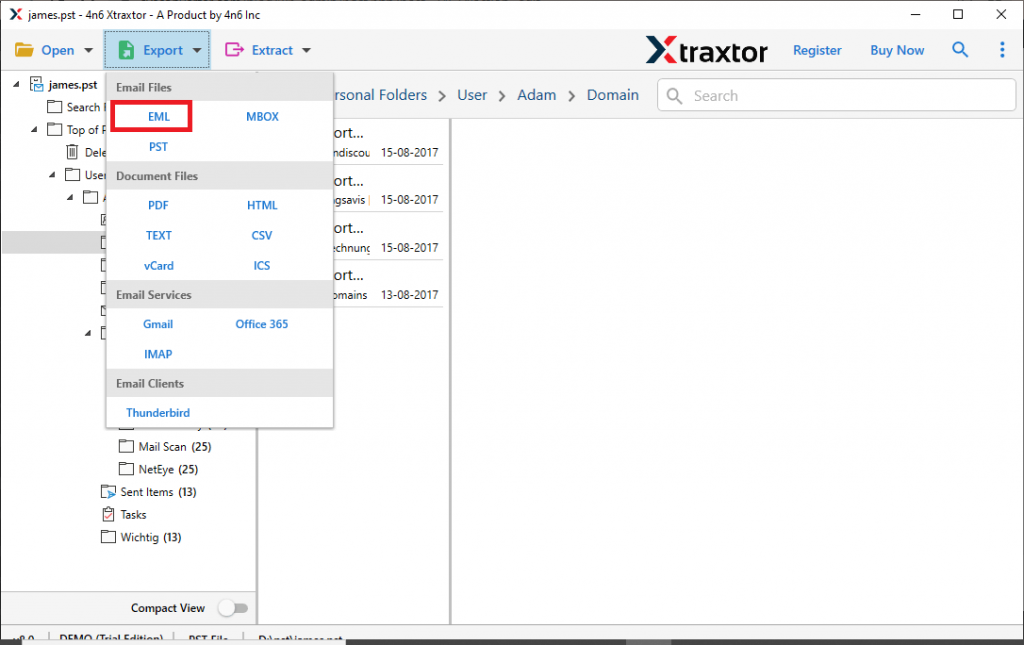
- Click on Export and choose EML as a saving option.
- Here you can select the email folders that you want to import.
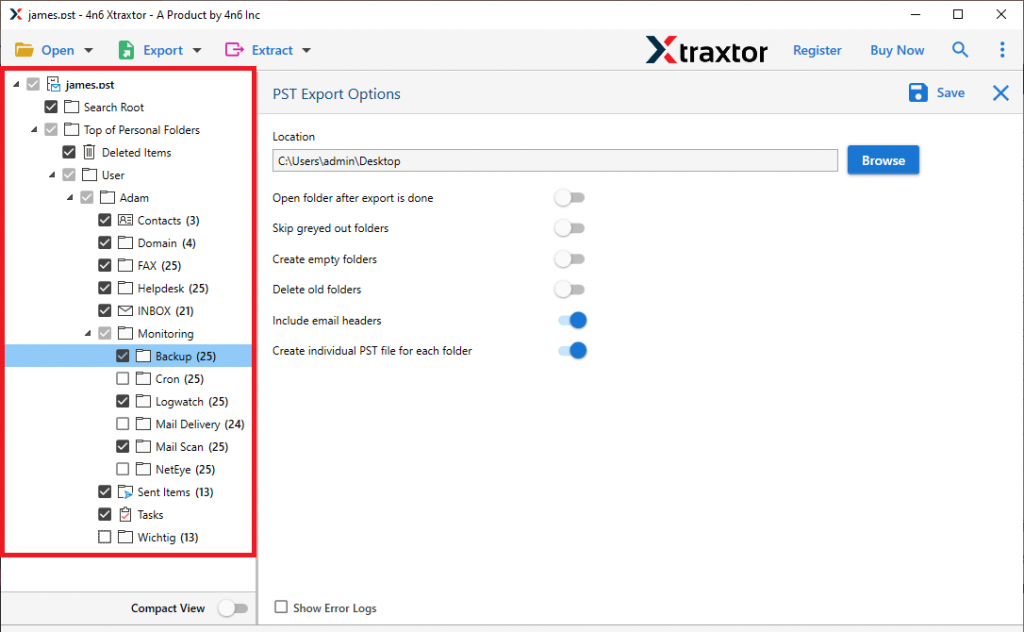
- Then, browse the saving location and hit on the Save button.
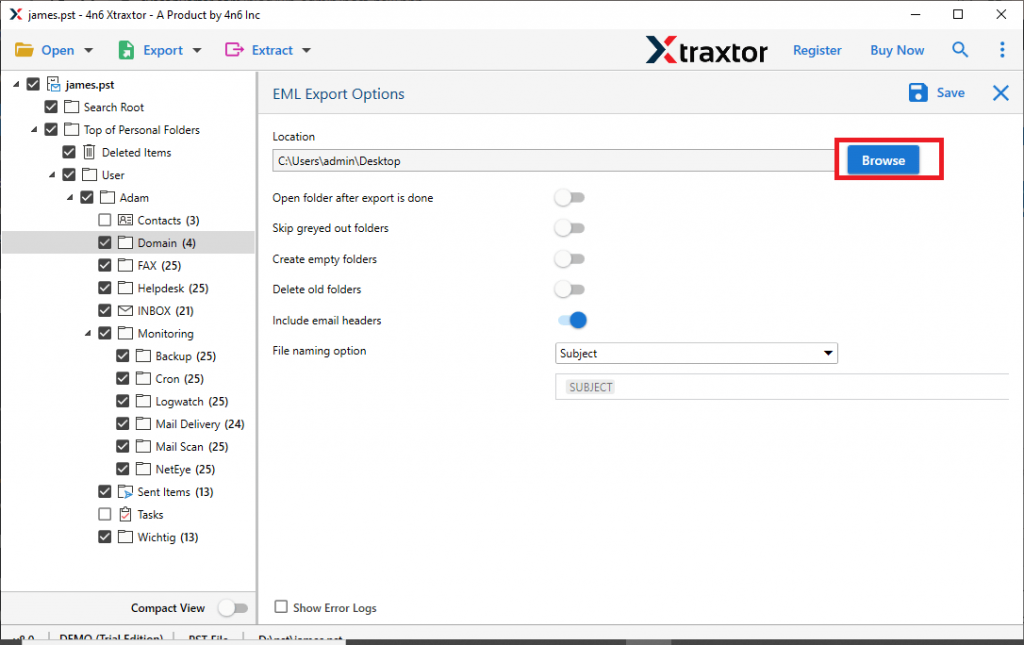
Now you have the EML files, import the converted file into Windows Live Mail. Follow the given instructions for that-
- Open your Windows Live Mail email client on your system.
- Now select File >> Import Messages.
- Choose Windows Live Mail and click on the Next button.
- Hit on the Browse and locate EML files from the saving location.
- Choose the message folder and hit on Next to start the import process.
Here you import OST to Windows Live Mail without any hassle. You can use the demo version of the software and try the import process yourself.
Benefits of Using OST to Windows Live Mail Import Tool
There are various outstanding features of this tool that will make the import process easy and efficient.
- Uphold Mailbox Hierarchy: While importing OST file emails to Windows Live Mail, this software maintains the mailbox folder and sub-folder structure and hierarchy. Import process will be performed without affecting the OST file email and other component structures.
- Email Filter Option: With this import tool, there are various filter options available to transfer and search specific emails. You can apply various filter options- to, from, subject, bcc, cc, has attachments, date range, time, name, content, property id & name, and many more.
- Convert OST File Data: Along with import, this utility also convert OST to PST, CSV, PDF, EML, MSG, and many other file formats. If you want to transfer OST file into another emailing platform, then its tool can also convert the email data file into the file format supported by that application.
- Import Orphan and Corrupted OST File: Using the OST to WLM Import tool, you can easily upload the data file that is inaccessible or damaged. If you have an orphan OTS file, then this software very efficiently import the mailbox data to Windows Live Mail.
- Transfer OST File to Cloud: The automated tool also import OST to Office 365, Google Workspace, iCloud, and many other webmail accounts in a single interface.
- Support Windows OS: This utility is specially designed for Windows-based users. It can easily be installed and run on Windows 11, 10, 8, Vista, XP, and all other previous versions without any technical issues.
Conclusion
Many users search for a way to import OST to Windows Live Mail. However, there is no manual way to perform this import process. In the above write up we mention an instant solution to convert OST to Windows Live Mail in a few simple steps. We also describe the step by step import process with screenshots to make the operation easy for you.