Are you looking for a way to import OST to iCloud Mail account? If yes, then this post is for you. Read the post and learn the complete process of importing OST emails to iCloud mailbox in a few simple clicks. Here in this post, we will discuss the best way to import emails from OST file to iCloud mailbox along with attachments.
OST file is an offline storage table that is created by Outlook when connected to Exchange Server. It allows users to access their emails without internet connectivity. All the changes in the OST file in offline mode will be synchronized when the mailbox is connected to the internet.
However iCloud doesn’t support OST file, so there is no direct manual way to import OST to iCloud account. Still, you can transfer OST file into iCloud account. In this write, we will discuss the best both manual and automated ways to import OST file into iCloud webmail account.
How to Upload OST File to iCloud Mail Manually?
To manually import the OST file data to iCloud, you need the Apple Mail application on your Mac system. After that, you can import your OST file data via Exchange. Let’s check it out in detail.
- First, open Apple Mail and go to Preferences > Accounts.
- Click the ‘+’ icon to add a new account.
- Choose Exchange and click Continue.
- Enter your name, email, and password, then click Continue.
- If autodiscovery is enabled, the server will be set up automatically. If not, enter the server address.
- Choose the folders you want to sync (like inbox, sent, calendars and contacts), then click Continue.
- Your Exchange account is now set up in Apple Mail.
Here you move your OST file data. However it has some limitations that you can face while importing. Firstly, you will need the Mac system to complete the process. Moreover, the task is complex, a single mistake and you will lose your data. Most importantly, it is not recommended if you are trying to import large amounts of data.
How to Migrate OST File to iCloud Mail?
We already know that there’s no manual way to import OST file into iCloud account. However, with the right techniques and tools, it is very much possible. One such utility is OST Converter software, it will instantly transfer emails and other data from OST file into iCloud account. This utility uploads the data file into its interface and directly import it into iCloud mailbox without any data loss. Along with that, it also transfer orphan and damaged .ost file without any glitch.
In addition to these, this utility also import OST to Exchange, Gmail, Yahoo, GoDaddy, and other webmail accounts. Along with that, it maintains mailbox hierarchy and structure, offers email filters and many more.

Follow the given Steps to Import OST to iCloud with Attachments –
- Install and Run SysConverter for OST on you’re Windows OS.
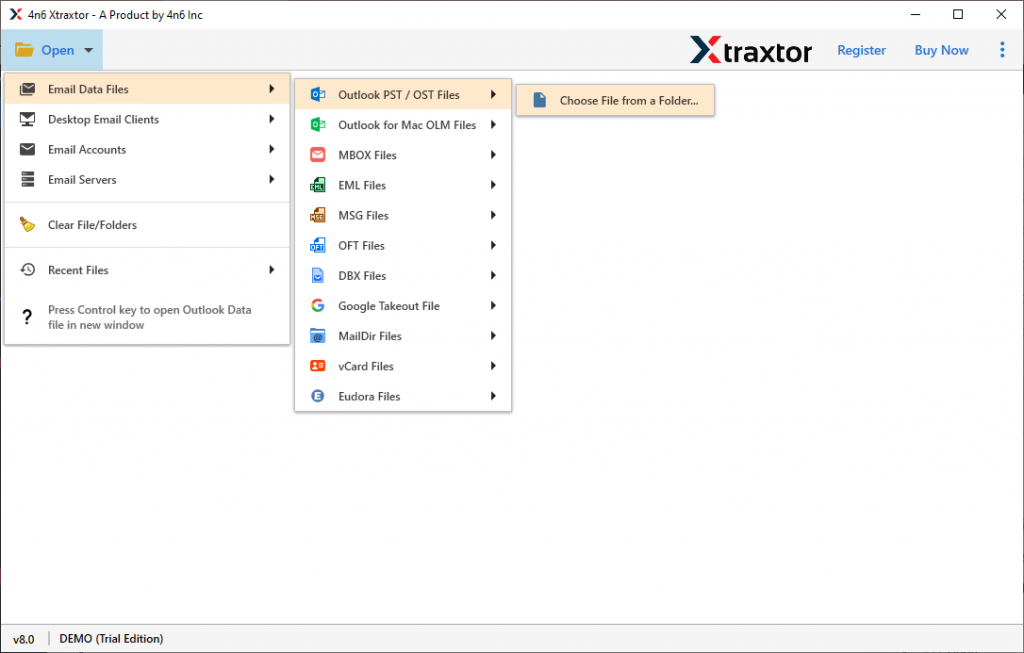
- After that select Open >> Email Data File >> OST File >> Select File from Folder.
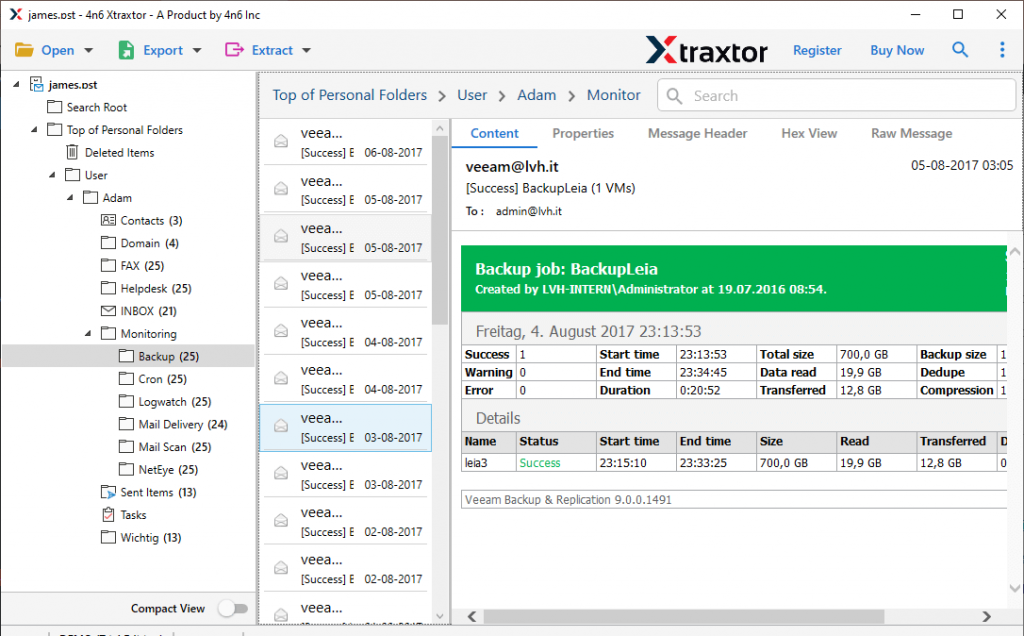
- Here you will find your OST file emails and other data.
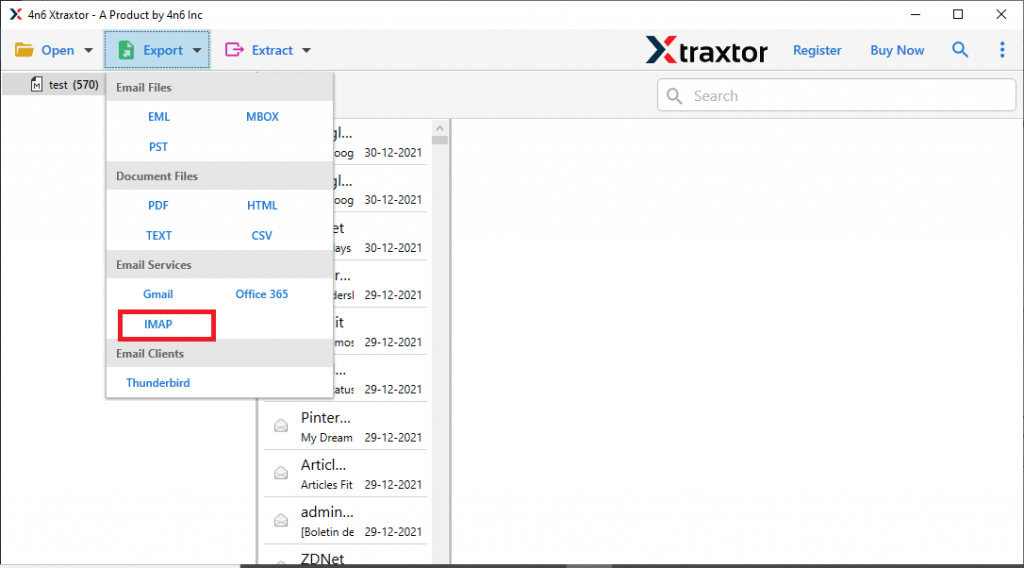
- Click on Export and choose IMAP as a saving option.
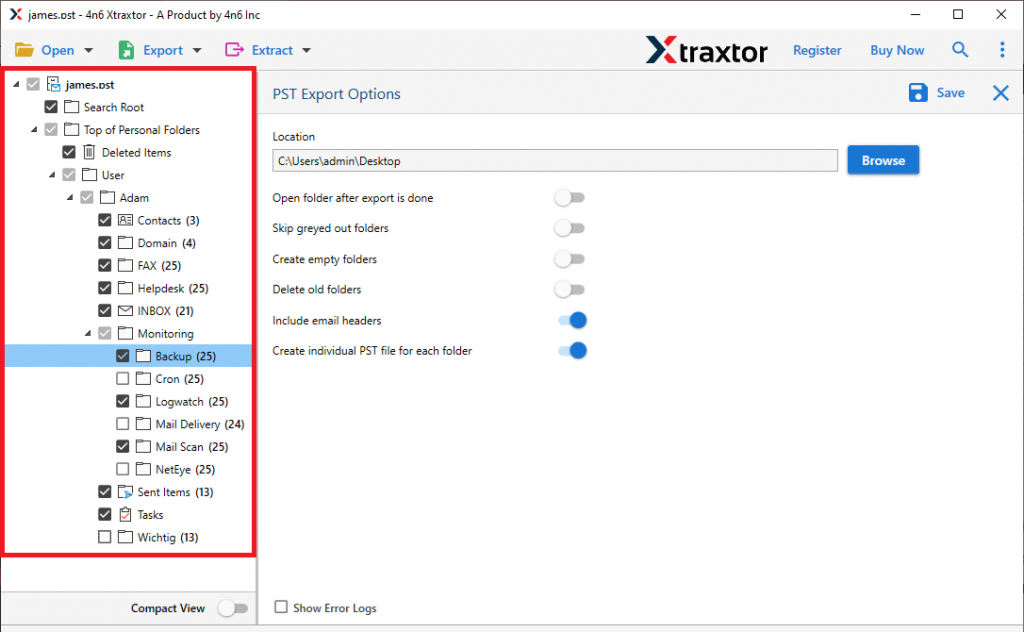
- Now you can select the email folder that you want to import.
- At last, enter your iCloud login id and password, then hit on the Save button.
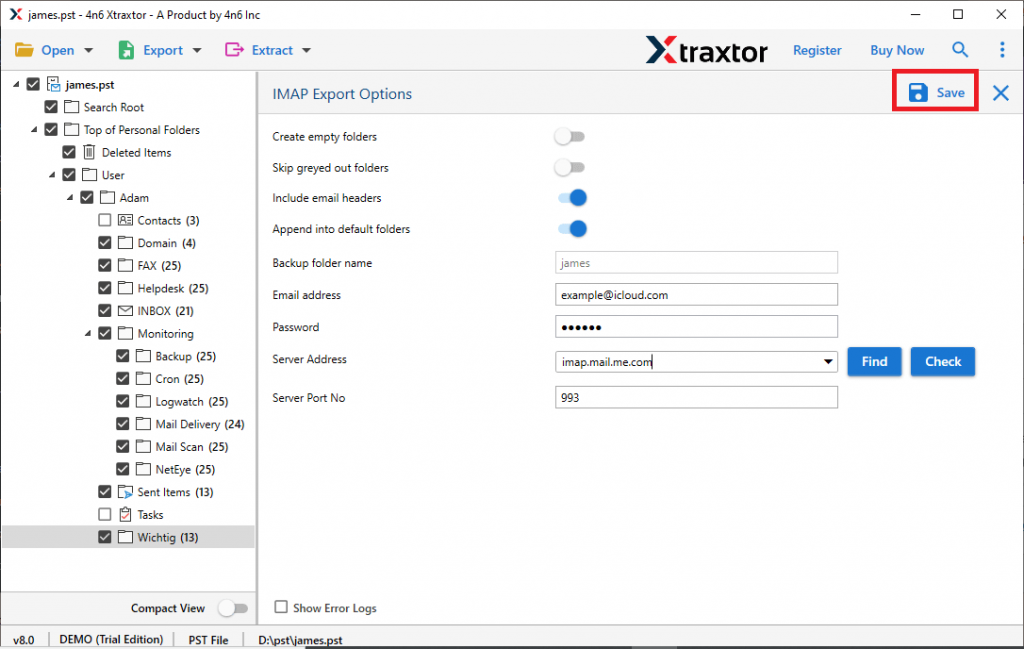
Here complete the import process. Now you can easily access your OST file data in iCloud Mailbox.
Why OST to iCloud Import Tool?
There are various outstanding features of this software that make the import process simple.
Email Filters: This software offers may filter option that will help you to import specific emails from the entire data file. One can apply filters such as – to, from, subject, content, property id & name, date range, time, has attachments, cc, bcc, and many others to choose from.
Maintain Mailbox Structure: While importing OST file to iCloud account, this software preserve folder and subfolder structure and hierarchy. you will find your OS file data in the same format as the original.
Save OST Data into Other Format: The tool not only import OST to iCloud, but also export it into different file formats. You can convert OST to PST, MBOX, CSV, ICS, vCard, and other file formats.
Selective Email Import: The OST to iCloud Import tool allow users to select the specific folder to transfer. After selecting export option as IMAP, one can choose the required folder that needs to import.
Transfer OST to Other Webmail Accounts: If you want to move OSt file into other mailing accounts, then this tool can do it. You can use this tool and import OST to Gmail, Yahoo, Google Workspace, GoDaddy, and other webmail accounts.
Conclusion
To import OST to iCloud, there is no manual solution, one needs to use the automated tool for that. One such OST Converter software we mention in this blog. Using the above-mentioned tool, you can instantly transfer emails from OST file into iCloud account without any data loss. You can use the demo version of this software and try to move OST file into iCloud webmail account.
Frequent;y Asked Questions
1. What should I do if my OST file is corrupted?
Ans. The tool is efficient enough to import corrupted, inaccessible, damaged or orphan OSt file into iCloud mailbox. Thus, don’t worry and use this tool to import your data file.
2. Are there any size limitations when importing OST emails to iCloud Mail?
Ans. No, there is no file size limitation. Using this tool you can import large size OST file without any hassle or data loss.