Many users regularly search for a way to take backup of Google account data. If you are also one of those who are looking for a reliable way to restore data, then you are at the right place. In this article, we are going to explain the techniques to restore Google takeout data.
Google Takeout is a free service provided by Google to export Google data for backup. Anyone can download its Google data such as Gmail, contacts, calendar, drive content, browser bookmarks etc. with the help of Google Takeout. But, Google does not provide any direct option to Import Google Takeout to Gmail. Therefore, in the next section, we will discuss the method to complete this task.
Why Do You Need To Restore Google Takeout Data?
There are some reasons to restore data from Google Takeout which are given below-
If you want to access your important data from a previously downloaded file then you need to restore it.
Sometimes some issues occur in Gmail, and then you download your data at another location. But, now Gmail issues are resolved and you want to save your downloaded data again in Gmail. Then you need to restore the Google takeout data.
There are two ways to restore data from Google Takeout. The first one is using the Thunderbird email client and the second one is using a third party tool.
How to Restore Google Takeout Data Manually?
You can restore your Google takeout data using the ImportExportTool of Mozilla Thunderbird. Follow the given steps-
Note: These steps will work on Thunderbird’s older versions. The new edition doesn’t support ImportExportTool NG add-ins.
- Firstly open your Thunderbird application on your sysetm.
- Now, click the Setting icon and choose Account Setting>> Account Action >> Add Mail Account.
- Enter your email account login credentials and clcik on the Continue button.
- If Thunderbird automatically connects with your email account, then click on the Finish button.
- If not, then manually enter the IMAP Server and Port Number to complete the configuration.
- Now restart your Thunderbird application and you will find your email account.
- After that, click on Tools >> Add-ons and Themes.
- Search for ImportExportTool NG and install it.
- Then, right-click on the local folder and choose ImportExportTool NG.
- Select Import MBOX file and choose the desired options.
- Browse the Google Takeout data file and upload it to the Thunderbird profile.
- Now move the imported data file under your email address.
Here you restore Google Takeout data manually. However, with this approach, there are a few limitations, some of them includes –
- The above given method is free but there are many drawbacks. Some of them are-
- The method contains many steps, so completing the process takes a lot of time.
- You must install the Thunderbird and ImportExportTools on your system.
- The method requires a lot of technical knowledge. So, non-technical users face many issues in performing the process.
How to Restore Google Takeout Data Instantly?
Google Takeout Converter by SysConverter is one of the best tools to restore the Google takeout data. It can convert emails from Google Takeout into multiple formats such as PST, MBOX, EML, PDF, CSV etc. The tool preserves the folder and sub-folder structure during the conversion. It is capable of converting Google takeout emails with attachments.

Steps to Restore Google Mail Data Effortlessly
- Firstly, Download and Run the SysConverter for Google Takeout tool on your system.

- Now click on the Open tab and select the Email Data File option
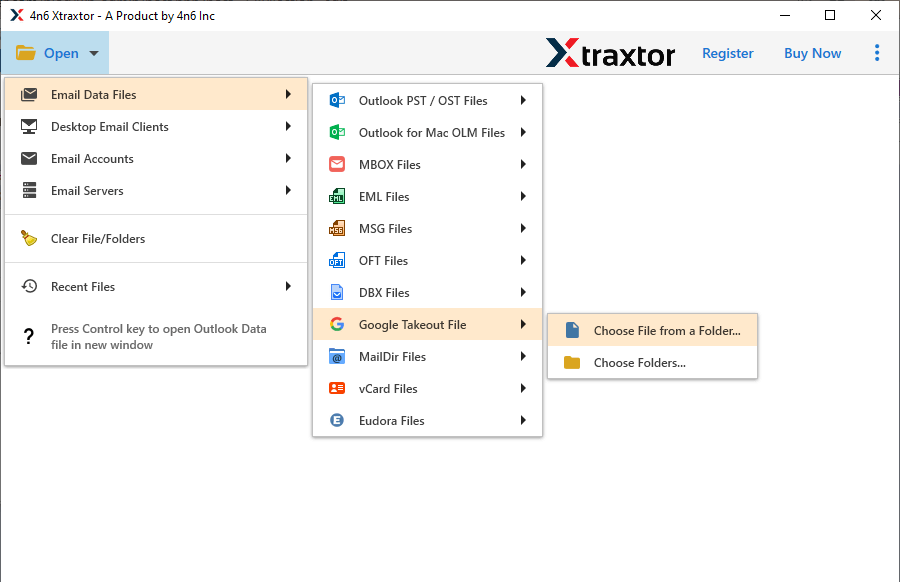
- Go to the Google takeout file option and select the Choose File or Folder option
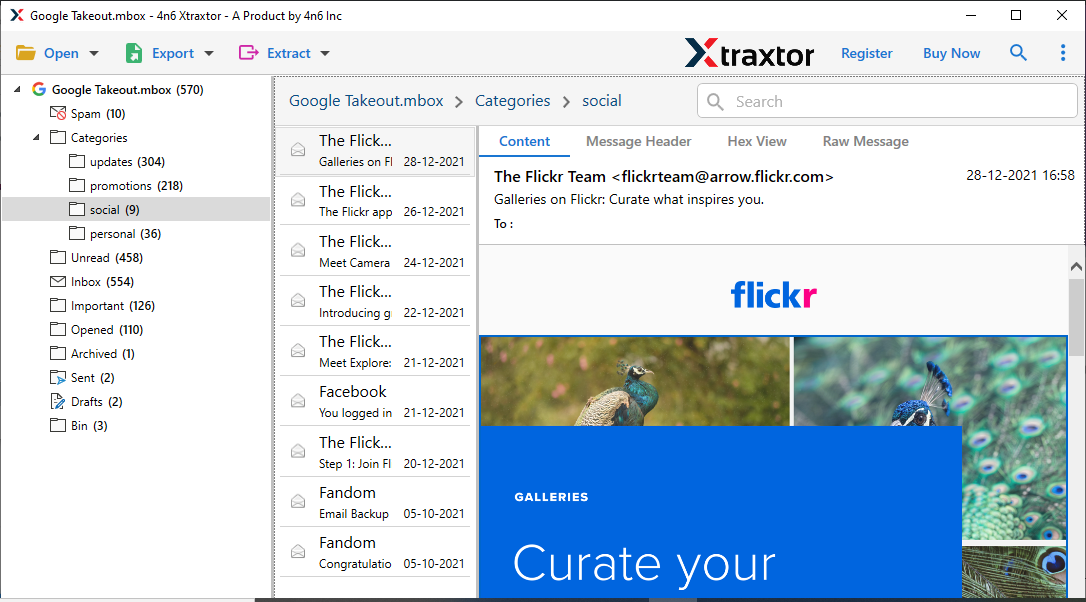
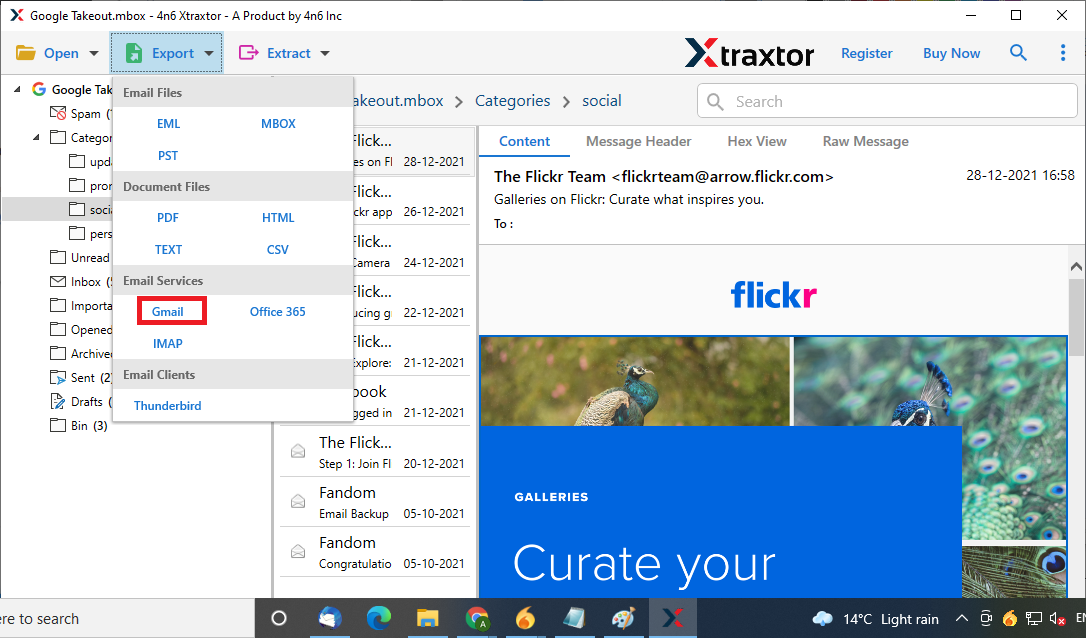
- After that click on Export and Select Gmail as a Saving Option to save Google takeout data
- Finally, enter your Gmail login details and click on the Save button
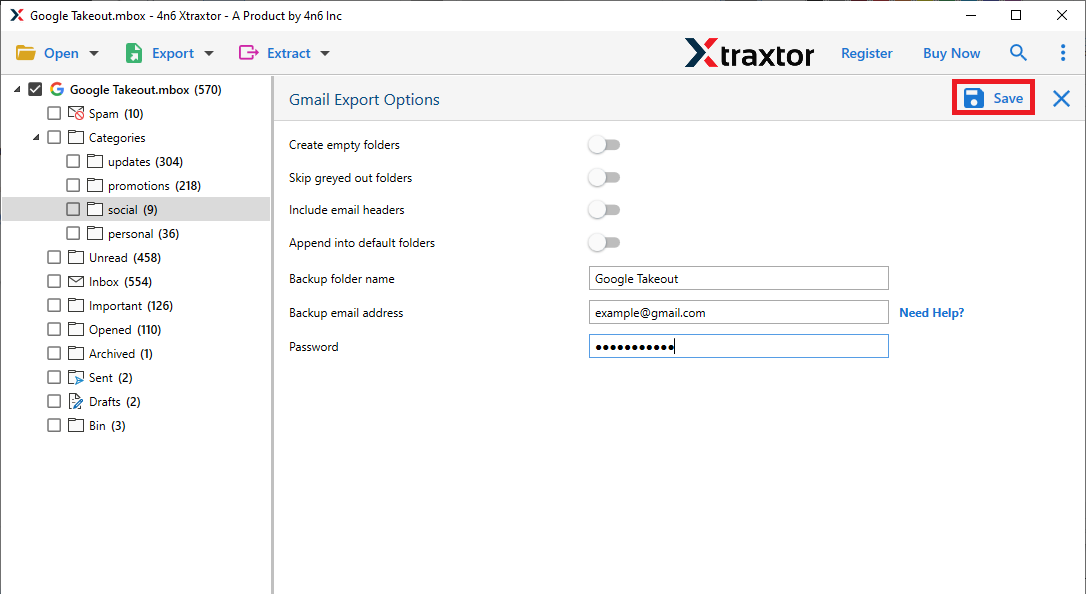
done! Here you restore your data in a few simple clicks. Additionally, this automated tool offers various prominent features, some of which mentioned here.
Benefits of Using Automated Tool
- Now open the desired location where you have saved the Google takeout data and the data.
- The tool is capable of converting Google Takeout data to another file format
- The tool provides a dual option: select file or folder to select email data files
- It provides the option to save the converted files at the desired location
- It has the ability to preview Google takeout emails before conversion
- There is no restriction to convert large-size Google Takeout data files
- The tool can extract email addresses and contacts from data files
- Provide the option to select particular emails
- The tool offers the facility to directly export emails from Google Takeout to Thunderbird
- Export Google Takeout archive to Outlook
- Import Gmail backup files to Office 365, G-Suite etc.
Conclusion
In this post, we have discussed the techniques to restore Google takeout data. There is no direct option to restore the data. You can save your data using Thunderbird but it has such a lengthy and complicated process. However, you can use the above-mentioned software to Upload Google takeout data without facing any problem.