There are various queries related to migrating from Gmail to Outlook.com. In this blog, we will discuss the two best feasible solutions to migrate Gmail to Outlook.com mailbox.
« Hello! Recently I switched from Gmail to Outlook.com webmail account. Now I want to transfer emails from Gmail to Outlook.com account. I am checking various solutions on the internet which talk about a setting transfer I’m trying, but it’s messing up my email folder. Is there an easy way to import Gmail emails to an Outlook.com account? »
There can be various reasons to export Gmail emails to outlook.com account depending on the user’s needs. In this article, we will discuss the process of migrating from Gmail to Outlook.com.
Without further ado, let’s go ahead and know the best approach to import emails from Gmail to Outlook Online account.
How to migrate from Gmail to Outlook.com
If you are looking for a convenient solution to migrate Gmail to Outlook.com, you can use any of the methods mentioned in this blog. Try them and know which one is best to solve your migration problem.
#1. Manually import Gmail to Outlook Online
#2. Export Gmail emails to Outlook.com using automated tool
Let’s discuss these given solutions in detail and know the process of migrating from Gmail to Outlook Online step by step.
Method 1: Migrate Gmail to Outlook.com – Manual Process
To manually export Gmail emails to Outlook.com, you need to configure your Gmail account with the Outlook desktop email client and then configure your Outlook.com webmail account with the desktop application. After that, move Gmail emails to Outlook.com interface. Let’s see the whole process in detail.
Note: You need to install the Outlook email client on your system.
Step 1. Configure Gmail with Outlook App
1. open your Outlook and go to File >> Add Account.
2. Enter your Gmail email address and tap the Sign in button .
3. In new windows, re-enter your Gmail ID and click Next .
4. Next, enter your Gmail password .
5. After that, a window will appear that asks for permission to add your Gmail account with Outlook. Click Allow >> Done .
6. Restart your Outlook application. Your Gmail emails will be present in the interface panel.
Step 2. Configure Outlook.com on Outlook App
1. Again, in the Outlook interface, go to File >> Add Account .
2. Enter your Outlook.live.com email address and click the Next button.
3. Now enter your password and click Next .
4. After that, in the new window, click Allow >> Done .
5. After that, restart your email clients.
Note: If you enter your password, an error appears, you have enabled two-factor authentication. Then you need to create App Password for this.
Step 3. Move Gmail Emails to Outlook Online
1. Now, in your Outlook interface, select the Gmail email folder that you want to migrate.
2. Drag this folder under the Outlook.com ID label.
3. Repeat this process for each folder you want to migrate to Outlook online mailbox.
Do! Here you migrate Gmail to Outlook.com account. Although you can move emails from Gmail to Outlook Online using this method, there are some limitations.
Disadvantages of the manual approach
1. Il n’y a pas d’option de filtre pour migrer les e-mails sélectifs.
2. Aucune assurance de l’intégrité des données pendant le processus de migration de Gmail vers Outlook.com.
3. Il existe un risque élevé de modification de la hiérarchie et de la structure des dossiers de messagerie.
4. Si la configuration ne fonctionne pas bien, vous pouvez également perdre vos données importantes.
5. Aucune option de prévisualisation avant la migration des e-mails Gmail.
Pour éviter ces limitations, il est préférable d’utiliser une solution tierce capable de pallier toutes ces failles.
Méthode 2 : migrer Gmail vers Outlook.com à l’aide de l’outil automatisé
Si vous souhaitez importer des e-mails Gmail vers Outlook.com instantanément sans aucune erreur, utilisez SysConverter Outil de sauvegarde Gmail</ fort> logiciel. Cet utilitaire migrera directement les e-mails de votre compte Gmail vers la boîte aux lettres Outlook Online en quelques étapes simples. Parallèlement à cela, il existe des options de filtrage pour importer des e-mails spécifiques, tels que – à, de, objet, heure, date, etc.
De plus, vous pouvez également utiliser cet utilitaire et migrer Gmail vers Yahoo, Office 365, iCloud, Exchange et de nombreux autres comptes de messagerie Web. Toutes ces options de sauvegarde seront présentes dans une seule interface, donc pas besoin de trouver d’autres outils pour différentes migrations de messagerie.

Procédure pour importer des messages Gmail vers Outlook.com via l’outil de sauvegarde Gmail
Suivez les instructions données et déplacez les e-mails de Gmail vers la boîte aux lettres Outlook Online –
Étape 1. Téléchargez et exécutez l’outil automatisé sur votre système d’exploitation Windows.
Étape 2. Ensuite, sélectionnez Ouvrir >> Comptes de messagerie >> Ajouter un compte.

Étape 3. Saisissez vos informations de connexion Gmail et cliquez sur le bouton Ajouter.

Étape 4. Ici, vous pouvez afficher vos e-mails Gamil avant de les migrer.
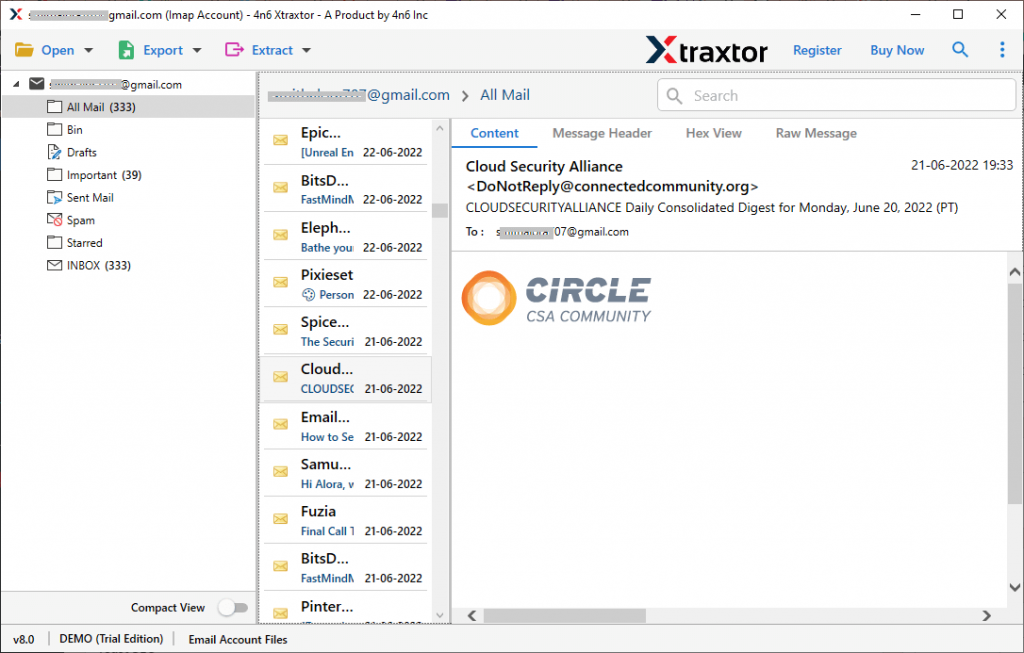
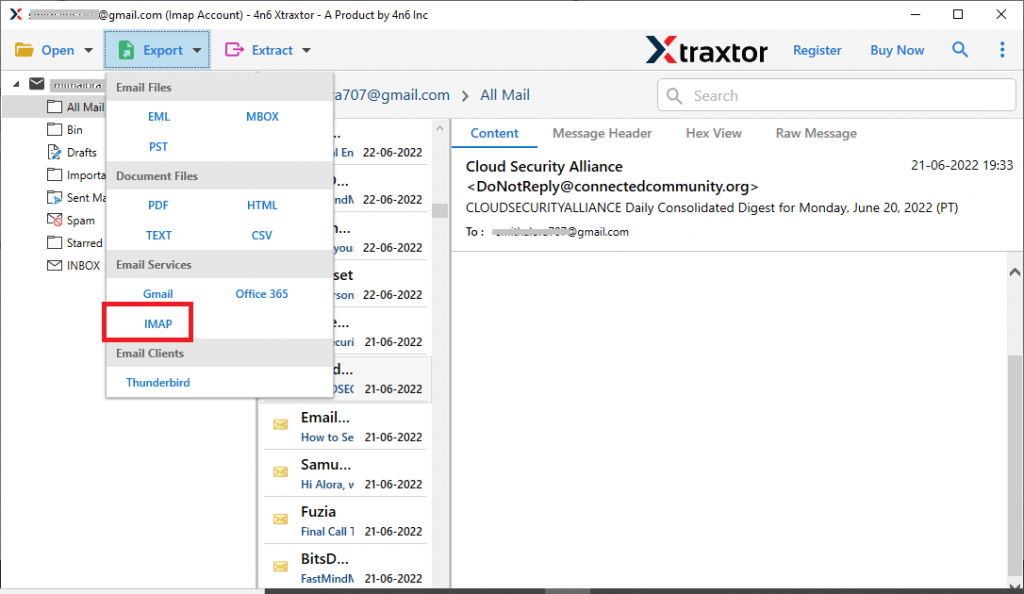
Étape 5. Cliquez maintenant sur Exporter et choisissez l’option IMAP.
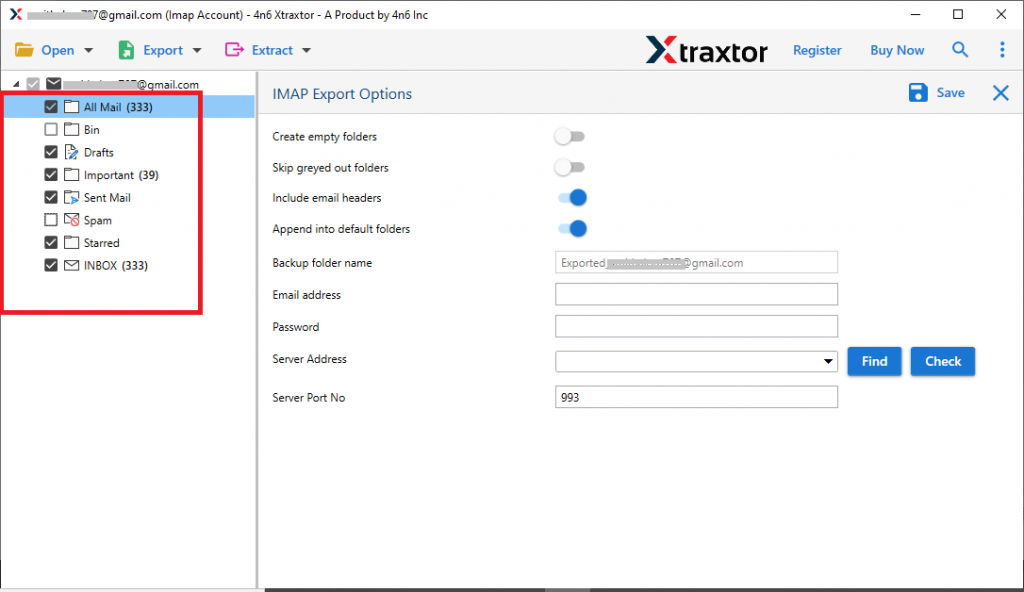
Étape 6. Après cela, vous pouvez sélectionner les dossiers d’e-mails, si vous souhaitez importer des dossiers d’e-mails sélectifs.
Étape 7. Enfin, entrez vos informations de connexion Outlook.live.com et appuyez sur le bouton Enregistrer.
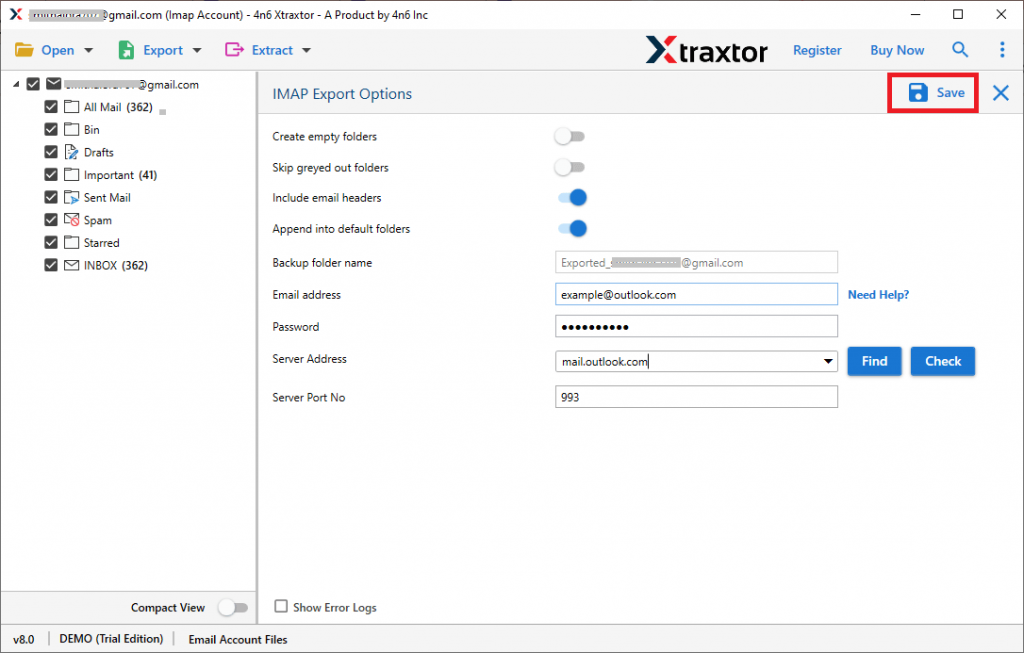
Fait! Ici, vous migrez Gmail vers l’interface Outlook.com en quelques clics simples. Vous pouvez également déplacer des e-mails Gmail vers Outlook Online à l’aide de la version de démonstration de cet utilitaire.
Why use the Gmail to Outlook.com migration tool
There are various reasons to opt for this tool for the migration process, some of them are mentioned here –
Maintain Email Integrity: When migrating from Gmail to Outlook Online, this tool performs the process without affecting the integrity of mailbox data. You will get a final result similar to the original without any alteration.
Email Filtering Options : With this automated tool, you have several email filtering options to choose from. You can apply filters like – to, from, subject, name, cc, bcc, time, date range, attachments, name, content and many more.
Transfer Gmail Emails to Webmail Accounts : Using this software, you can instantly migrate Gmail to iCloud, Office 365, Zoho Mail, Yahoo and all other webmail accounts.
Directly Move Gmail Emails to Outlook.com: This software will immediately migrate emails from your Gmail account to Outlook Online mailbox. You don’t need to do the extra process to import Gmail emails to Outllok.com.
Windows Based Utility: Gmail to Outlook.com Migration Tool is a tool based on Windows operating system. It will work on all versions of Windows based system. You can install it on Windows 11, 10, 8, Vista and all other previous versions.
Conclusion
While you migrate Gmail to Outlook.com manually, you may face various downfalls. This can be useful if there is less data to migrate. If there is a lot of mailbox data to import, we recommend using the automated tool mentioned in this article. Depending on your needs, you can opt for any of the methods mentioned in this blog post.