Are you Gmail users that want to downlaod all the mailbox data in a TXT format? If yes, then this write-up will guide you to export Gmail to TXT format. In this blog, we will discuss an instant solution to convert Gmail emails to TXT format without any data loss.
TXT is a simple format that can be accessed in any text editor. However, Gmail doesn’t export its mailbox into TXT format. If you have millions of emails in your Gmail account and want to save them in .txt format, then use SysConverter Gmail Backup Tool software on your system.
However, here a question arises – why user wants to export Gmail to TXT format?
There can be various causes for Gmail to TXT export process depending on the situation. TXT file is the universal format that can be opened on any platform be it a computer, laptop, phone, etc. Along with that, it is small in size thus user prefers this file format to save Gmail emails. After saving Gmail emails in .txt format it is easy to edit and add some more information to them.
Now without any further delay, let’s know the direct way to export Gmail emails to TEXT format without any data loss.
How to Convert Gmail to TXT Files
To instantly transfer emails from a Gmail account to TXT format, the use Gmail Backup Tool for that. Along with that, you can also export specific emails by applying email filter options. With a simple user interface, anyone can use this utility and export Gmail emails to .txt file with complete mailbox data. Moreover, you can also export Gmail to PST, MBOX, PDF, CSV, and other file formats as well. Additionally, this software can also export Gmail to Yahoo, Office 365, Yandex, Zoho Mail, and many other webmail accounts.

Procedure to Export Gmail to TXT Format USing Automated Tool
To perform the Gmail to TXT export follow the given instructions and save your mailbox data with ease-
Step 1. Install and Run SysConverter Gmail Backup Tool on your Windows OS.
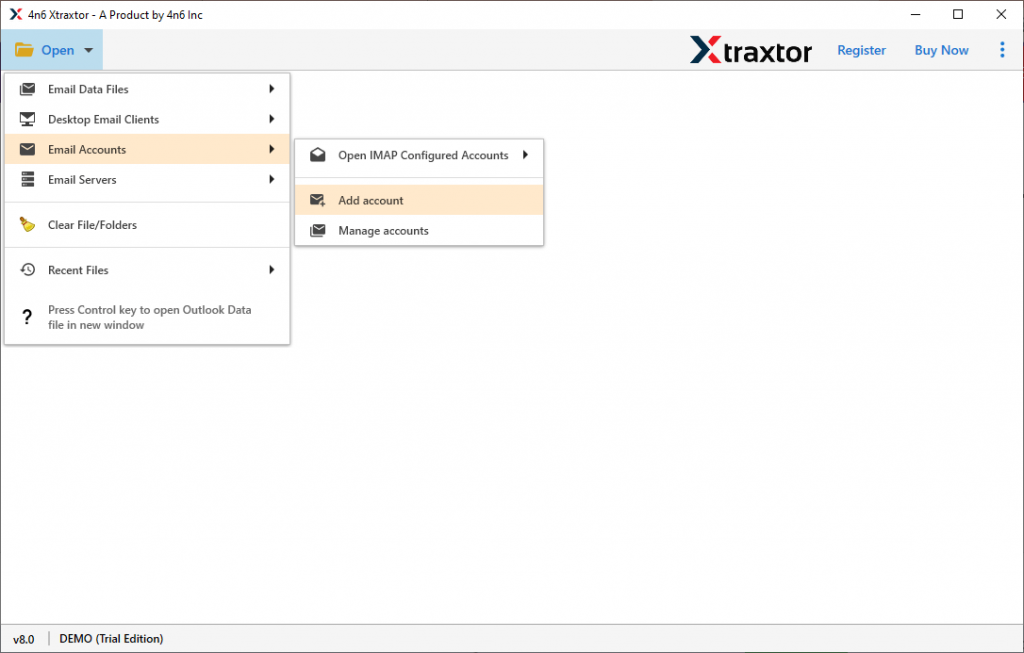
Step 2. Select Open >> Email Accounts >> Add Account.
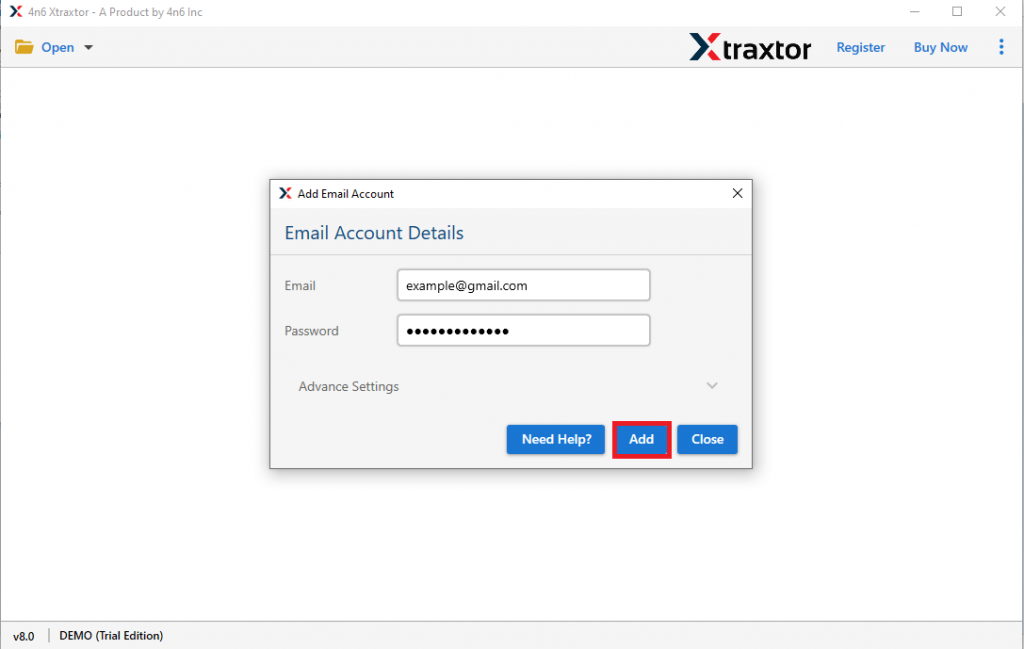
Step 3. After that, in the new window enter your Gmail is and password (Use App Password here).
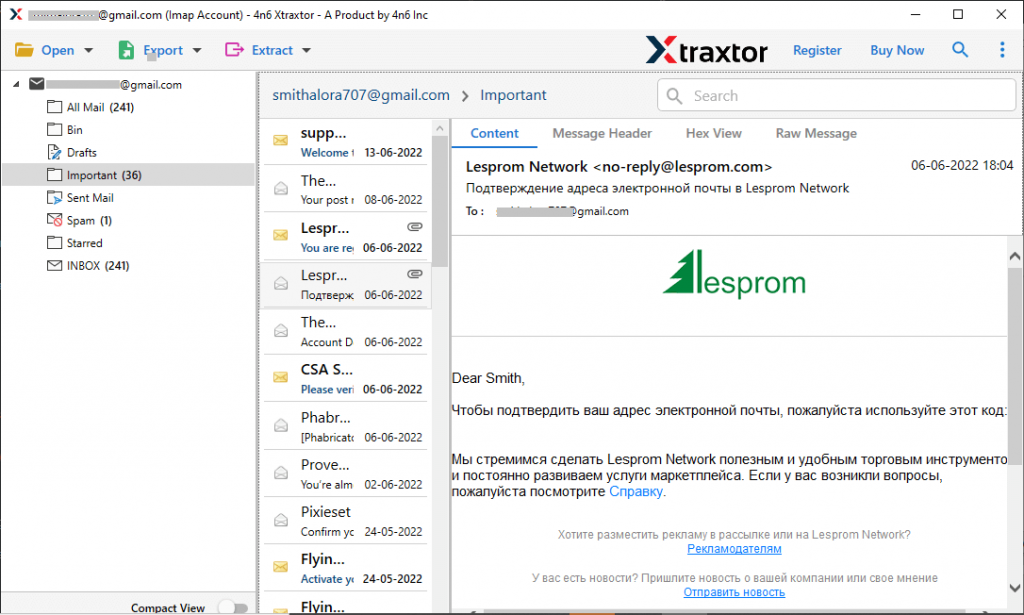
Step 4. Here you can view your Gmail emails and read them before exporting them.
Step 5. Click on the Export and choose the TXT option from the list.

Step 6. Now select the email folder that you want to export as .txt files.
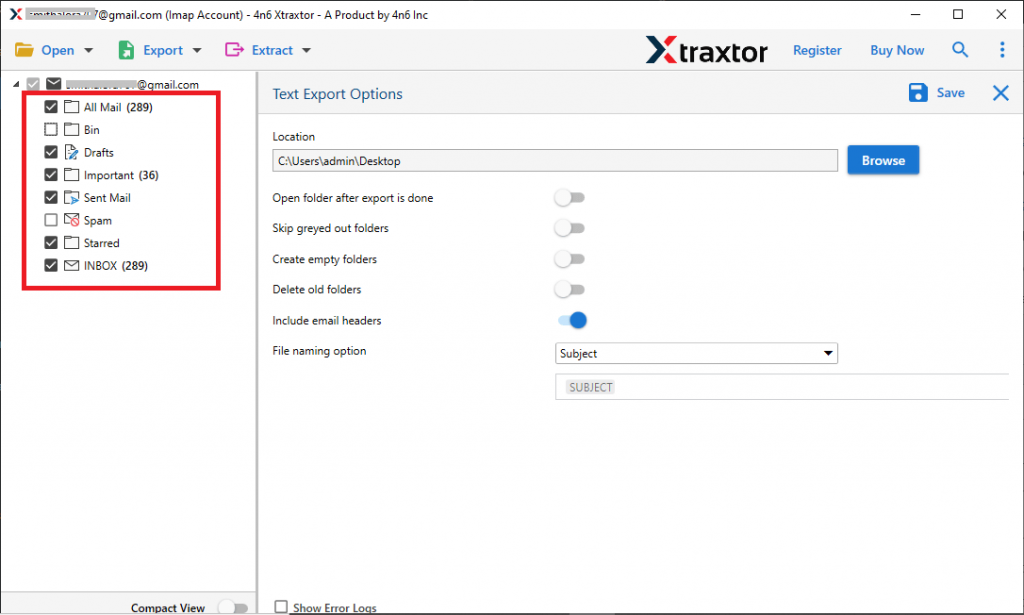
Step 7. At the end browse the targeted location and hit on the Save button.
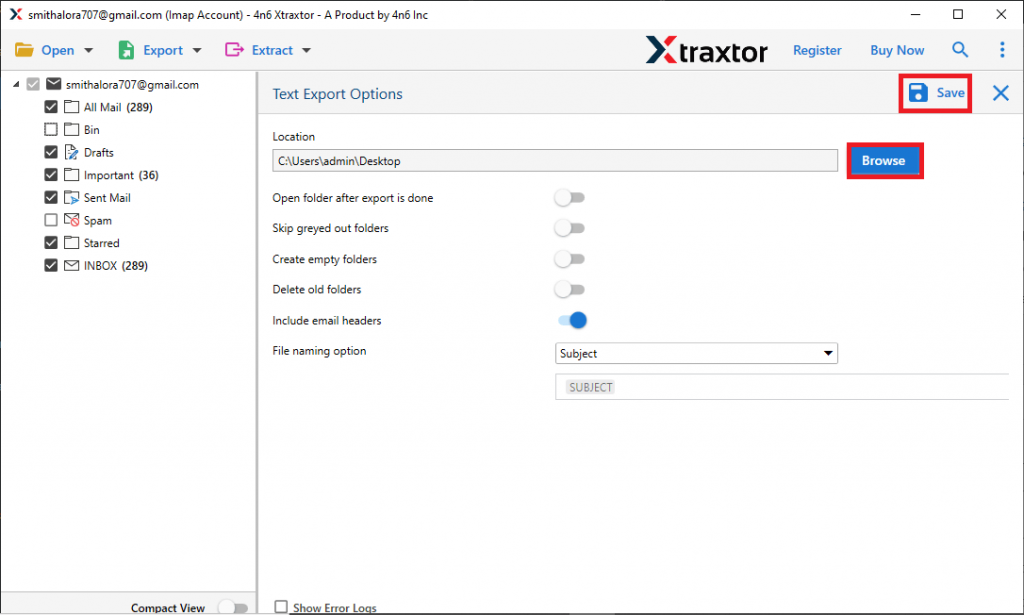
Done! Here completes the Gmail to TXT export process. You can use the demo version of this utility and convert Gmail to TXT format.
Why Use Automated Tool
There can be various reasons to choose this utility to export Gmail to TXT format with ease. Some of the outstanding features of this software are –
Maintain Data Integrity: While downloading Gmail emails in TXT format using the tool, there will be no alteration in your mailbox data. This email backup tool doesn’t compromise data integrity during the export process.
Email Filters: If your Gmail has lots of data, but you want to backup only a few emails from a particular date, then you can apply the filter options. Other than that there are other options also – to, from, cc, bcc, subject, name, content, time, etc.
Other Saving Options: This tool not only save Gmail emails into .txt format but also in other formats as well. On e can use this utility and export Gmail to PDF, CSV, EML, MBOX and PST format.
Windows Based Utility: The tool will support all Windows-based systems. You can install and run this utility on Windows 11, 10, 8, 7, Vista, XP, and all other previous versions.
Transfer Gmail Emails to IMAP Accounts: If you want to export Gmail emails to another webmail account, then this software support IMAP migration. One can use this tool and export Gmail to Office 365, Yandex, Another Gmail account, and many more.
Conclusion
In this write up we learn an instant solution to export Gmail to TXT format in just a few simple clicks. Along with that we mention a step-by-step description of the Gmail to TXT export process. You can also use the professional tool and backup your Gmail emails.