This guide helps you to export Gmail to EML files with attachments. If you are looking for a way to export Gmail emails to EML file, then this post is for you. Read till the end and know the complete Gmail to EML export process.
How to Convert Gmail Emails to EML Files?
Before you proceed further, you should know that this native approach will save a single email at a time. If you want to export multiple Gmail emails at once, then use the automated tool mentioned in the next segment.
Follow the given instructions to save a single Gmail email as a .eml file on your system –
Step 1. Login to your Gmail emails with your email id and password.
Step 2. After that, open the email that you want to save.
Step 3. At the top right corner, there is a three-dot symbol, click on it and choose Download message.

Step 4. After clicking on it, Gamil downloads the email into a .eml file. Check the folder where your downloaded item is saved. You will find the .eml file.

Repeat these steps to download multiple emails from your Gmail account. However, if you want to export Gmail emails as EML in bulk, read the next solution.
How to Export Gmail to EML Automatically?
Use SysConverter Gmail Backup Tool on your Windows OS and save multiple emails from Gmail at once. This utility will directly export your mailbox data into EML files without any hassle. Along with that, using this tool you can select the specific email folder to export as .eml files. With that you can also use the email filters to search and save emails with certain attributes (to, from, cc, bcc, etc).

Steps to Export Gmail Emails As EML Files
Step 1. Download and install the automated tool on your system.
Step 2. Select Open >> Email Accounts >> Add Account.

Step 3. Enter your Gmail login details (Use App Password instead of your Gmail password).
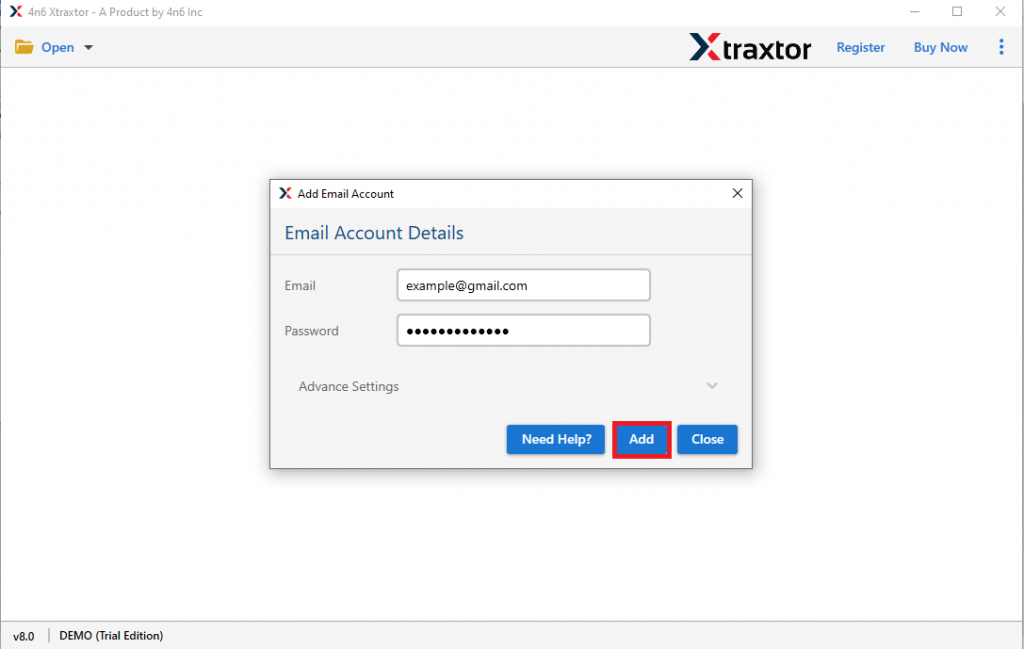
Step 4. Click on Export and choose the EML option.
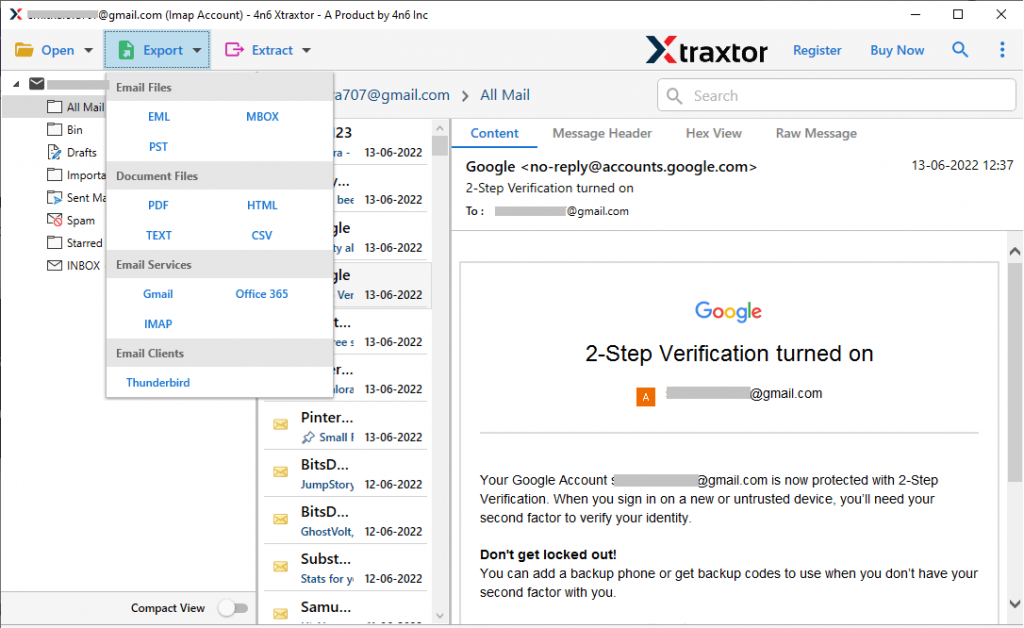
Step 5. Here you can select any particular folder if you don’t want to download the entire mailbox data.

Step 6. At last, browse the saving location and hit on the Save button.
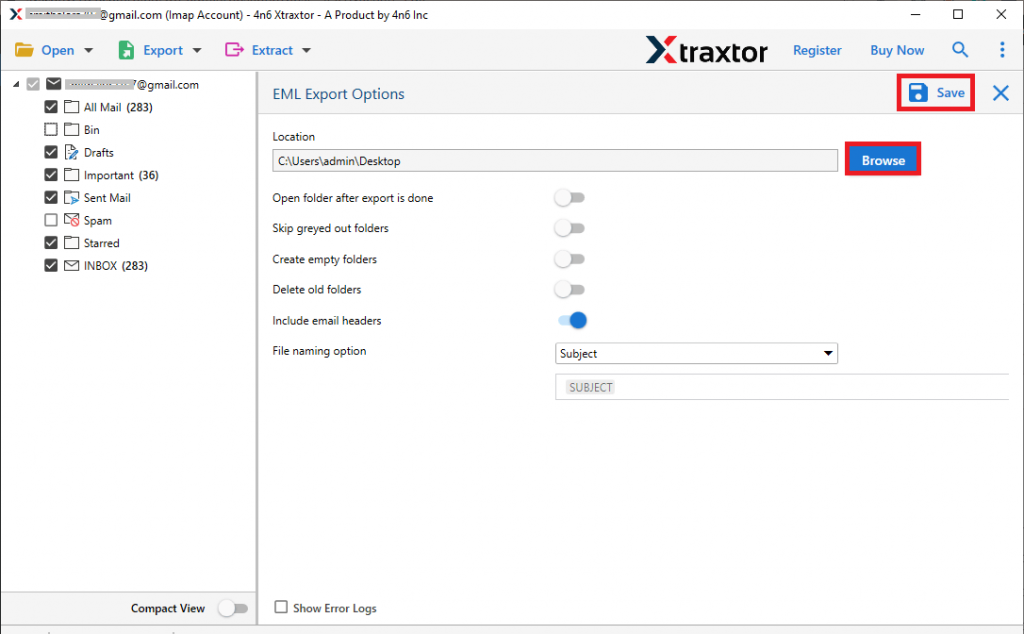
Done! Here you complete the Gmail to EML export process without any data loss.
Benefits Of SysConverter Gmail to EML Import Tool
There are various outstanding features of this automated tool, some of them mention here –
- Save Multiple Gmail Emails At Once: This utility will efficiently export multiple Gmail emails to EML files in a single attempt. Most importantly you will not lose your single bit of data during the export process.
- Email Filter Options: If you want to export emails from any particular date, then in that case this tool provides a date range filter. Along with that, you can also use other filters such as – to, from, subject, cc, bcc, subject, name, property id & name, and many more.
- Other Saving Options: This tool not only performs Gmail to EML export but other processes also. You can export Gmail to PDF, CSV, HTML, PST, and TEXT formats as well.
- Window-Based Utility: The automated tool can easily support all Windows OS versions. You can install and run this utility on Windows 11, 10, 8, Vista, and all other previous versions without facing any technical errors.
Conclusion
The tutorial will help you export Gmail to EML in just a few simple clicks. There are different ways to perform this process, but not all solutions provide you with data security. Try the given solution and migrate your Gmail emails to EML files without any data loss.