How do I move my Gmail emails and other data to CSV fromat, I’m trying to download emails to CSV format, but with no such luck. Can someone tell me an immediate solution to export Gmail to CSV file?
There are a large number of people who use Gmail to send and receive emails. However, sometimes they want to save their emails in a CSV file. Here in this article, we will discuss the best possible way to export Gmail to CSV format.
CSV or Comma Separated Value file format that saves data in a tabular format. You can easily access any paid and free applications like LibreOffice, Google Sheet and many more. It is a universal format that can be easily transferred from one platform to another. That’s why many prefer to import emails from Gmail to CSV format.
Now the question arises – how to save Gmail emails into CSV format? As there is no direct manual way to perform this task. Don’t worry we will guide you to efficiently export Gmail to CSV file.
How to Transfer Gmail Emails to CSV Format
There are two possible ways to save Gmail emails and other data in a CSV.
#1. Manually Convert Gmail Emails to CSV
#2. Directly Export Gmail Emails to CSV File
Let’s discuss these methods in a descriptive manner with a complete step-by-step working process.
Method 1: Move Gmail Emails to CSV Via Outlook
To save Gmail emails into .csv file, firstly you need to configure your Gmail account with Outlook and then export those emails and other data into CSV format. Now let’s check the process with the proper steps.
Step 1: Configure Gmail to Outlook
Note: Firstly enable IMAP Access in your Gmail account setting.
1. Open your Outlook interface and go to the File option.
2. After that, Info >> Add Account.

3. Enter your Gmail email id and hit on the Connect button.

4. Now put your Gmail password and then hit on Connect button.
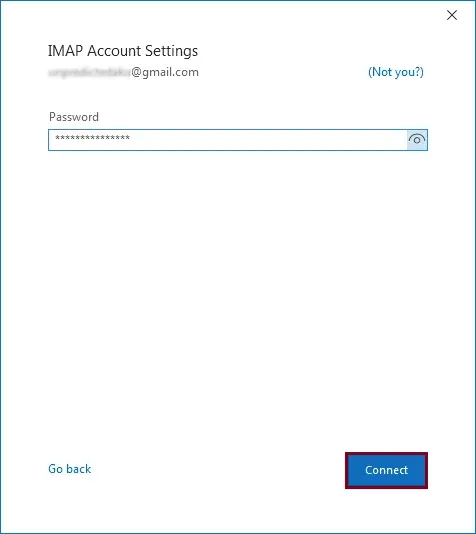
5. After everything get well, you will get a message of Account Successfully Added. Then click on Done.
Here you set up your Gmail account to Outlook. Check your Outlook interface, you will find your Gmail id label. Now you have to export those emails into CSV format.
Step 2: Export Gmail to CSV File
1. again go to File >> Open & Export >> Import/Export.

2. Select – Export to a file from the list.

3. Choose Comma Separated Values as the created file type.
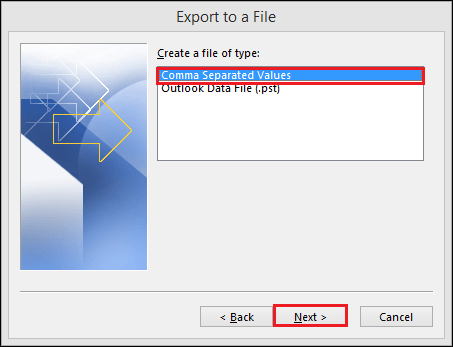
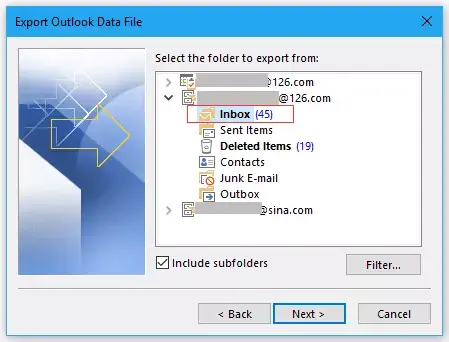
4. Choose the email folder you want to export.
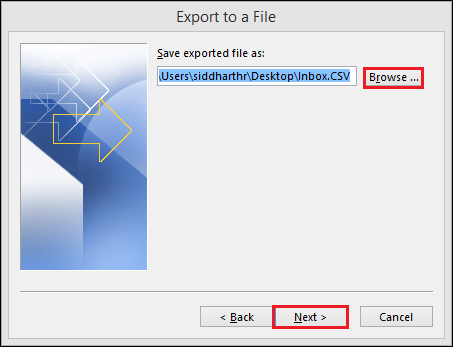
5. Browse the location to save the .csv file and hit on the Next button.
6. At last, click on the Finish button to start the export process.
Done! Here you export Gmail emails to CSV manually. Although this approach can perform the exporting process you need to follow the lengthy process. Along with that, you need technical knowledge or assistance for the configuration part. Thus we recommend using the direct way to transfer Gmail emails.
Method 2: Export Gmail to CSV Instantly
Use SysConverter Gmail Backup Tool for instant Gmail to CSV export process. This utility will directly save emails from your Gmail account to .csv file without any data loss and modifications. This utility also offers email filter options to transfer specific emails only and avoid unwanted exporting. With its esday to use interface, even novice users convert Gmail emails as CSV format without any assistance.
In addition, you can also use this utility and export Gmail to PDF, PST, HTML, MBOX, and all other file formats as well. It also migrate Gmail to Office 365, Yahoo, Yandex, Zoho, and all other webmail accounts with ease.

Procedure to Transfer Gmail Emails to CSV Format
Follow the given instructions to save Gmail emails in CSV format with complete mailbox data.
Step 1. Download and Run SysConverter Backup Tool on your Windows OS.
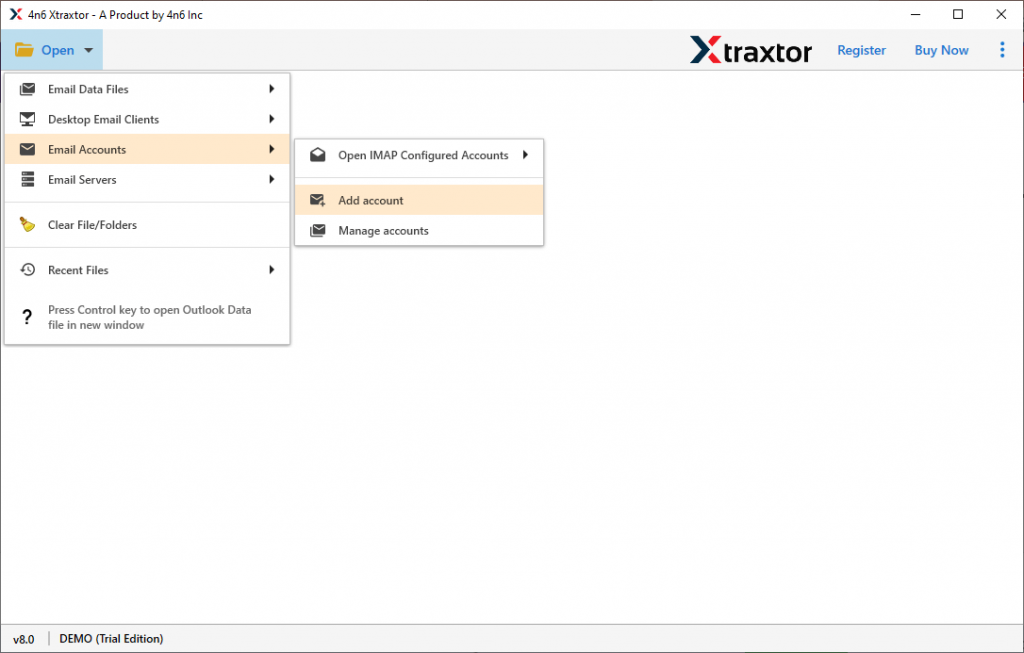
Step 2. Select Open >> Email Accounts >> Add Account.
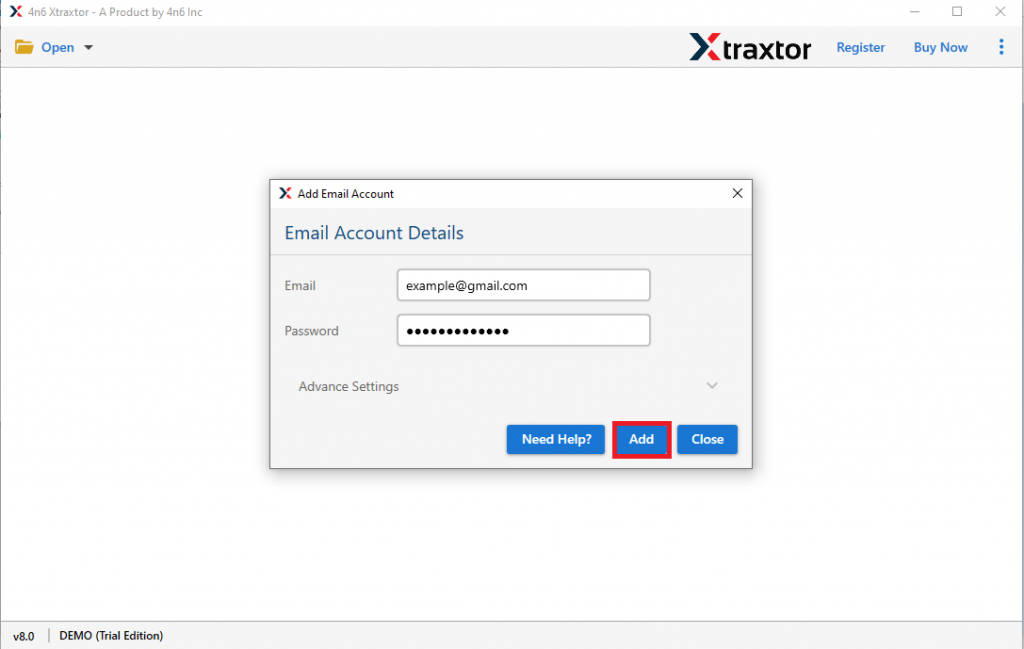
Step 3. Enter your Gmail login details and click on Add button (Use App Password, not your mailbox one).
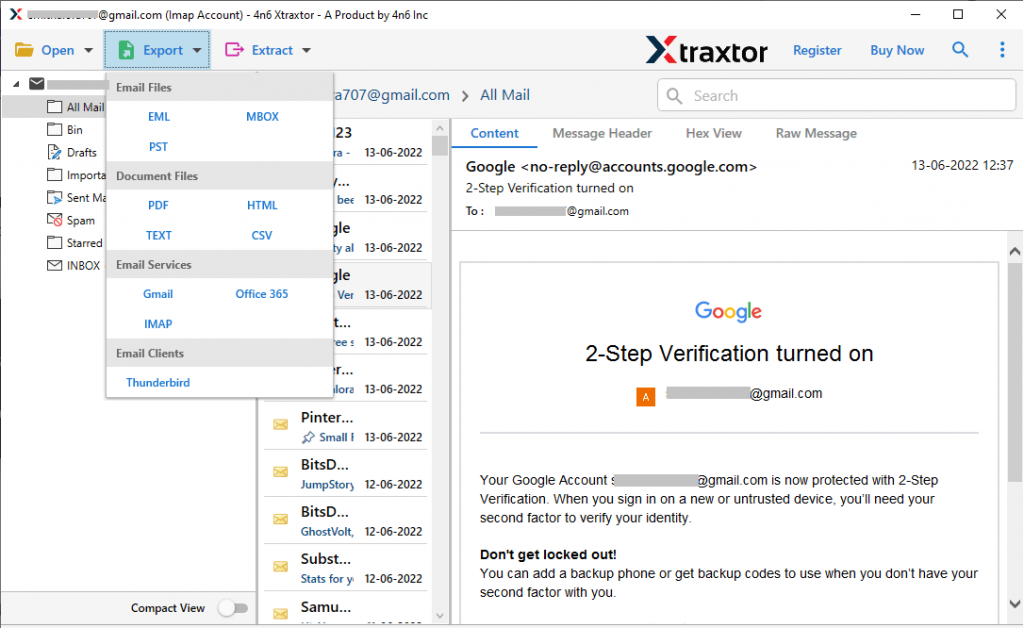
Step 4. Click on Export and choose CSV format.
Step 5. Here you can select the email folder that you want to export.
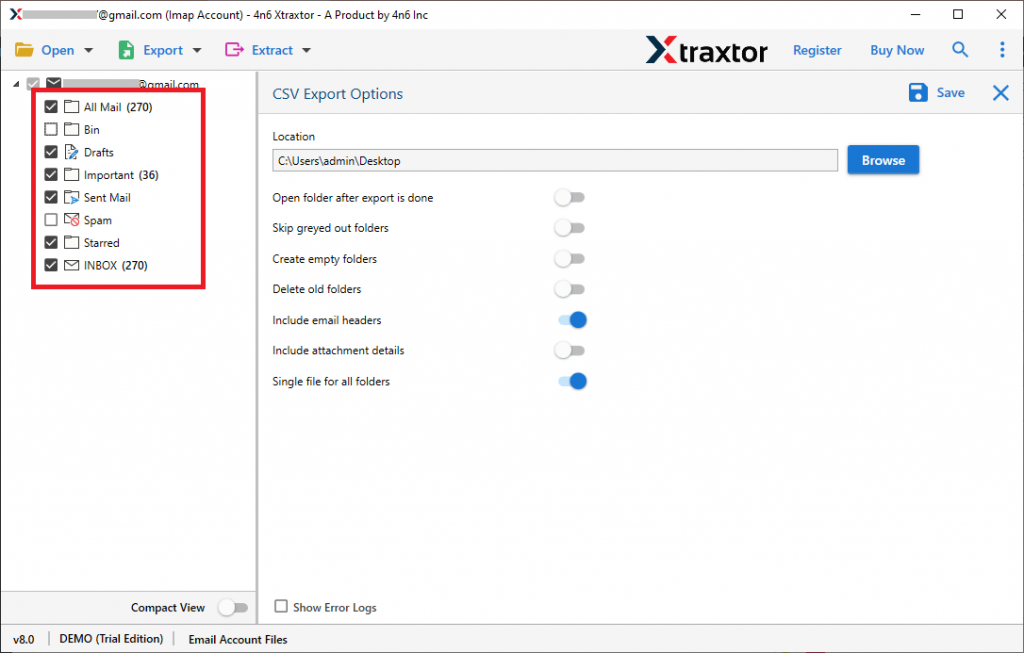
Step 6. At last, browse the targeted location and hit on the Save button.

Done! Here you export Gmail to CSV format in a few simple steps.
Conclusion
In this blog, we discuss two workable solutions to export Gmail to CSV format. Manually you need to follow a lengthy process that requires Gmail-Outlook configuration. Whereas on the other hand automated approach directly export Gmail emails to CSV file without any hassle and data loss. You can choose any one of the solutions that suited you best.