Here in this article, we will mention a secure and instant solution to download email from GoDaddy to hard drive. Read the blog and download GoDaddy emails to computer without any data loss.
Downloading emails from GoDaddy mailbox to a hard drive or flash drive is required to secure your data. Moreover, it is also essential to free us your mailbox space or backup your data. Today in this article we will discuss teh steps by step process to download emails from GoDaddy to hard drive without any hassle.
GoDaddy Webmail service is provided by a domain register and web-hosting company GoDaddy. It offers a hosting solution to individuals or companies allowing them to create and manage their emails. Some of the advanced features offered by GoDaddy – are custom email addresses, web-based access, large storage space, spam and virus protection, etc.
Why Users Want to Backup GoDaddy Emails to Hard Drive?
User have various reasons to download their emails to hard drive, some of them are –
- Downloading emails on a local drive provides redundancy and safeguards against data loss.
Saving emails to their hard drive helps you to migrate them to different webmail accounts or email clients. - It allows users to access them offline without any hassle.
- Backing up GoDaddy emails to hard drive secure your mailbox data if you face uncertain conditions.
How to Export GoDaddy Emails to Hard Drive Manually?
To manually download emails from GoDaddy to hard drive, you need to configure your webmail account to Outlook. After that, using Import/Export tool you can export GoDaddy email to PST file.
Add GoDaddy Account to Outlook
- Open your Outlook application.
- Then select, File >> Info >> Add Account.

- Enter your Godaddy email address and click on the Connect button.
- Outlook will automatically detect your email account, then enter your password and click on the Connect button.
Done! Here you configure your webmail account to Outlook. Now restart your webmail account and find your Godaddy email ID.
Export Emails to Hard Drive
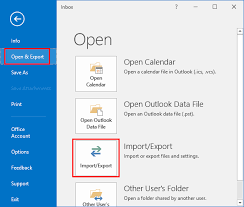
- Now navigate to File >> Open&Import >> Import/Export.
- Select Export to a File >> Outlook Data File (.pst).
- Select the folder you want to export.
- Browse the location to save exported data file and hit the Finish button.
Done! Here you download GoDaddy emails to computer.
Limitations of Manual Solution
- It requires technical knowledge to configure your account if Outlook not able to detect it.
- If your Import Export option greyed out Outlook, then you will not able to export your emails.
- No filter option to download selective emails only.
- High chances of data loss during the export process.
- It only saves your GoDaddy emails in PST file.
How to Download Emails from GoDaddy to Hard Drive Instantly?
Use SysConverter Email Backup Wizard and export GoDaddy email to hard drive or system. Using this tool you can directly download data from Godaddy mailbox, you just need to enter your login details. It is teh most secure application that you can trust with your important data. There are various advanced filter options for selective email backup.
Additionally, you can also transfer emails from GoDaddy to Dreamhost, Gmail, Office 365 and many other webmail accounts. Most importantly, you can save Godaddy emails in PST, PDF, CSV and many other file formats. A free demo version of the software to learn about its complete working process.

Follow the Steps to Backup GoDaddy Emails to Hard Drive With Attachments –
- Launch the SysConverter Email Backup Tool on your System.
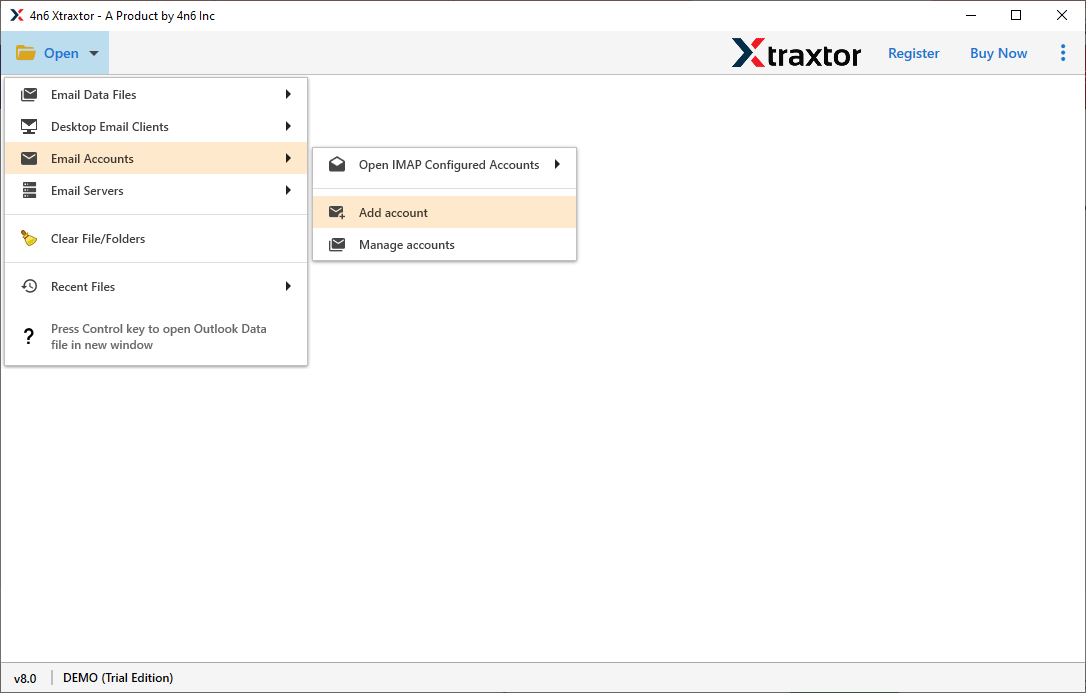
- Then select Open >> Email Accounts >> Add Account.
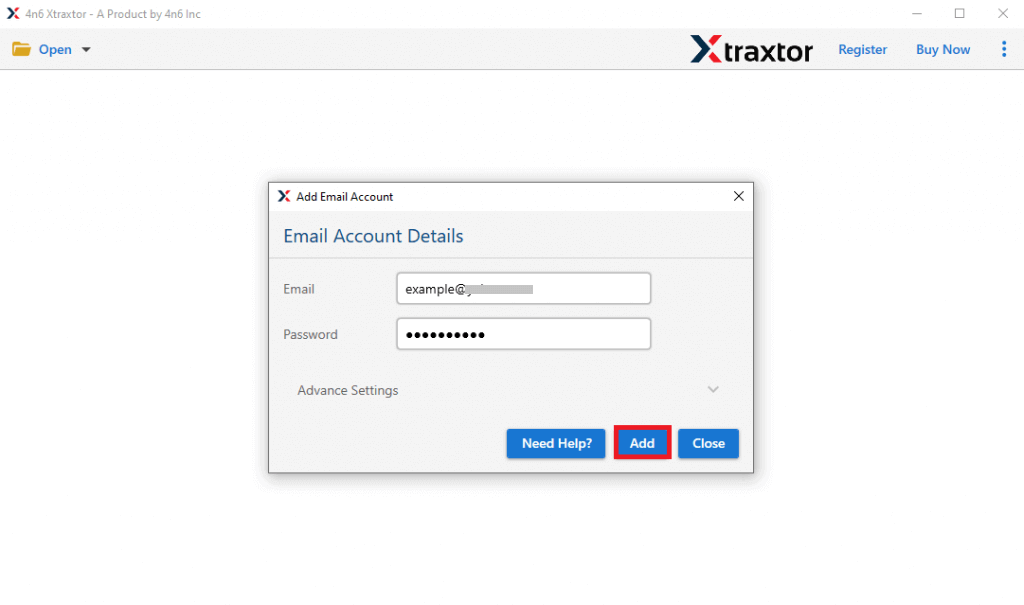
- Enter your GoDaddy email ID and password and hit the Add button.
- Here you can view your emails before downloading them.
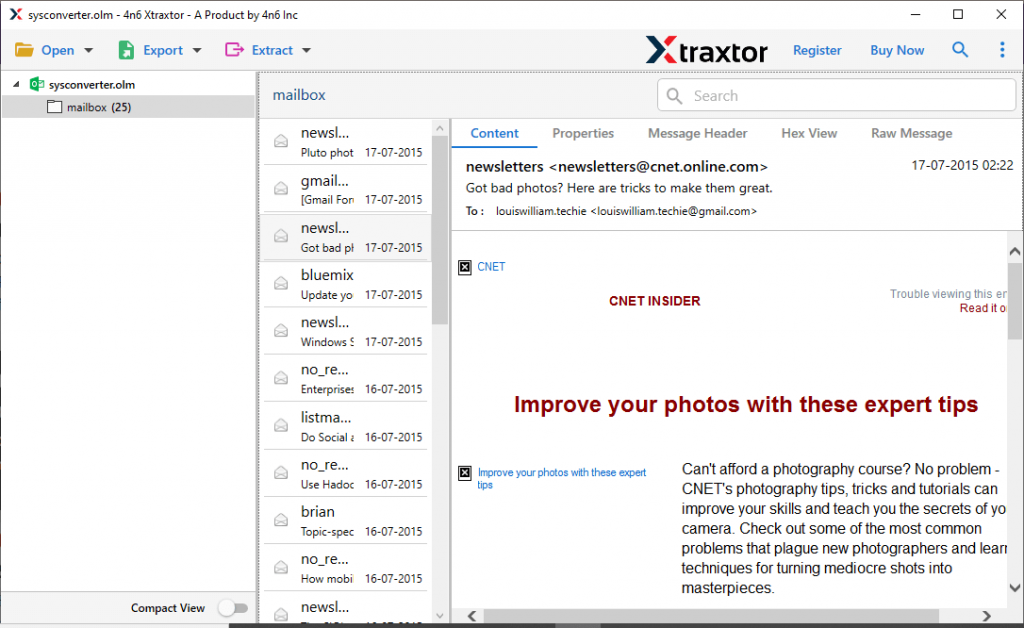
- Click on Export and choose any of the given options.
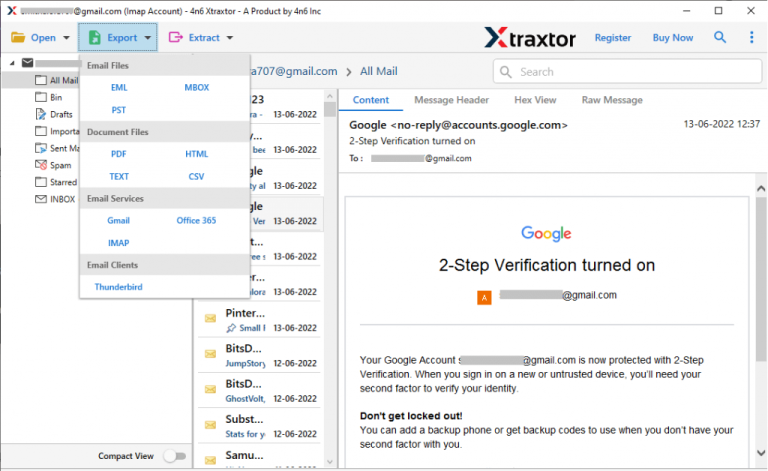
- Browse the location to save the exported data file and hit the Save button.
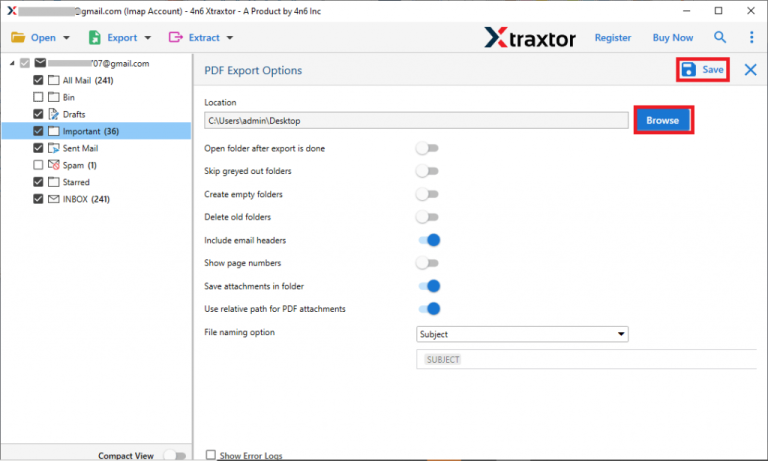
Done! Here you download emails from GoDaddy to hard drive in a few simple clicks.
Why Use SysConverter GoDaddy Email Backup tool?
- Directly download emails from GoDaddy mail account to hard drive in a few simple clicks.
- Export GoDaddy emails to different file formats along with attachments.
- Advance filter options – to, from, cc, bcc, name, date, time, etc.
- Maintain email folder and sub-folder hierarchy and structure.
- A safe and secure solution to backup GoDaddy email to hard drive without data loss.
- Allow to export GoDaddy email to Gmail, Office 365 and many other webmail accounts.
- Simple user interface for both technical and non-technical users.
- Works on Windows 11, 10, 7, Vista, XP and all other previous OS versions.
- Download selective email folders from the GoDaddy mailbox account.
- Using this tool, you can also export GoDaddy email to Thunderbird and many other email clients.
- A free demo version of the software is available to know it’s complete working.
Conclusion
Downloading emails from GoDaddy to hard drive is the best way to secure your data. Here in this article, we mention two workable solutions to backup GoDaddy email to system. Now the decision is yours, whether you choose a manual approach via Outlook or use the Email Backup Tool.