Gmail is a widely used email service provider used by many corporate firms. If you wish to download Gmail emails, then it is best to use the Google Takeout service. Using this takeout service, you will get all mailbox data in a zip file that can be extracted as a .mbox file.
There may be a situation where users want to convert Google Takeout to EML format, then this article is for you.
Today in this write up we will learn the reliable and workable solution to export all emails from Gmail MBOX file to EML format with complete data. Before we move ahead let’s get to know about Google Takeout.
Google Takeout Overview
It is a free service provid4ed by Google Inc to download Gmail emails. It also allows creating an archive of all account that is connected with Google such as youtube, Drive, Contacts, Calendars, Map, and many more apps. All the data will be downloaded in a zip file that can be later extracted into an MBOX file.
Now the question is how can we download Gmail emails using Google Takeout? To know the answer to your question read the next section and save your emails from your mailing account.
How to Archive Gmail Emails via Google Takeout
To download emails into the Gmail MBOX file, then follow the given steps in a given manner.
Step 1. Search Google Takeout official website on your browser or click on https://takeout.google.com/ and enter your Gmail account login credentials.
Step 2. In the new Window under the “Select data to include” section click on “Deselect All” and select the Mail option.
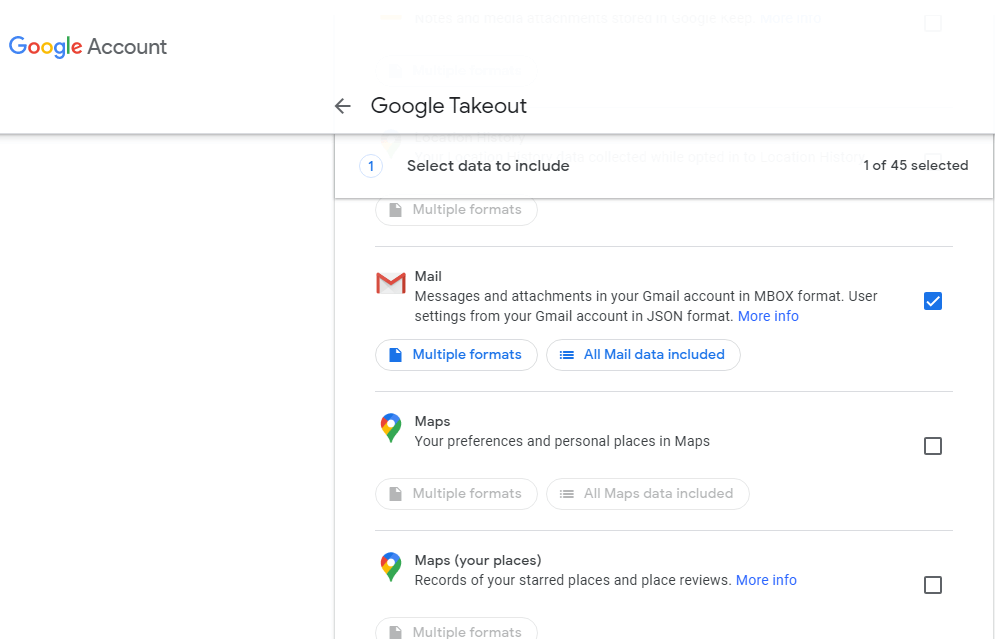
(we choose email to archive emails. You can select from the given list as per your requirement)
Step 3. After that select the delivery option and send the download link via emails along with its file type and size.
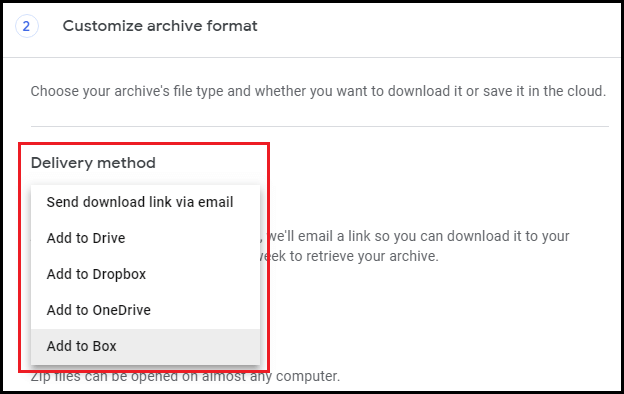
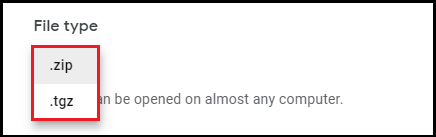
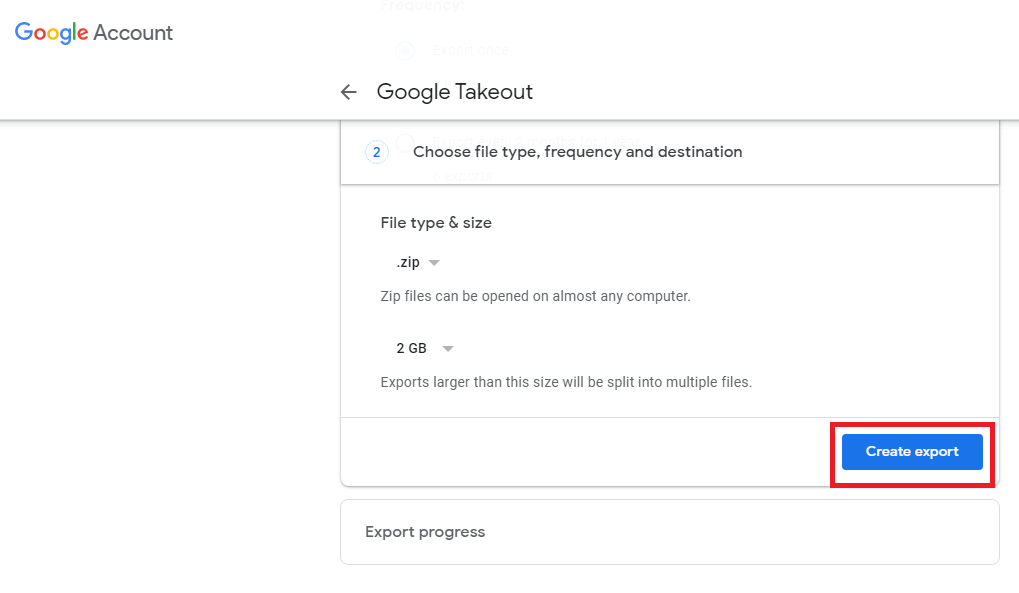
Step 4. Following that, click on Create Export to start the backup process.
Step 5. Lastly, go to your Gmail account, there will be an email that contains a link to your archive file. Click on it and download your Gmail archive zip file.

All done! here you successfully archive your Gmail emails and get an MBOX file.
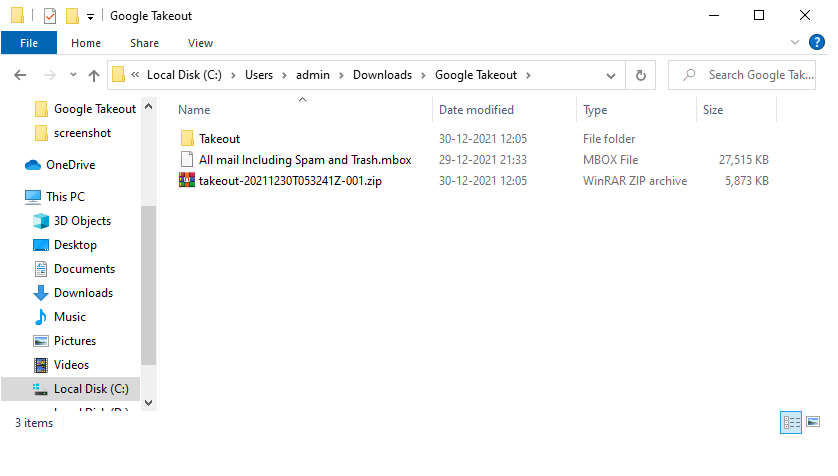
Now the next task is to know how to convert Google Takeout to EML format.
Now the part where we export Gmail MBOX file to EML file format. However, there is no direct manual solution to perform this conversion process. For that, you have to opt for a third-party solution that can export emails from Google Takeout file to EML format without any data loss. One such tool is mentioned in the next section, to know it read the complete article.
Method to Convert Google Takeout to EML Via Professional Tool
Google Takeout Converter is a one-in-all solution to export Gmail Takeout emails to EML format with complete mailbox data. Using this tool users can export multiple Gmail archive files in a single attempt. Along with it, this tool is capable enough to convert selective emails from google Takeout file without any modification.
In addition to that, this utility converts Google Takeout to PST, PDF, HTML, CSV, and other file formats in a single interface. Moreover using this tool users can export Gmail MBOX to web-based email accounts without facing any trouble.

Step to Export Gmail MBOX to EML format
Let’s check the working of this software with screenshots to understand the process in detail.
Step 1. Install and run this tool on the system.
Step 2. Click on the Open button to add the email archive file.
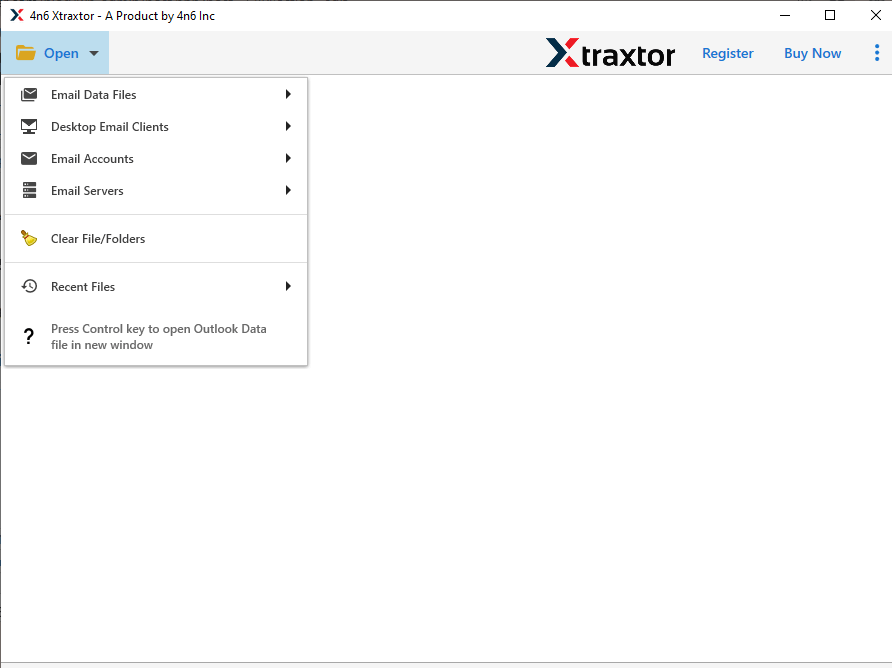
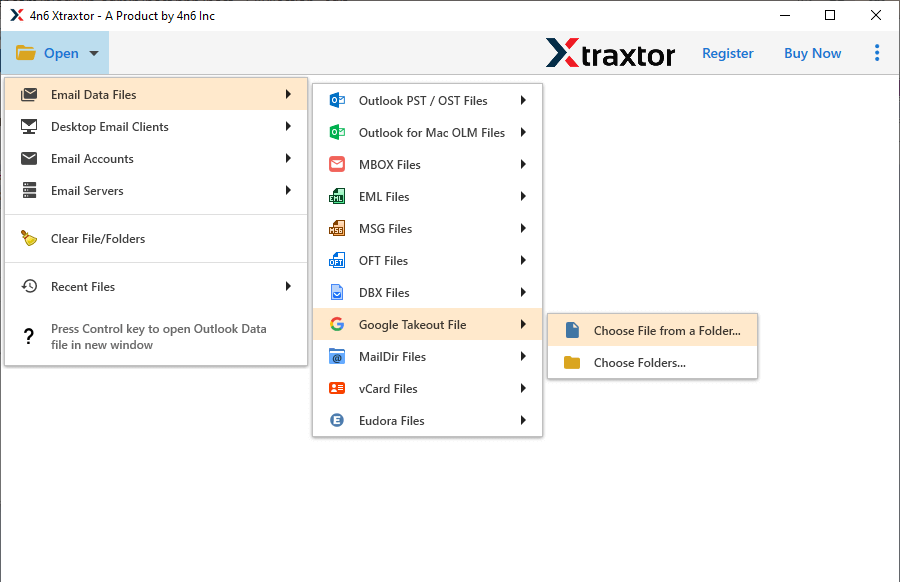
Step 3. Here, Select Email Data File >> Select Google Takeout File >> Select File or Folder.
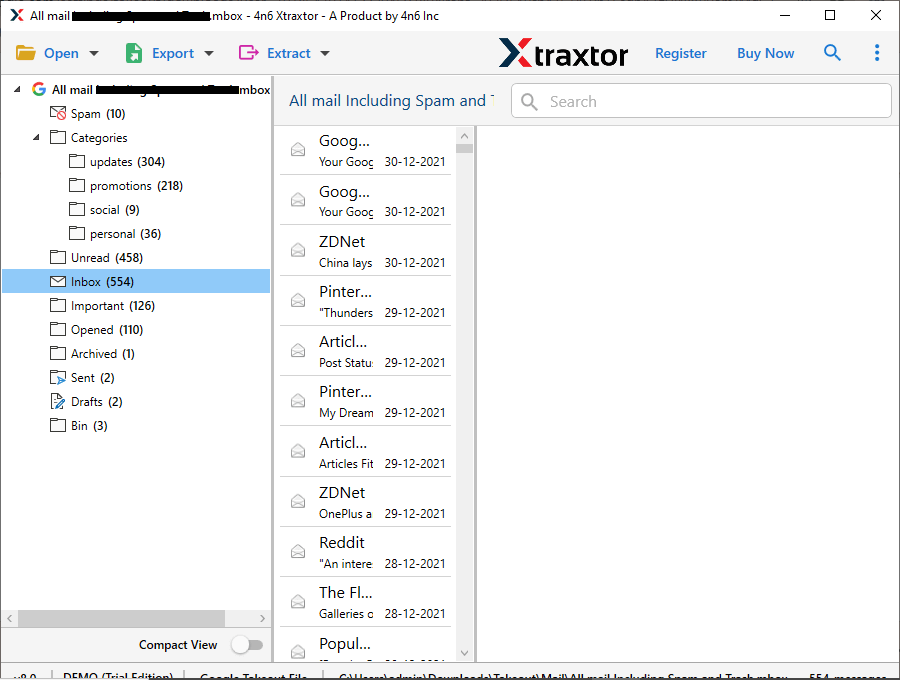
Step 4. After adding the data file, this tool scans it and shows the emails in its interface.
Step 5. Now click on the Export button and choose the EML format from the given list.
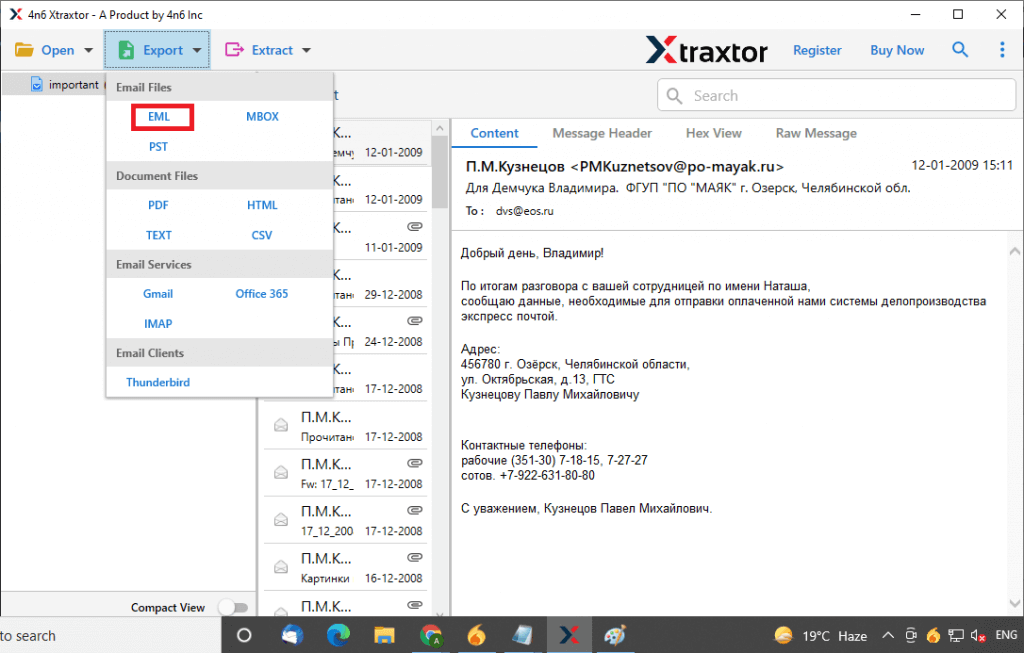
Step 6. At last, select the saving location and click on the Save button.
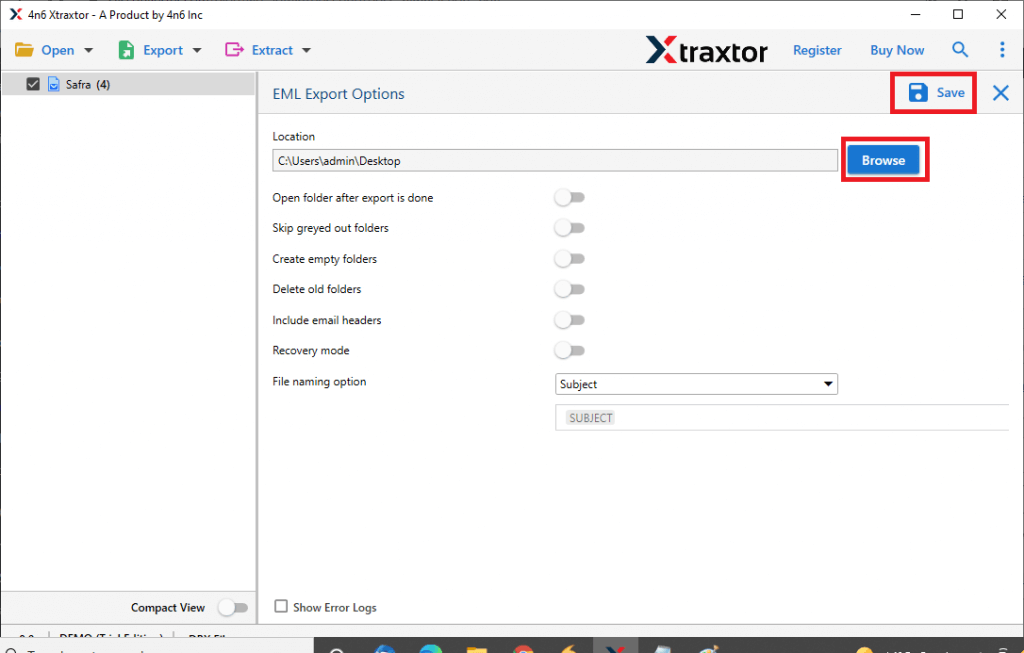
Here complete the process. You complete Google Takeout to EML Conversion with complete email data.
Highlighted Features of Google Takeout Converter
- Batch Convert Google Takeout File
This tool can export emails from multiple takeout files to EML format in a single attempt. Along with it, there are no file restrictions while performing the conversion process.
- Export Google Takeout File to cloud
With this software, users can directly transfer the emails from Gmail MBOX file to multiple email clients with all email attachments. It can smartly import google Takeout to Gmail, and also export mailbox archive files to Thunderbird, Opera Mail, Yahoo, Office 365, and many other web-based email accounts.
- Extract Email Information
This Google Takeout to EML converter comes with an option to extract email information. Using this tool users can save email addresses, attachments, phone numbers, and associated email addresses and phone numbers in a separate text file.
Conclusion
In this article, we learn about the method to convert Google Takeout to EML format using automated software. This software is the best for export multiple Google Takeout files to EML format without losing a single bit of data. Also, preserve email attributes and key elements during the conversion process. Users can use the trial version of this tool and can export Gmail MBOX to EML format with ease.