This blog will guide you to backup Zoho emails to hard drive without any hassle. Read the complete blog and download Zoho Mail folders to hard drive without any data loss.
Zoho Mail is one of the popular webmail services with a user-friendly interface and advanced features. However, sometimes users make an added effort to secure their important information and backup their data. When you backup Zoho emails to hard drive or your system, it gives an extra layer of security to your data. Here in this blog, we will go through the step-by-step process to download Zoho Mail data to hard drive. If you are among those who want to backup emails from Zoho Mail to system, then read the post till the end.
Why Need to Backup Zoho Mail to Hard Drive?
Downloading Zoho emails to system has several advantages, some of them are –
- Backing up emails in hard drive secure your data from accidental deletion and cyberattack.
- If you have a copy of your webmail data, then you can access your emails offline.
- After you backup Zoho emails to hard drive, it is easy to migrate them to different mailing platforms.
- After downloading Zoho emails you can free up teh storage space for new emails.
How to Export Zoho Emails to Hard Drive?
Zoho Mail has its own Import/Export tool that help to save mailbox data locally. Follow the given instructions to backup Zoho Mail data to hard drive –
- Login to your Zoho Mail account using your credentials.
- Then go to the Setting icon and navigate to the Import/Export option.
- In the export section, select the folder from which you want to export emails. Then, select the duration in a month, or you can select Export all emails in the folder to backup the entire folder.
- Then, click on the Export option.

- Here start the export process based on your selected parameter.
- After some time you will receive a notification email with a link to download emails. After clicking the link you will get a .zip file with all your mailbox data.
How to Backup Zoho Mail Folders to Hard Drive At Once?
SysConverter Email Backup Tool will instantly download your mailbox data to hard drive in a few simple clicks. With its advanced filter options – to, from, cc, bcc, name, date, etc. it is possible to backup specific emails only. With its simple and user-friendly interface, any novice user can backup their Zoho Mail data.
Additionally, using this tool you can also export Zoho email to PST , PDF, CSV and many other file formats. Moreover, it will also migrate Zoho Mail data to different webmail accounts in a few simple clicks. You can use this tool on Windows 11, 10, 7, Vista, XP and all previous OS versions. A free trial version of the software is also available, download it and know it complete backup process.

Follow the Simple Instructions to Backup Zoho Emails to Hard Drive –
- Download and Launch this tool on your system.
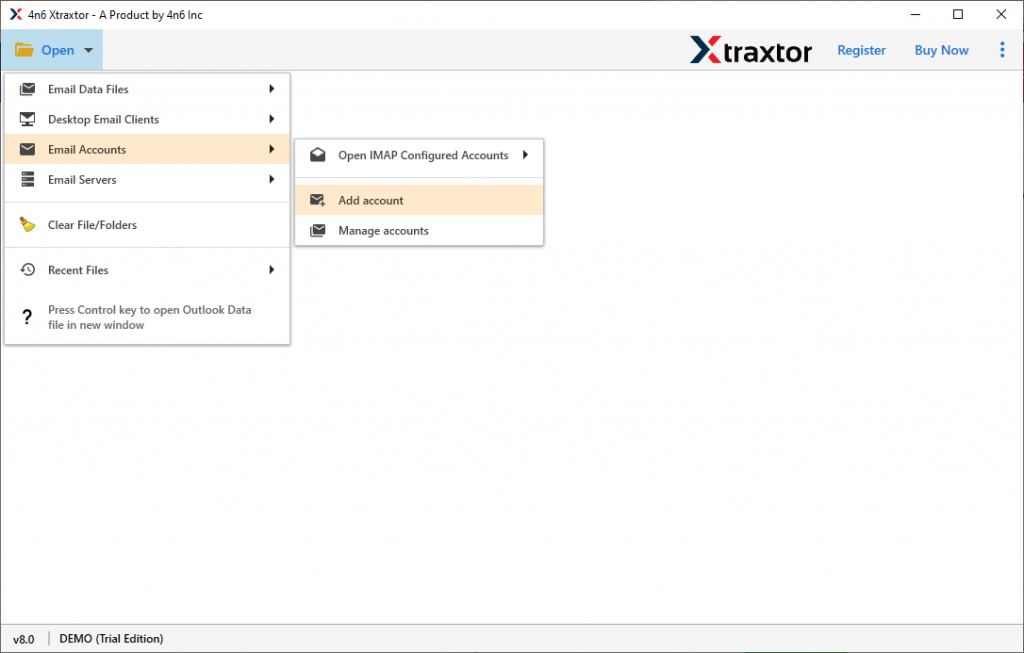
- Then, select Open >> Email Accounts >> Add Account.
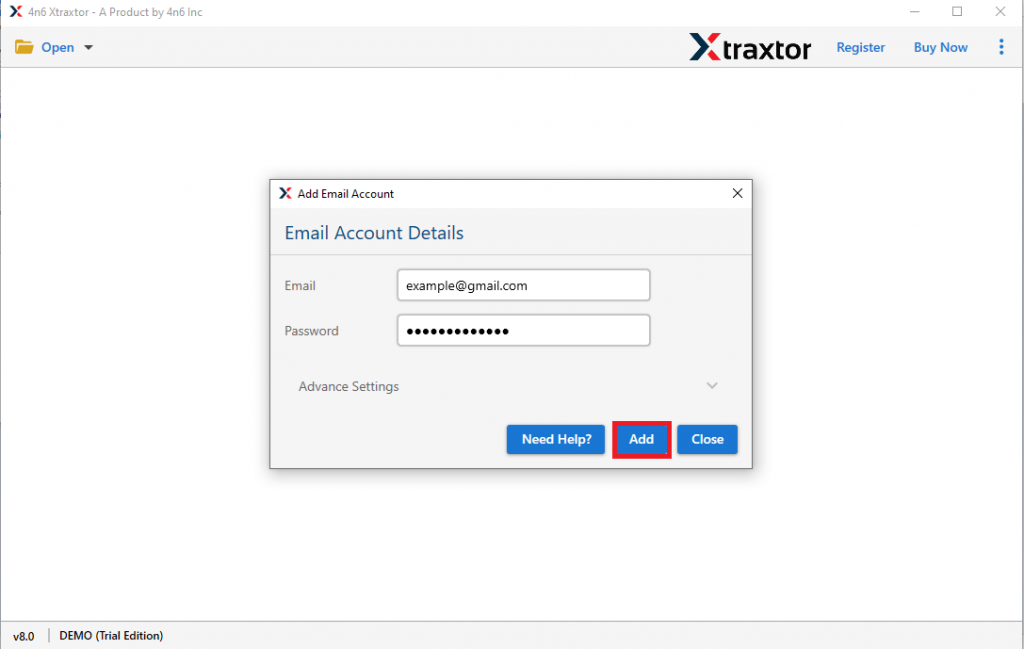
- Enter your Zoho Mail login details and click on Add button.
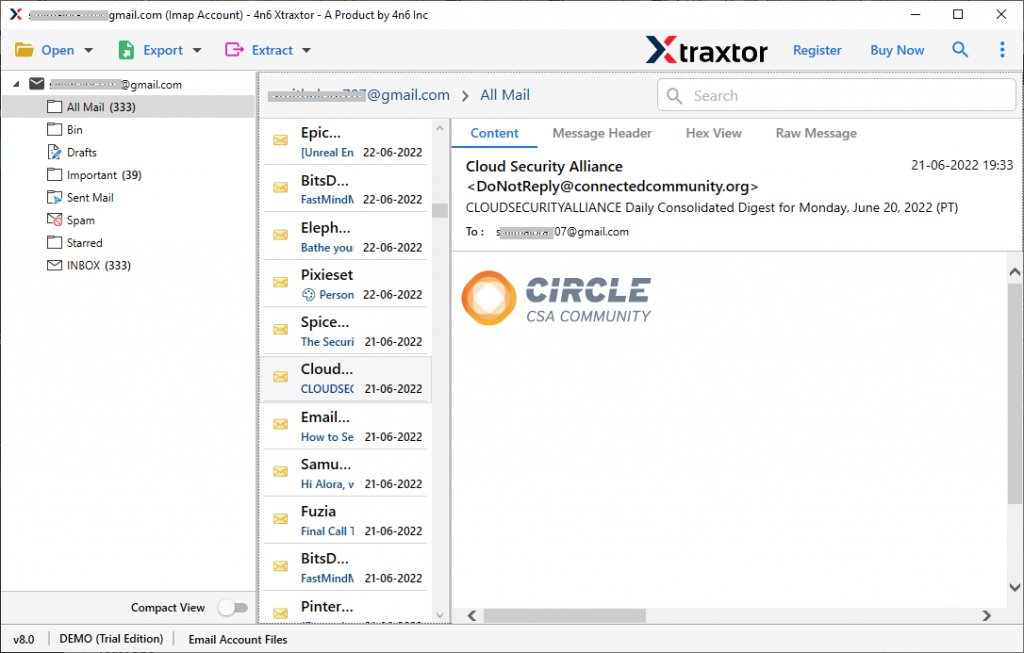
- Here you can view your mailbox data before downloading them.
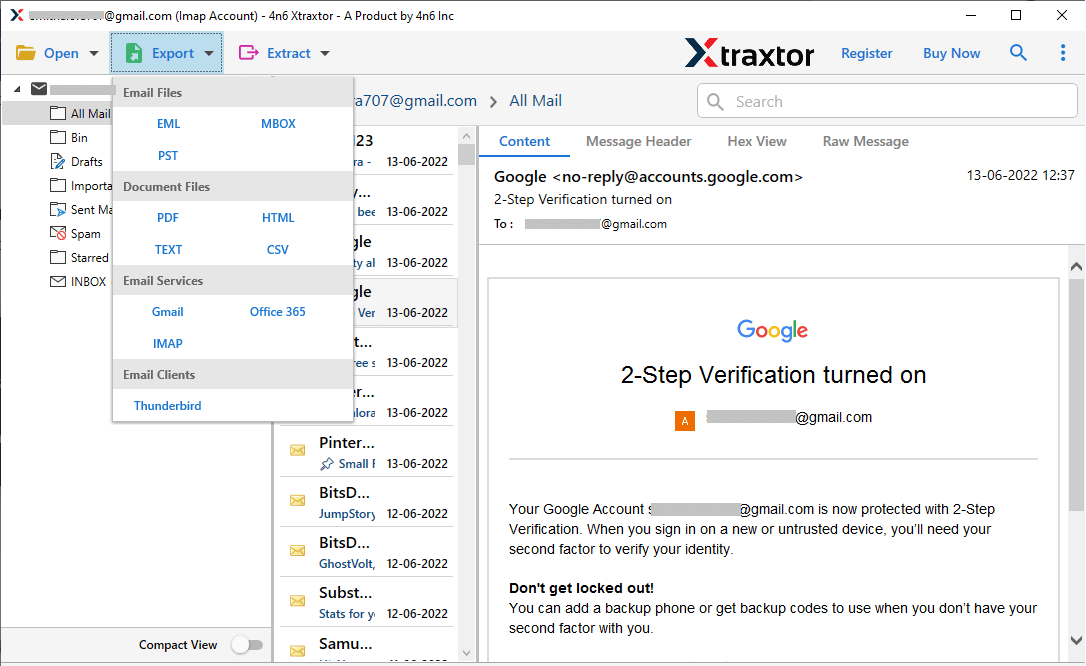
- Click on Export and choose any file format from the given list.
- Browse the targeted location and hit the Save button.
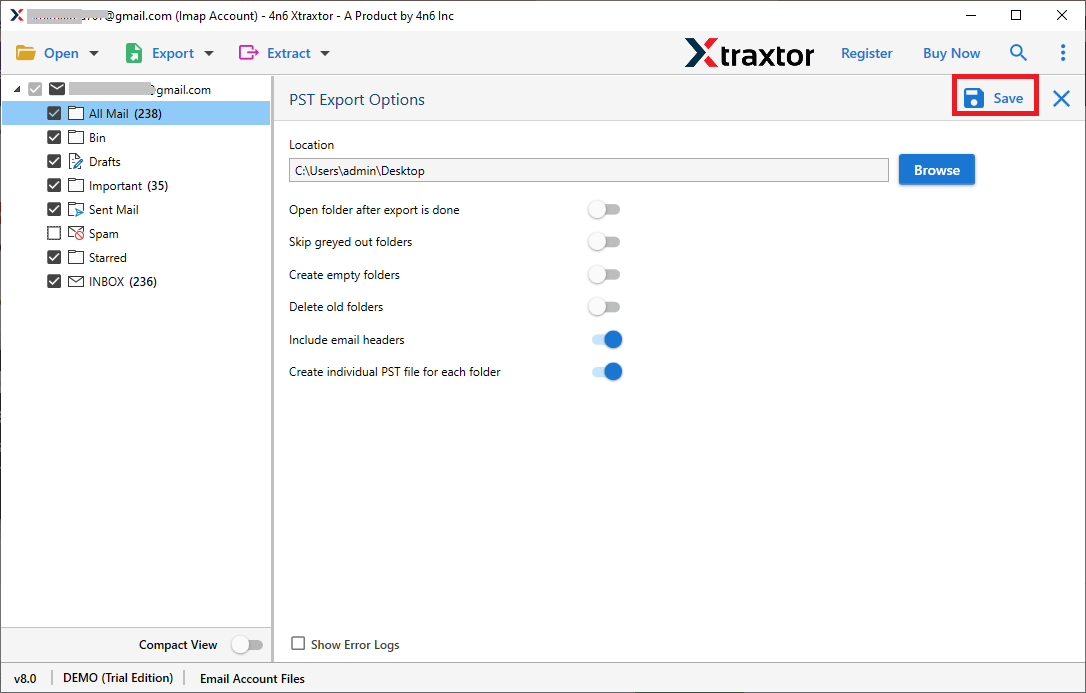
Done! Here you backup emails from Zoho Mail to hard drive in a few simple clicks.
Why Use SysConverter Email Backup Tool?
There are various prominent features offered by this tool, some of them are –
- It will directly backup Zoho emails to hard drive in a few simple clicks.
- Allow to migrate Zoho emails to various webmail accounts as well.
- Export Zoho Mail to PDF, CSV, MBOX and other file formats.
- Maintain email folder and sub-folder hierarchy and structure.
- Advance email filters – to, from, cc, bcc, name, date, time, etc.
- Preserve email attributes and key elements along with data integrity.
- Works on Windows 11, 19, 7, Vista, XP and all other previous OS versions.
- Free demo version of software to know its complete working process.
Conclusion
Today in this blog we discuss the two workable solutions to backup Zoho emails to hard drive in a few simple clicks. You can use the manual approach and export a single email folder at a time and repeat the process for other folders. On the other hand, the automated tool will download complete mailbox data to hard drive at once without any hassle.