Summary: This technical guide will backup Outlook OST to PST file. If you have OST file and want to backup its data into PST format, then this post is for you. Read the post and backup all emails from Outlook OST file to PST along with attachments.
Outlook is a popular email client used by professionals and individuals. Outlook stores its mailbox data into OST and PST file. However, both the data file have different attributes and usages. Where Outlook safe its email, contacts and other data to your system in .ost file. Most importantly, you can’t access the OST file on any other sysetm. Thus you need to backup OST file to PST format since you can easily open this data file in any Outlook.
Now the question is Can Outlook backup OST to PST file? It is possible to backup emails from OST file to PST format manually. However, the manual method will work only, when the same Outlook creates your OST file. After that, convert OST to PST and access your data on any Outlook version. If you want to backup emails from orphan OST file, then you need an automated tool for that.
Here in this post, we will discuss the both free and automated tool to take backup of OST file data to PST format.
Why Users Want to Backup Outlook OST File to PST?
There are various reasons for taking backup OST emails to PST file, some of the important one.
- To avoid OST file corruption: As we already know, a .ost file is highly prone to corruption and damage. To prevent your data form from being corrupted, it’s best to back it up in a highly secure format. Therefore, it is better to save the OST field data in PST format.
- Restore Deleted Data: Sometimes a situation may happen where the user accidentally deletes some Outlook data. In that case, the mailbox data is already saved in the offline table. Therefore, to restore those data, user can backup OST to PST format.
- Easy to transfer: If the user wants to send some data, it is not possible with the OST file. As .ost does not open in another Outlook environment. So, in that case, you can save OST file data to PST. After that, it is easy to transfer the .pst file as it will be accessible on another system.
How to Save Outlook OST to PST Format?
In this section, we will discuss two different methods to backup OST to PST. Firstly we will learn the manual approach. If it doesn’t fulfil your requirements then you can use the automated approach. Therefore read the complete blog and try both the solution and find which one is best for you.
- Manually Way Via Import/Export Tool
- Automated Approach through OST Converter
Let’s discuss these solutions one by one and backup Outlook OST to PST format.
Method 1: How to Backup OST File Data into PST Manually?
To save offline storage table data into .pst format, follow the given instructions carefully.
- Open your Outlook desktop email client on your machine.
- After that, click on the File option from the menu bar and select the required field.
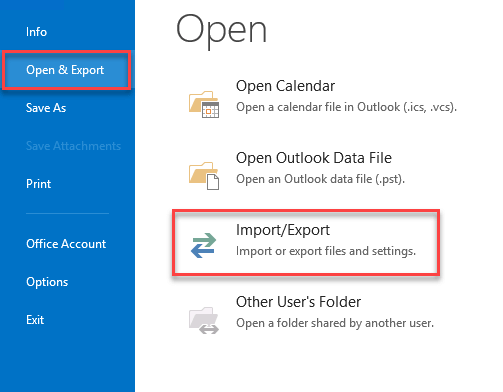
- Now select Open & Export >> Import/Export options.
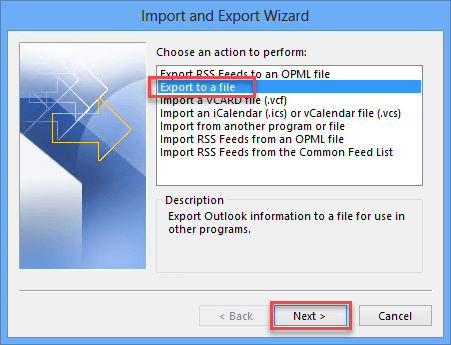
- A new window will appear, click on “Export to a file” and hit on the Vext button.
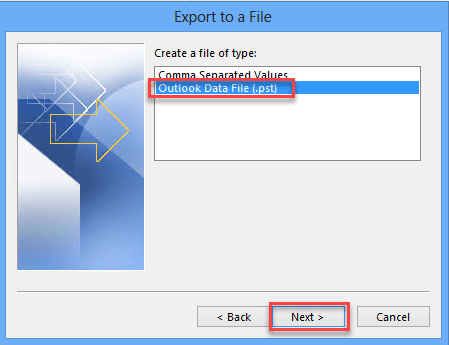
- Choose Outlook Data File (.pst) under Create a file of type section.
- Browse the location to save exported data files. Along with that press Replace duplicates with items exported radio button.
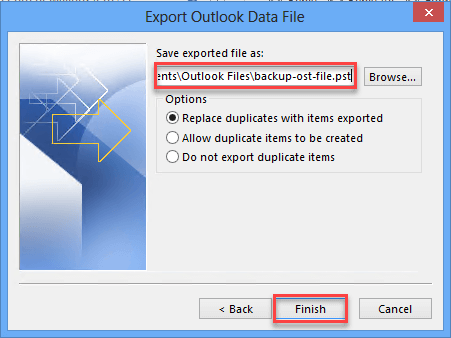
- At last, click on the Finish button.
Here you change .ost to .pst in Outlook manua. Now you can use this data file as per your requirement.
If You want to backup an orphan OST file into PST, then this method will not be useful. For that, you need to use third-party software that easily saves data from orphan OST file without affecting data integrity.
One such tool we will discuss in the next section. Therefore continue reading and know more about it.
Method 2: How to Backup OST to PST Outlook 2016/2019?
Try out this efficient and secure OST Converter tool and backup Outlook offline data to PST file with attachments. The software will backup emails from the orphan, inaccessible or damaged OST file into PST format. While backing up your data, the tool maintains an email folder and sub-folder hierarchy and structure.
With its simple and user-friendly interface, one can easily add OST file and backup OST file data into .pst file. After that, it is easy for the users to access their emails on any other device. Download the demo version of the software and learn its complete functionality.

Steps to Backup Outlook OST to PST File –
- Install and run SysConverter for OST tool on your Windows OS.
- After that click on the Open button present on the software interface.
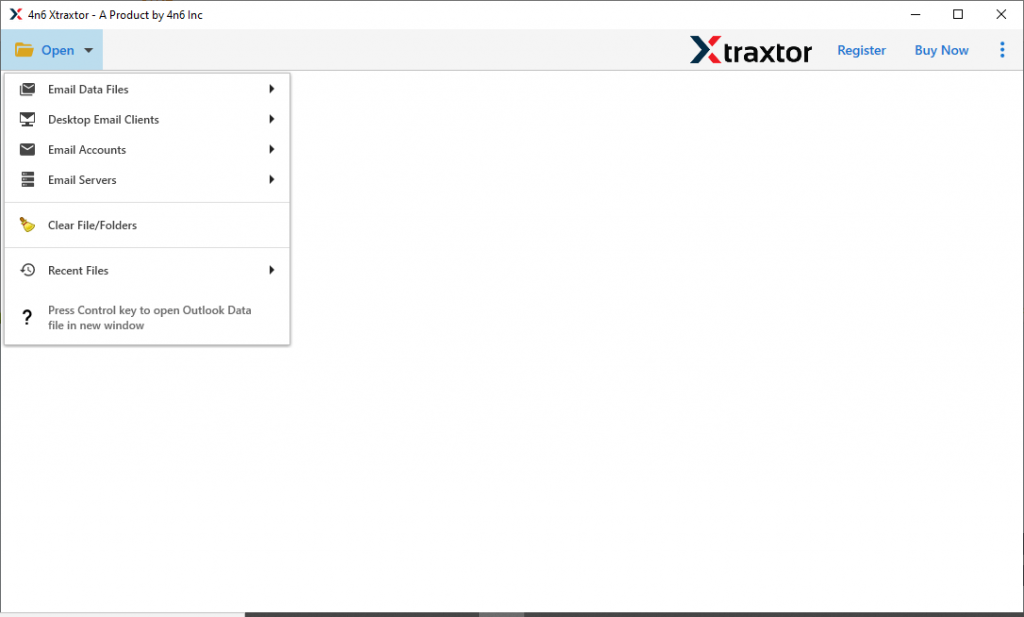
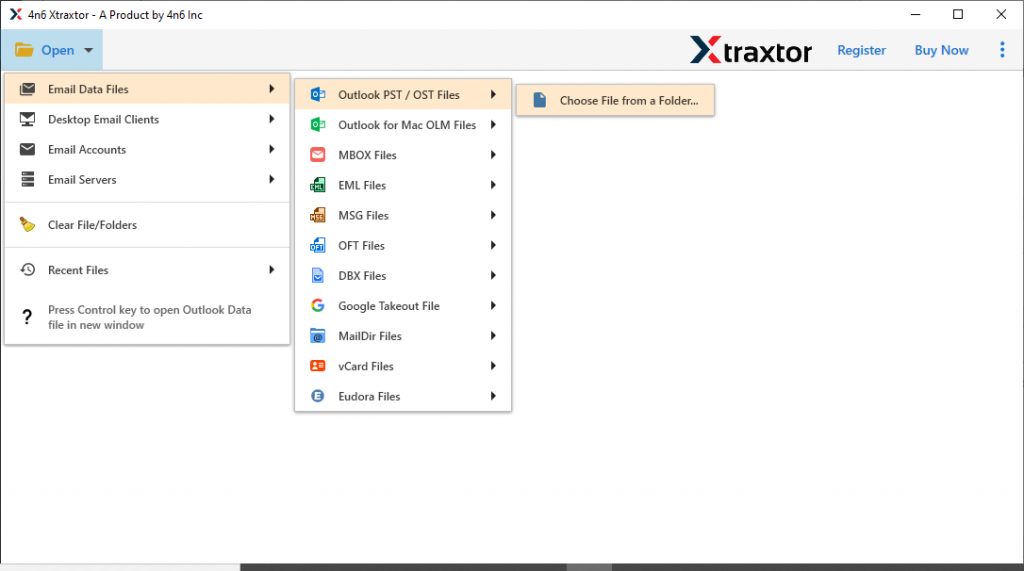
- Now select Email Data File >> OST File >> Select File or Folder.
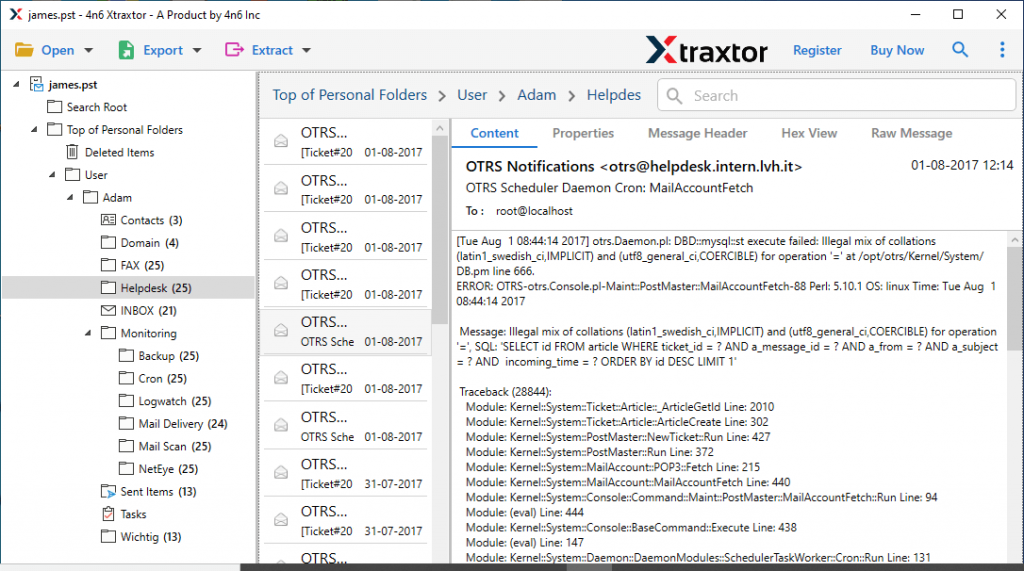
- You can view and read your emails and decide which email folder you want to backup.
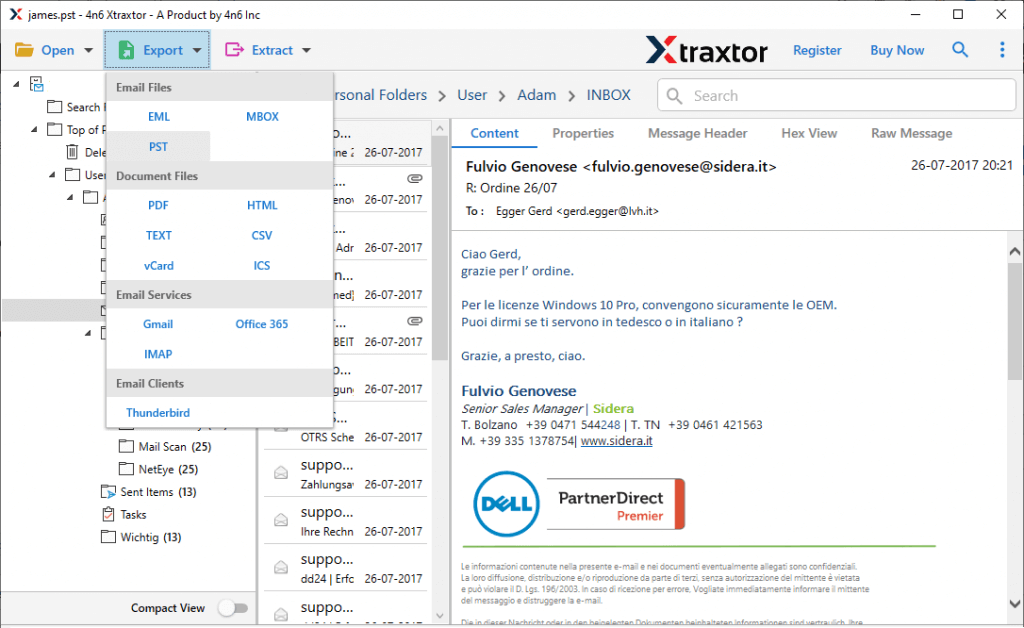
- Here click on the Export and choose PST as a saving option.
- At last, browse the targeted location and click on the Save button.
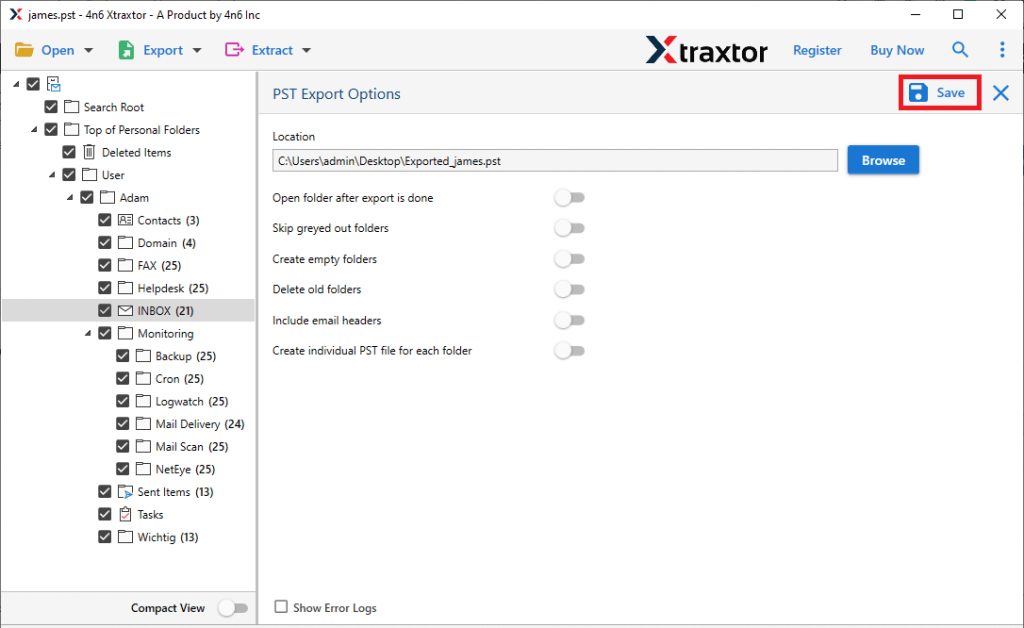
Here complete the OST to PST backup process using this automated tool. Now lets some amazing features of this tool.
Advantages of Using Automation Tool
There are various benefits of using this tool to backup your OST file as PST. However some of them are mentioned here,
- Using this utility you can save OST in PST format without data loss.
- Backup orphan OST file into Outlook PST with ease.
- Gives an option to export emails from OST to MBOX and many other file formats.
- Easy way to backup Outlook OST to PST without Outlook installation.
- Maintain mailbox folder and sub-folder structure and hierarchy.
- You can also export OST file to PST in Outlook with ease.
- Advance search option to backup emails with specific attributes.
- Selective email folder backup and avoid unwanted data transfer.
- Extract mailbox data into a separate text file.
- Also import OST to Exchange, Office 365 and many other webmail accounts.
- Option to choose the desired location to save the backup file.
- Efficiently save emails from large-size Outlook OST files without affecting data integrity.
Conclusion
Backing up OST data into PST format is not a complicated process. Just make sure you opt for the right techniques. In this blog post, we discuss these two approaches: Manual and Automated. You can try both and find which method solves your problem efficiently. For better and more effective results try the demo version of this tool.
Frequently Asked Questions
Question 1: Can I use this tool on Windows 11?
Answer: Yes, this tool works on Windows 11, 10, 7, Vista, XP and all other previous versions.
Question 2: Does this tool migrate my Outlook emails to Yahoo Mail?
Answer: Yes, this tool will instantly transfer Outlook emails to Yahoo Mail and other webmail accounts.
Question 3. What happens if my OST file is very large?
Answer. If your OST file is large, then it will take time. Thus, choose the right solution to complete the backup process. One such solution we mention in this post.