Here in this guide, we will discuss the manual free and automated way to backup SiteGround emails to system. If you are among those who want to backup their SiteGround mailbox data, then this post is for you. Read till the end and complete the backup process without any hassle.
Although SiteGround gives an option to export emails in the .eml file. However, you can also use the automated way to download SiteGround emails to PC in bulk without any data loss. Let’s discuss both solutions in detail.
How to Export SiteGround Emails to PC?
1. First sign in to your SiteGround mail account.
(For that, go to Email >> Accounts >> click on the Kebab menu)
2. Open the email you want to backup and right-click on it.
3. Click on the More menu and choose the Export button.
4. Now browse the location to save the exported data file.
Here you save SiteGround email in an .eml file on your system. Repeat the steps for all the emails you want to export.
While the manual approach backup SiteGround emails to the computer, it only allows for the backup of one email at a time. If you try to download multiple emails at a time, then it can result in data loss. Therefore it is best to download SiteGround email to PC using an expert tool.
How to Download SiteGround Emails to PC Instantly?
SysConverter Email Backup Tool is a secure and efficient approach for data backup. This application will effortlessly backup SiteGround emails with attachments. The tool will automatically download emails directly from your SiteGround email account and save them in different file formats. While downloading your emails, the tool maintains folder structure and hierarchy. Additionally using this tool you can also backup IMAP emails without any data loss.
Download teh demo version and try the software.

Steps to Backup SiteGround Emails With Attachments
1. Lunch the software on your system.
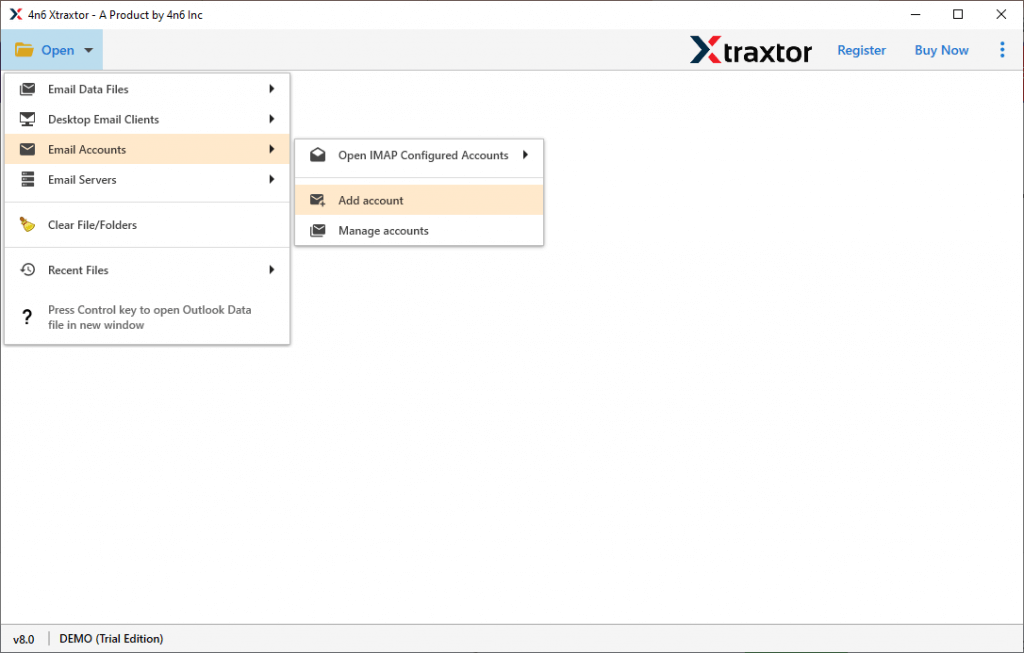
2. Select Open >> Email Accounts >> Add Account.
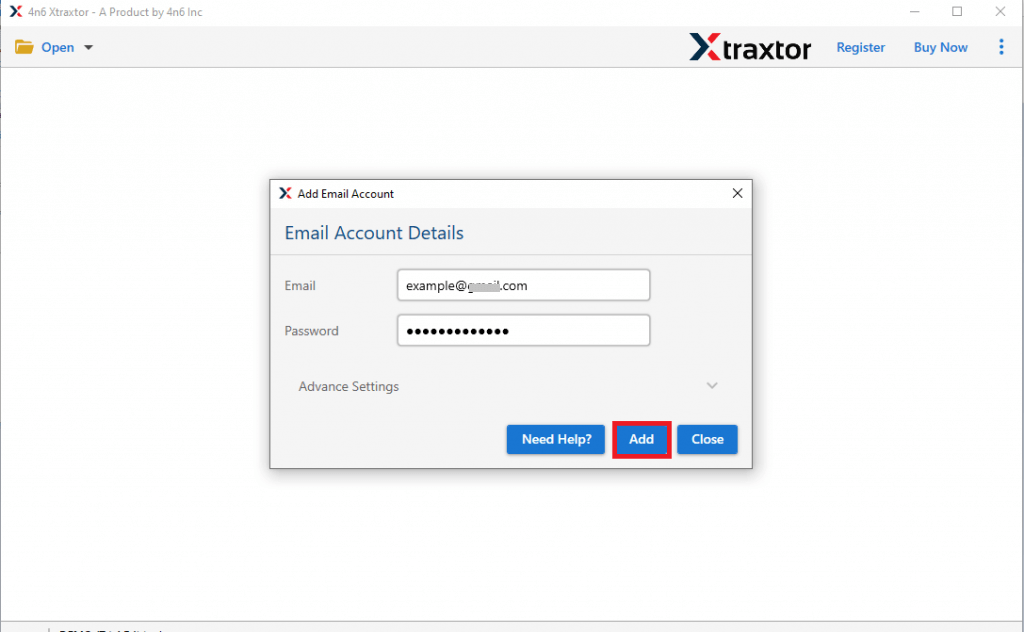
3. Enter your login details and hit the Add button.
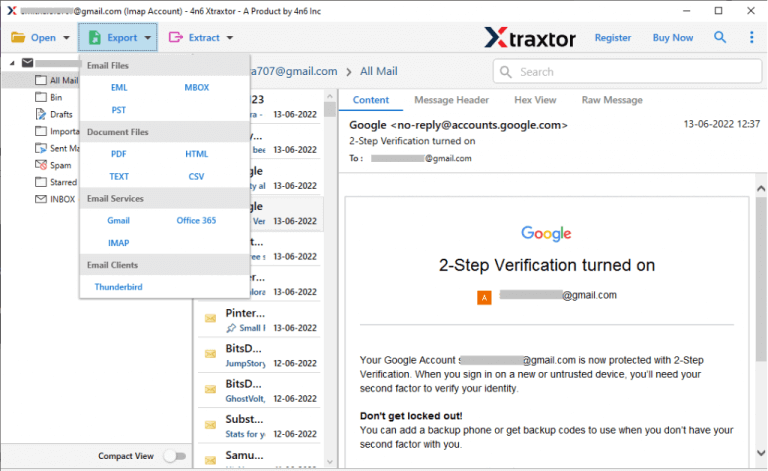
4. Click on Export and choose saving options.
5. Browse the targeted location and hit the Save button.
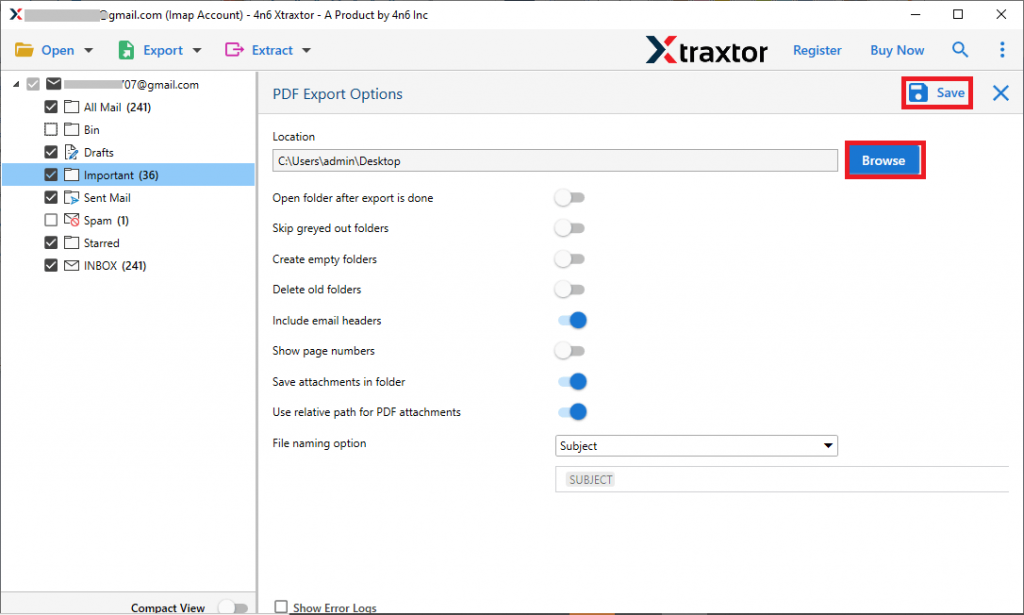
Done! Here complete the backup process. With its simple and user-friendly interface, you can also download emails from many other email accounts. With this tool, there are various prominent features,
- Maintain email folder and sub-folder hierarchy and structure.
- Preserve email key elements and attributes while backup SiteGround emails.
- Advance filter options for selective backup.
- Allow to download emails from various email sources.
- Easy-to-use interface for both technical and non-technical users.
Conclusion
Here in this blog, we discuss the two workable solutions to backup SiteGround emails to PC. Read the complete blog and download SiteGround emails with attachments in a few simple clicks. Try the tested solution and save your emails without affecting data integrity.