Here in this blog, we will discuss the best way to import OLM to iCloud mailbox in a few simple clicks. Read the blog and migrate emails from OLM file to iCloud account along with attachments.
Importing emails from an OLM file to a webmail account can be a difficult task to perform. However, with the right approach, it is a simple process to perform. If you are also looking for a secure way to import OLM to iCloud email account, then this blog is for you.
iCloud email is a part of Apple’s broad iCloud suite of services including an email address with the @icloud.com domain. This email service seamlessly integrates with all Apple devices, providing convenient access to your data. Along with that, it is also integrated with contacts and calendar apps allowing for easy management.
How to Transfer Data from OLM to iCloud Manually?
To complete the transfer process, you need a Mac Outlook on your system. After that, import the OLM file in it and add the iCloud email account. Follow the instructions for a more detailed process.
1. In Mac Outlook, go to Tools >> Accounts.
2. Click on the + button and choose the Add Account option.
3. Then, click on the iCloud icon and enter your login id and password.
4. Renter your password and finally select Add Account >> OK.
5. Restart your Mac Outlook and click on File from the menu bar.
6. Then choose Import and select OM file.
7. In import windows choose Outlook for Mac archive file (.olm).
8. Browse the OLM file and click on the Import button.
Done! Here complete the OLMto iCoud import process. However, if you are a Windows user and have OLM file that you want to import into your iCloud, then you will need a Mac system for that Since OLM can only imported into Mac Outlook. However, there is an alternative solution that we are going to discuss in the next section.
How to Import OLM File to iCloud Email Account Instantly?
Try the OLM Converter Tool on your Windows OS system. This tool will instantly transfer emails from OLM file to iCloud mailbox in a few simple clicks. With its simple and easy-to-use interface, it can be accessed by both technical and non-technical users. There are various filter options – to, from, cc. bcc, name, date, time, etc.
Additionally, using this tool you can also import OLM to Gmail, Office 365 and all other webmail accounts. Moreover, while transferring OLM file to iCloud mailbox, there will be no data loss or modification. You can try the demo version of the software and analyse its working.

Follow the given steps and import OLM to iCloud with Attachments –
- Launch the SysConverter for OLM software on your system.
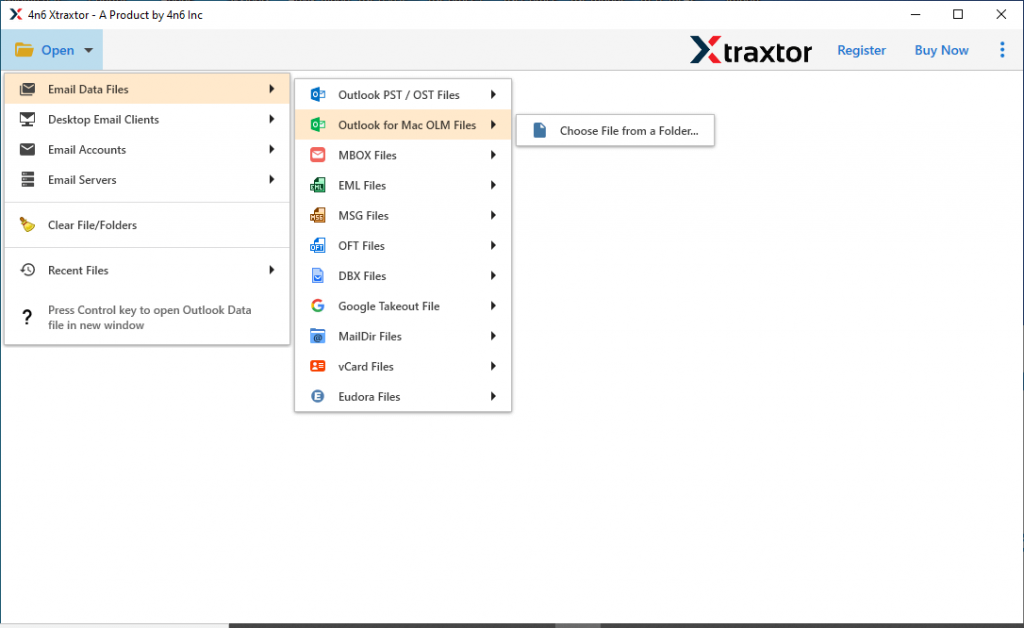
- Then select Open > Email Data File >> OLM File >> Select File for Folder.
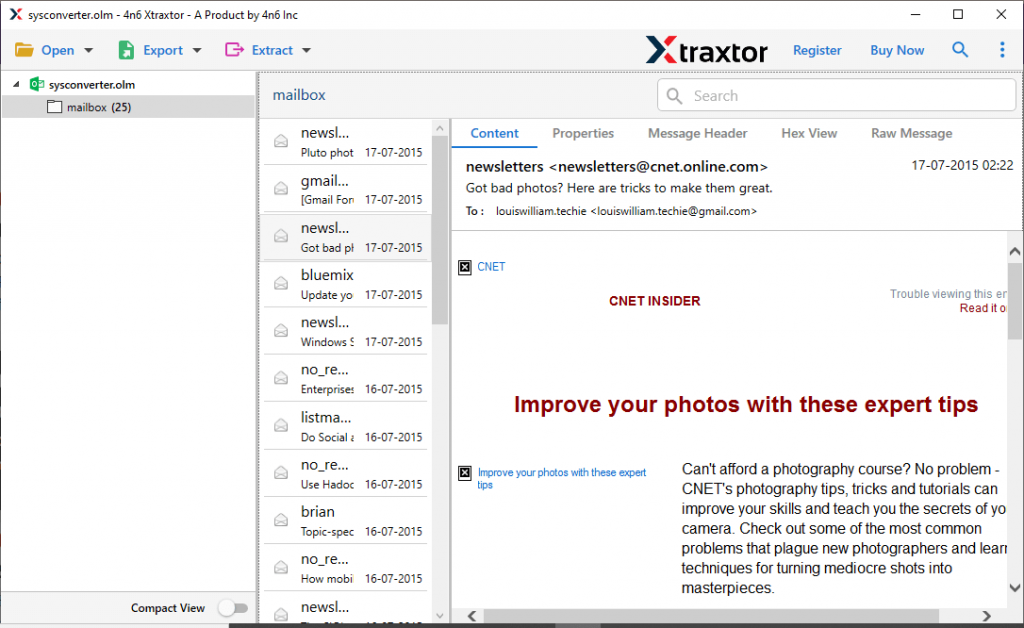
- Here you can view your emails before importing them.
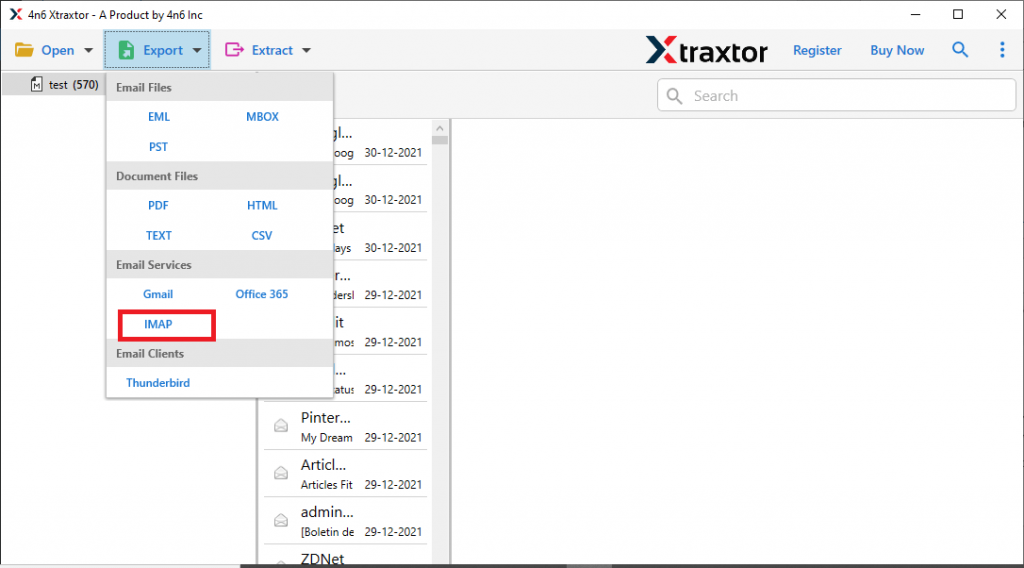
- Click on Export and choose the IMAP option.
- Enter your iCloud login details and hit on Save button.
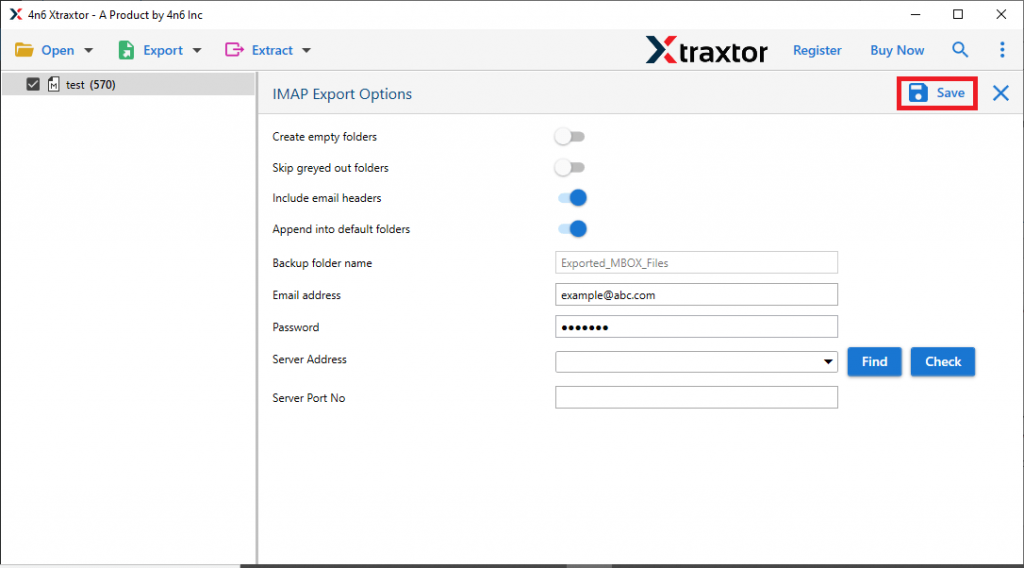
Done! Here you import emails from OLM file to iCloud mailbox in a few simple clicks.
Why Use OLM to iCloud Migration Tool?
There are various prominent features of this tool, some of them are –
- Import OLM to iCloud along with emails, contacts, calendars and all other data.
- Simple and user-friendly interface with advanced working.
- Allow to import OLM to Office 365, Yahoo Mail and all other webmail accounts.
- Various advanced filters – to, from, cc, bc, name, date, time, etc.
- Using this tool you can also open OLM file in Windows Outlook without any hassle.
- Works on Windows 11, 10, 7, Vista, XP and all other previous OS versions.
- Maintain email folder and sub-folder hierarchy and structure.
- Support OLM file from Mac Outlook 2021, 2019 and other editions.
- A free demo version of the software to know it’s complete working.
Conclusion
Moving emails from OLM file to iCloud is not a complex process if yu know the right approach. Here in this blog, we mention a secure and efficient way to import OLM to iCloud account with step-by-step description. Use the given solution to complete the import process and access your data on any Apple device without any hassle.