Are you an Outlook user and the content of the email body is missing? There are ample users that are facing this type of issue. In this write up we will discuss the various ways to fix the “Body of Email Not Showing in Outlook” error.
Many time user reports that they can’t see their email body while receiving emails in their Outlook application. Sometimes, there can be a situation where users send an email via Outlook, but the sent email is blank without body. All these issues we will discuss in this article and try to fix this error without affecting the mailbox data.
Ways to Resolve Body of Email Not Showing in Outlook Error
There are two ways to this Outlook error without any data loss or modification.
#1. Manually Fix Email Body Not Showing Error
#2. Use Expert Solution to Fix the Error
Let’s discuss these approaches in a detailed way with a step-by-step description.
Method 1: Fix the “Body of Email Not Showing in Outlook” Error
Manually there are various native approaches that will resolve this issue. Some of the most common techniques are mentioned in this section.
Solution 1: Delete Certain Add-ins Antivirus In Outlook
Using some antivirus may cause the “Body of Email Not Showing in Outlook” error. If you don’t want to face this error, then it is suitable to remove that antivirus software from your Outlook interface. To delete the antivirus, follow the given instructions –
1. Launch your Outlook application on your Windows OS system.
2. After that, navigate to File >> Options.
3. Now select Add-ins from the option box and click on the Go button.
4. From the list of add-ins uncheck the Antivirus and click on the Ok button.
(Note: If you want to delete the add-ins permanently, then click on the Remove button)
Here, you remove the uncertain antivirus from the Outlook interface. Open your emails and check whether you are able to view your email body. If you still facing this “Body of Email Not Showing in Outlook” error, then try other approaches.
Solution 2: Check Font Color Of Text Message
If your font color for email body content is set as White, then you will definitely face a “can’t view email content in outlook” error. To resolve this issue, follow the given instructions –
1. Launch your Outlook email client and open the blank email message.
2. After that, select File >> Option >> Mail.
3. Then, click on the Stationery and Fonts option and choose Signatures and Stationary.
4. Now under Composing and reading the plain text message section, select the Font option.
5. A new Window will appear, there is a Font Color section, and select the Automatic option.
6. In the drop-down list, select black color only.
After that, restart your Outlook and see whether your “Body of Email Not Showing in Outlook” error is fixed or not.
Solution 3: Update Outlook to Fix Email Body Missing Error
This error can cause due to using an old edition Outlook application. Update the Outlook email client and you may be able to resolve Outlook not displaying email content correctly. To update your Outlook follow the steps –
1. In Outlook, go to File >> Account >> Select Update.
2. Click on update now and upgrade your email client and fix can’t view email content in Outlook error.
All these given, solutions can fix the error in a few simple steps. If you still facing this issue, then you can use the automated tool for that.
Method 2: How to Fix “Body of Email Not Showing in Outlook” Error
If all these manual methods, can’t able to solve the error, then you can use an Outlook Converter to view your emails with ease. This automated tool will scan your emails that not showing email body and display its content in its interface. Along with that, you can use this tool and create a new data file that has all emails with their body content.
Additionally, you can also use this tool and export Outlook emails to PDF, CSV, HTML, and many other file formats with visible email body content. With its easy-to-use interface, there will be no difficulty in resolving can’t view email content in Outlook error.

Steps to Resolve “Outlook not Displaying Email Content” Error
Follow the given instructions and fix the email body missing error using the expert solution –
Step 1. Install and launch SysConverter for Outlook on your system.
Step 2. After that, choose Open >> Desktop Email Client >> Outlook Account >> Configured Account.

Step 3. Here you can view your email from your application along with the emails that do not display body content.
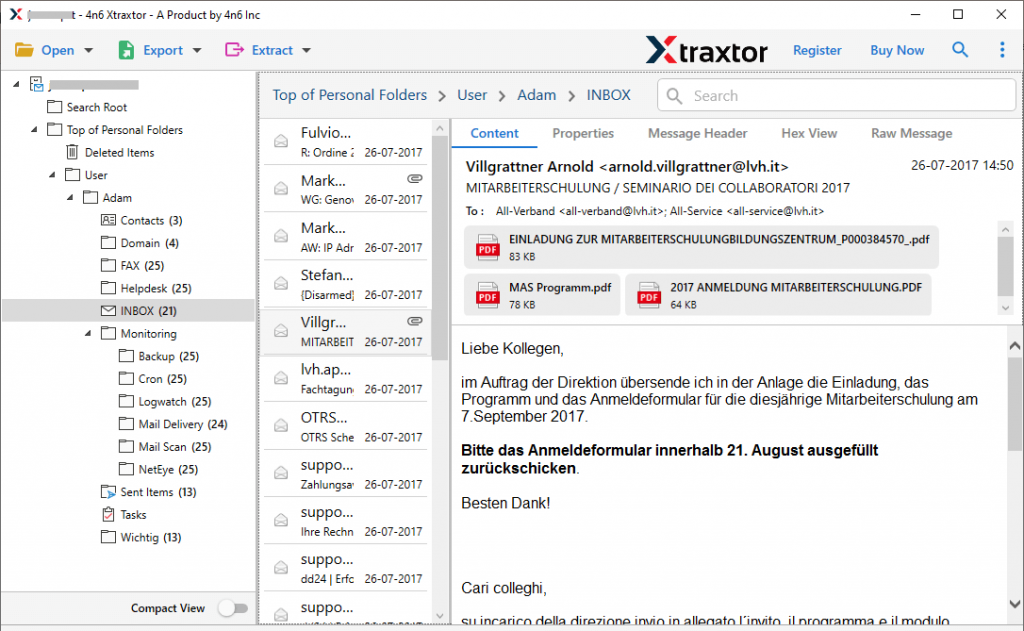
Step 4. Then, click on Export and choose file formats (we choose PST here) to save Outlook emails.

Step 5. Now, if you want to save only those emails that not showing content, then you can select those emails folder in this step.

Step 6. At last, browse the targeted location and hit on the Save button.
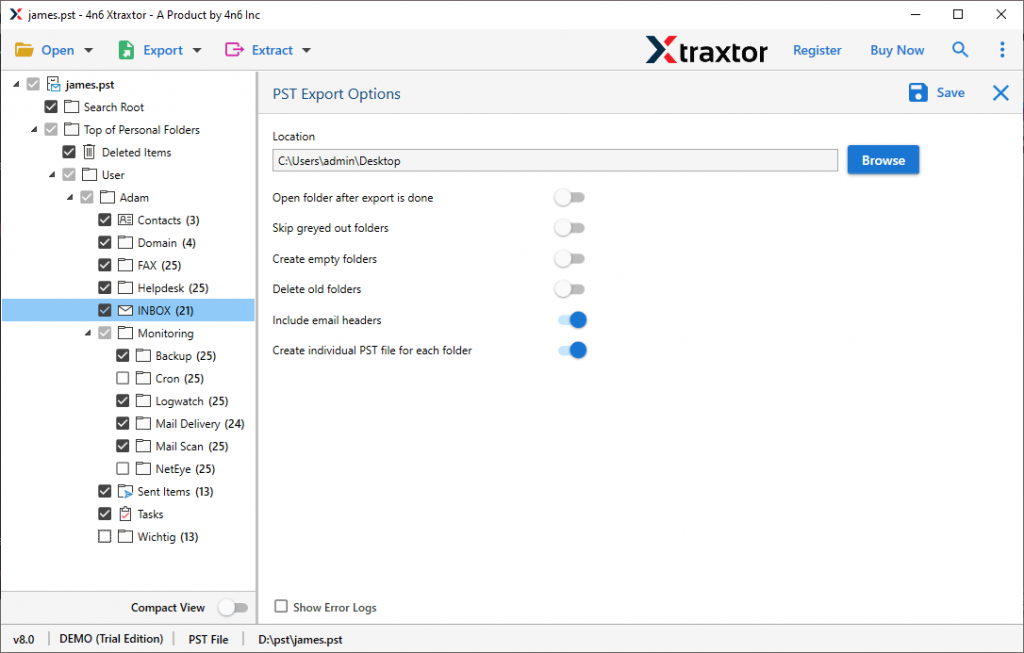
Done! Here complete the process of exporting Outlook emails to PST format. Now you can view email content in Outlook by importing this exported file into your email client interface.
Conclusion
In this write-up, we will discuss the various ways to solve the “Can’t view email content in outlook” error. If you are facing this error, then you can use different solutions to fix this error and access your Outlook emails with no data loss.