“I use the Outlook email client for my daily business purpose. Daily I receive thousands of emails that are related to my work and important to me. Thus I want to save them to my USB drive, however, I am not a technical person so I don’t know the process of backup Outlook emails to USB drive. Can anyone suggest to me a secure way to save Outlook emails to external drive?”
The above-stated query is asked by many Outlook users. If you are among those who want to archive Outlook emails to external drive, then this article is for you. Read the complete article and save Outlook emails to USB stick with no data loss.
Outlook is an email client that is used by many people worldwide. However, there is an issue with Outlook. It uses disk space to store copies of the same emails in various folders. Thus it becomes difficult to find any particular data from the various folders. To solve this issue it is best to backup Outlook emails to USB drive. Additionally, archiving Outlook emails to external drive secure your crucial data.
In this blog, we will discuss two workable solutions to copy Outlook emails to external drive with complete mailbox data. Without further delay, let’s move on and get on with the Outlook email backup process.
Methods to Backup Outlook Emails to External Drive
If you want to archive Outlook emails, you can opt for a manual as well as an automated way to backup emails from Outlook and save them on the USB drive. Both methods are workable, however, with the manual method, you can face some restrictions.
How to Backup Outlook Emails to USB Drive Manually?
Using Outlook Import/Export Tool you can backup your Outlook mailbox data including emails, contacts, journals, etc. Follow the instructions and save Outlook emails to USB sticks.
- Open your Outlook application on your Windows OS system.
- After that navigate to File >> Open & Export >> Import/Export.

- Select the “Export to a File” option from the given list.
- Now choose the “Outlook Data File (.pst)” or “Comma Separated Value” option according to your need.
- Select the folders that you want to save from the mailbox.
- Browse the location (plug in your USB drive and choose its location) to save exported file and hit on the Finish button.
Done! Here you export Outlook emails to PST or CSV file format. Although this manual way can save your Outlook emails still there are few limitations with it.
Loopholes With Manual Approach
With this native approach, there are some restrictions that hamper the email backup process.
- You can only save your Outlook emails in two formats (.pst & .csv).
- No email filter options to backup selective emails.
- If you try to archive a large amount of data, then there are high chances of data loss.
- No preview option before saving Outlook emails.
To avoid these limitations, you can opt for a professional tool that will efficiently backup Outlook emails to USB drive.
How to Save Outlook Emails to USB Drive Instantly?
To archive Outlook emails to external drive, use Outlook Converter software. Using this utility you can efficiently copy Outlook emails to USB drive and secure your mailbox data. Along with that, you can also apply the email filters that will help you to backup emails from any particular sender, time, date, subject, etc. With its simple interface, any user can use the tool and archive emails from Outlook interface.
Additionally, this software automatically detects your configured Outlook account and backup Outlook emails to USB drive. This automated tool also saves Outlook emails to PDF, HTML, MBOX, EML, MSG, and other file formats as well.

Follow the steps to Save Outlook Emails to Extrenal Drive –
- Install and launch SysConverter for Outlook on your Windows OS system.
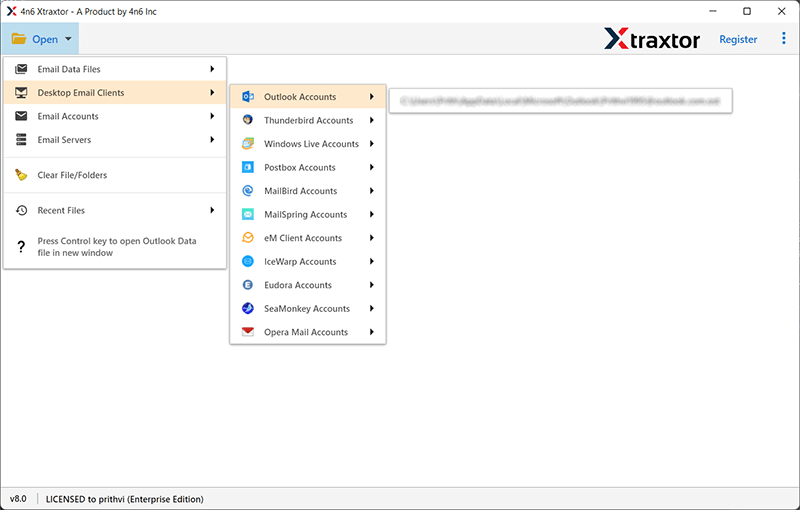
- After that, select Open >> Desktop Email Client >> Outlook account >> Your Configured Outlook account.
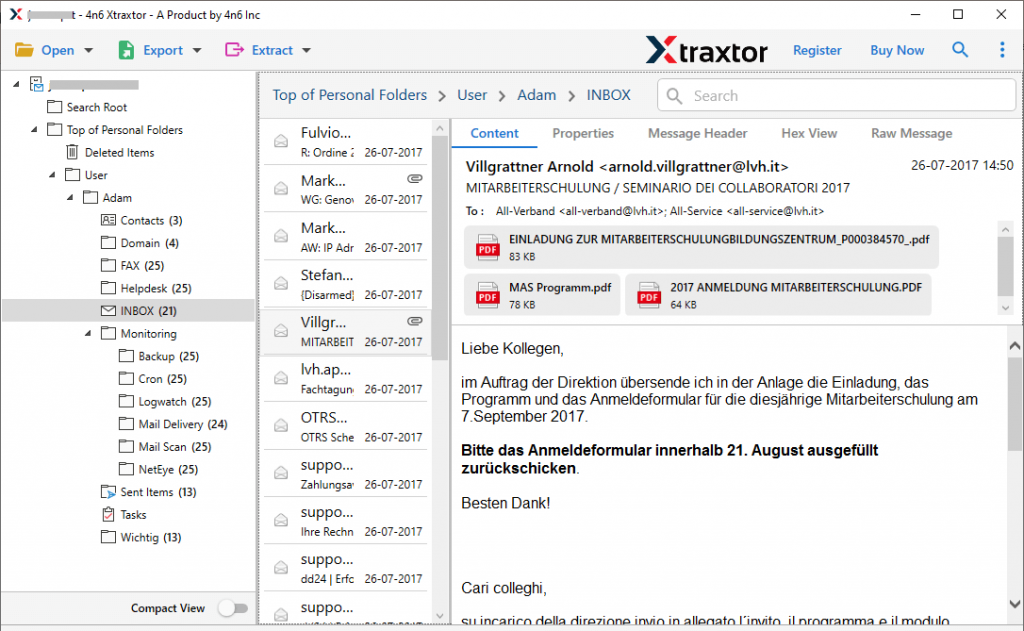
- Here you can view all your emails before saving them.
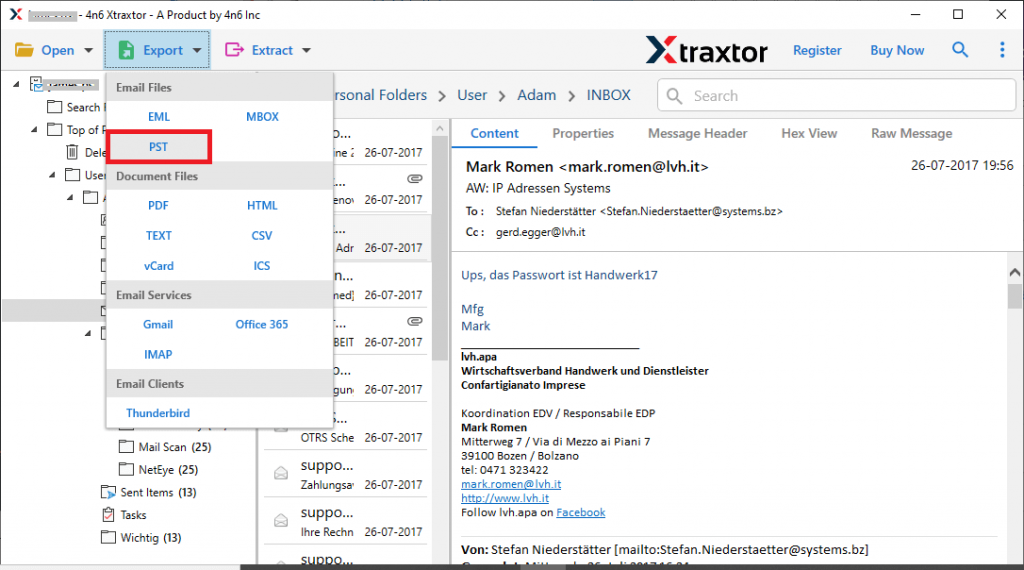
- Then, click on Export and choose PST file format (You can also choose any other file format).
- Now f you want to backup only important email folders, then you can select the folders and save them only.
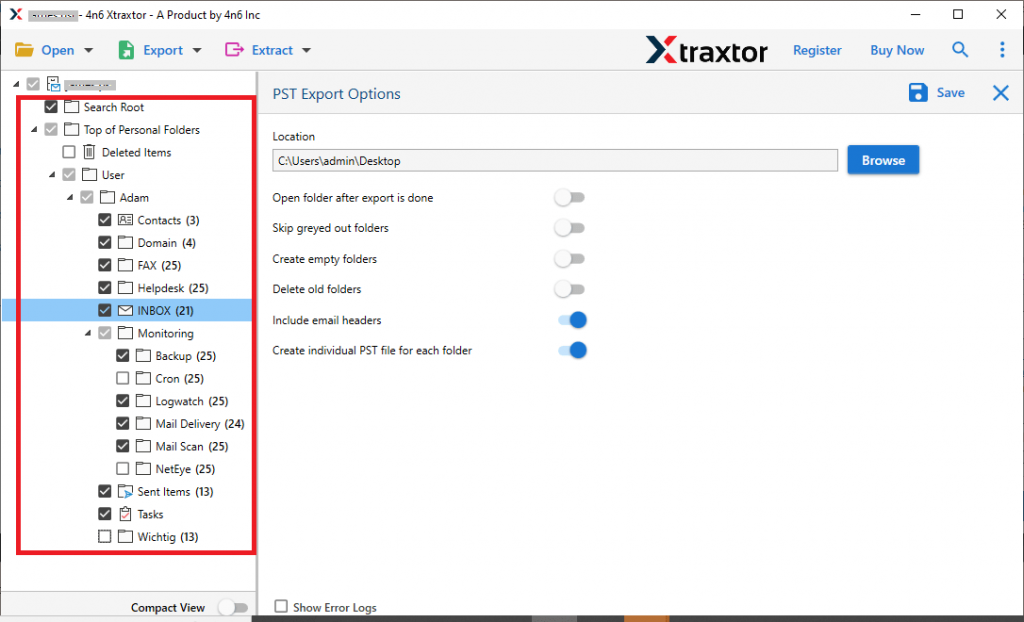
- At last, browse the targeted location and hit on the Save button.

Done! Here you backup Outlook emails to USB drive in a few simple steps without any data loss. You can use the demo version of the tool and try to backup Outlook emails to a thumb drive without affecting data integrity.
Why Choose Outlook Converter Tool?
There are various outstanding features of this automated tool, some of them mention here-
Maintain Folder Structure: While archiving emails from Outlook using this tool, there will be no change in the email folder and sub-folder hierarchy. You will find your emails in a proper format same as the original one.
Save Email Attributes: Along with Outlook emails this tool will save its properties as well. Use this tool and backup Outlook emails with their header details, inline images, attachments, hyperlinks, etc.
Email Filter Options: With this automated tool you will get various filter options that will help you to save selective emails only. You can apply filters such as – to, from, cc, bcc, time, date, subject, name, has attachments, etc.
Support Windows OS: This tool will work on all Windows OS systems without any hassle. You can run this tool on Windows 11, 10, Vista, XP, and all previous OS versions.
Autodetect Outlook Account: It is a smart tool that will automatically detect the configured email client from your system. After that, it will upload its emails and backup them into any file format and webmail accounts.
Conclusion
In this blog, we briefly explain the whole process of backup Outlook emails to USB drive. We describe manual as well as automated approaches to save Outlook emails without losing a single bit of data. Opt for any of the solutions that suited you and resolve your backup issue.