There are lots of Gmail users that have a large amount of data in their mailbox account. To free up the storage it is best to export Gmail to MOX file. Here in this post, we will discuss teh instant and secure way to export all emails from Gmail account to .mbox file.
Without any further delay, let’s move ahead and perform the export process.
How to Export Gmail Emails to MBOX File?
You can use SysConverter Gmail Backup Tool software to download Gmail mailbox data into .mbox format. This tool directly export your Gmail emails in a few simple steps. Most importantly, you will not lose a single bit of your data in this process. This utility also offers a wide range of filter options to search any particular emails and convert Gmail emails to MBOX file.

Steps to Export Gmail to MBOX File
Step 1. Download and Run the on your OS system.
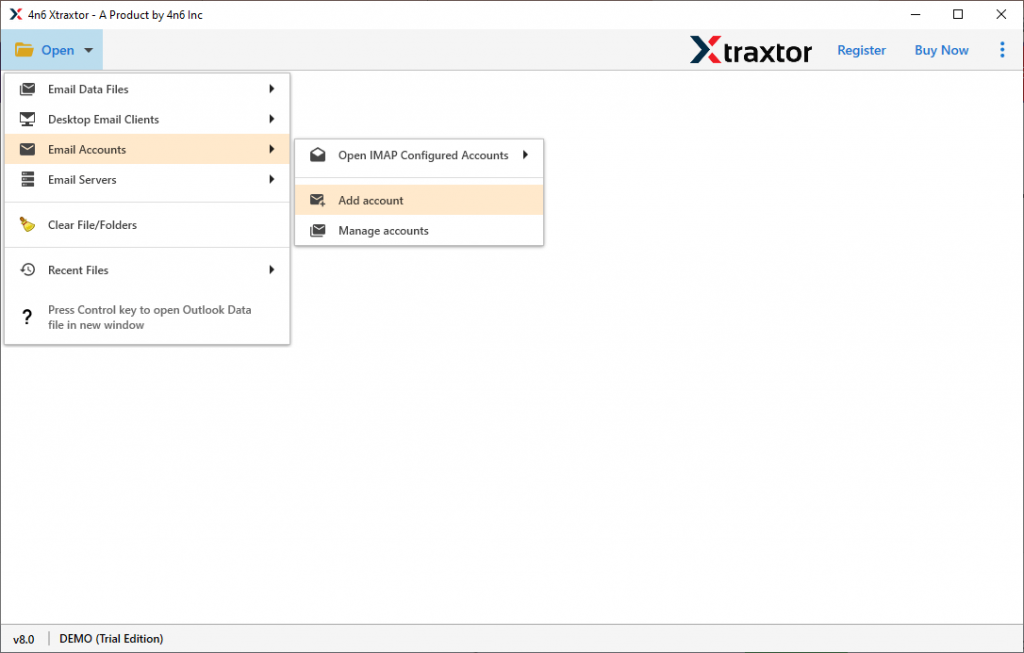
Step 2. Select Open >> Email Accounts >> Add Account.
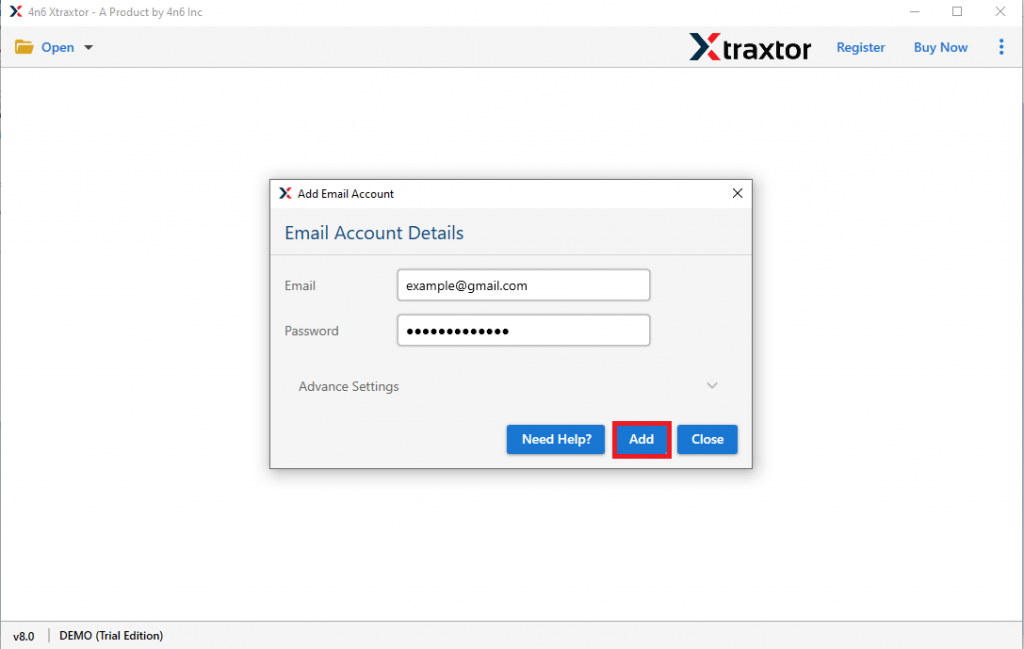
Step 3. Enter your Gmail account login details and hit on the Add button.
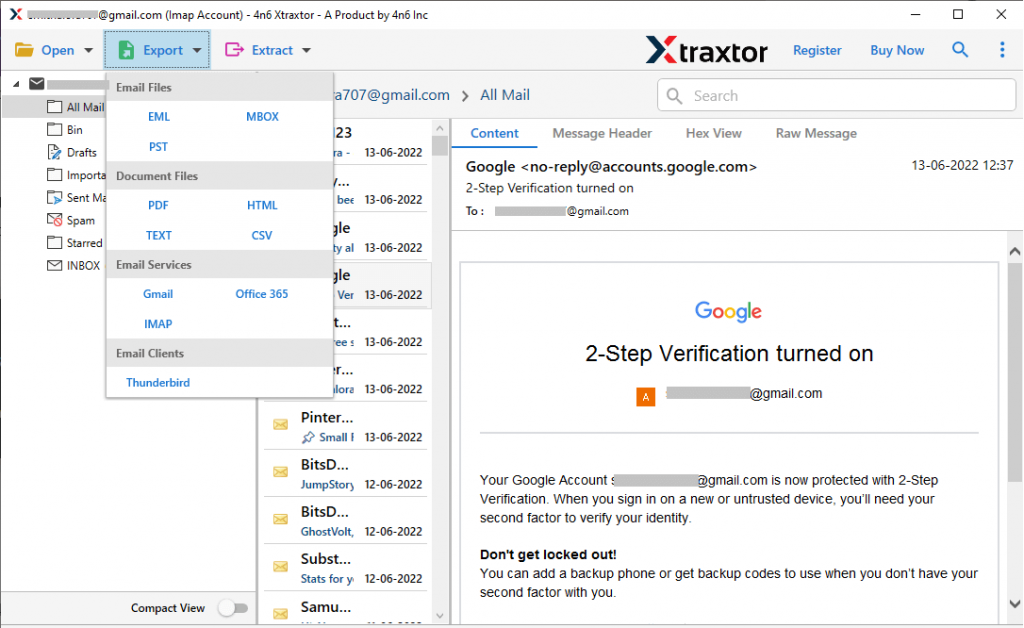
Step 4. Now click on the Export and choose MBOX format.
Step 5. Here you can select the email folder that you want to export.
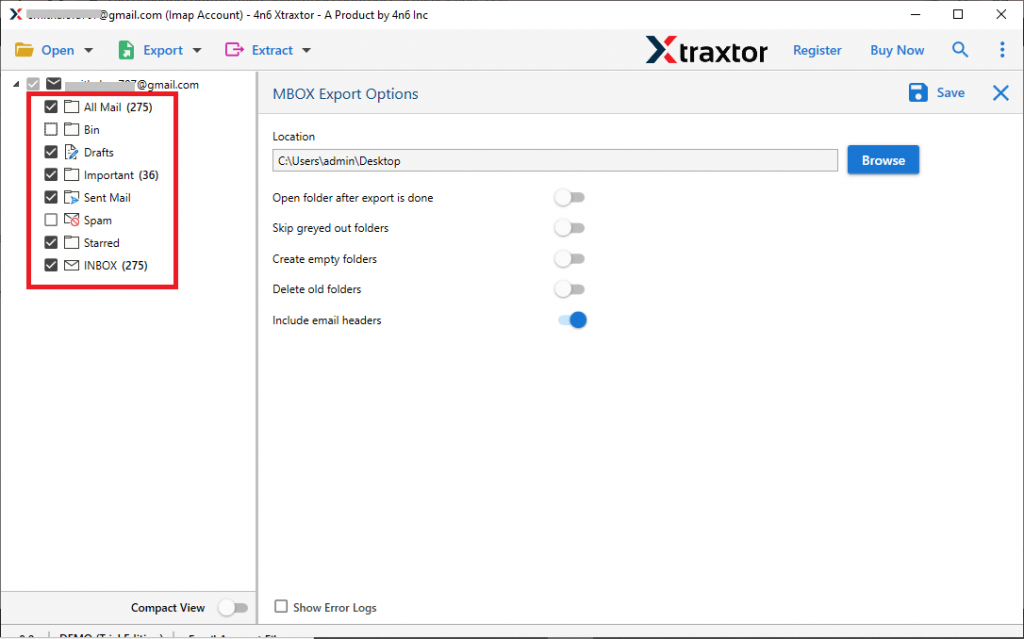
Step 6. At last, browse the saving location and hit on the Save button.
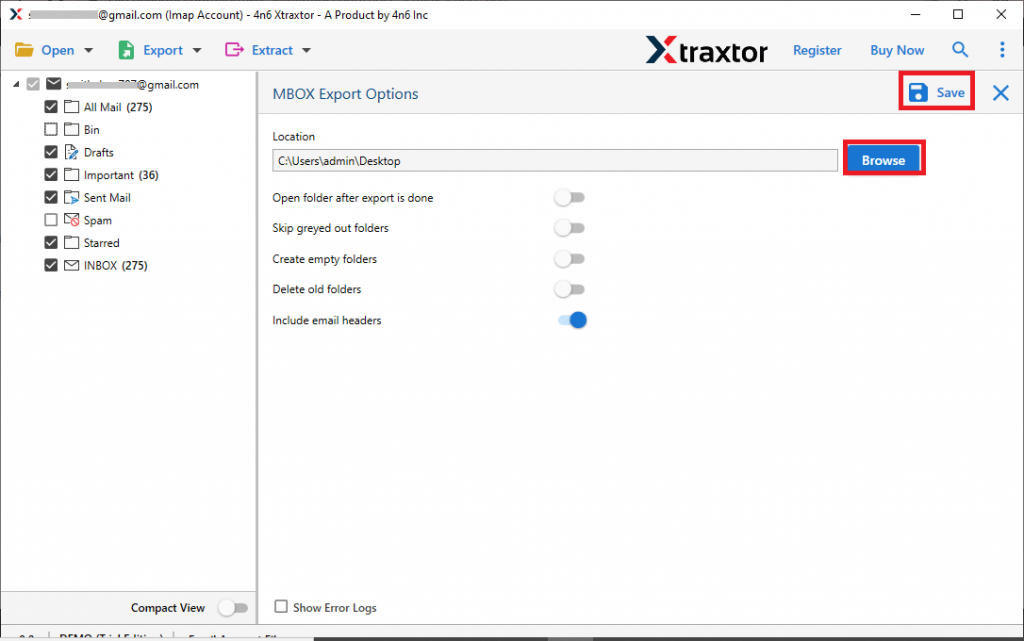
Done! Here you export Gmail emails directly from your email account and save them into MBOX format. Still, if you want to manually convert Gmail to MBOX, you can follow the native method mentioned in the coming section.
How to Export Gmail to MBOX File Manual Free?
To save Gmail emails you can use Google Takeout services to archive Gmail emails. This too is a free service provided by Google to make the process easy. Let’s without any delay, let’s understand how to export Gmail emails to MBOX, PST, CSV, HTML, and various other formats as well.
Step 1. Firstly go to the Google Takeout official page.
Step 2. After that, a window will open, where you will find all Google aap’s. Click on Deselect All.
Step 3. Then scroll down and select the Mail option.

Step 4. Now you need to select the delivery method as Send download link via email.

Step 5. Choose File type as .zip and opt for 2 GB as file size limit.
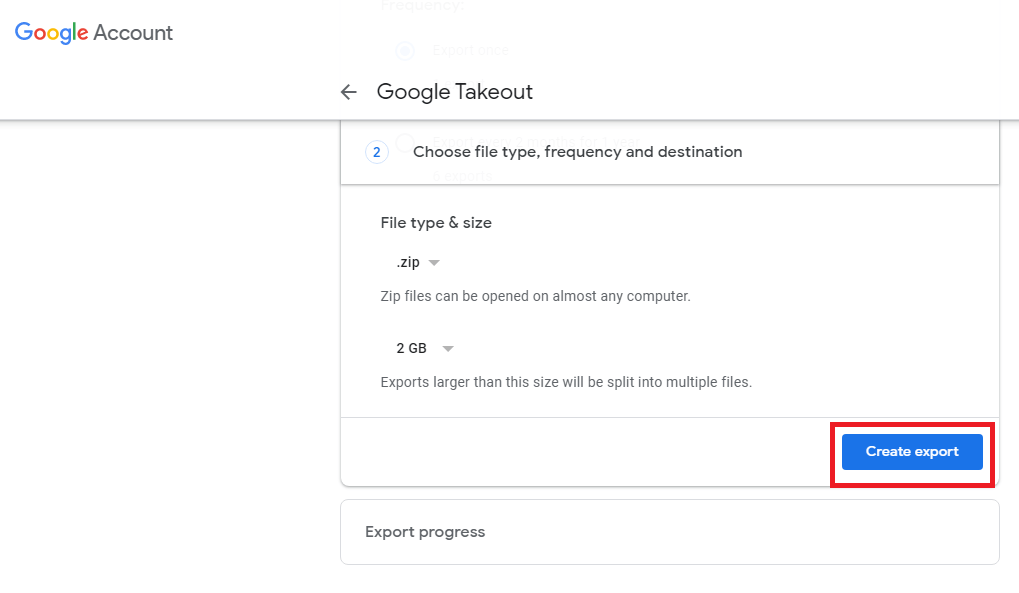
Step 6. After that, click on Create export to start the process.
Step 7. Now check your Gmail email with the downlaod link. Click on the link and download your Gmail backup.
Note: This process will take time to create a backup depending on your mailbox data size.
Here Complete the process. Now you have .mbox file on your system. However, using the SysConverter for Google Takeout software you can import Google takeout to Gmail and other webmail accounts also.
Conclusion
We mention two workable solutions to export Gmail to MBOX file. There is a manual way to perform the export process using the Google Takeout service. However, it will take time to backup your mailbox emails, if you have large size mailbox. Thus we recommend using the automated tool for instant and secure Gmail to MBOX export.