Outlook is the most popular email client used for both personal and professional work. This email client saves its data in a different file format and MSG is one of them, and this message file is accessible on Outlook. To easily access these messages on any operating system, you need to convert MSG to CSV format. Let’s get acquainted with the scenario with some user queries.
“Hi, I work as a data analyst in a company. I have recently received more than 100 MSG files to analyze their content. But the problem is that the software used by my company does not support the .msg format. So, to analyze the file data I want to convert MSG to CSV as the software supports this file format. Can anyone suggest to me the best reliable and authentic approach to perform this conversion process? “
“Is there a way to transfer the MSG file data into a spreadsheet so that it is easily accessible on any operating system?”
Are you also looking for a method to convert MSG to CSV file? To do that, firstly create a new folder in your Outlook. Then go to the location where your MSG files are saved, copy all the data and paste them into the newly created folder. After that, using Import/Export tool, export the data of heat folder into CSV format.
With perfect and efficient automated software you can put the MSG to CSV conversion process on autopilot. One such tool is MSG Converter. Try the demo version of this utility and do the process yourself.

Before we go ahead and talk about the methods for converting messages, let’s get familiar with both file formats.
Also Read: How to Convert MSG to PST
What are CSV and MSG File Format
CSV, or comma-separated value, is a file format used to save data in rows and columns(tabular form). This format is quickly accessible via spreadsheet programs such as Google Sheets, MS Excel. The CSV file is usually used in the business sector to send large amounts of data for use and analysis.
On the other hand, MSG is a file format used by Microsoft to save e-mail messages and their properties in a plain text format. This file contains all the mailbox components such as email, calendar, contacts, journals, tasks and other information. It is supported by many email clients like SeaMonkey, Outlook, eM client, Outlook 365, etc.
Methods To Save Outlook Message into CSV Format
There are numerous methods for carrying out the conversion process, but among them finding a safe and reliable approach is a tall order. Don’t worry, we are here to offer you the best possible solution to export MSG to CSV and save you from this hardship. In this section, we talk about two methods that help you to save Outlook message data in CSV format.
#1. Freeware Method Via Microsoft Outlook
#2. Expert Approach MSG Converter
Both the above mention solutions are tested by experts. So let’s move ahead and discuss these methods in a detailed way.
How to Convert MSG to CSV Via Outlook?
In order to apply this solution, users need to install an Outlook email client on their Windows operating system. After that follow the below steps;
- Open Outlook with login credentials on your system.
- Firstly you have to import MSG files into the application interface. For that create a new folder under the email section and name it as per your choice.
- After that go to the location where your MSG file is saved and select all emails. After that drag and drop these emails into the newly created folder on Outlook.
- Now go to the File option on the menu bar and select Open and Import.

- Then Import & Export tool >> Export file >> Comma Seprated Valu (CSV).
- Search the folder you want to export and click on the Next button.
- After this browse the location where you want to save the converted file and hit finish.
Here convert MSG to CSV format using the native method mentioned above. But with this method, there is a certain limitation. It is a long and slow process that requires patience. A single error leads to data loss and corruption of the .msg file. And most importantly, you can transfer a limited number of messages that also take many hours or days. To avoid such complexity, it is suggested to use an automated method to perform the conversion process without any problem. In the next section, we will discuss one such tool.
How to Export MSG Files to CSV Effortlessly?
With MSG to CSV Converter, users can easily convert .msg file to .csv format without using any email client. You just need to install this tool and upload an MSG file and follow a few simple steps and the rest of the work will be done by this tool. This utility can convert multiple MSG files in one go with complete precision. It has an interactive user interface that makes it easy for a novice user to use. We will continue and move forward with its operation. Additionally, using this tool, you can also convert MSG to PDF, MBOX, ICS and other file formats.
Follow the steps to export Outlook messages in CSV file in bulk –
- Install and SysConverter for MSG on your system.
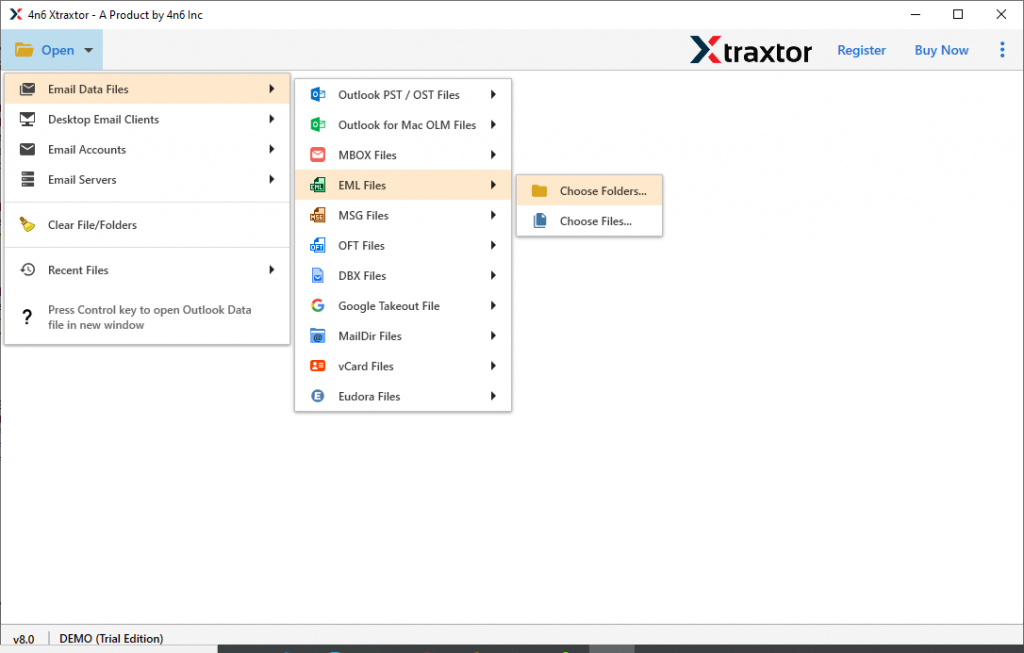
- Go to the Open option and click on it.

- After this, Select Email Data File >> Select MSG File >> Select Files or Folders.
- This utility displays all the emails present in the message archive.

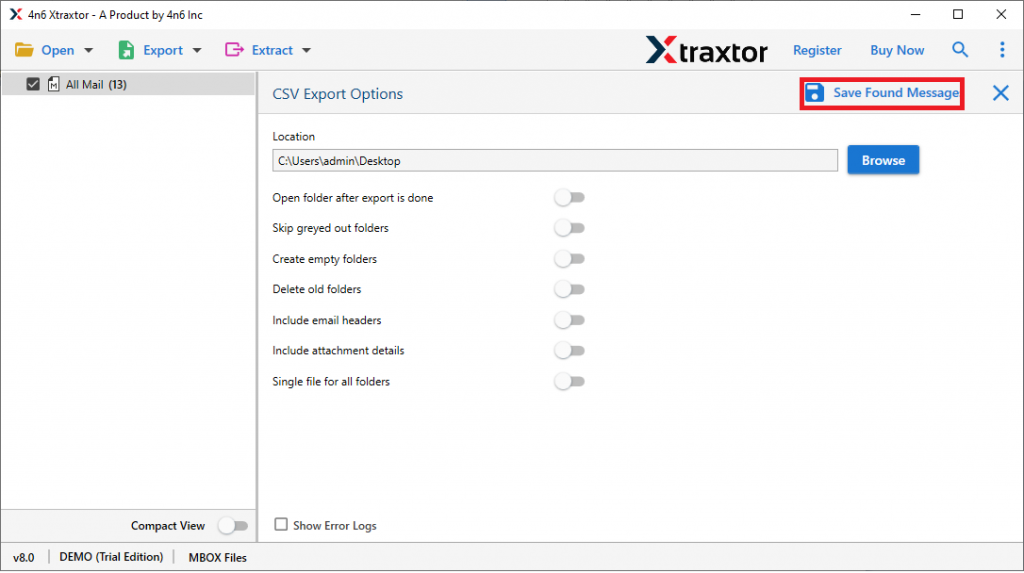
- Navigate to the Export option and select CSV format.

- Browse the location to save the .csv file and click on the Save button.
Outstanding Feature of MSG to CSV Converter
This software has some amazing features that make it standalone among various tools. Some of them mention below.
- Keep MSG Email Attributes
While converting MSG to CSV this utility upholds all email attributes without changing any information. So users will get all email metadata including the header of the email. - Export Selective Emails
This tool offers multiple email filter options so that users can transfer some selective emails from the entire mailbox. Just select the given file and avoid unwanted email conversion. - Dual MSG file option
This tool provides a dual option to upload Outlook messages into the software interface. User can select a single file or entire folder that contain many .msg files to batch convert MSG to CSV file. - Interactive Interface
This tool is designe in a simple manner with powerful working. Users who don’t understand the technical procedure can easily use this tool due to its simple user interface. - Support MSG file from a different source
This utility support MSG file from all email client that makes .msg file such as Microsoft Outlook, Zimbra, eM client, Zimbra, etc without facing any errors. - File saving option
This tool provides many file formats to save Outlook messages. User can convert MSG to MBOX, PST, EML, PDF, HTML, CSV, ICS, and other file formats.
Conclusion
In this article, we explain the complete process to convert MSG to CSV through two methods. So if you are looking for a way to export MSG to CSV, you can choose a method from the given solutions. Also, if you want to go through the process smoothly, you can go for an automated tool. Try the demo version and see how the tool works.
Frequently Asked Question
Question 1. Can I install this software on Windows 11 operating system?
Answer. Yes, this tool supports Windows all versions.
Question 2. Is it possible to export contacts from a particular country and postal code using this tool?
Answer. Yes, it is possible while using this tool to just select the contact email filter offered by this utility.
Question 3. Is this software only export MSG to CSV?
Answer. This tool offers 10+ file options to save the MSG file in a single interface.
Users can also read: Convert MSG to HTML