Are you looking for a way to move PST file into GoDaddy webmail account? IF yes, then this article will guide you to import PST to GoDaddy email account. At the end of the article, you are able to upload Outlook PST into GoDaddy account without any hassle.
We already know that GoDaddy is a web hosting platform that also provides webmail services. Although Outlook offers many advanced features, it is a desktop-based email client that limits its access usability. In this case, most users prefer a webmail account and favour to export Outlook emails to a GoDaddy webmail account.
There are various methods to perform the import process, but are they reliable? Don’t worry in this write up we will learn the easy and efficient way to import PST to GoDaddy emial account with complete data.
Methods to Import PST File into GoDaddy Account
Before we began, you should know that there is no direct manual method to transfer emails from Outlook PST file into GoDaddy account. Still, you can upload PST file into GoDaddy webmail account. In the coming blog section, we will learn about two easy workarounds that will transfer emails from PST to GoDaddy acount.
#1. Import PST Emails to GoDaddy via Third-Party Solution
#2. Manually Upload PST File to GoDaddy Using Outlook
How to Import Outlook PST to GoDaddy Instantly?
To instantly and securely import PST to GoDaddy webmail account, use PST File Converter software. This tool swiftly import .pst file emails. contacts, calendar, and all other mailbox data into GoDaddy email account. While importing emails to a webmail account this tool maintains mailbox hierarchy and structure. Along with that, users can import large size PST file without any alteration.
In addition, this utility offers an array of email filter options to search emails from complete mailbox data and import them into GoDaddy account. If the user wants to transfer a selective email folder, then this tool gives you an option to select the email folder for importing. One can also use this tool and import PST to Gmail, Office 365 and other webmail accounts.

Follow the Simple Steps to Import PST to GoDaddy Webmail Account –
- Install and Run SysConverter for PST on your Windows-based OS.
- After that, click on Open >> Email Data File >> PST File >> Select File from Folder.
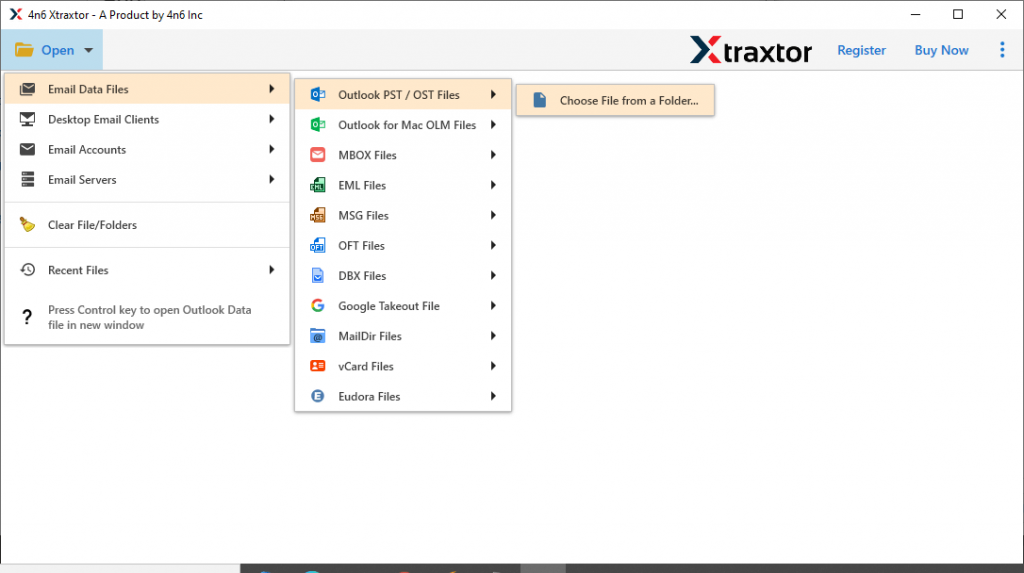
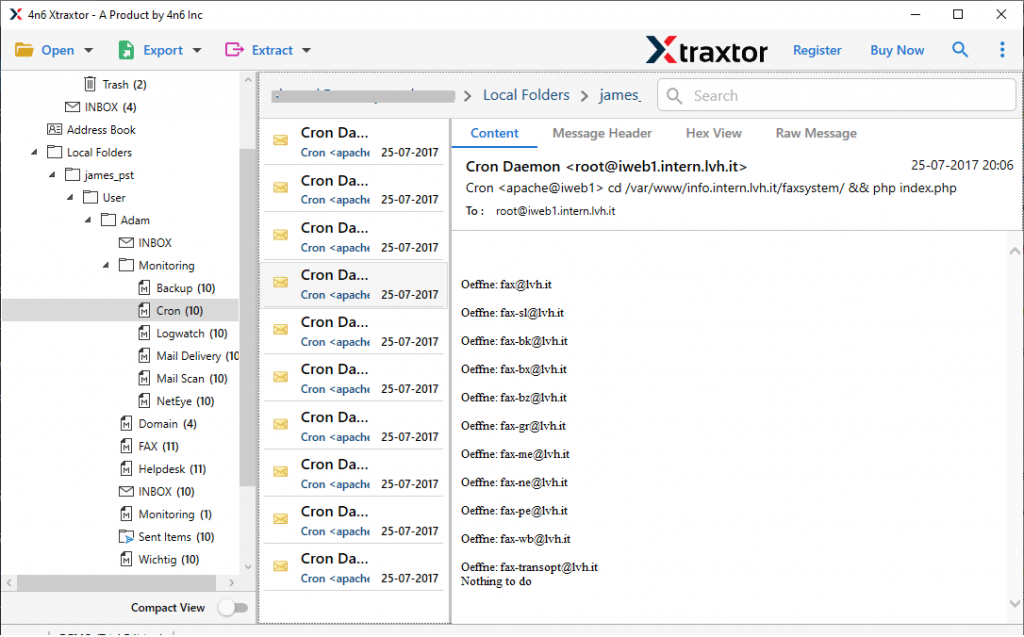
- Here you will find your PST file emails. You can read them and decide which emails are important.
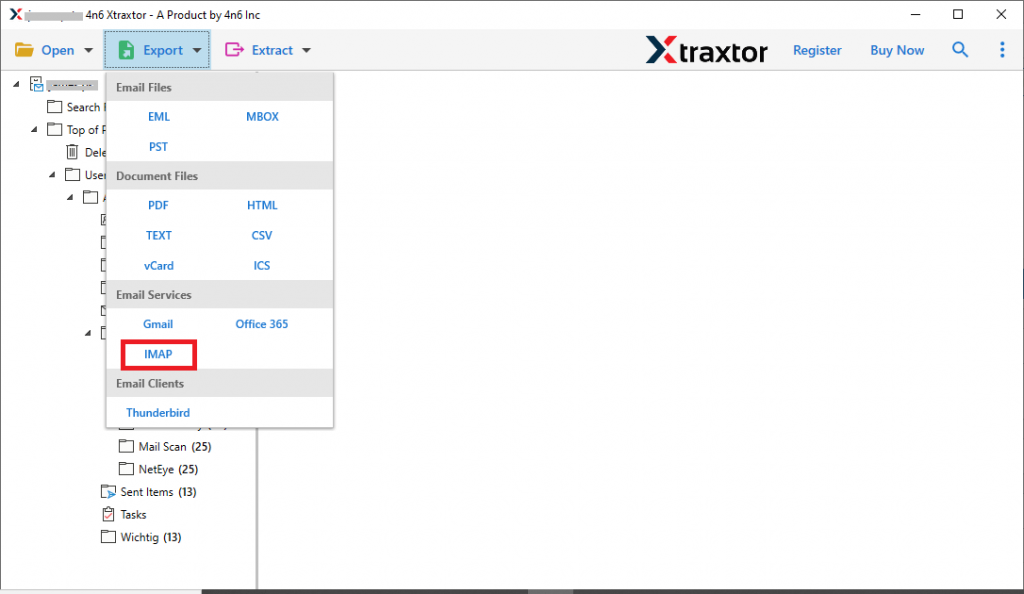
- Click on Export and choose IMAP as a saving option.
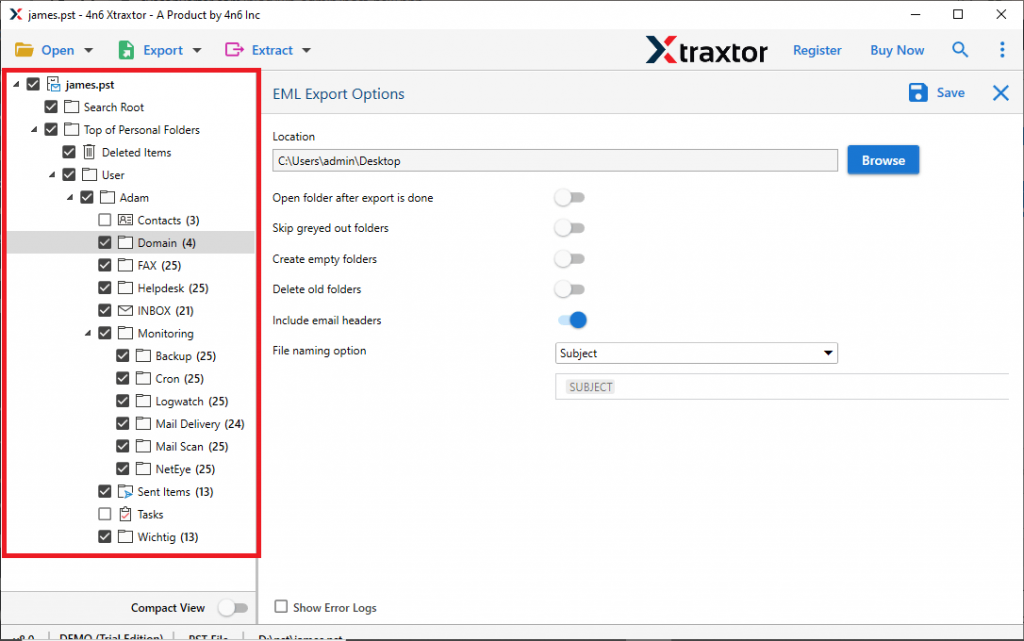
- Select the email folder that you want to import.
- At last, enter your GoDaddy account login credentials and hit on the Save button.
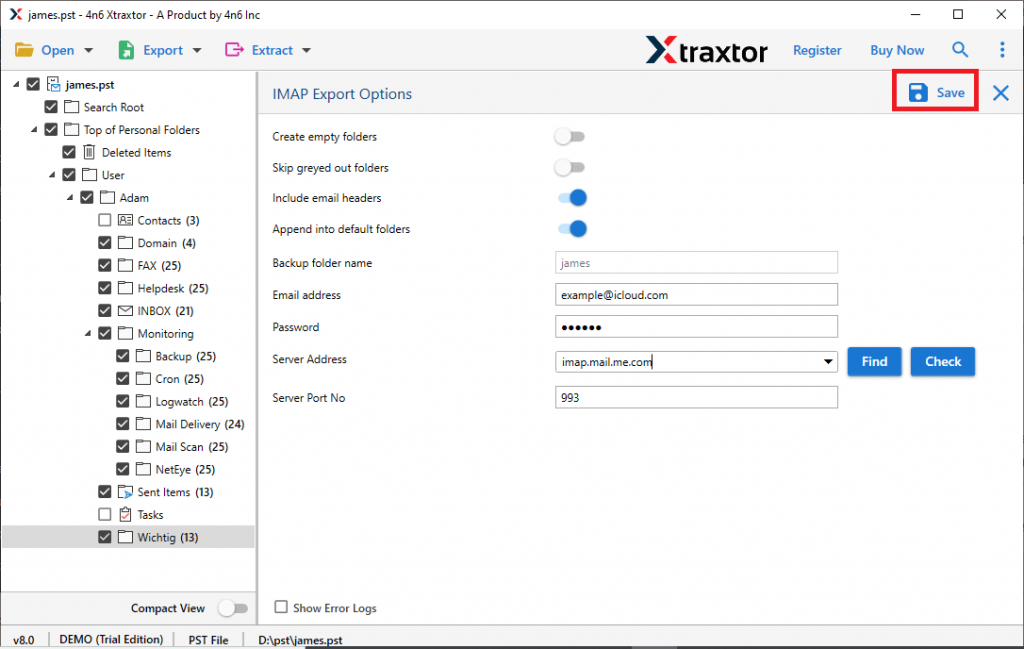
Here completes the import process. Now it will be easy to access PST file emails into GoDaddy webmail account.
Although this automated solution is 100% secure and accurate, still you want to manually transfer mailbox data to GoDaddy account. If yes, then the next section will describe such a native approach.
How to Import PST to GoDaddy Email Account Using Outlook?
To perform import process using this manual way, then you need Outlook installation and configured to any email server account. If you have both, then follow the given instruction.
Step 1: Setup GoDaddy Email Account with Outlook
- Open Outlook email client on your system.
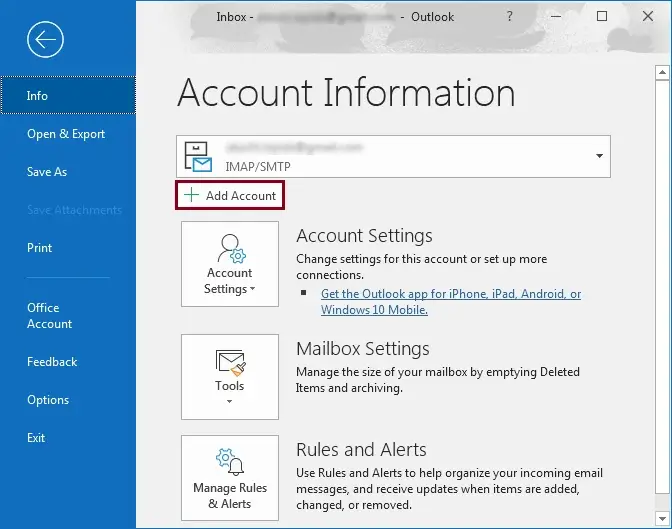
- Go to File >> Info >> Add Account.
- Enter your GoDaddy email address and click on connect.
- Click on Manual Setting and select POP or IMAP option.
- After that enter your IMAP Server address and Port server details.
- Re-enter your GoDaddy email address and password.
- After GoDaddy mail account is connected to Outlook click on the Finish button.
Note: Don’t use your actual GoDaddy account password. Create App Password for that.
Step 2: Now Transfer Outlook PST to GoDaddy Account
- Open the Outlook email client on your system.
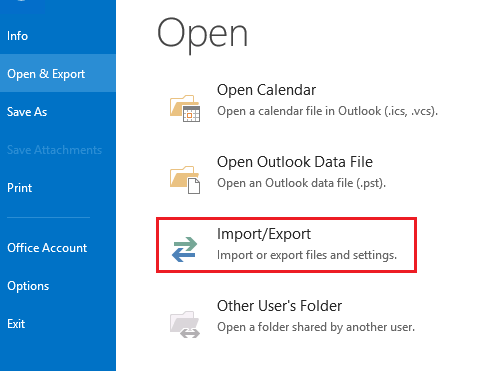
- Click on File >> Open & Export >> Import/Export .
- Select Import from another program and file >> Outlook Data File (.pst).
- Browse the PST file from your system and click on the Open button.
- Select the folder you want to import and hit on the Next button.
- Now you have a PST file, select the file and drag & drop it under your GoDaddy email id label.
Complete! Here you import PST to GoDaddy webmail account using the manual technique. However, with this approach, there are certain limitations.
Loopholes with Manual Method
1. It is a time consuming and exhausting process.
2. You need technical knowledge or assistance for configuring your IMAP account with Outlook.
3. Suitable for importing limited size .pst file. If you try to import large size data file, then you may lose your data.
4. No filter option to select the specific emails for import.
5. If the user has only a PST file, not Outlook, then the Outlook installation is required to perform the manual import.
To avoid these restrictions, we suggest you automated tool that overcomes all these limitations.
Benefits of Using PST to GoDaddy Import Tool
Using this tool you will get many advanced features, some of them mention here.
Email Filter Options: The software offers an array of filter options to search for exact email and import it. Users can apply filters such as – to, from, subject, property id, has attachments, content, name, date range, time and many more.
Move PST to Cloud: This importing tool not only import PST to GoDaddy, but to many other webmail accounts. Using it you can import PST to iCloud, Gmail, Google Workspace, and many more. You just need to select IMAP as a saving option and enter your email account login details.
Maintain Hierarchy and Structure: While importing emails this PST to GoDaddy Import tool maintain the mailbox folder and sub-folder structure. All the emails will be present in the exact folder as in the original.
Easy to Use Tool: This tool is designed while keeping novice users in mind. Thus with the simple graphical interface, anyone can use this utility on their system.
Conclusion
This article describes two workable solutions to import PST to GoDaddy webmail account. Although the manual method can transfer Outlook emails to GoDaddy, there are certain limitations to it. On the other hand, the automated tool will overcome all above mention limitations and provide secure and accurate results.