Summary: Looking for a way to transfer MBXO emails to GoDaddy Webmail account? If yes, then you landed on the right page. Read the complete guide and import MBOX to GoDaddy with attachments. At the end of the article, you will be able to access emails from .mbox file into your GoDaddy account with ease.
There are many users who prefer a GoDaddy email account to manage their business emails. Sometimes it happens when a user has an MBOX file and wants to access their .mbox emails into the webmail account.
Before we move ahead, there is an important point you need to note. GoDaddy doesn’t provide any option to import MBOX file into its interface. Don’t worry the importing task can be accomplished by alternative approaches. Among those, we will discuss two effective solutions to import MBOX to GoDaddy webmail account with attachments.
Before that let’s talk about GoDaddy.
GoDaddy is a well-known web hosting and domain registration organization that provides services worldwide. However, with web hosting, GoDaddy also provides email services and users can create email accounts using their domain name.
Methods to Import MBOX to GoDaddy Business Account
As we already know there is no direct manual way to transfer emails from MBOX file to GoDaddy account. Thus this leaves us to use alternative solutions. Let’s know what are they.
#1. Import MBOX Emails to GoDaddy Via Expert Tool
#2. Transfer MBOX to GoDaddy Using Thunderbird
Let’s know the import process using these given solutions.
How to Transfer MBOX Data to GoDaddy Webmail Account?
For instant and accurate .mboxto GoDaddy import, use MBOX Converter Wizard on your Windows OS system. Using this tool one can directly import emails from MBOX file into GoDaddy account. You need to enter your login details and be done. Along with that, this software offers a batch mode feature that allows you to import multiple .mbox files into GoDaddy account at once. Most importing during this import process you will not lose a single bit of your mailbox data.
In addition, this utility is capable enough to transfer MBOX emails into other webmail accounts in a single interface. Using this utility you can import MBOX to AOL Mail, Yandex, Exchange and all other webmail accounts. While you import MBOX to GoDaddy account, this tool maintains mailbox structure and hierarchy.

Follow the steps to import MBOX file into GoDaddy along with attachments –
- Download and launch SysConverter for MBOX tool on your system.
- After that, click on the Open button and select from the given options.
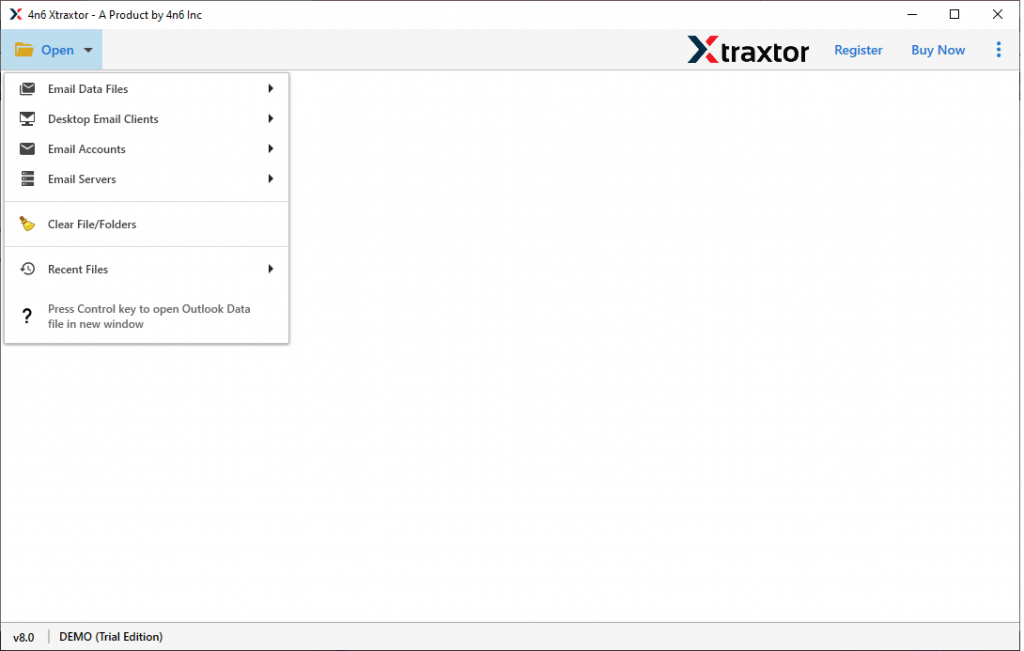
- Now select Email Data File >. MBOX File >> Select File or Folder.
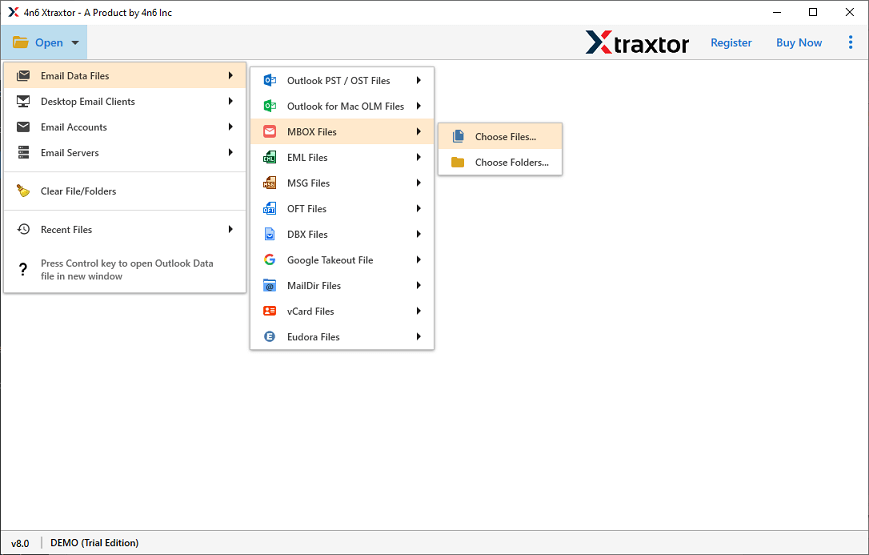
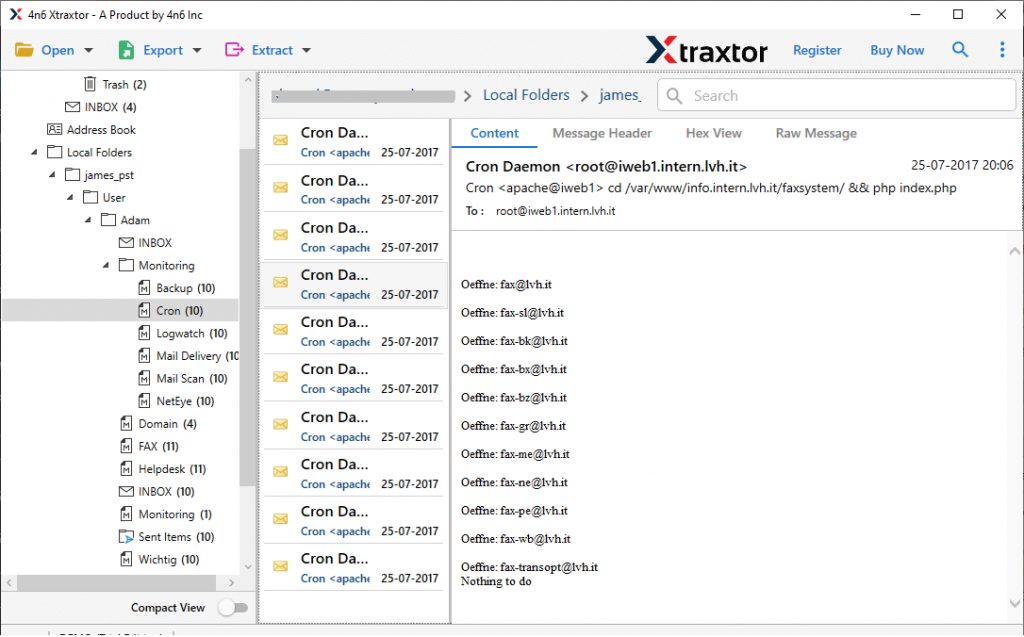
- Here you will find all the mailbox emails. Read them and select the important email folder.
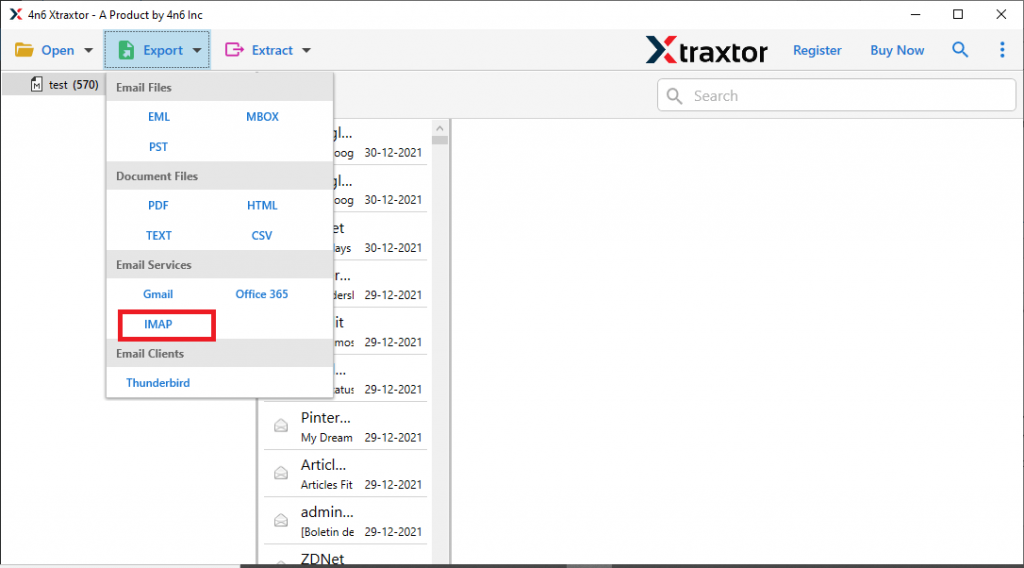
- Click on the Export and choose the IMAP option.
- At last, enter your email address and password, after that hit on the Save button.
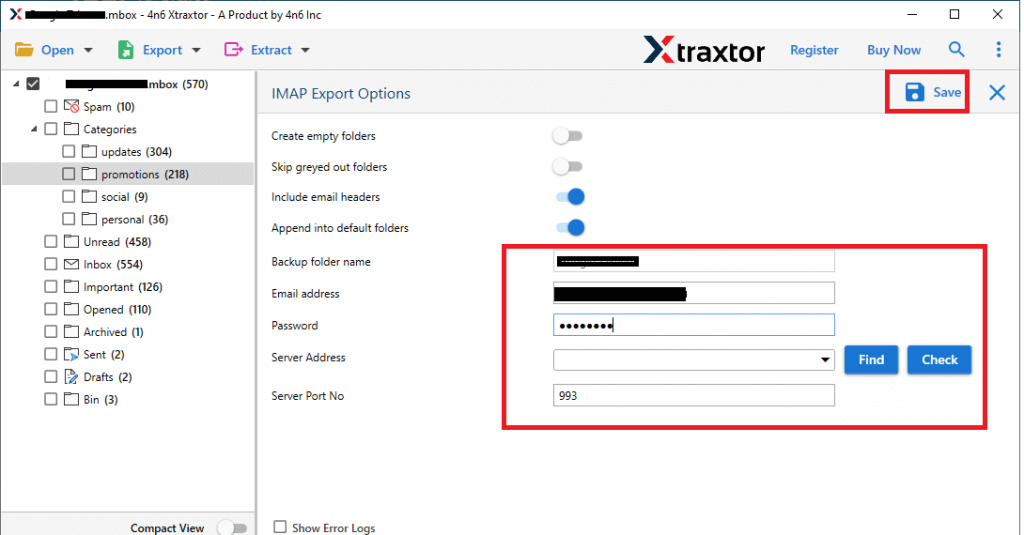
All Done! Here complete the import process, now you can open MBOX emails into your webmail account without facing any issues.
How to Upload MBOX to GoDaddy Manually?
To import MBOX to GoDaddy webmail account using this approach you will need to install the Thundrebird desktop application on your system. After that follow the given instructions. This process is divided into two parts.
Step 1: Configure GoDaddy Mail Account to Thundrebird.
- Open the Thunderbird application on your system. If you are installing this application for the first time, select the email option to set it up.
- Once a window appears, enter your account login details.
- Then click manual Configuration and enter the following details.
- Click the Finish button when done. Your GoDaddy account is now configured with Thunderbird.
Incoming: IMAP Server hostname: mail.secureserver.net Port: 993
Outgoing: SMPT Server hostname: smptout.secureserver.net Port: 465
Step 2. Import MBOX to Thunderbird
- First, install ImportExportTool NG on your application for further processing.

- Restart your app after installation. Then click Tools >> ImportExportTools >> Import MBOX file.

- Browse the data file from your system and click the Open button.
4. You have now saved the MBOX file to your Thunderbird account. Now drag and drop the .mbox file under the GoDaddy Account tab.
Here completes the MBOX to GoDaddy import process. However, with a manual approach, there are certain restrictions you can face.
Drawbacks With Manual Approach
1. You can only import a single MBOX file at a time.
2. Require technical knowledge of IMAP configuration.
3. If try to transfer a large size .mbox file, then high chances of data loss.
4. No option to select emails for import.
5. There can be alterations in the mailbox hierarchy and structure.
To avoid these limitations it is best to use the automated tool mentioned in the above section.
Benefits Of Using MBOX to GoDaddy Import Tool
There are various advantages of using this professional utility, some of them mention below,
Import Multiple MBOX Files At Once: This tool swiftly import multiple .mbox files into GoDaddy webmail account in a single attempt. In this bulk import, you will not lose a single bit of your data.
Advance Filter Option: The MBVOX to GoDaddy Import Tool offers a wide range of filter options to find emails from a particular field. You can apply various filters, such as – to, from, subject, date range, time, content, name, and many more.
Transfer MBOX to Webmail Accounts: This utility not only import MBOX to GoDaddy account but to other webmail accounts. Using this tool you can also import MBOX to Gmail, Office 365, Exchange, Google Workspace, and cloud-based email accounts.
Maintain Mailbox Hierarchy: While transferring emails from the MBOX file, this import tool preserves mailbox data structure and formatting. You will get the imported data the same as the original without any alteration.
Conclusion
This write shows two different approaches to import MBOX to GoDaddy webmail account. You can transfer MBOX emails either manually or using an automated tool. Although the native method can perform the importing process, still you have to face some limitations. Thus we also mention an automated tool for unlimited MBOX to GoDaddy import with attachments.