Want to transfer an MBOX file into your Windows Live Mail account, but don’t know the way to perform the same. Don’t worry here in the blog we will guide you to import MBOX to Windows Live Mail with attachments.
Importing emails to other emailing platforms is a challenging task. However, if you are among those who want to transfer MBOX files into Windows Live Mail, then you must be aware that there is no manual way to perform this importing job. Thus it generates the need for a third-party solution.
There are many tools present in the market to perform the import process, but finding the right one that is secure, reliable and efficient is a difficult job to do. To make your work easy we are going to present SysConverter for MBOX, the best approach to import MBOX to Windows Live Mail account.
Before we move further let’s get to know about the key components of this write-up.
MBOX is a file format that is used by many popular email clients to save their mailbox data. It is a single file that stores email messages with attachemnts. There can be thousands of emails in a single .mbox file save one after one separated by header (from).
On the other hand, Windows Live Mail is a free email client by Microsoft. This desktop application can easily configure many webmail accounts, such as Outlook.com, Gmail, Yahoo Mail and Redifmail. Moreover, it supports RSS feeds that provide its user with the ability to directly reply to the author of the item that appears on feeds. In Windows Live Mail there is a separate inbox folder for various POP accounts.
Due to these features users want to import MBOX to Windows Live Mail account. Without any further delay, let’s know the import process.
How to Import MBOX File Into Windows Live Mail With Attachemnts
We already mention that there is no manual solution to move emails from .mbox file into Windows Live Mail account you need an automated tool. As Windows Live Mail doesn’t support MBOX format, thus to perform this operation you need to convert MBOX to EML format. For that, you can use MBOX Converter, an expert solution that can swiftly upload MBOX to Windows Live Mail account without any data loss.
In addition to all these, this utility can also offer various email filter options to import only needed emails. With its easy to use interface any user can use this stool and import MBOX to Windows Live Mail account. It also import MBOX to Thunderbird, IBM Notes, and other email clients in a single attempt.

Steps to Upload MBOX Files Into Windows Live Mail
Follow the given instructions and access .mbox file emails into WLM account with ease.
Step 1. Download and run this automated tool on your Windows OS.
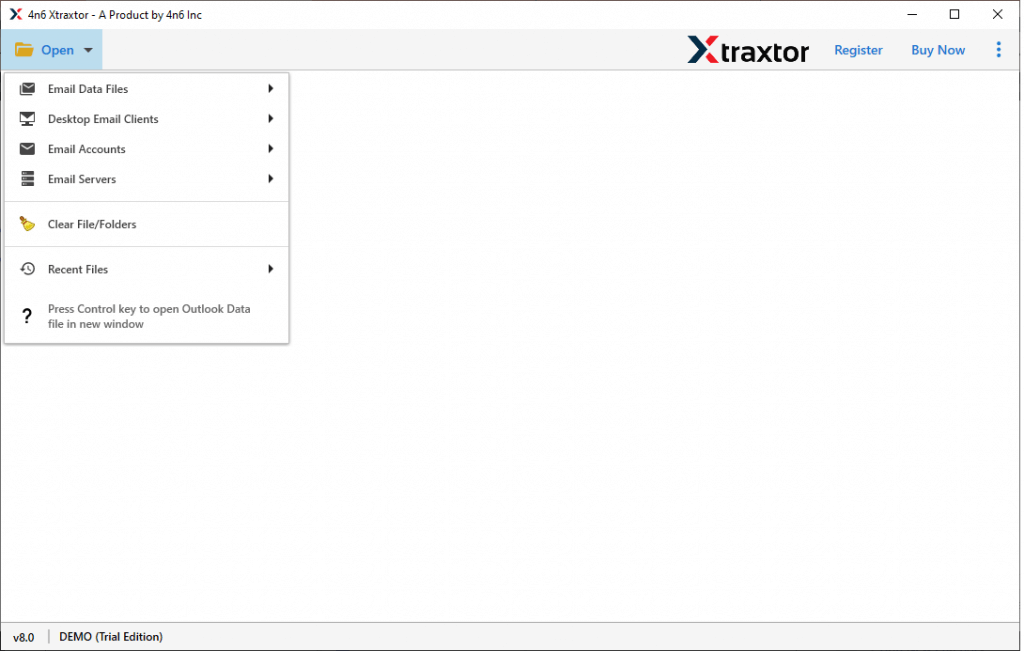
Step 2. Click on the Open button and choose the required field.
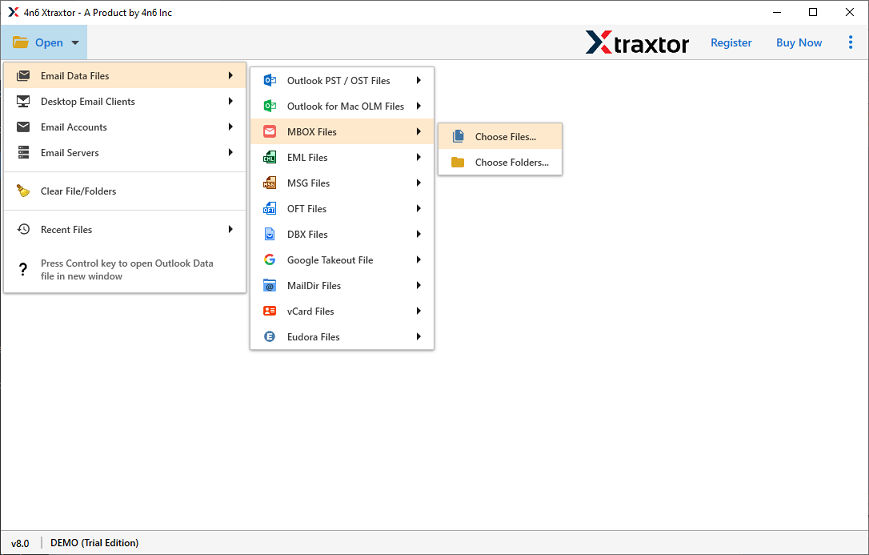
Step 3. Here select Email Data File >> MBOX file >> Select File or Folder.
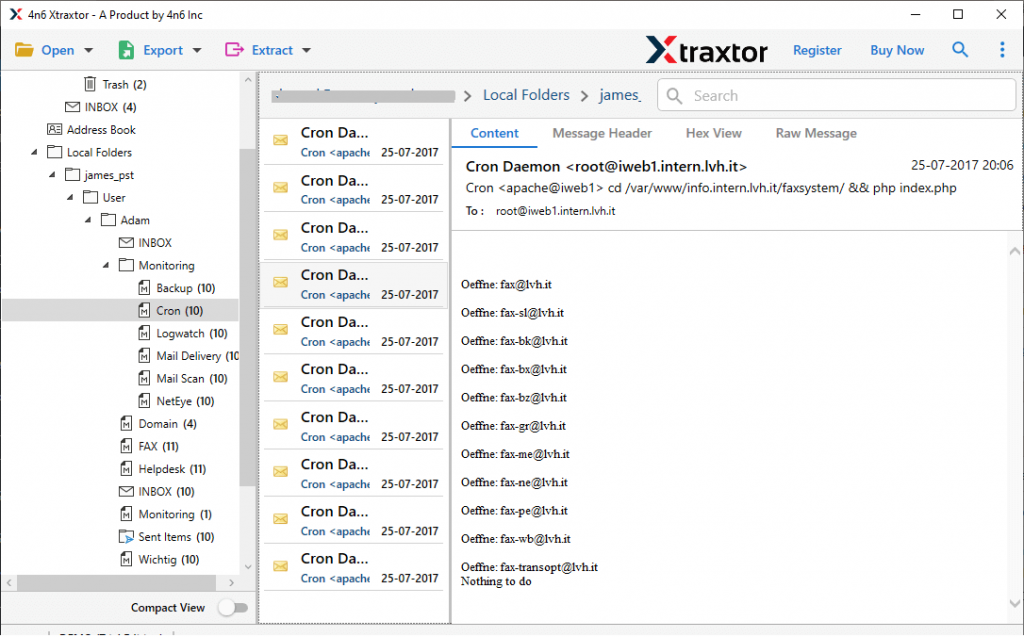
Step 4. View your emails and select the folders that need to import.
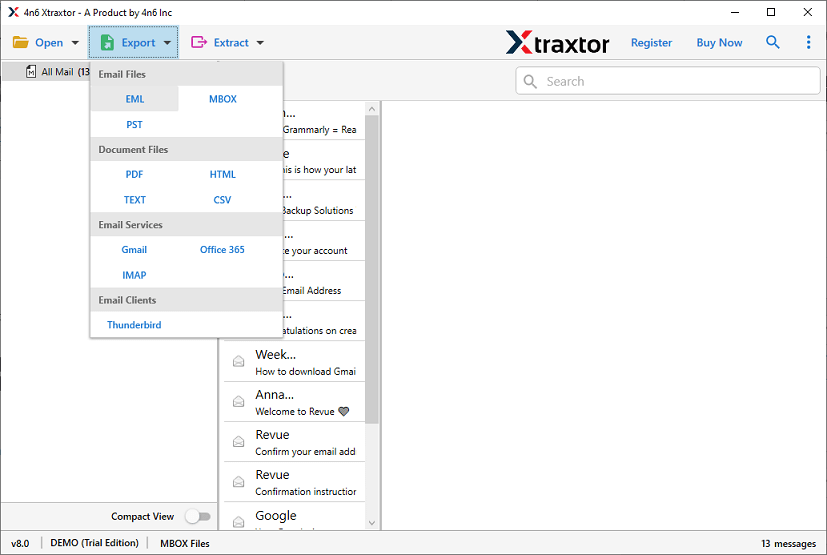
Step 5. Click on Export and choose EML format as a saving option.
Step 6. After that browse the location to keep .eml files and hit on the Save button.
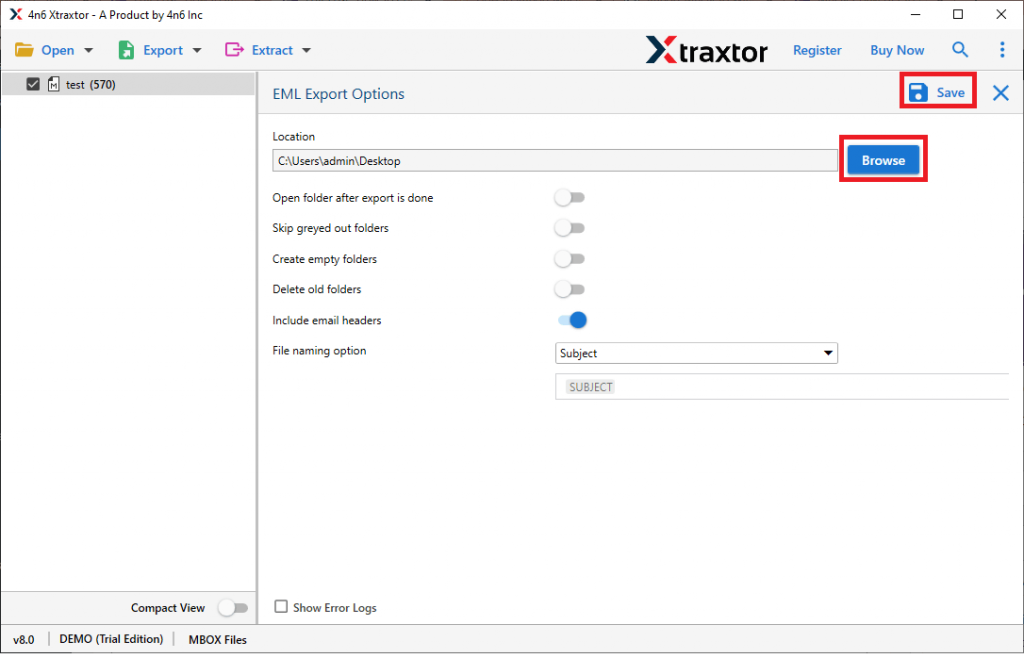
Now you have EML files on your system. Now import the files into WLM account.
Step 1. Open Windows Live Mail on your system.
Step 2. Then navigate to File >>Import Messages.
Step 3. Select Windows Live Mail from the given list.
Step 4. Browse the .eml files and select Eml file.
Step 5. Verify the location of your mailbox data files.
Step 6. After clicking on the Next button, the import process will start. After completion click on the Finish button.
Done! Now you can easily access MBOX emails in Windows Live Mail account.
Benefits Of Using MBOX to WLM Import Tool
There are various advantages of using this tool that helps to import MBOX to Windows Live Mail with efficiency and accuracy. Some of the mentions here.
Maintain Mailbox Hierarchy: While using this stool to move MBOX to WLM account, this utility preserves email formatting and structure. You will find all your emails in the respective folders same as the original.
Batch Import Mode: This MBOX to WLM Import tool offers dual options to upload .mbox file, you can either select a single file or choose a folder. With the folder option, it will be easy to import multiple mailbox data files in a single attemmpt.
Transfer MBOX to Webmail Accounts: The importing tool not only transfer MBOX files to the email client, but also to cloud-based servers. With the help of this utility, you can import MBOX to Gmail, Google Workspace, Roundcube, Rackspace, and many more.
Easy to Use Utility: With the simple working interface, any user can use this tool and import .mbox files into Windows Live Mail account in a few simple steps. Even novice users can operate this software without any technical assistance.
Support Windows OS: The MBOX to Windows Live Mail Import tool is specially designed for Windows users. You can install and run this utility on Windows 11, 10, 8, Vista, XP, and all other previous versions with ease.
Conclusion
WLM is a freeware email client. If users want to import MBOX to Windows Live Mail account, then you can use the tool that we described above. We also mention the step by step process of this importing process. You can use the demo version of this tool and experience the transferring process with ease.