Summary: This writes up shows you the best way to move multiple MSG files into Office 365 account with ease. If you are among those who want to import MSG to Office 365, then you landed on the right page. Read the complete article and know the process of MSG to Office 365 import.
MSG is a file format used by Outlook to save a single message. To read or access the .msg file you need an Outlook interface.
In this digital users prefer a web-based email service, thus in that scenario, users want to move their messages into an Office 365 account.
Now the question is – How do I open .msg file in Office 365?
In response to this query, we suggest a secure and instant solution. Stay with us and read the complete article to know the way to import MSG to Office 365 process.
Hello! I have multiple MSG files on my system that I exported from Outlook. However, I recently bought an Office 365 subscription and I need all Outlook messages in my new webmail account. Can anyone suggest to me an instant method to open multiple MSG files in Office 365 account with ease?
After analysing this user query, it is obvious that the user wants to move .msg files into Office 365 account. If you are also among those then this article is for you.
How to Import MSG to Outlook365 Instantly?
To import MSG to Office 365 instantly use MSG Converter Wizard. This tool easily moves multiple message files into Outlook 365 account without any data loss. Using this utility users can open selective MSG files in Office 365 account with ease.
Additionally, you can also import MSG to Gmail, Yahoo, Google Workspace, Thunderbird and many other webmail or email client accounts. Most importantly, it will preserve message data integrity and you will get your message the same as the original after importing them to your Office 365 account.

Follow the Steps to Import MSG Files to Office 365 Account –
- Download and run SysConverter for MSG on your Windows OS system.
- Click on Open and upload the data file.
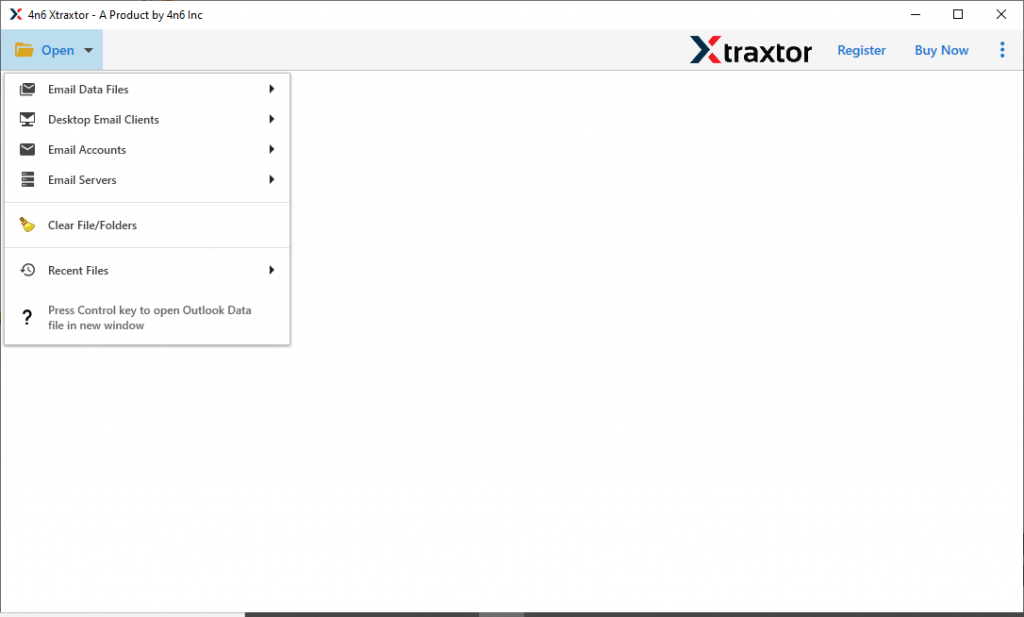
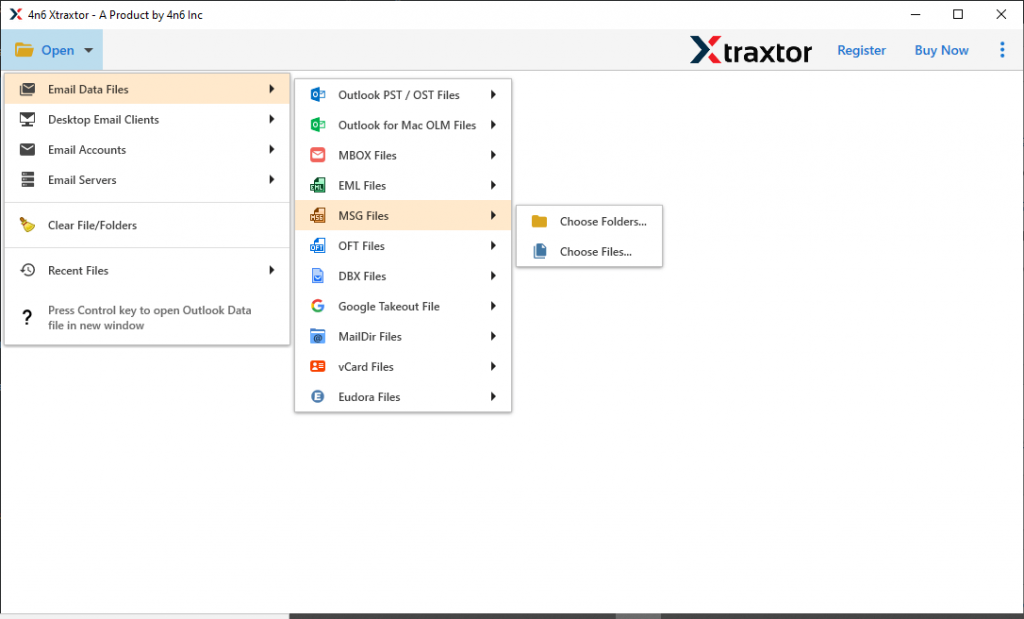
- Now select Email Data File >> MSG Files >> Select File or folder.
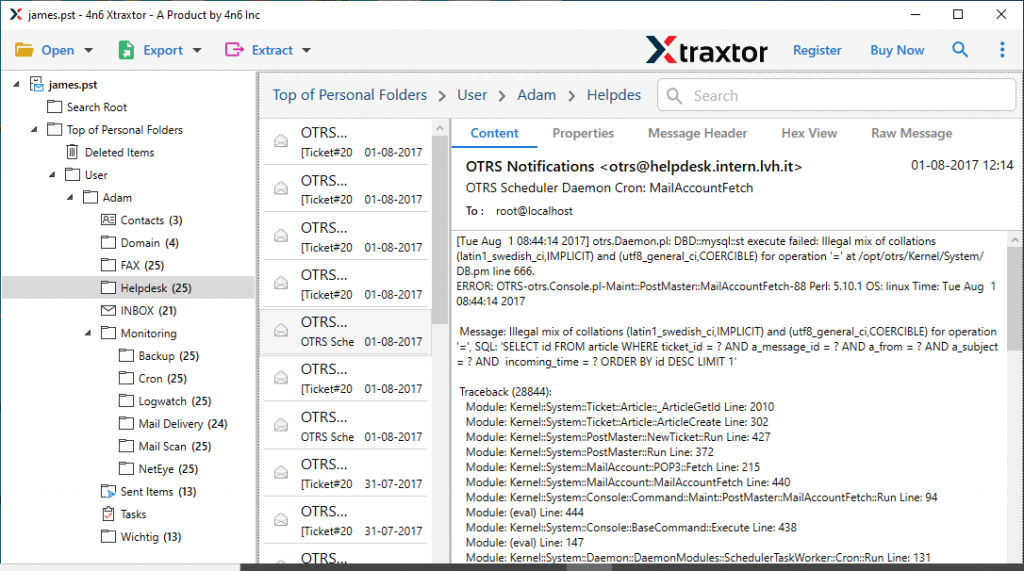
- Here read the .msg file data and select the messages that you want to import.
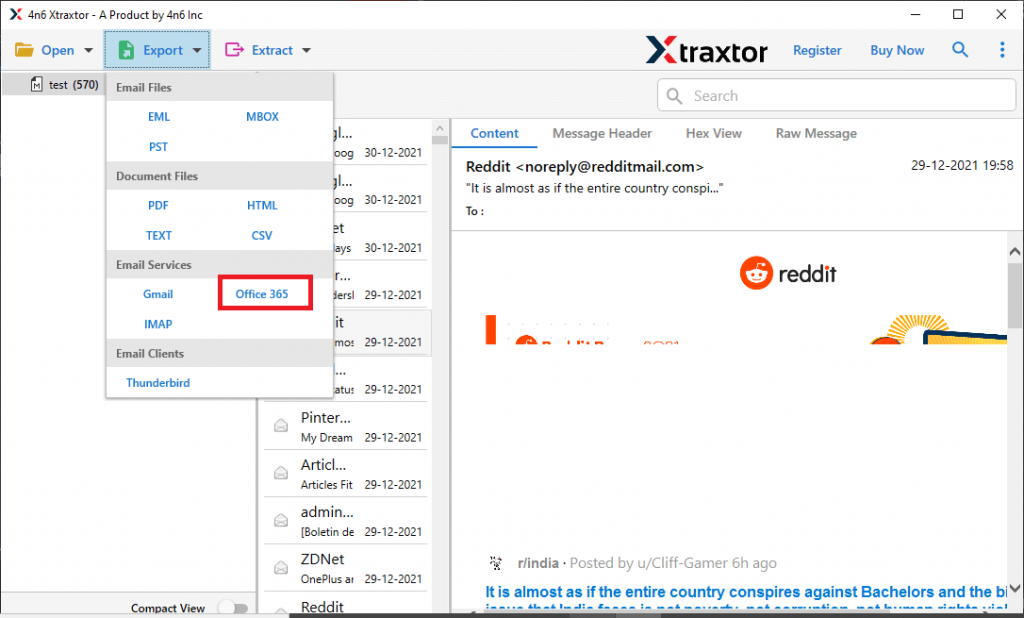
- At this point, click on Export and choose Office 365 option.
- At last, enter your Office 365 login details and click on the Save button.
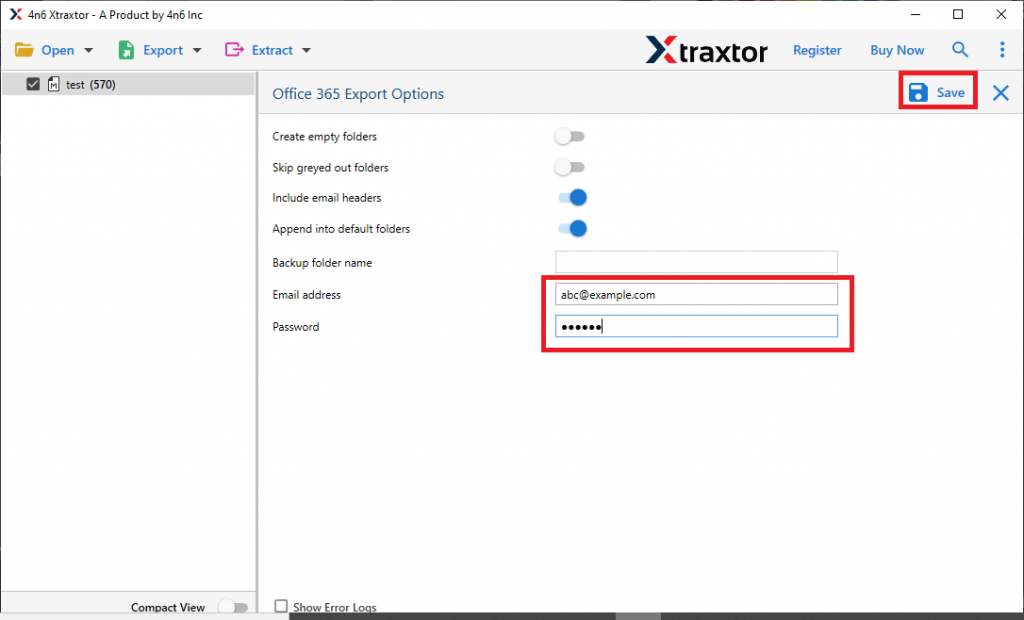
All Done! Here you efficiently import MSG to Office 365 with complete message data.
Benefits Of Using MSG to Office 365 Import Tool
With this utility, you will get many advanced features that make MSG to Office 365 process easy. Some of them mention here –
Advanced Search Option: Using this tool you will get may search option to locate emails from a specific field. Among various email filters, some of them are – to, from, subject, bcc, cc, property id, date range, time, and many more to choose from.
Move MSG File to Cloud: Using this tool users not only open messages into Outlook 365 account but also import MSG to Gmail, Yahoo Mail, Google Workspace, Yandex, etc. It is a complete solution to transfer various .msg files into Office 365 and other webmail accounts.
Batch MSG File Transfer: With the help of this utility users can perform MSG to Office 365 import process in bulk. Most important, when users move multiple MSG files into Office 365 there will be no data loss and modification.
Various File Saving Options: With this tool, there are various options to save MSG files in a single interface. It will convert MSG to PST, PDF, CSV, EML and many other file formats.
Conclusion
This article is all about – How To Import MSG to Office 365? In response to this query, we mention an instant and secure way to open multiple MSG files into Office 365 account without data loss. We mention the detailed description of the import process with screenshots. Users can try the demo version of this utility and read MSG file data into Office 365 account.