Here in this post, we will discuss the step-by-step process of converting PST file to CVS format. If you are looking for a secure and efficient way to convert PST to CVS file, then you landed in the right place. Read the blog and complete the PST to CSV conversion with complete data.
Suppose you have a PST file and want to extract its emails into CSV file. There can be various reasons to convert PST emails to CSV file, maybe backup or data analysis. Whatever the reasons, the main point is you have a PST file and want to export its data into CSV file. Here in this guide, we go through how to convert PST to CSV file. At the end of the post, you were able to complete the conversion process without any hassle.
Without any further delay, let’s move ahead and learn the step-by-step process to convert emails from PST file to CSV format.
How to Export PST to CSV File Manually?
In this manual method, you can export contacts from .pst files into .csv file format using the Microsoft Outlook Import tool. Below are the steps to be followed in order to save PST contacts into CSV file format.
- Run the Outlook email client on your system.
- Click on the Open option and select the Import option from the list.
- Now select Import and Export Wizard.

- Now select Export to a file and click on the Next button.

- After that, choose the CSV file option from the given options.
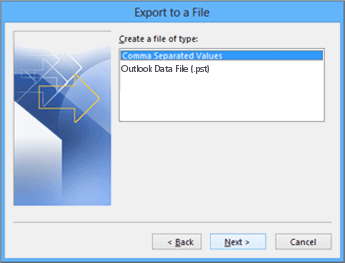
- Browse the targeted location to save the CSV file and click on the Next button.
File conversion is completed, check the selected location and find a file with a .csv file extension. Find the manual method simple. Yes right, however, it has a few limitations. You were able to export emails, not attachments and it will take time if you have a large PST file.
[/box]As we see, to convert PST to CSV we need an email client to perform this task. Now the question is, do you have this much time to install the application and perform this tedious process? The answer is NO. So to make the conversion process easy and convenient, use the automated method. A tool that can effectively perform your task and save time and effort.
How to Convert PST to CSV without Outlook?
With the help of the automated PST Converter tool, you can complete the conversion process. You need to add the PST file to the software, after that, you can view your emails. Then, select CSV from the given export option. After that, you need to select the location to save the converted data file and start the process.
Additionally, the tool also supports converting large-size or corrupted data file without affecting your data. Moreover, you can use the advanced filters to convert selective emails from particular fields. Download the demo version of the software and know its working process.

Steps to Convert Outlook PST to CSV with Attachments
1. Launch and run SysConverter for PST on your system.
2. Move your cursor to the Open option present on the software interface.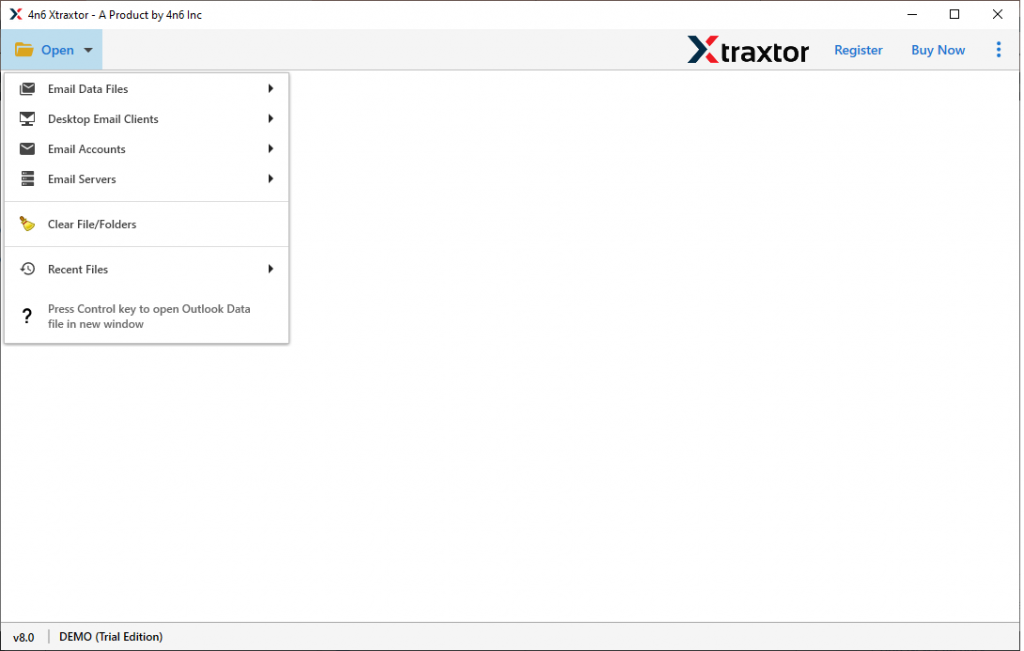
3. Choose Select Email File >> Outlook PST File > Choose the file from a folder.
4. This tool shows your emails from Outlook email files, select Contacts from the shown folder.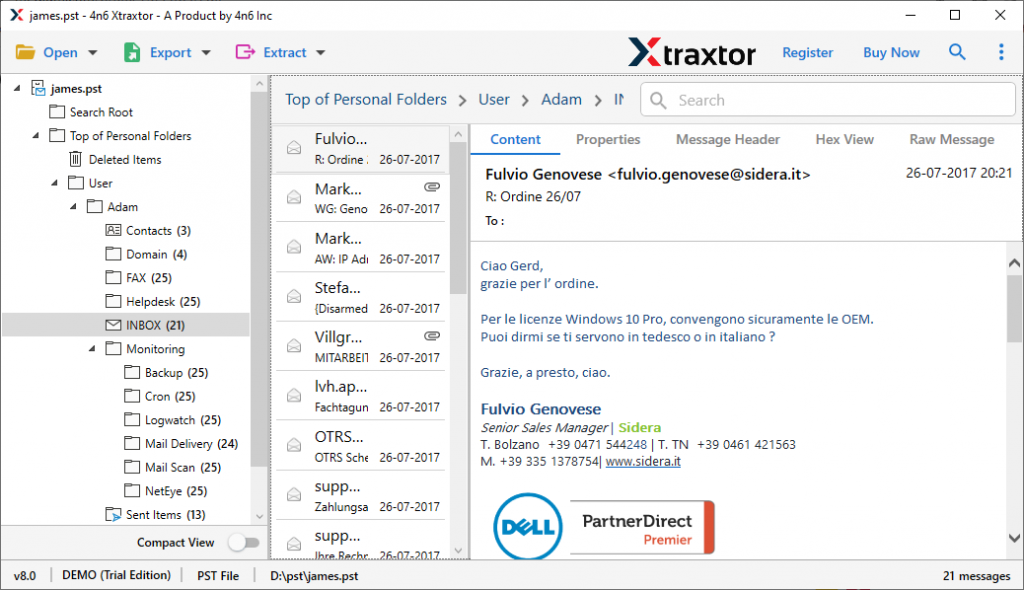
5. Go to the Export option and select CSV file format.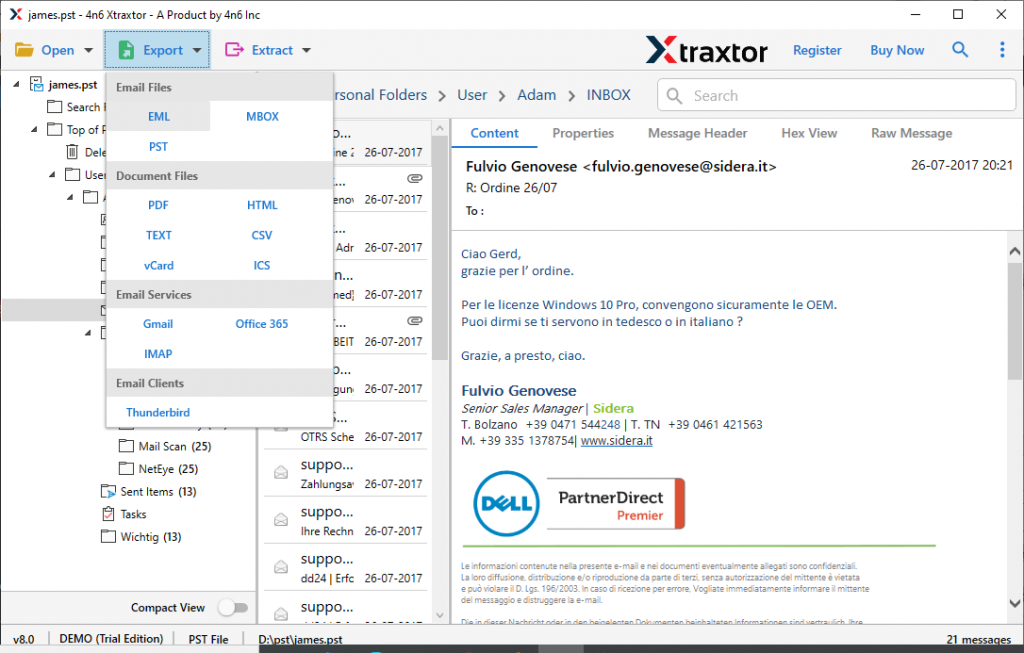
6. Choose a location to save the converted file and click on the Save option.
This is how to export PST to CSV in a few seconds with perfect accuracy and timely result delivery. This software has some amazing features that make it the expert choice to file the conversion process.
Why Choose PST to CSV Converter?
- Smart Preview Option
This converter gives you the option to view all emails present in Outlook email files. It helps you to choose the emails or folders you want to convert with their attachments. - Import PST to CSV without Outlook
Using this PST to CSV converter, you can easily export your contacts without using an Outlook email client. Without using any email client it directly converts contact details with names & email addresses in a tabular format. - Open PST File in Browser
With PST to CSV Converter, you can view/read/edit your emails from Outlook data file on any browser. It convert PST to HTML format with complete data as the original. After that, the user can open the .html file on any browser. - Export Corrupted PST file
This software also converts corrupted, encrypted and password-protected .pst files into .csv with complete data. Retrieve damaged contacts and create a CSV file with all restored contacts. - Convert Multiple PST to CSV
With this PST to CSV Converter, you can easily export contacts from multiple .pst files into a .csv file format. This tool ensures your data security during the conversion process. - Multiple File Saving Options
This amazing tool converts PST to CSV instantly. It also gives multiple file-saving options to convert PST to EML, MBOX, HTML, vCard, and many more file formats.
Conclusion
File conversion is a very difficult task as it involves some crucial data that can’t be lost. So it is important to use the best reliable and secure method to convert PST to CSV. As we already discuss 2 different approaches in this blog. Among both, you can select any method which is best suited to you. Although to get amazing and flawless results, I highly recommend choosing the software mentioned above.
Frequently Asked Questions
Question 1. Can I export corrupted PST files into CSV?
Answer. Yes, with the help of this tool, it is possible to convert corrupted or damaged .pst file into .csv file format.
Question 2. Can I export Outlook 2007 PST contacts to a CSV file?
Answer. Yes, PST Converter supports Outlook all versions and easily converts contacts into .csv file format.
Question 3. What data is lost when converting PST to CSV?
Answer. If you are using a manual approach, then you will lose your attachments. However, using the PST to CSV Converter, there will be no data loss.
Question 4. Can I convert specific folders from PST to CSV?
Answer. Yes, the tool allows to select email folders and convert them into CSV file.