Whether you are planning to migrate Gmail to Outlook.com or any other reasons. Here in this article, we will discuss the complete process to migrate emails from Gmail to Outlook.com mailbox.
Here we will talk about a free and automated approach to import Gmail to Outlook.com mailbox. Let’s gear up and start the migration.
How to Import Gmail to Outlook.com Manually?
You need to install the Outlook application on your system to complete the transfer process. After that follow the given instructions.
1. Open Outlook and go to File >> Add Account.
2. Enter your Gmail id and app password, and click on Connect button.
3. Outlook automatically connects with Gmail. If not, then enter Gmail IMAP settings manually.
4. Again go to File >> Add Account.
5. Now add your outlook.com email account.
6. Move the email folder to your Outlook.com account.
Done! Here you manually migrate Gamil emails to Outlook.com. However, make sure you enter the right IMAP setting to transfer your emails.
How to Migrate Gmail to Outlook.com Automatically?
Download SysConverter Gmail Backup Tool software on your Windows. This utility will directly migrate emails from your Gmail account to Outlook Online mailbox within a few simple steps. While migrating emails, the tool will maintain the email folder and sub-folder hierarchy and structure.
Download the free version of the software and know its complete working process.

Steps to Migrate Gmail Email to Outlook.com
Step 1. Download and Run the automated tool on your Windows OS system.
Step 2. After that, select Open >> Email Accounts >> Add Account.

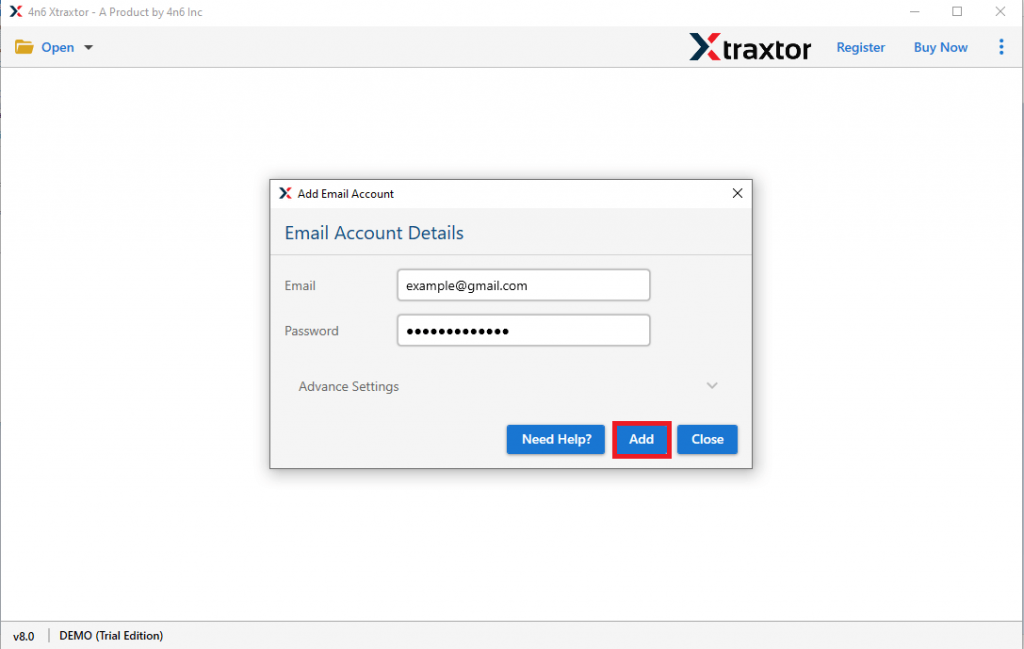
Step 3. Enter your Gmail login details and hit on the Add button.
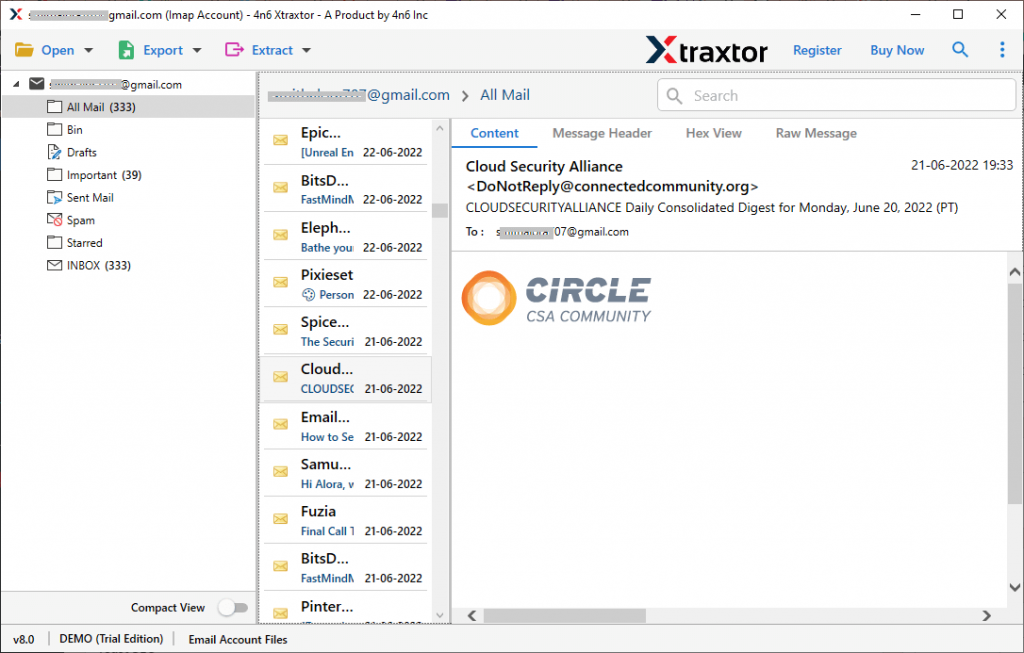
Step 4. Here you can view your Gmail emails before migrating them.
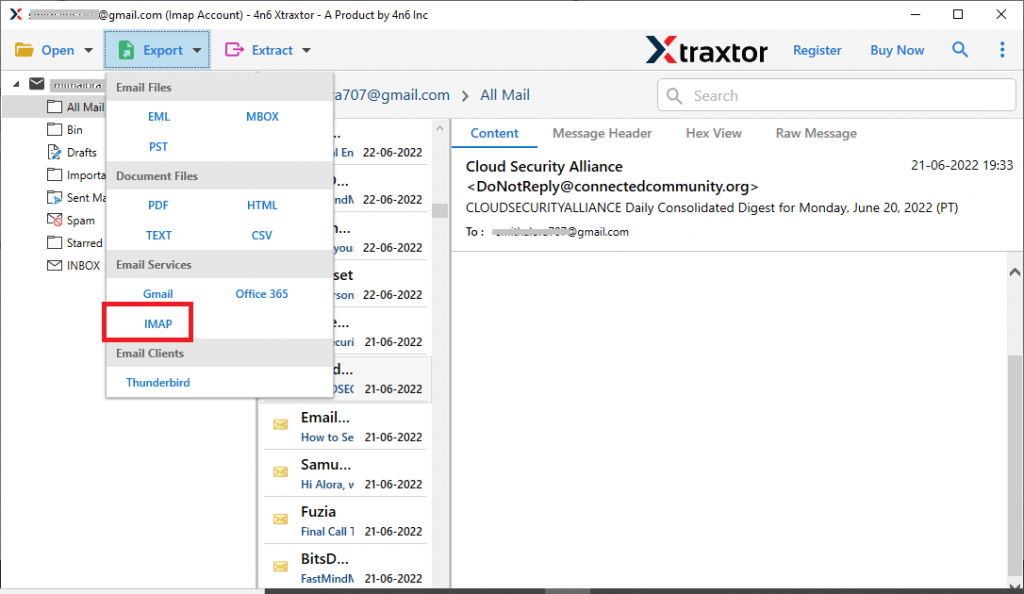
Step 5. Now click on Export and choose the IMAP option.
Step 6. After that, you can select the email folders, if you want to import selective email folders.
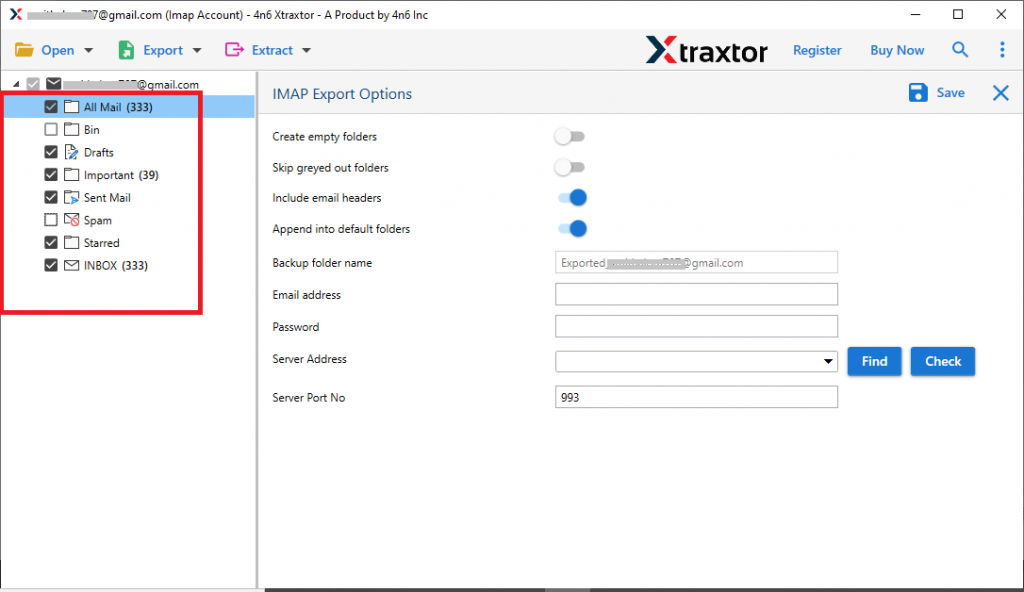
Step 7. At last, enter your Outlook.live.com login details and hit the Save button.
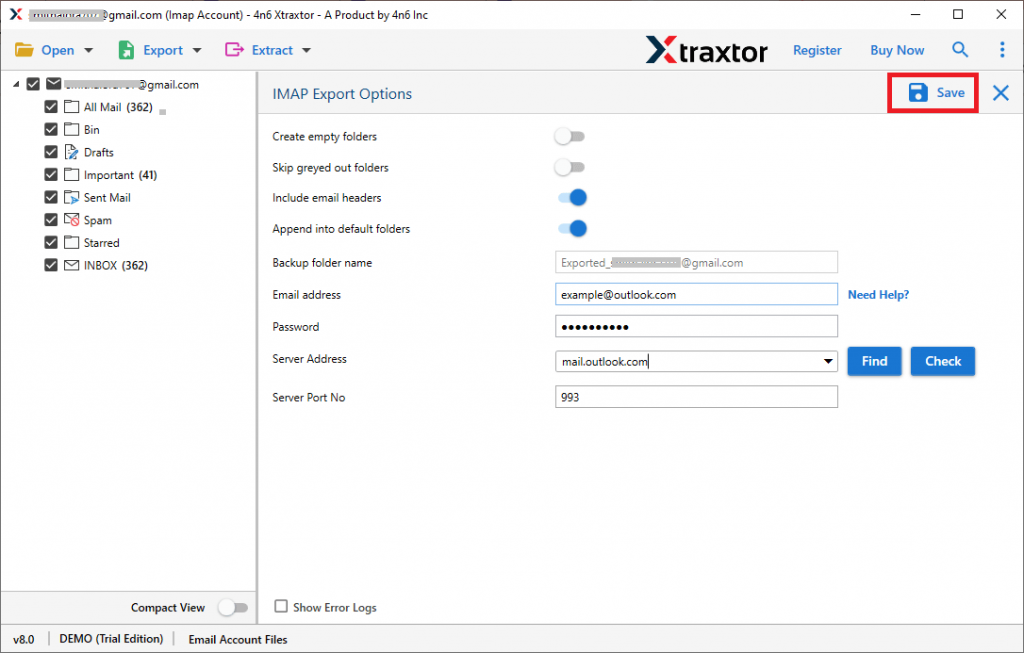
Done! Here you migrate Gmail to Outlook.com interface in a few simple clicks. You can also move Gmail emails to Outlook Online using the demo version of this utility.
Why Use Gmail to Outlook.com Migration Tool?
There are various reasons to opt for this tool for the migration process, some of them mention here –
- Maintain Email Integrity: While migrating from Gmail to Outlook Online, this tool performs the process without affecting the integrity of the mailbox data. You will get the end result similar to the original without any alteration.
- Email Filter Options: With this automated tool, there are various email filter options to choose from. You can apply the filters such as – to, from, subject, name, cc, bcc, time, date range, has attachments, name, content, and many more.
- Transfer Gmail Emails to Webmail Accounts: Using this software you can instantly migrate Gmail to iCloud, Office 365, Zoho Mail, Yahoo, and all other webmail accounts.
- Directly move Gmail Emails to Outlook.com: This software will straight away migrate emails from your Gmail account to Outlook Online mailbox. You don’t need to perform the extra process to import Gmail emails to Outllok.com.
- Windows-Based Utility: The Gmail to Outlook.com Migration tool is a Windows OS-based tool. It will run on all the versions of the Windows-based system. You can install it in Windows 11, 10, 8, Vista, and all other previous versions.
Conclusion
While you migrate Gmail to Outlook.com manually you can face various downfalls. It can be useful if there is less amount of data to migrate. If there are a lot of mailbox data to import, then we recommend using the automated tool mentioned in this write-up. Depending on your need you can opt for any of the methods mentioned in this blog post.