Here in this post we will discuss the manual free and automated solution to migrate Gmail to another Gmail account. Read the post and know the Gmail to Gmail migration.
Without any delay, let’s migrate Gmail emails to another Gmail account without any hassle.
How to Migrate Gmail Email to Another Gmail Manually?
Gmail offers an import option to transfer emails to another mailbox. Using it you can move your old Gmail mailbox data to a new one.
- Login to your Gmail account in which you want to transfer mailbox data.
- After that, click on the Setting icon on the right corner of your screen and select the See all Setting option.
- Now click on the Account and Import option and choose Import mail and contacts.

- Then, enter your Gmail id from which you want to transfer the data and hit on the Continue button.

- Select the email address you enter in the above step.
- A permission window will open, click on Allow to permit your Gmail account for import.
- Now choose the Import option as import mail and click on the Start Import option.

Done! Here start the import process. Once the transfer Gmail to another Gmail is complete, you will receive the process completion message. Although this native approach can migrate Gmail to another Gmail account still there are certain limitations.
How to Migrate Gmail from One Account to Another?
Try the SysConverter Gmail Backup Tool for efficient migration. The software is efficient approach to migrate Gmail emails to another Gmail account in a few simple click. While migrating emails, the tool maintain email folder hierarch and preserve data integrity.
Download the free version of the software on your Windows OS.

Steps to Migrate Gmail to another Gmail Account –
- Download and run software on your Windows OS.
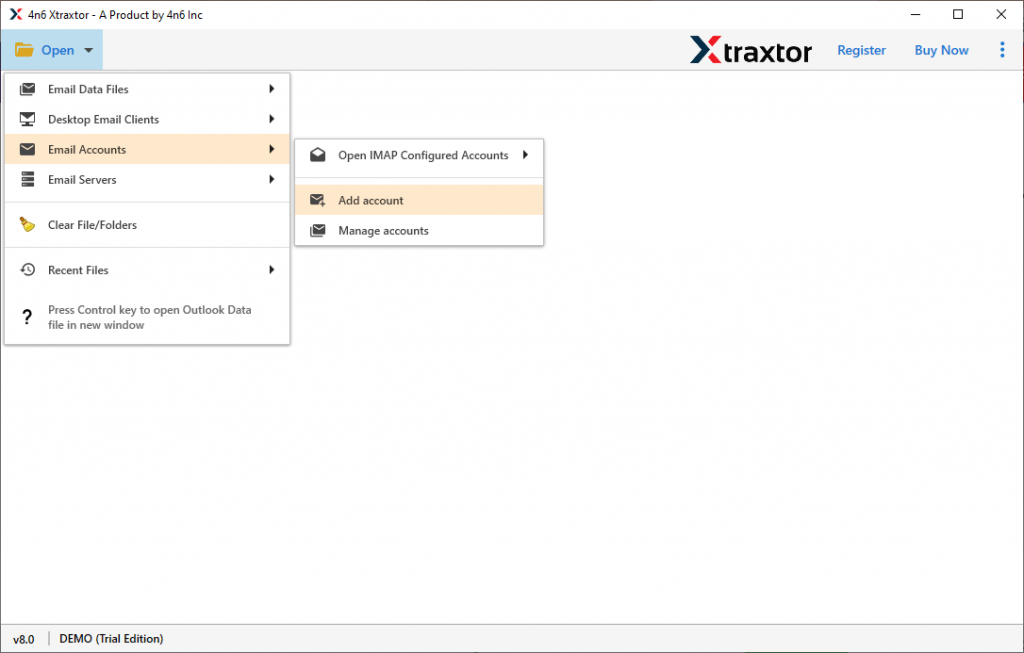
- Now select Open >> Email Accounts >> Add Account.
- Enter your Gmail account details from which you want to import data and click on the Add button.
Note: Use App Password instead of your Gmail password.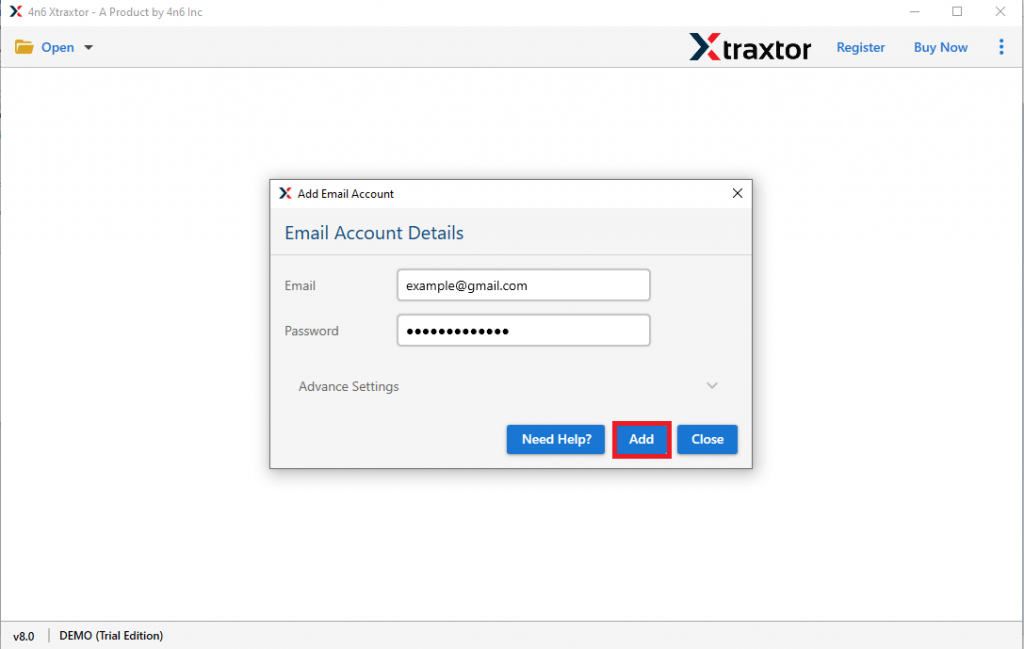
- Here you can view your emails before migrating them.

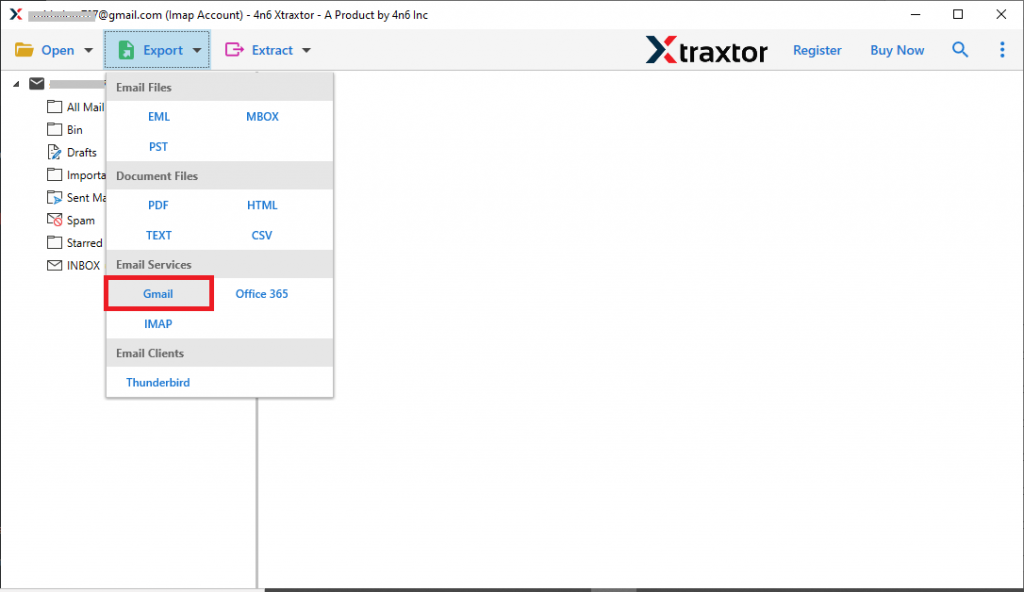
- After that click on Export and choose and choose Gmail from the given option.
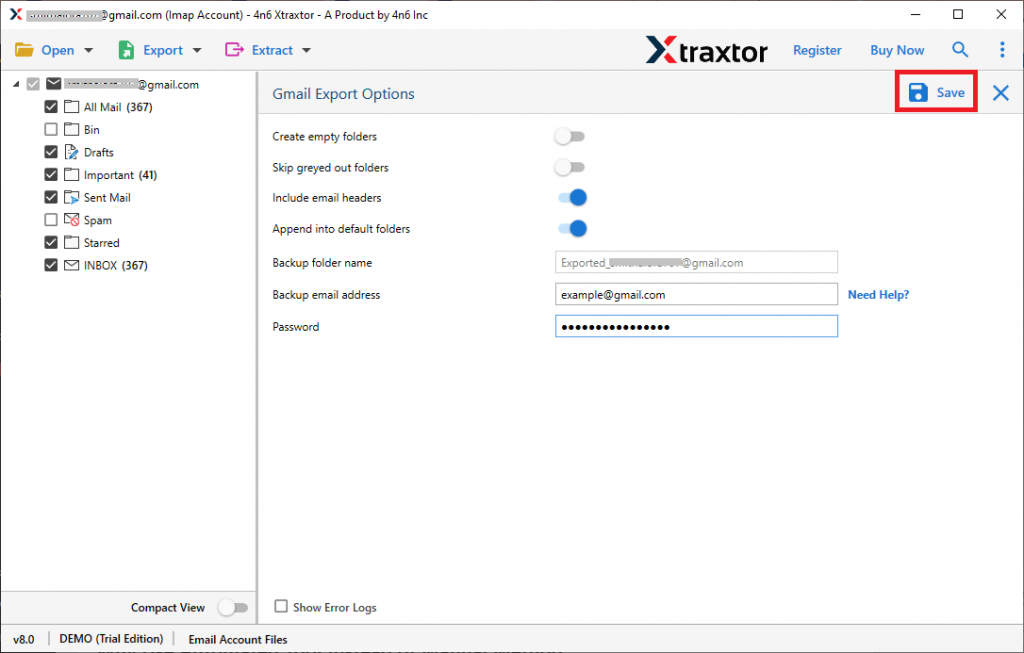
- If you want to transfer only important email folders, then you can select the email folders here.

- At last, enter your Gmail account login credentials in which you want to transfer data., then hit on the Save button.
Finish! here you migrate Gmail to another Gmail account within a few simple steps. You can use the demo version of the software and do the migration process yourself.
Why Use Automated Tool?
There can be various reasons to use this expert solution for migration, some of them mention here –
- Maintain Mailbox Hierarchy: While performing the Gmail migration using this utility, there will be no alteration in your email folder and sub-folder structure. After importing the data to another Gmail account, you will find your emails in the original format.
- Email Filters: With this tool, various advanced filter options make the migration process specific and efficient. One can apply filters – to, from, cc, bcc, subject, name, content, has attachments, date range, time, etc.
- Transfer Gmail Emails to Other Mail Accounts: The Migration tool, allows you to transfer emails from one mailing account to another IMAP account. Use this tool and migrate Gmail to Zoho Mail, Yahoo, Office 365, iCloud, and other webmail accounts.
- Windows-Based Tool: This automated tool can run on all Windows OS systems without any issues. One can install this software on Windows 11, 10, 8, Vista, XP, and all other previous versions.
- Save Gmail Emails In Different File Formats: Along with migration, this utility can save your Gmail data in different email data files. Use this tool and export Gmail to PST, CSV, PDF, MBOX, EML, and other file formats.
Conclusion
The main takeaway in this blog is how to migrate Gmail to another Gmail account. We’re talking about a manual solution using Gmail’s built-in import option. But with this original solution, you will find some limitations. To avoid these limitations, we mention an automated tool that instantly migrates Gmail emails to another Gmail mailbox without any data loss. Check out both methods and find the one that works best for you.