This tutorial will guide you to migrate email from Office 365 to Google Workspace mailbox. Read the post and complete the Office 365 to Google Workspace migration effortlessly.
Users have different reasons for migrating from Office 365 to Google Workspace mailbox. Here in this post, we will simplify the process and migrate Office 365 emails to Google Workspace mailbox without any hassle. Without any further delay, let’s move ahead and migrate email from Office 365 to Google Workspace account.
How to Migrate Office 365 Emails to Google Workspace Manually?
Well, you can perform the Microsoft 365 to Google Workspace Migration for free. Just follow the given instructions –
1. Install the Outlook application on your system.
2. Then, configure your Office 365 account.
3. For that go to File >> Add Account >> Enter email id and app password.

4. Manually enter the Office 365 IMAP settings. Now follow the same steps to add a Google Workspace account.

5. Here you have all Office 365 emails in the Outlook application.
6. Now right-click on the folder you want to migrate and move folder to your GWS account.
7. Repeat the same for other email folders.
Although this process will migrate email from Office 365 to Google Workspace, it is inefficient. Alternatively, you can complete the migration using your Admin console of Office 365 and GWS.
How to Migrate Office 365 to Google Workspace Automatically?
Try the SysConverter Email Backup Tool on your Windows. The software will effortlessly export Office 365 emails to Google Workspace account in a few simple clicks. It will maintain the email folder and sub-folder hierarchy and structure while Office 365 to Google Workspace migration.
Download the tool and migrate your Microsoft 365 emails to Google Workspace account.

Steps to Migrate Email from Office 365 to Google Workspace
1. Run the software on your Windows.
2. Select Open >> Email Accounts >> Email Account.
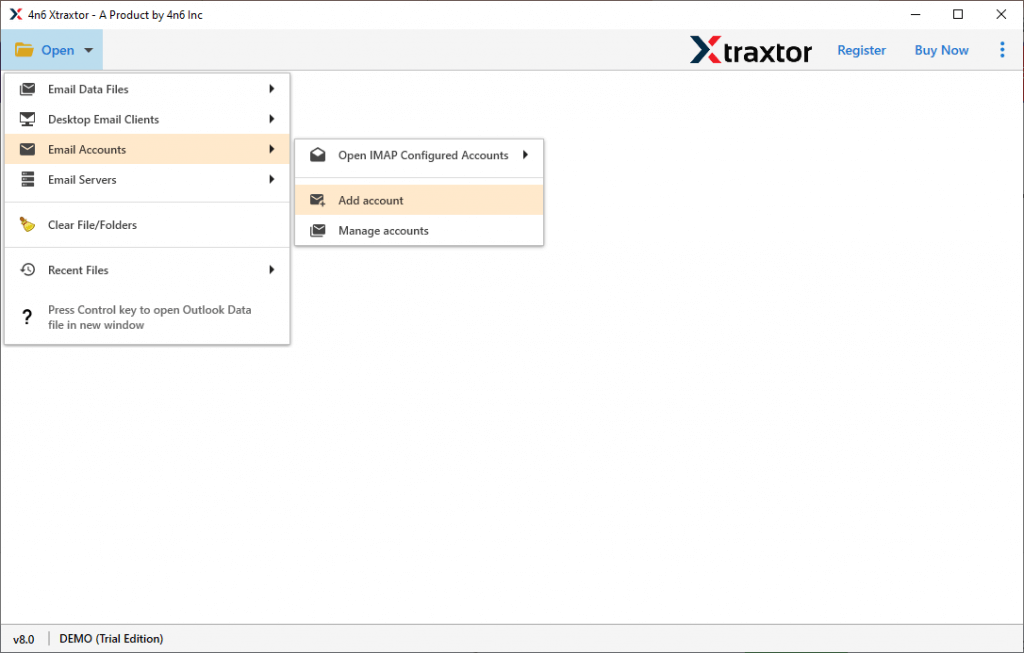
3. Enter your Office 365 email id and app password and hit the Add button

4. Here you can view your mailbox data.

5. Click Export and choose the IMAP option.

6. Enter your Google Workspace login id and app password and hit the Save button.

Done! The software will start the migration process and complete it in a few seconds. With this automated tool, there are various benefits,
- Direct Office 365 to Google Workspace migration without any hassle.
- Maintain email folder and sub-folder hierarchy and structure.
- Advance filter options – to, from, cc, bcc, name, date, time, etc.
- Also, export email from Office 365 to Yahoo Mail and other webmail accounts.
- Works on all Windows OS systems without any glitches.
- Preserve email key elements and attributes while migration.
Final Words
Here in this blog, we discuss the manual free and automated tool to migrate email from Office 365 to Google Workspace account. You can either use the manual approach or the software. Decide the best way based on your requirements.