The technical guide will import emails from PST file to Naver Mail account with attachments. Read the post and import PST to Naver Mail without any data loss.
Importing a PST file to Naver Mail is a common practice for users who have a PST file and want to transfer it into their NaverMail account. Unfortunately, Naver Mail doesn’t have an option for importing a PST file. Now you may be wondering, how can I import PST to Naver Mail account? Don’t worry—this tutorial will explain the step-by-step process for importing emails from a PST file into a NaverMail account.
Without any further delay, let’s dive in and start the importing process.
How to Transfer PST Emails to Naver Mail Manually?
If you want to manually migrate PST emails to Naver Mail, then you can use the Outlook application. For that follow the given instructions –
1. Open Outlook and click File >> Add Account.
2. Enter Naver Mail account credentials and complete the configuration.
3. Then click File >> Open & Export >> Import/Export.
4. Choose Import from another program or file and click Next.
5. Select Outlook Data File (.pst) and press Next.
6. Browse and select the PST file that you want to import.
7. Choose the recently configured Naver Mail account and click Finish.
Done! Here you complete the PST to Naver Mail import process. However, you can also automate the import process using the SysConverter for PST software.
How to Import Emails from PST to Naver Mail Automatically?
With the help of the PST Converter tool, you can easily move all the data from PST file into Naver Mail in a few simple clicks. With its advanced features, it is easy to transfer large size or corrupted PST file into Naver Mail account without any hassle. All you need is a PST file and your Naver Mail credentials, after that the tool will start importing your emails.
You can use the demo version of the software and know the complete importing process. Click the below link to download it.

Steps to Import PST to Naver Mail
1. Run the SysConverter for PST on your system.
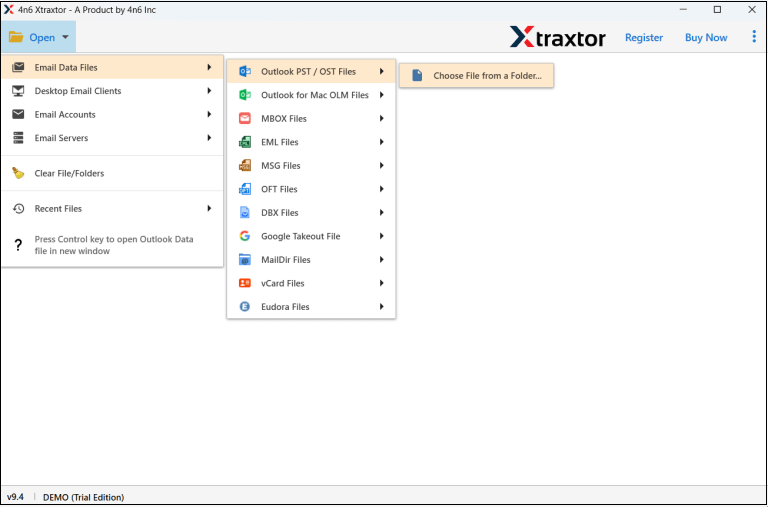
2. After that, Open >> Email Data File >> PST File.
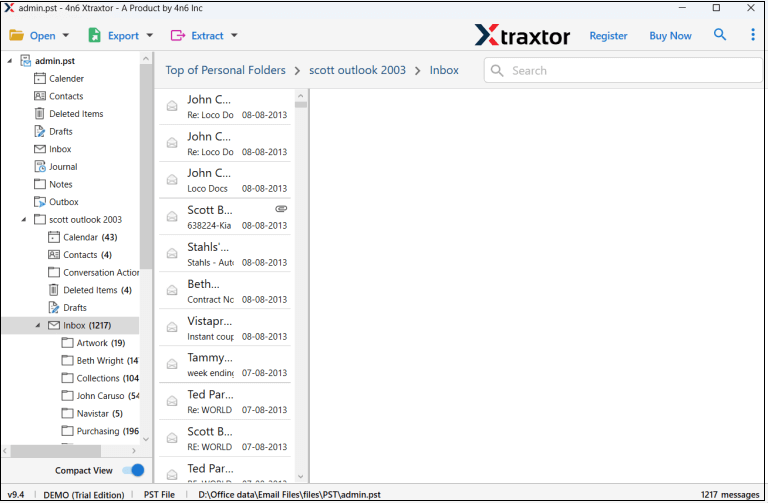
3. Here the tool will show the emails of your PST file.
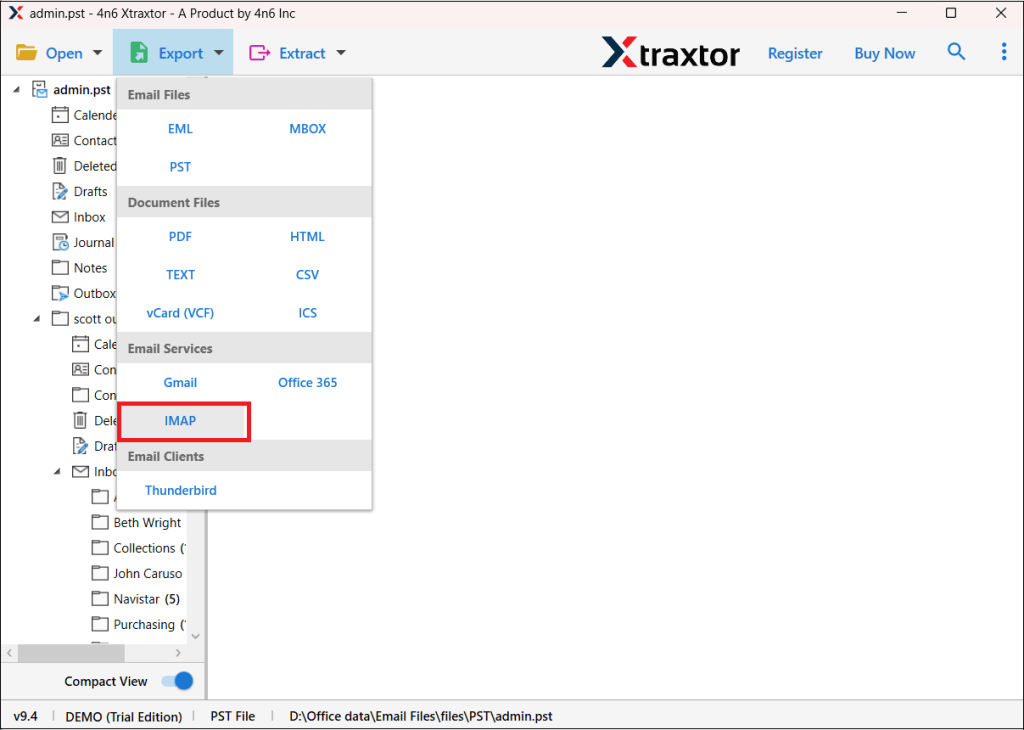
4. Click on Export >> IMAP option.
5. Enter your Naver Mail login details and hit the Save button.

Done! The tool will start importing PST file data to Naver Mail account. Moreover, using this tool you can also import emails from PST to Office 365 and many other webmail accounts.
Why use PST to Naver Mail Import Tool?
With this tool, various prominent features effortlessly import your emails –
- Import corrupted, damaged or password-protected PST file without any hassle.
- Maintain the one disk hierarchy and structure while importing PST file data.
- Preserve email key elements – to, from cc, hyperlinks, attachments, signatures, etc.
- Allows to import PST to Hotmail and all other email accounts.
- Various filter options – to, from, cc, bcc, name, date, time, subject, etc.
- Works on Windows 11, 10, 7, Vista, XP and all other versions.
- A free demo version of the software is also available.
Conclusion
Importing PST file to Naver Mail required extra steps as there is no manual approach to do that. However, using the PST supportive email client you can complete the importing process. Alternatively to effortlessly import PST to Naver Mail you can use the SysConverter software. Now you can decide which of the above-given solutions you find useful.