This article will include workable solutions to transfer MBOX emails to Yandex mail account. If you are also looking for a way to import MBOX to Yandex.Mail account, then this article will guide you to perform this importing process.
Yandex Mail is a Russian free email service developed by Yandex. It provides various features such as protection from viruses and spam, mail sorting, highlighting of emails from real people, free 10GB cloud storage, and many more.
With its security measures, most people use Yandex.Mail accounts. In this case where the user wants to import MBOX to Yandex.Mail account. User query to understand the reason for this import process.
“Recently I started using a Yandex.Mail account. Before that, I used an email client and before deactivating it I exported all mailbox data to MBOX format. Now I want to know if it is possible to upload MBOX files to Yandex.Mail Account attachment?”
How to Import MBOX to Yandex.Mail
If you want to transfer emails from MBOX to Yandex.Mail account, then you can perform this import process in to wary.
#1. Upload MBOX File into YandexMail With SysConverter for MBOX
#2. Upload MBOX Emails In Yandex.Mail Manually
Let’s know how these solutions can perform the import process.
Method 1: Import MBOX to Yandex.Mail With Attachments
A user can import their mailbox data to a Yandex.Mail account using MBOX Convert software. This utility can upload multiple .mbox files into the Yandex webmail account in a single attempt. You can use this tool and perform a selective MBOX to Yandex importing process. In order to transfer MBOX to Yandex, you need to browse the .mbox file from the system and select IMAP as a saving option and at last, enter your Yandex.Mail account details.
Along with that this utility also offers various filter options to search for a specific email to import. While performing the import process, this utility preserves mailbox structure and hierarchy. In addition, one can also import MBOX to iCloud, Roundcube, Rackspace, Gmail, and all other webmail accounts.

Steps to Import MBOX File Into Yandex.Mail Account
Follow the given instructions to transfer MBOX file emails to Yandex webmail account.
Step 1. Download and run SysConverter for MBOX on your system.
Step 2. Click on the Open button and choose from the drop-down list.
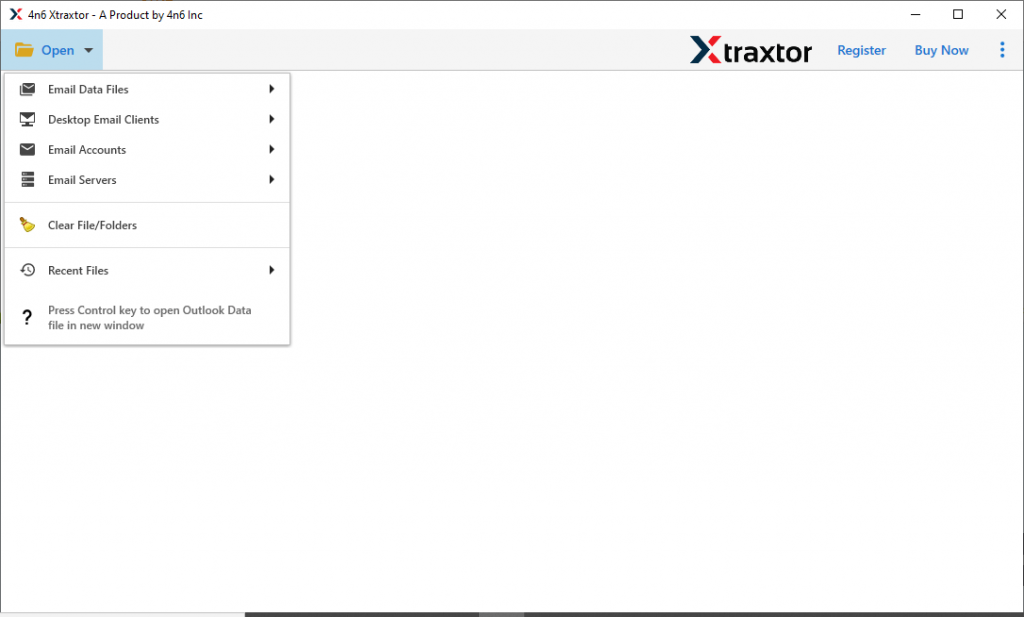
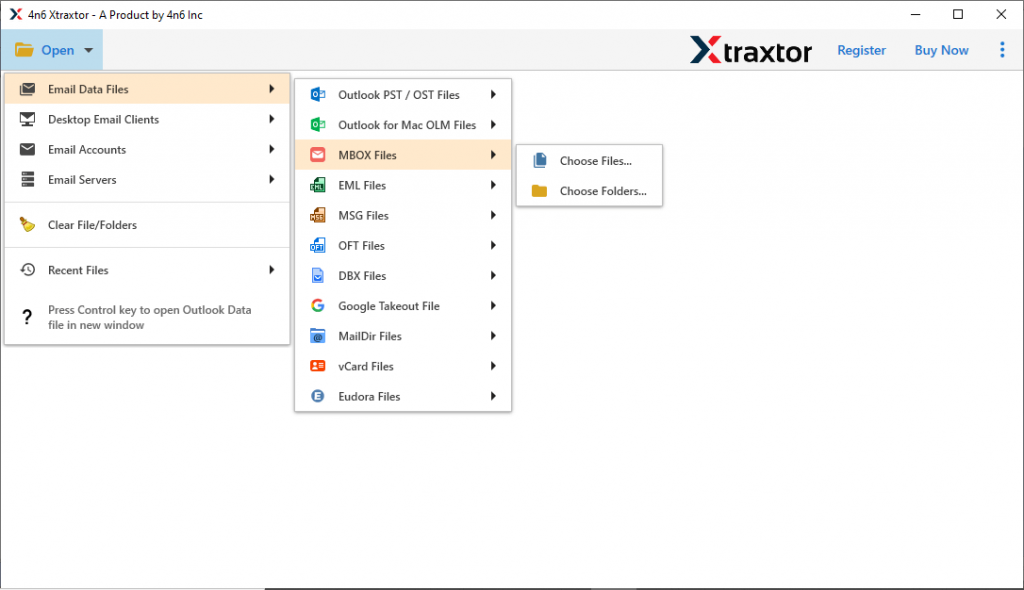
Step 3. Here select Email Data File >> MBOX File >> MBOX File >> Select File or Folder.
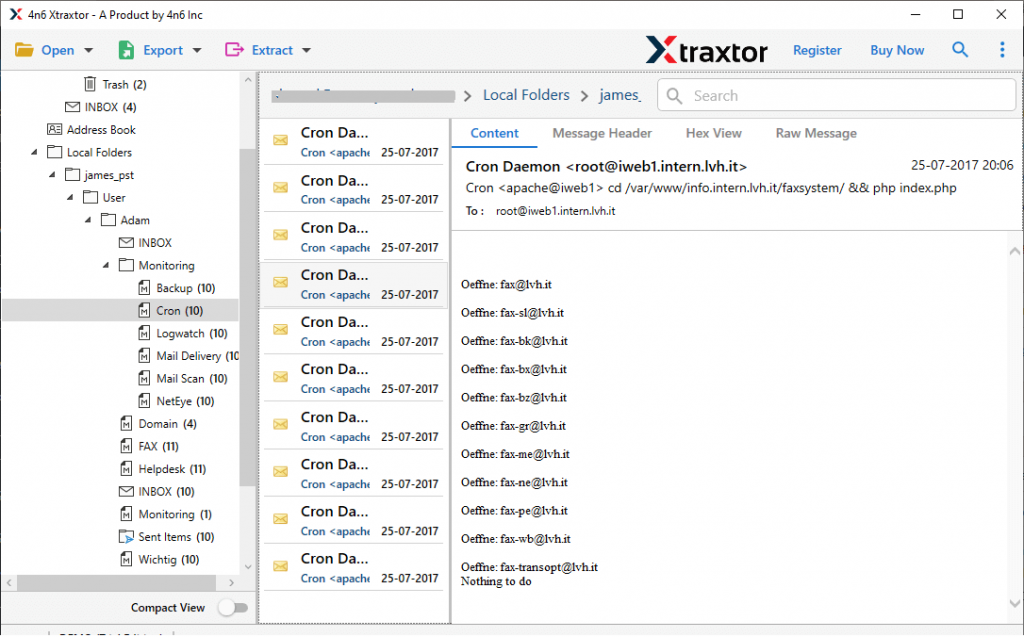
Step 4. You can view your emails and select the email folder that is important and required to transfer.
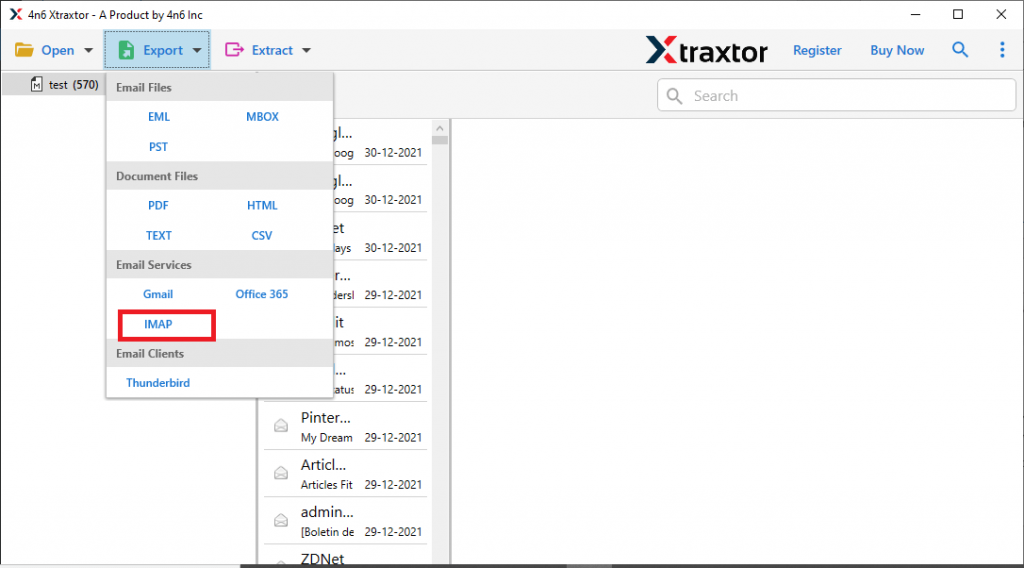
Step 5. Click on Export and opt for the IMAP option.
Step 6. At last, enter your Yandex.Mail login details and then hit the Save button.
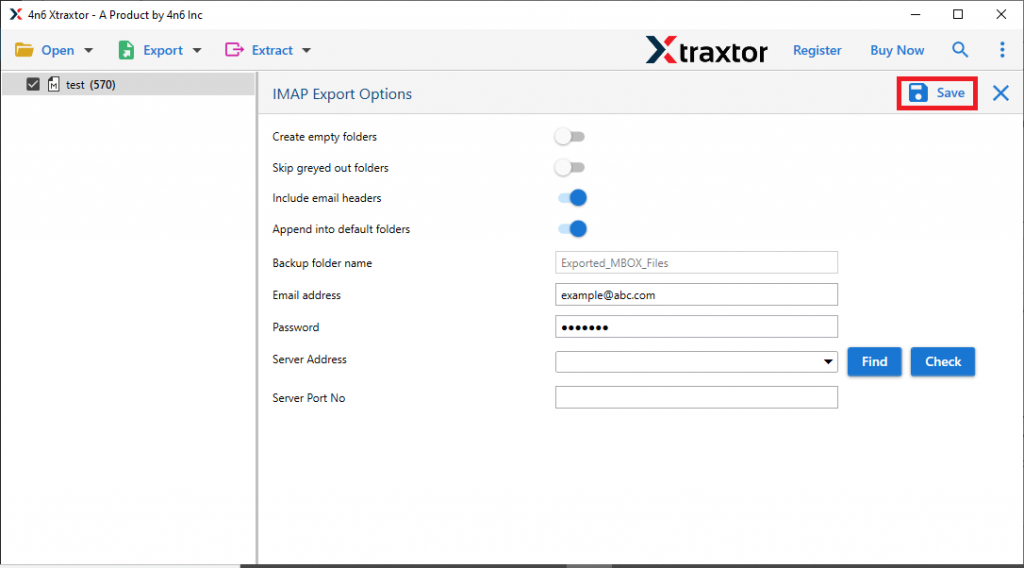
Finish! Here you import MBOX to Yandex.Mail account with attachments. Now you can access your MBOX file data into a webmail account.
Method 2: Transfer MBOX File to Yandex.Mail Using Thunderbird
The manual method required Thunderbird installation and then configuration with Yandex.Mail account. Let’s see the process with step by step description.
Step 1: Configure Yandex.Mail with Thunderbird
1. Open Thunderbird and click on Tool >> Account Setting.
2. Under Account Action select Add Mail Account.
3. Now enter your Yandex.Mail account login details and click on continue.
4. Select manual configuration and enter the following details and later press the Done button.
Incoming mail Outgoing mail
Protocol: IMAP Server Name: yandex.ru
Server Name: yandex.ru Port: 465
Port: 993 SSL: SSL/TLS
SSL: SSL/TLS Authentication: Your usual password
Authentication: Normal password
Here complete the configuration part. Now you will find your Yandex emails in this application interface.
Step 2: Upload MBOX file into Thunderbird Account
1. First of all go to Tools >> Add-ons and install ImportExportTool NG on your Thunderbird.
2. After that, restart your email client.
3. Then, click on Tool >> ImportExportTool NG >> Import MBOX file.
4. Browse the .mbox file from the system and load it.
5. Now you will find the imported .mbox folder, move that folder under the Yandex mail id section.
Here completes the MBOX to Yandex.Mail import process. Now you can access your mailbox data in your webmail account without any issue.
Although this manual solution can import MBOX to Yandex.Mail account, still there are some loopholes with it.
Limitations With Manual Method
1. Lengthy and tiring process.
2. Required technical assistance to perform configuration.
3. No email filter option for selective import.
4. One wrong step, you will lose your crucial data.
5. Import a single .mbox file at a time, don’t support bulk transfer.
6. Directly transfer MBOX file data into Yandex.Mail account in a few simple steps.
To avoid these limitations, you can use the alternative solution present in this article. Using the automated tool you can perform the import process without facing any restrictions.
Why MBOX to Yandex.Mail Import Tool
This tool has outstanding qualities, some of them mention here. Have a look at them.
Maintain Mailbox Hierarchy: While importing emails from MBOX files into Yandex.Mail account, there will be no alteration in email formatting. This utility maintains the mailbox folder and sub-folder structure.
Selective Email Conversion: After loading the data file into the software interface you will find all the emails. Read them and select the folders that are important and need to import.
Bulk MBOX File Import: The MBOX to Yandex.Mail Import Tool offers a bulk mode feature that allows transferring multiple .mbox files into the Yandex webmail account in a single attempt.
Support Windows OS: This utility is designed for Windows OS users. You can install and run this tool on your Windows 11, 10, 8, Vista, XP, and all other previous versions.
Conclusion
The whole write up is the complete guide to import MBOX to Yandex.Mail account with attachments. Here we discuss both Manual as well as Automated ways to transfer MBOX file into the Yandex account. Users can use both solutions and decide which one is best for the import process. You can also try the demo version of the software and experience the working of the automated tool.