Are you looking for a way to import MBOX to SmarterMail account? If yes, then this post is for you. Read the blog and import single or multiple MBOX files into SmarterMail account in bulk.
MBOX file and SmarterMail are different, where one is a file format and the other is email services. However when we talk about MBOX file then, it is the most commonly used format used by email clients to save data. However, managing the MBOX file is a tiring task, thus moving them into a secure platform is important. When we talk about powerful email servers, then SmarterMail comes to mind.
Here in this guide, we will talk about the step-by-step process of importing MBOX files to SmarterMail account. If you are among those who want to import MBOX to SmarterMail account, then continue reading the post. Before that let’s know the reasons for the importing.
Why Transfer MBOX Emails to SmarterMail?
Before we talk about the MBOX to SmarterMail importing process, let’s talk about the need for it.
- SmarterMail offers advanced features that help in easy email management.
- It will be easy to access your MBOX file data after importing them into your SmarterMail account.
- Importing your data provides an extra layer of security to your MBOX file data.
- Some of the users prefer to archive their data so that it can retrieve data if you accidentally delete an MBOX file.
Let’s dive in and import your MBOX file data to SmarterMail account.
How to Import MBOX Files to SmarterMail in Bulk?
With the help of SysConverter for MBOX tool you can complete the process without any hassle. This MBOX Converter is an easy tool for any beginner who wants to transfer emails from MBOX file to SmareterMail account without any hassle. All you need to do is add the MBOX file and choose the saving option. After that enter your SmarterMail login details and the tool will start importing your data.
Click the download link and analyse the working of the software.

Steps to Import MBOX to SmarterMail
1. Run the Sysconverter for MBOX tool on your system.
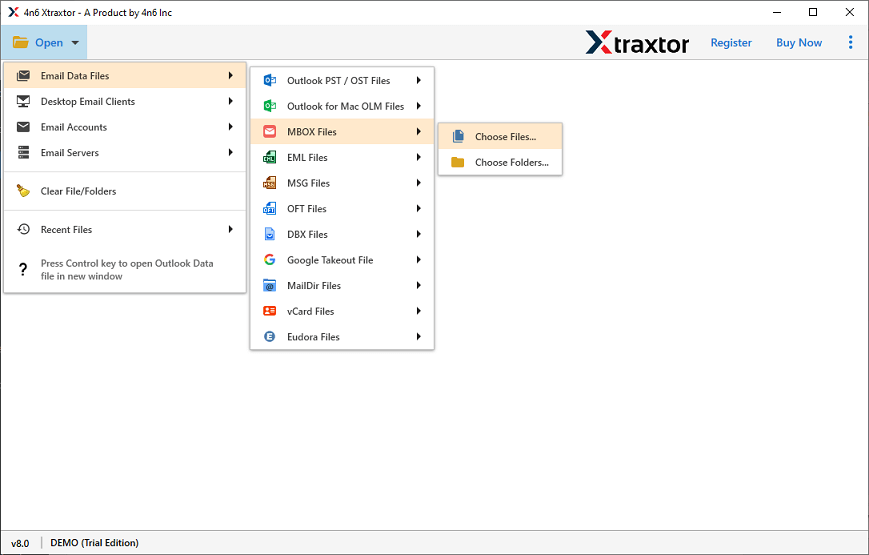
2. Click on Open >> Data File >> MBOX File.
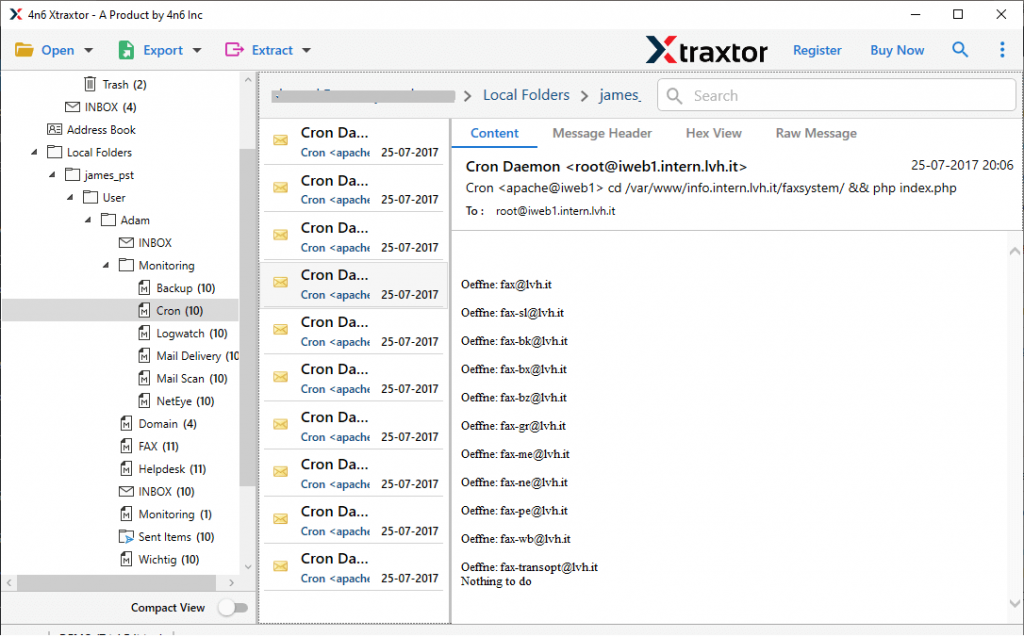
3. Here you can view your MBOX file emails before importing them.
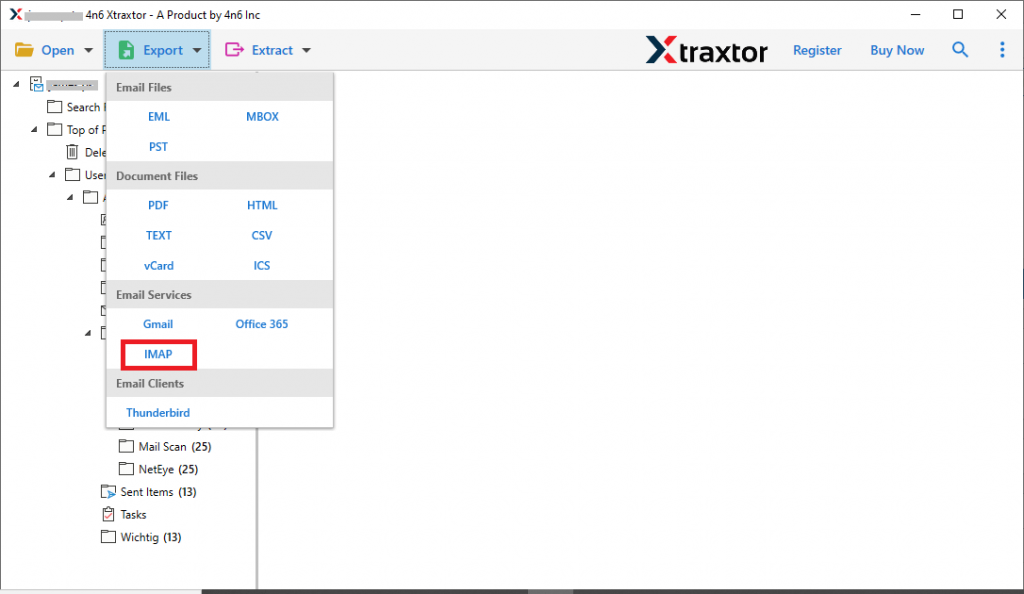
4. Click on Export >> IMAP option.
5. Enter your SmarterMail login details and hit the Save button.
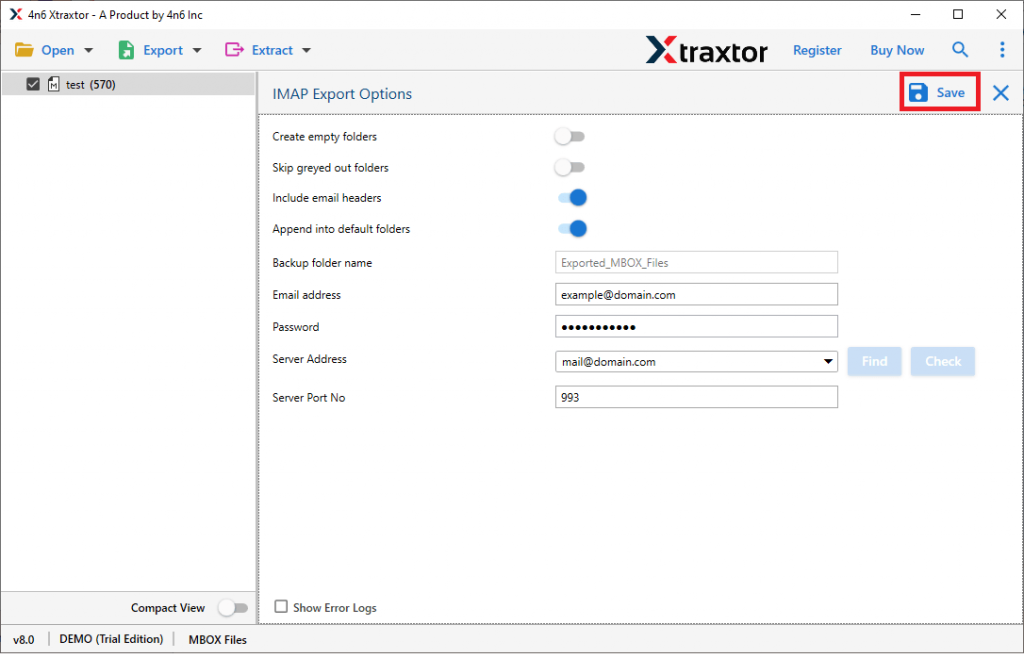
All Done! Here the tool will start importing MBOX emails to SmarterMail account. Depending on your MBOX file size it will take only a few seconds.
Why Use MBOX to SmarterMail Import Tool?
- Supports importing multiple MBOX files into SmarterMail account at once.
- Maintain email folder and sub-folder hierarchy and structure while importing emails.
- Advance filter options – to, from, cc, bcc, name, date, time, cc, bcc, etc.
- The software also imports emails from MBOX to Gmail and many other email accounts.
- Preview mode allows you to view emails in different formats before importing them.
- Compatible with Windows 11, 10, 7, Vista, XP and all other versions.
- A free demo version is also available to analyse its working process.
Conclusion
Here in this post, we will discuss the simple and automated approach to import MBOX to SmarterMail account. With the mentioned tool importing your emails from MBOX files to SmarterMail is not a complex process. To make it easy for you we also mention the step-by-step process of complete import process. Try it out and import your MBOX file data without any hassle.