Do you want to migrate Windows Live Mail to Gmail account? If yes then you have landed at the right place. In this article, we are going to discuss how to transfer Windows Live Mail to Gmail. Here, you will get two reliable solutions to perform Windows Live Mail to Gmail migration.
Windows Live Mail is a discontinued freeware email client by Microsoft. But, still in existence and used by many users. It is restricted with limited features. On the other hand, Gmail is the most widely used email service provided by Google. There are many benefits of Gmail account, users can access it from anywhere on any device. However, most users want to import Windows Live Mail to Gmail due to many reasons.
Reasons to Transfer Windows Live Mail to Gmail
Gmail provides various advanced features over Windows Live Mail. Some of them are given below-
- Gmail allows you to access your emails from any device with an internet connection, providing flexibility and convenience.
- Gmail offers a generous amount of free storage space, allowing you to store a large number of emails and other data items.
- Its advanced search capabilities make it easier to find specific emails or conversations quickly. It also provides features like labels, filters, and folders to help you organize your inbox efficiently.
- With a Gmail account, you can use other services such as Google Meet, Docs, Sheets, Excel, etc.
- Gmail is known for its robust infrastructure, reliable uptime, and strong security measures, including spam filtering and two-factor authentication.
- Since Windows Live Mail is no longer actively supported by Microsoft, migrating your emails to Gmail ensures continued access and support for your email needs in the future.
- Gmail’s dedicated mobile apps for iOS and Android provide a seamless email experience on smartphones and tablets.
Methods to Migrate Windows Live Mail to Gmail
There are two ways to transfer Windows Live Mail to Gmail. One is a manual solution which is so lengthy and typical process. In the manual solution, you need to set up Gmail account and Windows Live Mail account. And, the other one is an automated solution that directly move email folders from Windows Live Mail to Gmail.
Method 1. How to Import Windows Live Mail to Gmail Manually?
Follow the below-given steps to transfer Windows Live Mail to Gmail-
Step 1. Firstly, Open your Gmail account and Go to Settings.
Step 2. Now, Click on Forwarding POP/IMAP and enable IMAP.
Step 3. Gmail has more secure, so, it will block less secure applications like Windows Live Mail.
Step 4. Click on Account Settings to enable access and transfer Windows Live Mail to Gmail.
Step 5. Under Sign-in Security, click on the right side on the arrow.
Step 6. After that, scroll down and tick the Turn off radio button from the less secure app section.
Step 7. After turning it on, Google will receive emails from the less secure app.
Step 8. Now, Open Windows Live Mail email client on your system.
Step 9. Go to Accounts and click on Email.
Step 10. Enter the Gmail Email address and password in the respective field and tick mark on manually configure server settings checkbox.
Step 11. After that, a new dialog box will appear where enter the Gmail Server names and ports.
Step 12. Type Server Settings, ports, SMTP authentication, and then click on Next.
Step 13. After entering the correct details, Windows Live Mail will start synchronizing with Gmail.
Step 14. Synchronization policy download all messages.
Hence, you can manually migrate Windows Live Mail to Gmail but it takes lot of time to complete the process. To perform this manual process users must have in-depth technical knowledge otherwise there are higher chance of data loss if they perform any wrong step. To overcome all these restrictions you can use automated solution that is explained in the next section.
Method 2. How to Transfer Windows Live Mail to Gmail Effortlessly?
Use SysConverter Email Converter Tool on your system to directly import Windows Live Mail to Gmail in a simple manner. The software is able to export a complete mailbox at once with complete accuracy. There are various email filter options to transfer selected data from WLM to Gmail. The tool provides a preview option to view Windows Live Mail emails before transferring them to Gmail.
In addition, the tool not only transfer Windows Live Mail to Gmail but also migrate Windows Live Mail to various other email platforms. You can run this utility on any Windows-based Operating system. Download its free demo version and perform Windows Live Mail to Gmail migration with ease.

Follow the Below Given Steps to Export Windows Live Mail to Gmail
Step 1. Launch SysConverter Windows Live Mail to Gmail Migration tool on your Windows PC.
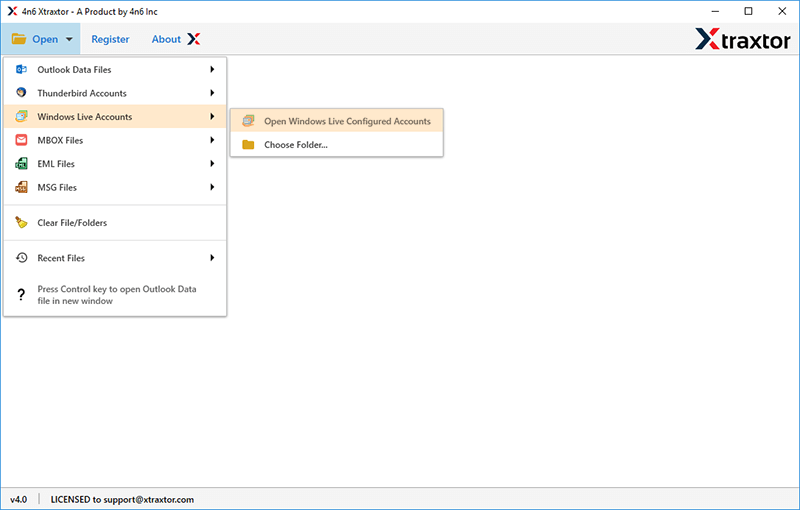
Step 2. After that, Click on Open >> Desktop Email Clients >> Windows Live Accounts >> Open Configured Windows Live accounts.
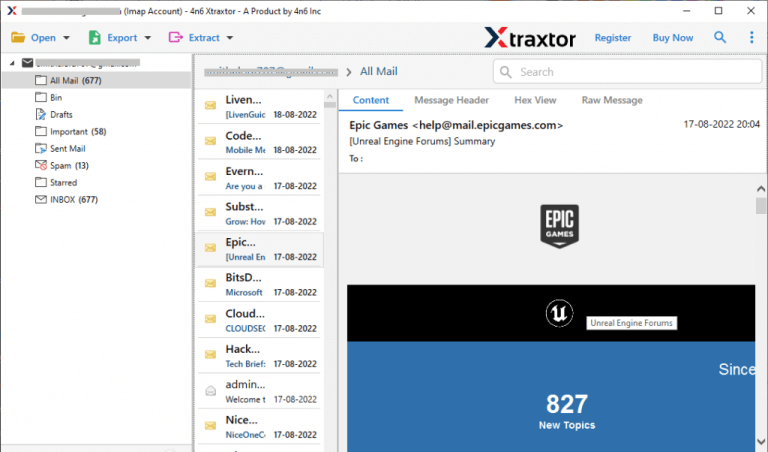
Step 3. Here, you can view Windows Live Mail emails before transferring them to Gmail.
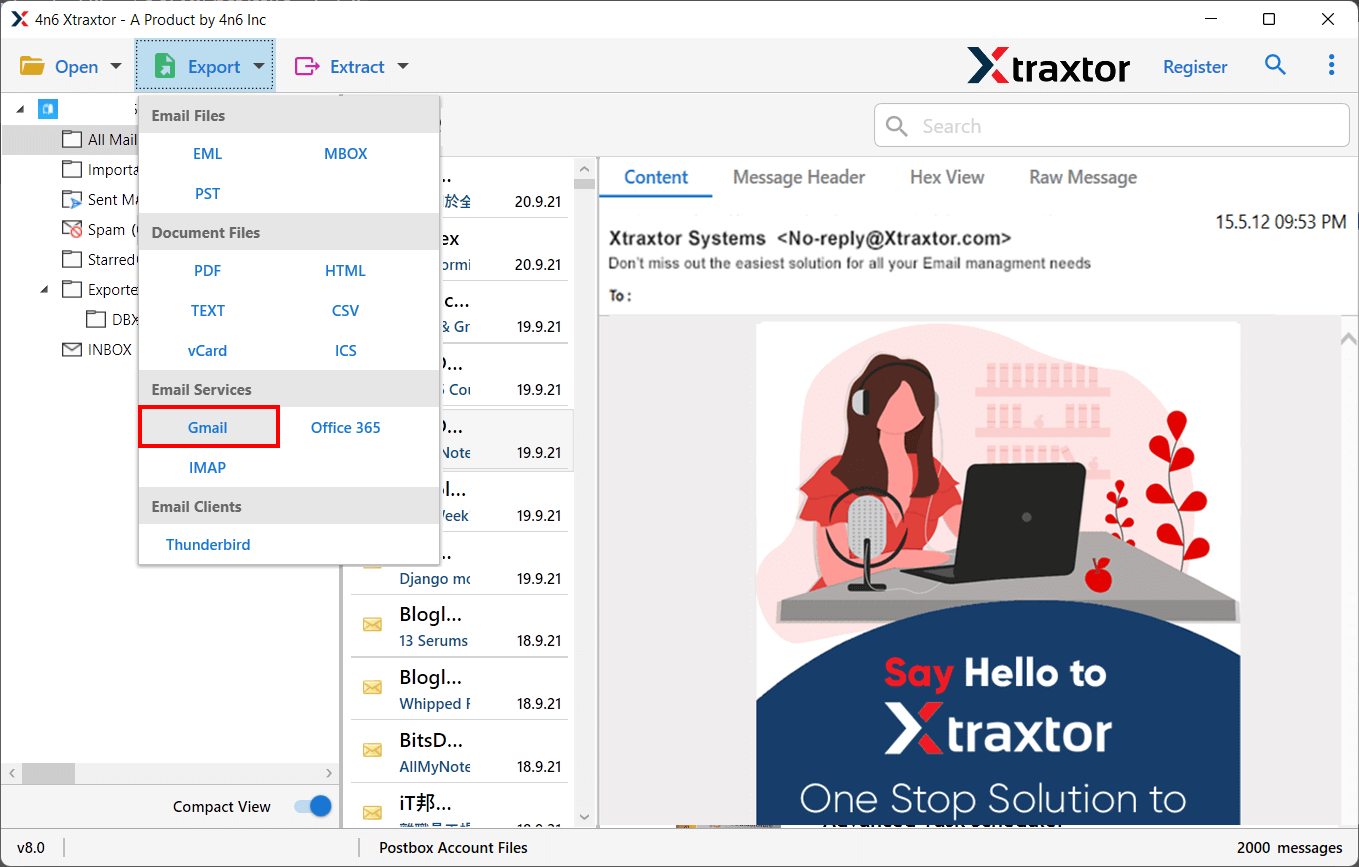
Step 4. After that, Go to Export and select Gmail from the given list.
Step 5. Choose WLM folders that you want to transfer from your Windows Live account to your Gmail account.
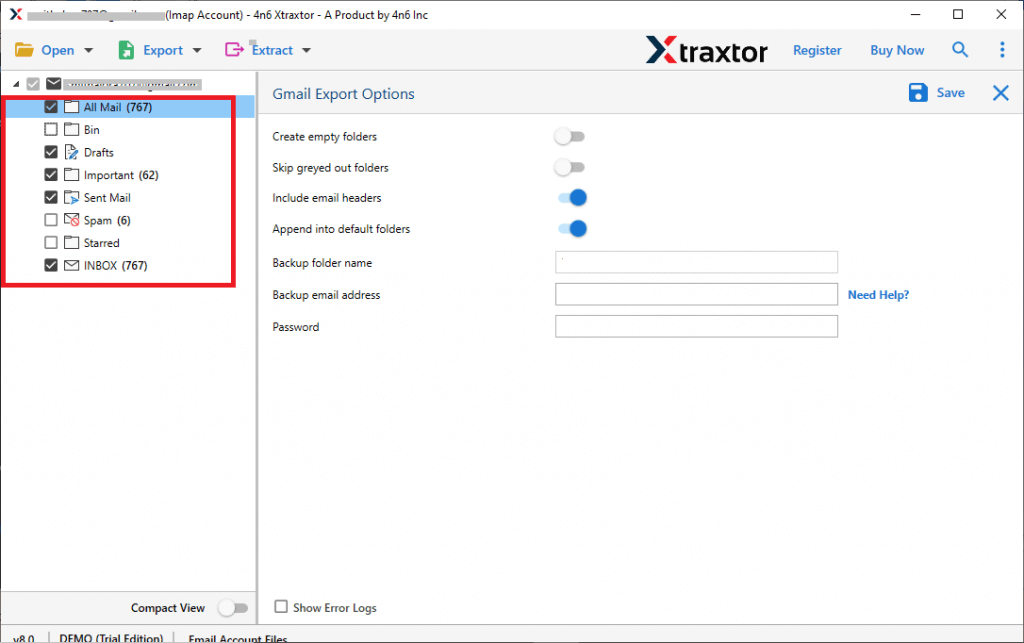
Step 6. Apply the filters to export selected data items from Windows Live Mail to Gmail.
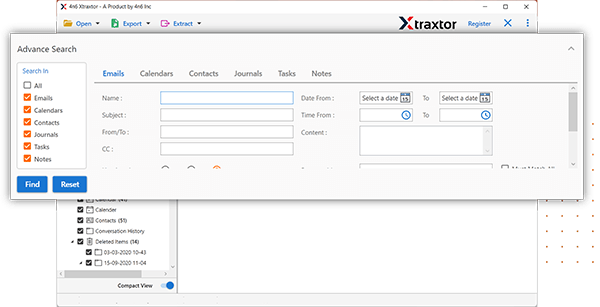
Step 7. Enter the Gmail Email address and password in the respective field.

Step 8. Finally, click on the Save button to start the Windows Live Mail to Gmail migration process.
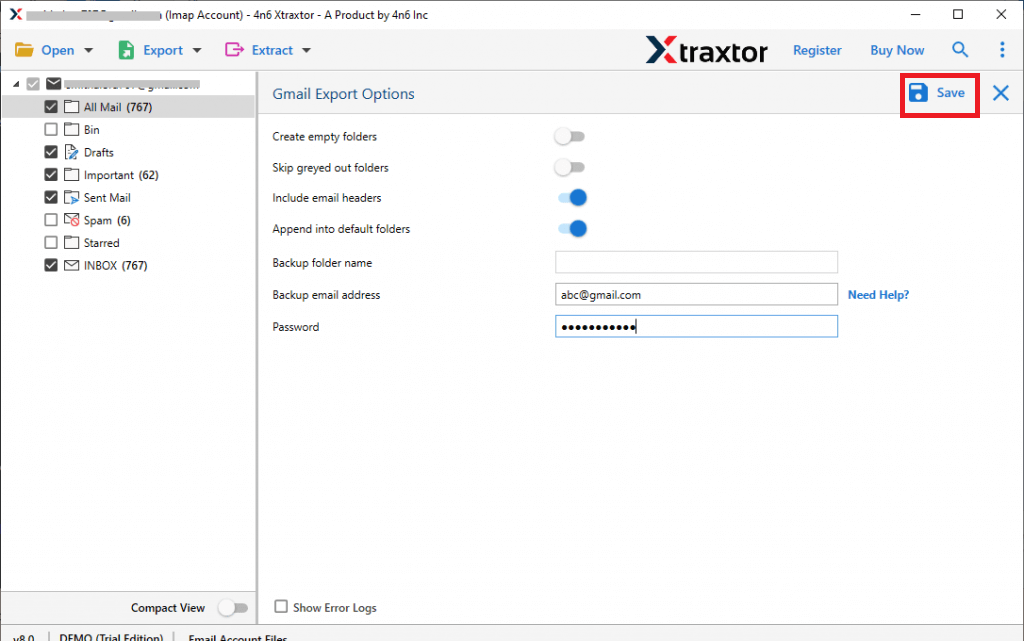
Done! Hence, you can easily transfer Windows Live Mail to Gmail in a few simple clicks.
Prominent Features of Syconverter Software
- The software can migrate Windows Live Mail to Gmail in bulk.
- It preserves 100% data integrity during and after the process.
- Various advanced filter options such as to, from, date, time, subject, etc.
- Retains folder and subfolder hierarchy throughout the process.
- The tool can convert Windows Live Mail to PST, MBOX, EML, PDF, HTML, etc.
- It can directly migrate Windows Live Mail to Cloud-based email services.
- Due to the simplified interface, any novice user can easily perform the process without any assistance.
- It is compatible with all latest and old versions of Windows operating systems.
Conclusion
In this post, we have discussed how to transfer Windows Live Mail to Gmail with two workable solutions. The manual solution comes with some limitations. However, experts recommend using the automated solution to import Windows Live Mail to Gmail without any hassle. The above-suggested tool is able to move folders from Windows Live Mail to Gmail in their original format without losing any single bit of data. Try its free version that allows you to transfer the first 25 items per folder.