Summary: If you are an Outlook user and encountering Outlook.pst cannot be found error, then this blog is for you. Read teh complete blog and fix Outlook data file not found error.
Microsoft Outlook is a widely used email client that offers advanced features of email management. However, there can be times when you cna face the occasional errors. One of the common errors faced by Outlook users cannot find Outlook.pst file. This error can stop your workflow and stop you from accessing your emails. In this article, we will discuss the various causes of this error and try to fix it.
Before we move ahead, let’s understant the “Outlook.pst cannot be found” error. It is a common error where your Outlook can’t able to find the .pst data file. There can be various reasons for facing this error, corrupted data file, outdated profile, incorrect configuration and many more.
Why Outlook Cannot find my PST file?
There can be various reasons why Outlook cannot able to locate your PSt file. Some of the common ones are –
- If you rename your file or accidentally deletd it, then Outlook won’t be able to find it.
- Outlook data is saved in a particular director. If you save the data file in an unusual location, then it is difficult for Outlook to locate it.
- A corrupted or damaged PST file can hamper Outlook’s functioning. Therefore it cna fail to locate your PST file.
- If your Outlook profile setting is incorrect, then you can face the error.
How to Fix “Outlook.pst Cannot Be Found” Error?
This is the common error faced by Outlook users, where their PST file cannot be located. Here in this blog section, we will discuss different ways to fix the error.
1. Locate and Move PST File
If you save your PST file other than the standard location, then it is difficult for Outlook to locate it. In that case. first, you need to locate the PST file and save it in the standard directory. Follow the steps for that –
- Open your system search feature and type your PST file name.
- Then, move the data file to its actual location – the “Documents\Outlook Files” folder.

- Now Open your Outlook and import the PST file using the Import/Export tool.

Here you move your PST file, now try to access it in your Outlook profile.
2. Repair PST File
If your PST file is corrupted, then also you can face the Outlook.pst cannot be found error. Therefore you need to repair Outlook PST file and then try to open it.
- Firstly close your Outlook application.
- Then, search “ScanPST.exe” on your system and run it.
- Browse your corrupted PST file and click on the Start button.
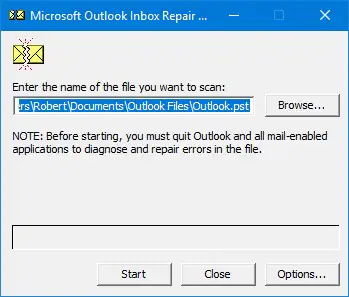
Here initiate the repair process. If your PST file is highly corrupted, then this tool will not work. Therefore you will need automated software to repair PST file without ScanPST tool.
3. Create New Outlook Profile
Sometimes, your Outlook profile can also cause the Outlook data file cannot be found error. Thus you need to create a new profile configure your webmail account and access your PST file. For that follow the given instructions –
- Open your Outlook application.
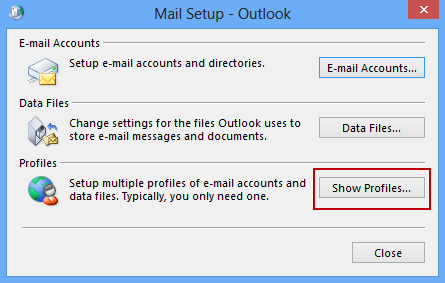
- After that, select File >> Account Settings >> Manage Profiles.
- Then, choose Show Profiles >> Add.
- the profile name field, enter your profile name and clcik on the OK button.
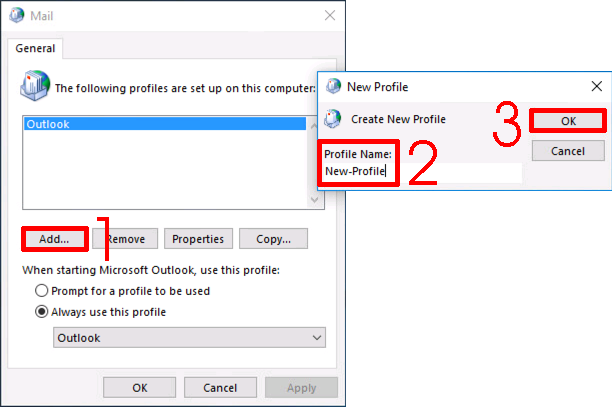
Here you create a new Outlook profile and try to open your PST file. It will definitely resolve your issue. If you still face the error, then you can try the other solutions.
4. Disable Antivirus or Firewall
Temporarily disable your antivirus and firewall software to check if they are blocking Outlook from accessing PST file. If the error is resolved after deactivating the antivirus software, then change the setting to allow Outlook to access PST file.
These are the few simple approaches to fix Outlook.pst cannot be found error. If you are still facing the error, then you need a secure approach to access your PST file.

Conclusion
Here in this blog we discuss various reasons for facing the “Outlook.pst Cannot Be Found” Error. Along with that, we also talk about different ways to fix the error. You can try the given solution and fix the Outlook PST file cannot found error. If you still face the error, then you can contact an IT person or use the automated tool to view or access your PST file data.