This post will guide you to extract attachments from Outlook emails. Read the complete post and extract all attachments from Outlook emails automatically.
Outlook is one of the most widely used email applications both professionally and personally. Most of the time when a user send/receive emails, then attachments are also present in them. With time there were many attachments that were piled up and acquired your storage. Therefore, it is best to extract attachments from Outlook emails without deleting them.
Unfortunately, there is no manual way to save attachments from your Outlook emails. Nevertheless, to simplify the extraction process for you, we will guide you to download all attachments from Outlook in a few simple clicks. Without any further delay, let’s move ahead and start the extraction process.
How to Extract Outlook Attachments?
To download attachments from Outlook emails, try the SysConverter Email Attachment Extractor tool. This software will effortlessly download all the attachments from Outlook at once without any data loss. The tool automatically detects your configured Outlook profile and extracts only attachments. After the extraction, all the attachments will be saved in a single text file at your desired location. Along with that, you can also apply the extension filter – .doc, .pdf, .xsl, .png, and many more. Try the free version of the tool and know the complete extraction process.

Steps to Extract Attachments from Outlook
Step 1. Download and run this Outlook Attachment Extractor tool on your system.
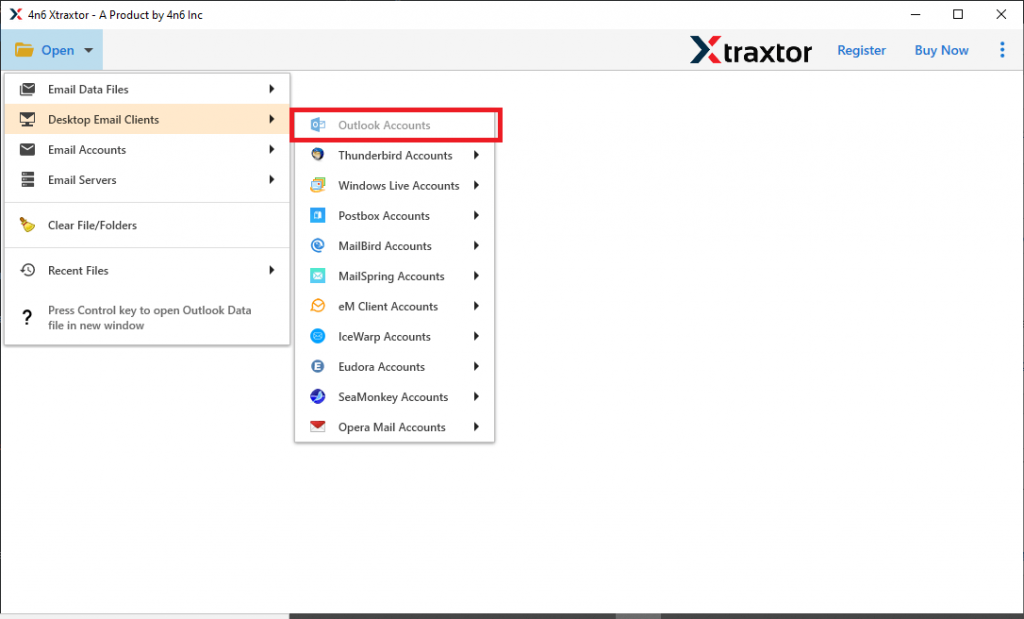
Step 2. After that click on the Open button and select the required field.

Step 3. No select Desktop Email Client >> Outlook Account >> Open configured Outlook Account or Select File/folder.
Step 4. Here you will find all the Outlook emails with their folder. Choose the required folder and perform selective attachment extraction.
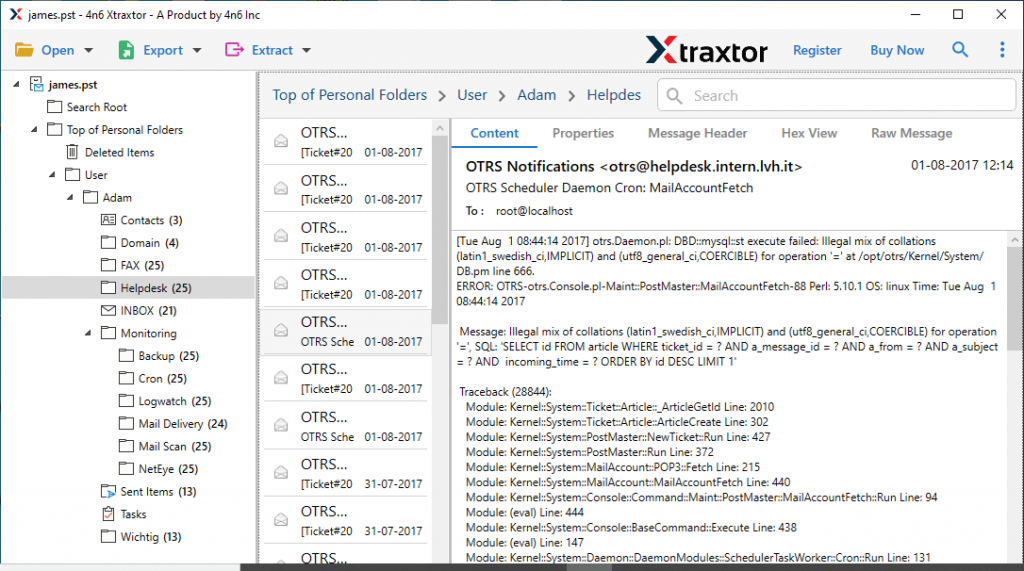
Step 5. Now in this stage click on the Extract and select Attachments from the given option.

Step 6. In the last step, browse the saving location, apply the extension filter and then hit the Save button.

Here we go! You extract attachments from Outlook using this tool without any data alteration.
Benefits of Using Outlook Attachment Extractor
Read this segment and find the reasons to choose this extracting tool to save attachments from Outlook account with complete data.
- File Extension Filter: This tool has a filter option that allows users to extract Outlook attachments with a specific extension. Users need to enter the attachment file extension (.pdf, .xls, etc) and this tool downloads only those attachments.
- Extract Attachemnts Directly: Using this Outlook Attachment Extractor user can download attachments from the configured account. It automatically detects the desktop email client and uploads its email with attachments in its interface for extraction.
- Maintain Attachment Formatting: While extracting email attachments from Outlook, this tool makes sure to uphold its format. Users will get their Outlook attachments in the proper format same as the original.
- Advanced Search option: This Outlook Attachment Extractor offer a search option to print attachments from particular emails. Users can apply filters such as name, to, from, subject, date and time range, and many more.
Conclusion
Today in this write-up we discuss a direct and secure way to extract attachments from Outlook in bulk. Using this tool users can automatically copy multiple attachments from a configured Outlook account and save the extracted attachments in a single text file. Users can use the demo version of this Outlook Attachment Extractor and print Outlook attachments without data loss.